
Most AI image tools give you more than a text box. Midjourney accepts settings typed at the end of a prompt. Open models such as Stable Diffusion, run through tools like the Hugging Face Diffusers library, expose settings for size, guidance, negative prompts and seeds. These settings look technical, but each one answers a simple question: what shape is the picture, how closely should the model follow my words, what should it leave out, and can I get the same result again?
This guide explains the five settings you will meet most often, what each one does, and when to change it. It uses Midjourney's own documentation and the Hugging Face Diffusers documentation as the reference points, because both explain the settings in plain terms.
Why settings matter at all
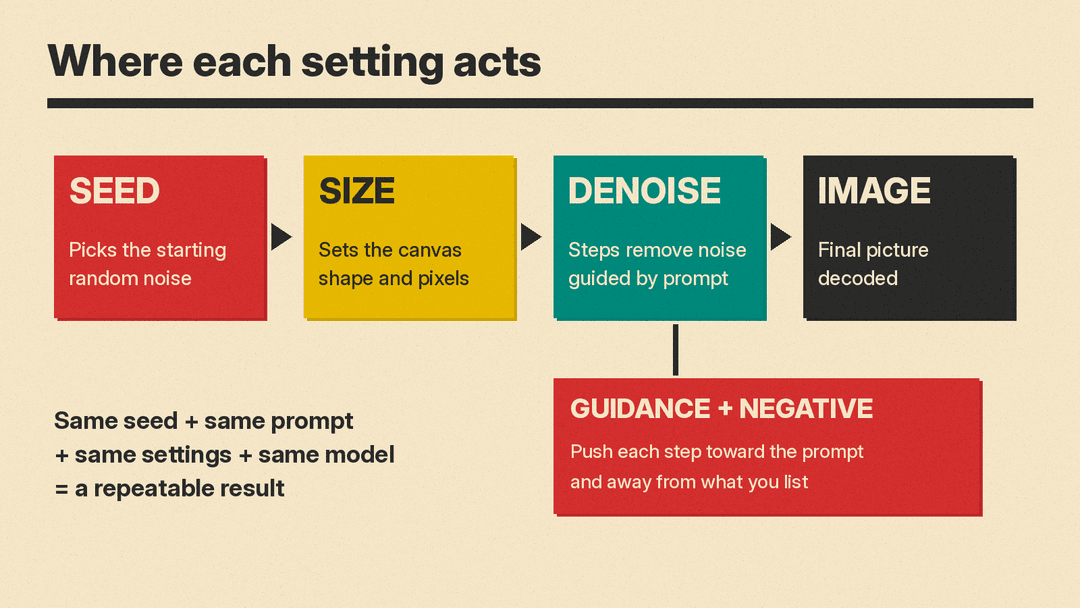
A diffusion image model starts from random noise and removes that noise step by step until an image appears. The Diffusers text-to-image guide describes it this way: the model "takes a prompt and some random initial noise, and iteratively removes the noise to construct an image," and the prompt guides that process.
That one sentence explains every setting in this guide. The size setting decides the canvas the noise fills. The seed decides which random noise you start from. Guidance decides how hard the prompt pushes on each step. The negative prompt pushes away from things you do not want. Style and variety controls change how much freedom the model takes.
1. Aspect ratio and size: the shape of the canvas
Aspect ratio is the width-to-height shape of the image. A square is 1:1. A phone wallpaper or a vertical social video frame is tall, such as 9:16. A website banner or a slide is wide, such as 16:9.
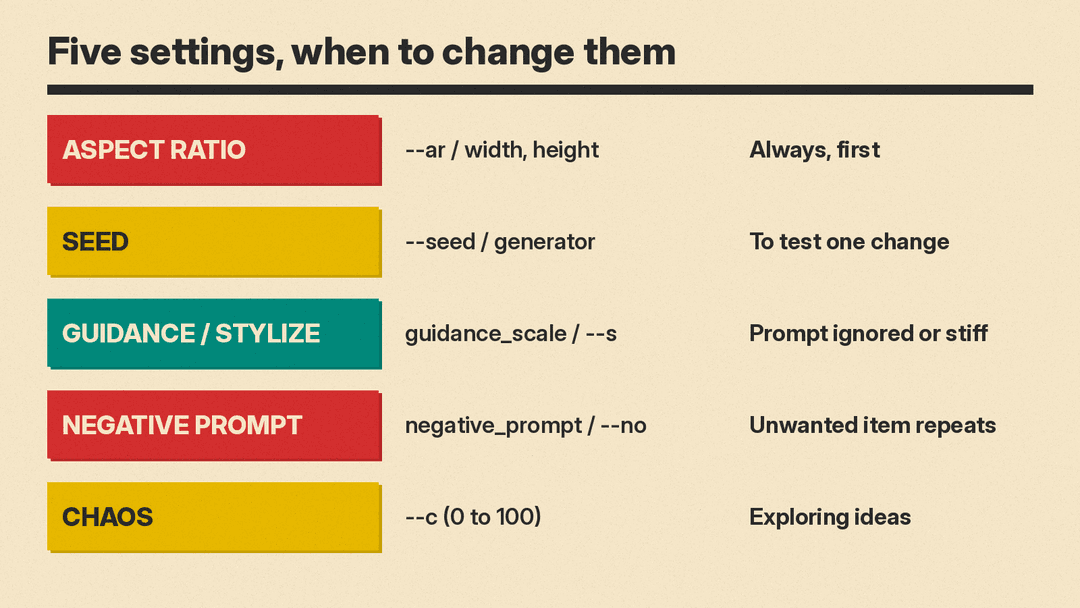
In Midjourney, you set it with --ar (or --aspect) at the end of your prompt. The Midjourney parameter list notes that Midjourney images start as squares unless you change this. Its formatting rules are worth following exactly: put parameters after your prompt text, leave a space before the two dashes, and do not add commas or periods inside the parameters. Its own example of a correct prompt is vibrant California poppies --ar 2:3.
In Diffusers, you set height and width in pixels instead of a ratio. The Diffusers guide gives two cautions that apply to many open models:
- The values must be multiples of 8 for the Stable Diffusion v1.5 pipeline it describes.
- Other models can have different default sizes, based on the image sizes in their training data. The guide's example is SDXL, whose default is 1024x1024, and it warns that using lower height and width values "may result in lower quality images." It tells you to check the model's API reference first.
When to change it: always, before you write a long prompt. Pick the shape for where the image will be used. Composition changes with shape, so an image made square and cropped later often loses its subject at the edges.
2. Seed: the starting point you can repeat
A seed is a number that fixes the random noise the model starts from. Same seed, same prompt, same settings, same model: you get the same or a very similar image again.
Midjourney's Seeds article compares a seed to the random static on a TV screen, "the first step before your image comes to life." You can set any whole number between 0 and 4294967295 with --seed. If you do not set one, Midjourney picks a new random seed every time, which is why the same prompt gives different results.
The most useful advice in that article is about what seeds are not for:
- Use a seed for testing. Lock the seed, change one word in the prompt, and compare. Midjourney calls this having "a control in an experiment."
- A seed does not save a style or a character. It only shapes the starting noise. For a repeat look, Midjourney points you to style references and personalization instead.
- Seeds are not always predictable. Midjourney says a seed may not behave the same way if you come back later, and that changing the model version or other settings can change the result.
- Do not combine seeds with Turbo mode in Midjourney. The article says seed locking is not reliable there.
In Diffusers, the seed is set through a torch.Generator with a manual seed. The Diffusers guide says that creating an image with a generator "should return the same result each time instead of randomly generating a new image."
When to change it: leave it random while you explore. Lock it once you have an image you like and want to make small, controlled edits to the prompt.
3. Guidance scale: how strictly the model follows your words
Guidance scale controls how much the prompt influences each denoising step. The Diffusers guide explains both ends of the dial:
- A lower value gives the model "creativity" to make images that are more loosely related to the prompt.
- A higher value pushes the model to follow the prompt more closely.
- If the value is too high, the guide says you "may observe some artifacts in the generated image."
So guidance is a trade. Too low and the image drifts from what you asked for. Too high and it can look harsh or broken. Starting from the tool's default and moving in small steps makes the effect easier to see.
Midjourney's parameter list has no guidance scale setting, but its stylize setting answers a related question from the other side. The Stylize article describes it as a slider for "how much artistic creativity is applied to your image." A low value follows the prompt closely. A high value gives Midjourney more freedom, which can look more artistic but "could stray from the exact details of your prompt." You set it with --stylize or --s, and the article gives a range of 0 to 1000.
When to change it: raise guidance (or lower stylize) when the model keeps ignoring a detail you asked for. Lower guidance (or raise stylize) when results look stiff and you care more about mood than exact content.
4. Negative prompt: what to leave out
A negative prompt lists things you do not want. The Diffusers guide says it "steers the model away from things you don't want the model to generate." It names two common uses:
- Quality cleanup. People add terms such as "low resolution" or "bad details" to steer away from poor features. The guide's own example uses "ugly, deformed, disfigured, poor details, bad anatomy."
- Removing content or style. The guide says a negative prompt can also "remove or modify the content and style of an image," and its example uses a negative prompt of just "astronaut" on a prompt that asks for one.
In Midjourney, the equivalent is the --no parameter, which the parameter list describes as telling Midjourney what you do not want in your image. For example, a quiet street cafe at dusk --no people.
A practical tip: describe what you do want in the main prompt first. A negative prompt works best as a short list of specific things to remove, not as a long catch-all list.
When to change it: when an unwanted object, style or flaw keeps appearing across several tries.
5. Variety and chaos: how different the options should be
Many tools make several images per prompt. Some let you choose how different those images should be from each other.
Midjourney calls this chaos, shown as Variety on its website. According to the Chaos / Variety article, Midjourney makes four images per prompt, chaos is 0 by default, and you can set it anywhere from 0 to 100 with --chaos or --c. Higher values make the four images more different from each other, but the article warns they "may not stick as closely to your prompt."
When to change it: raise it early, when you are looking for ideas and want a wide spread. Set it back to low once you know the direction and want refinements.
A simple workflow that uses all five
You do not need to touch every setting on every image. This order keeps changes easy to read:
- Set the shape first. Choose the aspect ratio or size for where the image will live.
- Explore with variety. Write a clear prompt, leave the seed random, and raise chaos or run a few batches to see different directions.
- Pick a winner and lock its seed. Copy the seed of the image you like. Midjourney's Seeds article explains how to copy it from the image's options on the website.
- Adjust one thing at a time. Change a word, the guidance or the stylize value, and compare against the locked seed.
- Clean up with a negative prompt. Remove stray objects or flaws with
--noor a negative prompt.
The point of this order is that each step changes one variable. If you change the prompt, the seed and the guidance at once, you cannot tell which change helped.
What these settings cannot do
Settings shape a result, but they do not replace a clear prompt. A precise description of subject, setting, lighting and style still does most of the work. Settings also do not carry over perfectly between tools: a guidance value or a seed that works in one model can behave differently in another, and Midjourney's own documentation says seeds can change behavior across versions and sessions.
For a repeat character or a consistent brand look across many images, use the tools built for that, such as style references and reference images, rather than seeds alone. Our guide to creating consistent characters with AI image generators covers that in more detail, and our beginner's guide to AI image prompts covers the prompt itself.
