
Your ChatGPT history can hold months of work: drafts, plans, research, recipes, code and long personal threads. If you want a copy of it, for a backup, before you change accounts, or just to see what is stored, ChatGPT lets you request an export. The process is simple, but it has a few rules that catch people out, such as a download link that stops working after a day.
This guide walks through how to export your ChatGPT data, based on OpenAI's help article on exporting ChatGPT history and data. Menu names can change between app versions, so follow the labels you see on screen.
What a ChatGPT data export is
A data export is a copy of eligible data from your ChatGPT account, sent to you as a download. OpenAI says the downloaded ZIP file "includes your chat history and other relevant account data."
OpenAI describes the export as a way to request a copy of your data.
OpenAI also gives a clear warning: downloaded data can include sensitive account information, so keep your download link and the exported files secure. Treat the ZIP file the way you would treat a folder of private emails.
Two ways to request your data
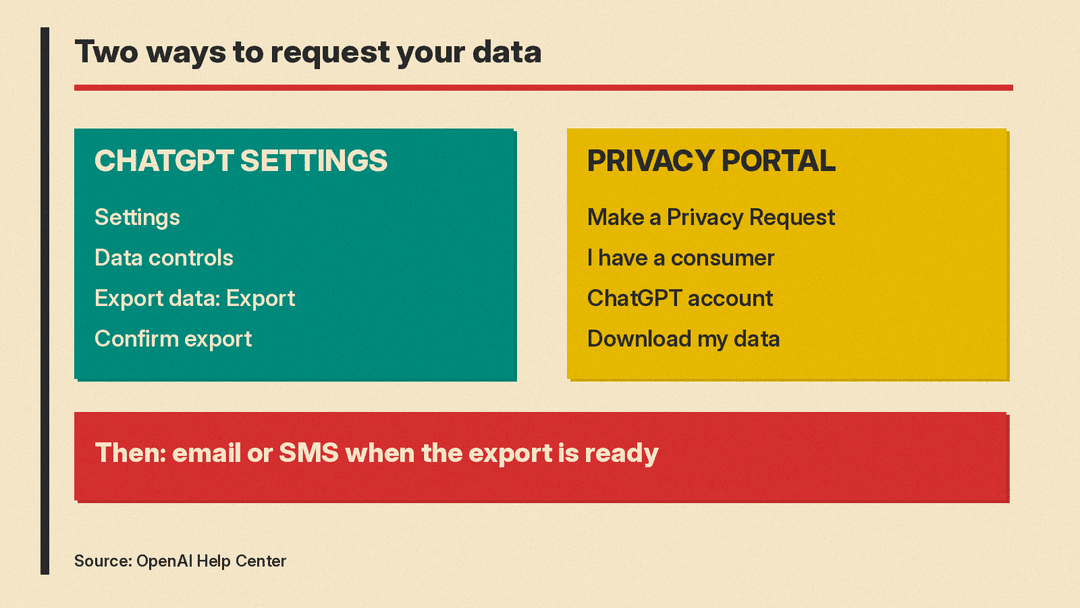
OpenAI offers two routes:
- ChatGPT settings. Request an export from an eligible signed-in account or workspace.
- The Privacy Portal. Submit a data request or exercise other privacy rights. This route also works if you cannot sign in to ChatGPT.
Before you start either one, make sure you can reach the email inbox or phone number tied to your account. OpenAI says you may need to verify account ownership, and the finished export arrives by email or SMS.
Who can use the export option in settings
According to OpenAI, exports requested from ChatGPT settings are:
- Available for ChatGPT Free, Go, Plus, Pro, and eligible ChatGPT Edu workspaces.
- Not available while you are logged out.
- Not available for ChatGPT Business, Enterprise, or ChatGPT for Healthcare workspaces.
If you use a ChatGPT Business, Enterprise, or ChatGPT for Healthcare workspace, OpenAI says to contact your workspace owner about organization-managed data access. Self-service export is not available in those workspaces.
For ChatGPT Edu, OpenAI says export "depends on your assigned role, workspace settings, and whether data residency is enabled." If you do not see an export option in an Edu workspace, ask your workspace administrator.
How to export ChatGPT data on the web
These are the steps OpenAI lists for the web:
- Sign in to ChatGPT.
- Open your profile menu.
- Select Settings.
- Select Data controls.
- Under Export data, select Export.
- On the confirmation screen, select Confirm export.
Data controls is also where you manage other privacy settings. If you want to choose whether your chats help improve OpenAI's models, see our guide to ChatGPT data controls and the training opt-out.
How to export ChatGPT data on iPhone and iPad
On iOS, OpenAI's steps are:
- Open the ChatGPT app and open your account settings.
- Select Data controls.
- Select Export data.
- Select Confirm export.
If the app instead offers Open ChatGPT on web, select it, sign in to the same account, and complete the web steps above.
How to export ChatGPT data on Android
On Android, OpenAI's steps are:
- Open the ChatGPT app and open Settings from your profile menu.
- Select Data controls.
- Select Export Data.
- Review the confirmation and select Export Data.
As on iOS, if the app offers Open ChatGPT on web instead, select it, sign in to the same account, and finish on the web.
How to request your data through the Privacy Portal
The Privacy Portal is the other route, and it is the one to use if you cannot sign in to ChatGPT. OpenAI's steps:
- Go to the Privacy Portal.
- Select Make a Privacy Request.
- Select I have a consumer ChatGPT account.
- Select Download my data, then follow the instructions.
If your problem is a forgotten password, OpenAI points to its separate help page on resetting or changing your ChatGPT password.
How to download your export
When the export is ready, ChatGPT sends an email or SMS message. OpenAI says exports "can take up to 7 days to arrive," so do not worry if it is not instant.
Then:
- Open the message and select Download data export.
- Make sure you are signed in to the same account that requested the export.
- Download the file promptly. The download link expires 24 hours after you receive it.
- Open the ZIP file and check that it contains the conversations you need.
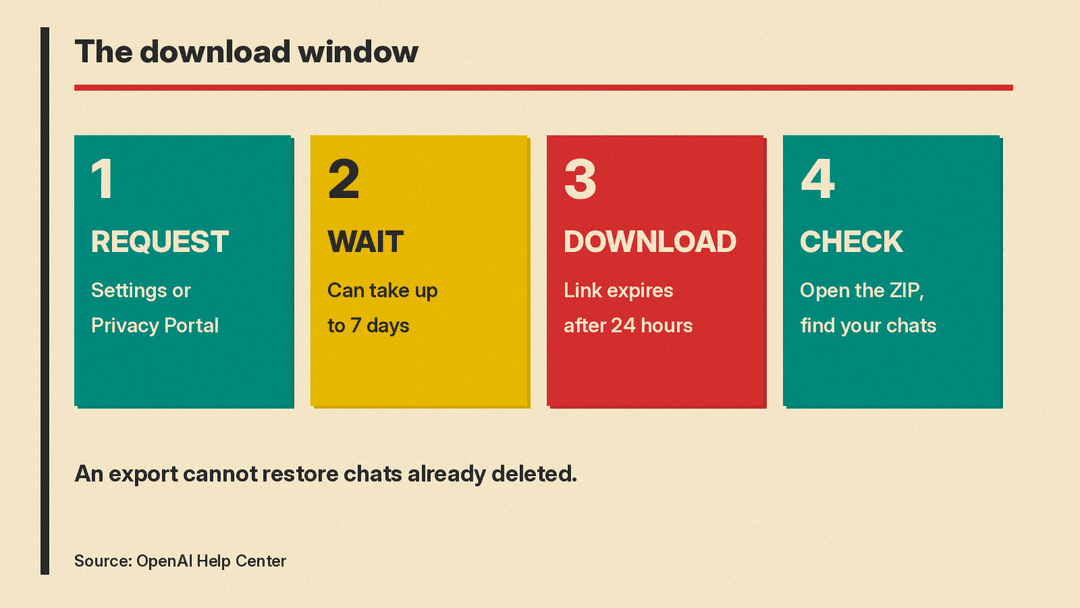
The 24-hour limit is easy to miss. If you request an export, plan to check your inbox or messages over the next few days and download it as soon as it lands.
What an export cannot do
An export is a snapshot of what is in your account when you ask. OpenAI is explicit that "an export cannot restore chats that have already been deleted." If you deleted a conversation before requesting the export, it will not come back through this route.
That makes timing matter. If you are about to clean up old chats, request and download your export first, then delete. Our guide to Temporary Chat, locked chats and deleting chats in ChatGPT explains the deletion options.
An export is also not an account move. ChatGPT does not merge accounts or move chats from one account's chat history into another. OpenAI's guide to transferring exported conversations says you can upload the exported conversation JSON file to a new chat in another personal ChatGPT account, where ChatGPT can use it as reference. The old chats do not come back as separate chats in your sidebar.
Moving to a work or school workspace? Export first
OpenAI flags one situation where an export is especially important. If you plan to move or merge a personal workspace into a ChatGPT Business, Enterprise, Edu, or ChatGPT for Healthcare workspace, OpenAI says to "request, download, and check your data export before the personal workspace is removed."
The reason: after a personal workspace is removed, OpenAI says you may no longer be able to open an earlier export link or request another export from that workspace. In other words, the window to save your personal history may close.
A safe order of steps:
- Request the export from your personal workspace.
- Wait for the email or SMS and download the ZIP file within 24 hours.
- Open the file and confirm the chats you care about are there.
- Only then go ahead with the move or merge.
Troubleshooting a ChatGPT data export
OpenAI's help article covers four problems.
The export has not arrived. Exports can take up to 7 days. Check the inbox, spam and promotions folders for the email address on your account. If your account uses only a phone number, check your SMS messages. If nothing has arrived after 7 days, contact OpenAI Support.
ChatGPT says an export was already requested. Wait for the existing request to finish before you submit another one. While a request is processing, ChatGPT may show that an export has already been requested.
The download link expired or does not open. Make sure you are signed in to the same account that requested the export. If the link has expired, request a new export through ChatGPT settings or the Privacy Portal. If a recent link does not open on your phone, OpenAI suggests opening the same link on a computer while signed in to the account that requested it.
You cannot sign in. Use the Privacy Portal to request your data instead of the settings menu.
Keep your export safe
Because the file can hold sensitive information, a few common-sense habits help:
- Store the ZIP file somewhere private, not in a shared folder.
- Do not forward the download email or link to anyone else.
- Delete old copies you no longer need.
Quick answers
How long does a ChatGPT export take? OpenAI says exports can take up to 7 days to arrive.
How long does the download link last? The link expires 24 hours after you receive it.
Where does the export arrive? ChatGPT sends an email or SMS message to the contact details on your account.
What file do I get? A ZIP file that includes your chat history and other relevant account data.
Can I export from a Business or Enterprise workspace? Not through self-service. OpenAI says to contact your workspace owner about organization-managed data access.
Can I get deleted chats back with an export? No. An export cannot restore chats that have already been deleted.
Can I export if I am logged out? Not from settings. If you cannot sign in, use the Privacy Portal.
Related ChatGPT privacy guides
An export is one part of managing your ChatGPT data. If you want to control what ChatGPT remembers between chats, read ChatGPT memory explained: how to view, edit or turn it off. For keeping work organized inside ChatGPT, see ChatGPT Projects explained.
