
Asking ChatGPT for an Excel formula is fast. Getting one that works on your sheet takes a better prompt. The AI cannot see your columns, so a short request like "total sales for the West region" makes it guess, and a guess can look right and still return the wrong number.
This guide gives you 25 copy-paste prompts for Excel formulas that you can paste into ChatGPT, Claude or Gemini, a setup block to paste first, and the results of a small test where we checked a local model's formulas in a real spreadsheet. If you are new to prompting, our beginner's guide to writing better AI prompts covers the basics.
Give the AI four facts first
The AI cannot see your sheet, so missing context is one common cause of wrong formulas. Before any template, tell the AI four things:
- Your app and version. "Excel for Microsoft 365," "Excel 2019" or "Google Sheets." This matters. Microsoft's own XLOOKUP page says XLOOKUP is not available in Excel 2016 and Excel 2019, so a modern formula can fail on an older copy.
- Where the data is. The range and the header of each column, for example "A1:E500, headers in row 1: Date (A), Region (B), Rep (C), Product (D), Sales (E)."
- The output cell. "Write a formula for cell H2."
- What a right answer looks like. Every condition, including "and" versus "or," and what to show when nothing matches.
You can paste this block at the start of any prompt below:
I use [Excel for Microsoft 365 / Excel 2019 / Google Sheets].
My data is in [A1:E500] on the sheet [Sales]. Row 1 has headers:
[Date (A), Region (B), Rep (C), Product (D), Sales (E)].
Give me one formula, then one short line on what each part does.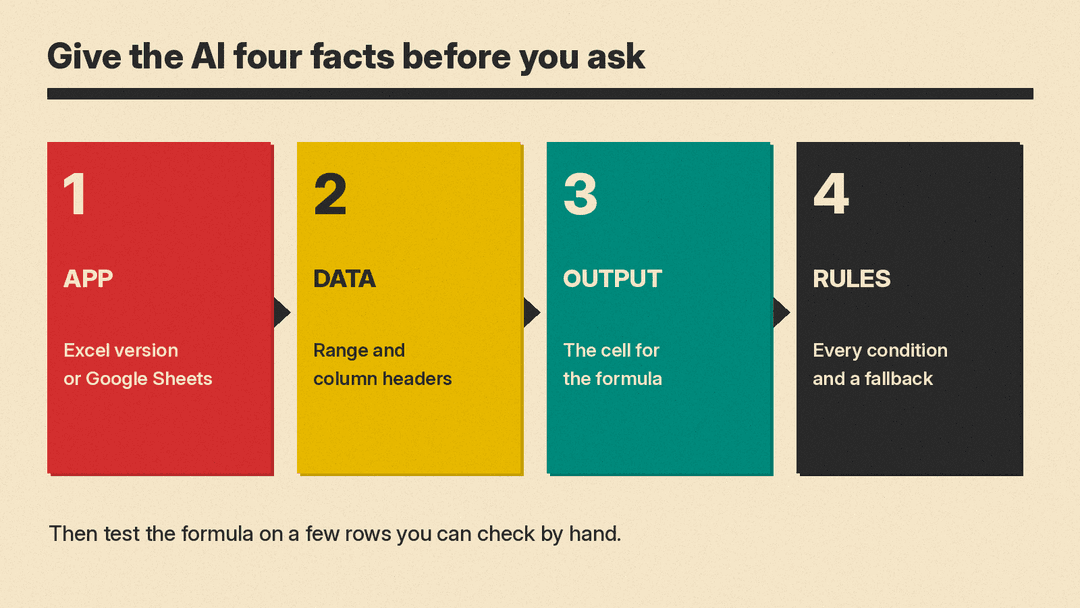
25 Excel formula prompts you can copy
Replace the text in [brackets]. Add the setup block above to each one.
Lookups
- Find a value by name. "Cell [G2] holds a [rep name]. Write a formula for [H2] that returns the [Region] from the first row where that name appears in column [C]. If the name is not in the list, show "Not found"."
- Look up from another sheet. "Write a formula for [Orders!F2] that looks up the [product ID] in [B2] on the sheet [Prices], column [A], and returns the [price] from column [C]. Show "Missing" if there is no match."
- Lookup with two conditions. "Return the [Sales] value where [Rep] equals [G2] and [Product] equals [G3]. Explain how the formula handles more than one match."
- Get the last match, not the first. "Return the most recent [Date] for the rep in [G2], where the newest rows are at the bottom."
- Older Excel version. "I use Excel 2019, so XLOOKUP is not an option. Rewrite this lookup with INDEX and MATCH: [paste formula]."
Sums, counts and averages
- Sum with several conditions. "Add up [Sales] where [Region] is "[West]" and [Product] is "[Widget]". Both conditions must be true."
- Sum between two dates. "Add up [Sales] where [Date] is on or after the date in [J1] and on or before the date in [J2]."
- Count with conditions. "Count the rows where [Region] is "[East]" and [Sales] is greater than [100]."
- Average that skips zeros. "Find the average of [Sales] for [Rep] "[Ana]", ignoring cells that are 0 or blank."
- Running total. "Write a formula for [F2] that I can fill down to show a running total of [Sales] in column [E]."
- Percent of total. "Write a formula for [F2] that shows each row's [Sales] as a percent of the total for its [Region]."
Text cleanup
- Split full names. "Column [A] has full names like "[Maria Lopez]". Write formulas for [B2] and [C2] that return the first and last name. Tell me what happens with middle names."
- Join columns. "Combine [city] in [B2] and [state] in [C2] into "[City, ST]", and leave the cell blank if both are empty."
- Clean messy text. "Column [A] has product codes with extra spaces and mixed case. Write a formula that trims spaces and makes them all uppercase."
- Pull a number out of text. "Cells in column [A] look like "[Order #48213 - shipped]". Write a formula that returns only the order number."
Dates and times
- Days between dates. "Return the number of working days between the start date in [B2] and the end date in [C2], excluding the holidays listed in [H2:H12]."
- Month name from a date. "Return the month name and year, like "[Oct 2026]", from the date in [A2]."
- Overdue flag. "Show "Overdue" if the due date in [D2] is before today and the status in [E2] is not "[Done]"; otherwise leave it blank."
Logic and categories
- Tiers with IF. "Label [Sales] in [E2] as "[Low]" under [50], "[Medium]" from [50] to [99], and "[High]" at [100] or more. Use IFS if my version supports it, and tell me if it does not."
- Check a list. "Show "Yes" if the email in [A2] appears anywhere in the list on sheet [Unsubscribed], column [A], and "No" if it does not."
Lists that update themselves
- Filter rows. "Return every row from [A2:E500] where [Region] is "[West]". Show "No results" if nothing matches." Microsoft's FILTER page says FILTER returns a #CALC! error when there are no results unless you give it the third "if empty" argument, so asking for a fallback in the prompt helps.
- Unique list, sorted. "Return a sorted list of the unique [Rep] names in column [C], with no blanks."
- Top 5. "Return the top [5] rows by [Sales], largest first, with all columns."
Fix and explain
- Explain a formula. "Explain this formula one part at a time in plain English, then tell me any case where it could return the wrong answer: [paste formula]."
- Fix an error. "This formula shows [#N/A / #VALUE! / #SPILL!]: [paste formula]. Here are 3 sample rows: [paste rows]. Tell me the likely cause and give a fixed formula." Microsoft's page on dynamic array formulas says Excel returns #SPILL! when something blocks the range a formula wants to fill, and that the formula spills as expected once you remove the blockage.
What happened when we tested these prompts
We built a 10-row sales table (Date, Region, Rep, Product, Sales in A1:E11), sent three prompts to Gemma 3 1B, a small open model running on our own computer, with temperature 0 on October 27, 2026, then pasted each formula it gave into the sheet and checked the result in LibreOffice Calc. We did not test ChatGPT, Claude or Gemini, so treat this as a picture of the kinds of mistakes to check for, not a score for any app.
- Bare prompt. "Write an Excel formula to total sales for the West region." The model answered
=SUM(C:C). In our table column C holds rep names, so the result was 0, and the formula has no West condition at all. Its note said to swap C:C if sales were in a different column. - The "Sum with several conditions" prompt, with the setup block. With the columns named, it used the right columns but dropped the second condition:
=SUMIF(B:B, "West", E:E)returned 435, the total for all West rows. The correct answer for West and Widget was 300, which we got from SUMIFS:=SUMIFS(E2:E11,B2:B11,"West",D2:D11,"Widget"). - The "Find a value by name" prompt, with the setup block. The model wrapped MATCH in an IF that searched the whole table, A1:E11, instead of the Rep column. For a rep who was in the list, its formula showed "Not found".
=XLOOKUP(G2,C2:C11,B2:B11,"Not found")returned the right region, and showed "Not found" for a name that was not there.
We also tried a fix-it prompt on the broken sum: we pasted =SUMIF(B:B, "West", E:E) and asked if it did what we wanted. The model correctly said it only checks the region, then offered the same formula as the "corrected" version.
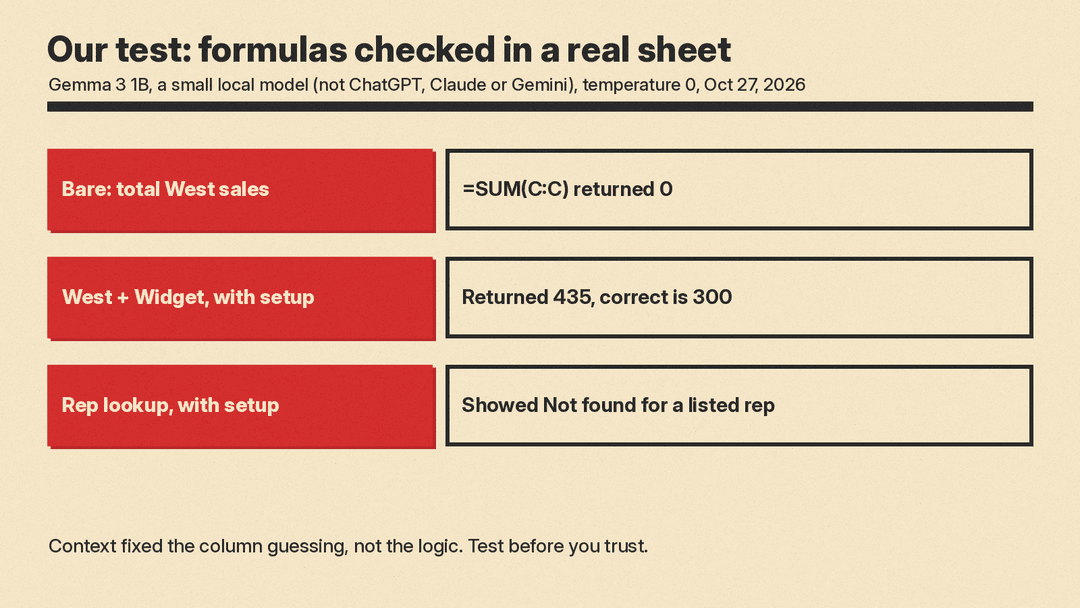
The lesson: context fixed the column guessing, but not the logic. A formula can run without an error and still be wrong.
How to check a formula in two minutes
- Test on rows you can add up by hand. Filter the sheet to the same conditions and compare the status bar total with the formula's result.
- Try a case that should fail. Type a name that is not in the list, or a date range with no rows, and confirm you get your fallback text, not an error.
- Ask the AI to name every condition. "List each condition this formula checks" makes a missing "and" easy to spot.
- Check function support. If a coworker opens the file in an older Excel, newer functions may not work for them.
- Keep ranges tight. A range like E2:E500 is easier to check than a whole column, and it makes the AI's explanation easier to follow.
The same habit works for any AI answer. Our 5-minute routine for fact-checking AI answers covers the rest. If you want AI built into the spreadsheet itself, see our list of the best AI tools for Excel and Google Sheets.
The short version
- Name your app and version, your range and headers, the output cell and every condition.
- Ask for one formula plus a short explanation of each part.
- Ask for a fallback, such as "Not found" or "No results," so empty cases do not show errors.
- Test the formula on a few rows you can check by hand before you trust it.
- When it is wrong, paste sample rows and the formula back in and ask what each condition checks.
