

If you have heard of NotebookLM, you already know Gemini Notebook. Google renamed NotebookLM to Gemini Notebook on July 16, 2026. Google says it is "the same standalone product," now "doing more across the Google ecosystem."
This guide explains what Gemini Notebook is, how it differs from a regular AI chatbot, what you can make with it, how to start your first notebook, and what to keep in mind about privacy and accuracy. It is written for students, researchers, writers and anyone who works with a lot of documents, not for developers.
What Gemini Notebook is
Google's help center describes Gemini Notebook as "an AI-powered research assistant designed to help you refine and organize your ideas."
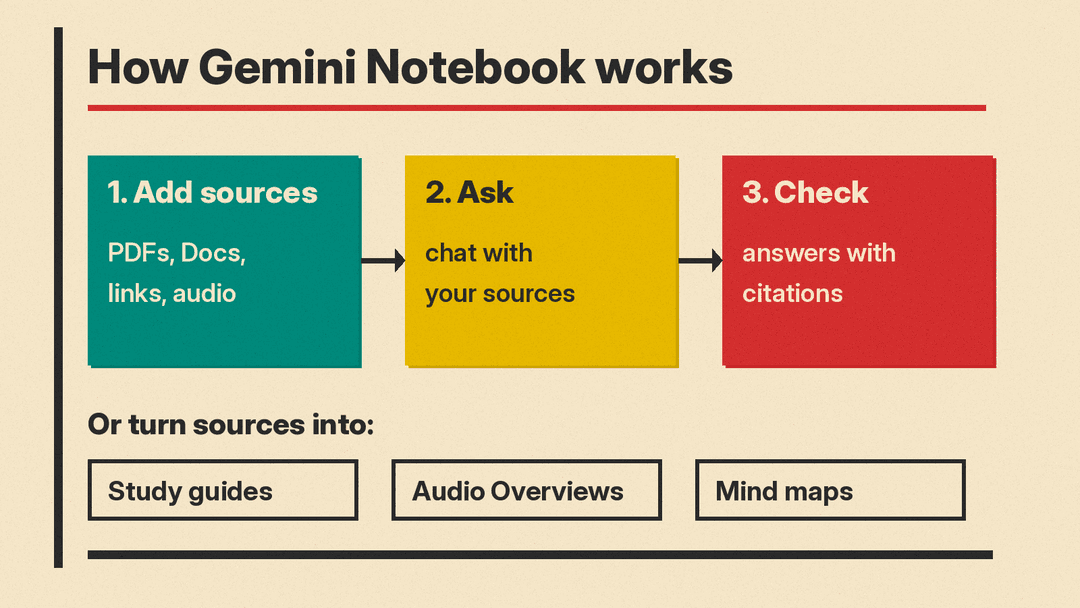
The core idea is simple. You create a notebook for a project, add your own material to it, and then ask questions about that material. Gemini Notebook answers from your sources and shows what Google calls "clear in-line citations," so you can check where an answer came from.
That is the main difference from a general chatbot. Google's help page on notebooks in AI Mode says Gemini Notebook "grounds responses exclusively in your notebook sources," while notebook chats in the Gemini app and AI Mode in Search "may also include web search and other tools." Another help page lists "information not in sources" as one reason the tool may not answer a question, because it "is designed to answer questions based on the information provided in your uploaded sources."
Where the name came from
Google first showed the product at Google I/O 2023 under the name Project Tailwind, then called it NotebookLM. In the rename announcement, Josh Woodward, Google's VP for Google Labs, the Gemini app and AI Studio, wrote that it "remains a standalone product focused on being your premier research tool, but it will now do more across the Google ecosystem, including inside the Gemini app and Google Search."
The Google Workspace Updates blog adds two practical points:
- Existing shared notebooks and links keep working through automatic redirects.
- Mobile users may need to update their app to see the new name and logo.
So if you used NotebookLM before, your notebooks did not go anywhere.
What you can put in a notebook
A notebook is only as useful as its sources. Google's sources help page lists the types it supports, including:
- PDF files, Microsoft Word, text, Markdown, CSV and PowerPoint files
- Google Docs, Google Slides and Google Sheets
- Web URLs and the URLs of public YouTube videos
- Audio files, such as MP3 and WAV
- Images in common formats such as JPEG, PNG and WebP
- Copied and pasted text, and your own notes
- ePub files and eligible ebooks from Google Play (text only)
Google says a source is "a copy or auto-synced version of the source document you import or upload," and that the model uses those sources to answer your questions. There are limits on the size of each source and on how many sources a notebook can hold, and they depend on your plan. Check Google's plans page for the current numbers.
The help page also gives one rule worth repeating: avoid uploading documents you do not have the rights to.
Chatting with your sources
Once your sources are in, you use the chat panel like any AI assistant, with two differences.
First, you can choose which sources the chat uses. Google's help page says you can "select them individually in the 'Source' panel" to chat with a specific set.
Second, specific questions work better than broad ones. Google suggests naming the source in your question when several are selected. Its own example: instead of "Summarize this source," ask "What are the key findings about dog training in the 'Dog Training 101' document?"
Google also offers an automatic summary of each source in what it calls the Source Guide, so you can get the gist of a long document before you start asking questions.
What you can make from your sources
Beyond chat, Gemini Notebook can turn your sources into other formats. Google's overview names study guides, briefings, Audio Overviews and mind maps, among others. These live in a panel Google calls "Studio."
Audio Overviews
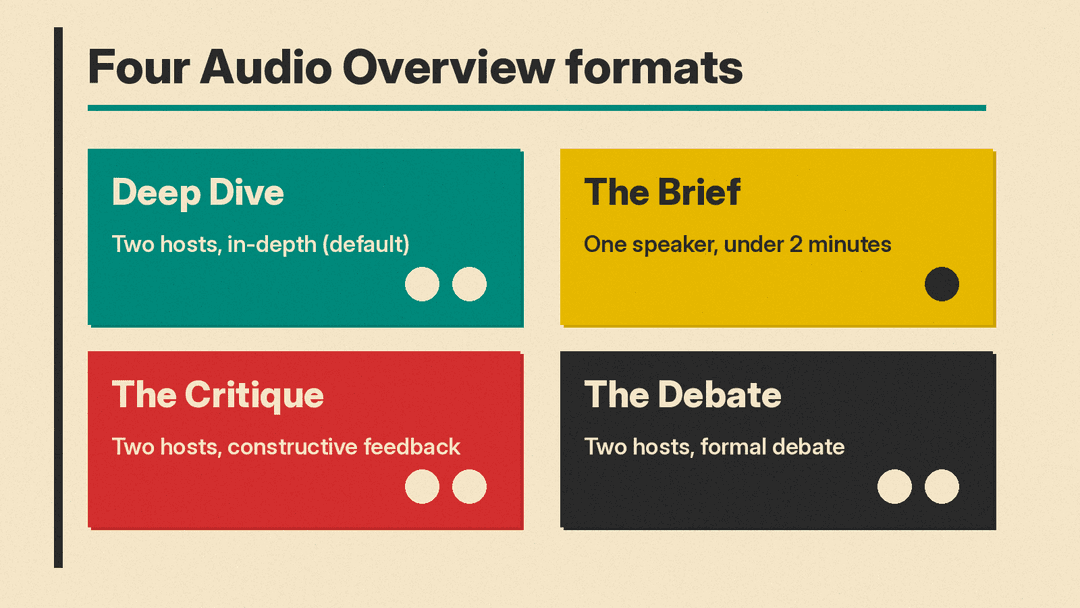
Audio Overviews are the feature many people know NotebookLM for. Google's Audio Overview help page describes them as "deep-dive discussions between AI hosts" that summarize the key topics in your sources. It lists four formats:
- Deep Dive (the default): two hosts unpack and connect topics from your sources.
- The Brief: a single speaker gives the key takeaways in under two minutes.
- The Critique: two hosts give constructive feedback on material such as an essay or a design doc.
- The Debate: two hosts hold a formal back-and-forth debate on the topic.
You can pick a language, choose a shorter, default or longer length (the length option is English only), and type a prompt to focus on specific topics or set the expertise level. Google warns that Audio Overviews "are AI-generated and may contain inaccuracies or audio glitches."
Study guides, briefings and mind maps
Study guides, briefings and mind maps are other Studio outputs that reshape your sources into something easier to review. Treat them as a first pass and check them against the sources.
Running code on your data
In the rename announcement, Google said it had started to roll out "a secure cloud computer" for every notebook, which lets Gemini Notebook "write and execute code natively" for data analysis grounded in your sources. At launch Google said this was for Google AI Ultra users and Workspace business customers with AI Ultra Access and AI Expanded Access first, with Pro users on the web to follow. Availability by plan can change, so check your own account.
How to start your first notebook
Here is the basic flow, based on Google's help pages:
- Sign in with a Google Account. A personal account works. If you use a work or school account, your organization's admin needs to turn on access.
- Open Gemini Notebook in your browser, or Notebooks in Gemini. Google says notebooks sync between the Gemini app and the standalone Gemini Notebook.
- Create a new notebook and choose Add sources.
- Upload files, paste text, or add links to web pages or public YouTube videos.
- Read the auto-generated summary for each source, then ask your first question in chat.
- Open the Studio panel to make an Audio Overview, a study guide or a mind map.
A good first project is something you already know well, such as your own notes from a course or a report you wrote. That makes it easy to spot when an answer or summary gets something wrong.
Who it is useful for
In July, Google said more than 30 million people and over 600,000 organizations were using the product, from "business owners creating interactive onboarding materials to students converting notes into audio and video summaries."
Some common fits:
- Students: put lecture notes, readings and slides in one notebook, then ask questions and listen to an Audio Overview before an exam.
- Researchers and analysts: compare several reports or papers and ask where they agree or differ, with citations back to each one.
- Writers and journalists: load interview transcripts and background documents, then find quotes and facts quickly.
- Teams: share a notebook so everyone asks questions against the same documents. Google says Gemini Notebook is included in all Workspace plans, according to its Workspace product page.
Privacy and accuracy
Two things to know before you upload anything.
How your data is used. Google's help center says for personal accounts: "Your data is protected, and is not used to train Gemini Notebook unless you provide feedback." If you send feedback, Google "may review the full context of that interaction, including your queries, uploads, and the model's responses." For Google Workspace and Workspace for Education users, Google says uploads, queries and responses "will not be reviewed by human reviewers, and will not be used to train AI models."
Accuracy. Answers grounded in your sources can still be wrong. Google's own help page says Gemini Notebook "can make mistakes" and advises consulting "a qualified professional for medical, legal, or financial advice." Use the citations: read the passage an answer is based on before you rely on it. Our guide to fact-checking AI answers has a short routine that works here too.
Google also notes that some questions go unanswered because a source "contains language that triggers a safety flag," which can happen with sensitive topics "even in historical contexts." If you work with historical or legal material and get no answer, that may be the reason.
Gemini Notebook vs the Gemini app
Both carry the Gemini name, so the difference is worth stating plainly:
- The Gemini app is Google's general AI assistant. Use it for open questions, drafting and everyday tasks. If you want a reusable set of instructions there, see our explainer on Gemini skills.
- Gemini Notebook is a research tool built around your own sources, with citations. Use it when the answer must come from specific documents.
The two are connected: Google says you can create and open notebooks inside the Gemini app, and its help center says notebooks also appear in AI Mode in Google Search, in English only and outside the European Economic Area (as of October 2026). For one of Google's newer models, see our Gemini 4 Argon explainer.
The short version
Gemini Notebook is NotebookLM under a new name. You give it your documents, it answers from them with citations, and it can turn them into study guides, mind maps and Audio Overviews, which are discussions between AI hosts. It is most useful when you need answers from specific material rather than from the open web. Check its citations, mind what you upload, and treat its summaries as a first draft.
Sources
- NotebookLM is now Gemini Notebook (Google blog)
- NotebookLM is now Gemini Notebook (Google Workspace Updates)
- Learn about Gemini Notebook (Google help)
- Add or discover new sources for your notebook (Google help)
- Generate Audio Overview in Gemini Notebook (Google help)
- About notebooks in AI Mode in Google Search (Google help)
- Learn about Gemini Notebook's plans (Google help)
- Gemini Notebook for business (Google Workspace)
