
Google is adding a source trail to AI-filled spreadsheets. In an October 28 Google Workspace Updates post, the company said that when you use the AI function in Google Sheets to generate cell values, Gemini now shows the exact web sources it used inside each individual cell. The same update raises the size of a single Fill with Gemini request to up to 3,000 cells and promises faster, more consistent results.
If you use Sheets to build lead lists, research tables or product catalogs, you can now check AI-filled values one cell at a time.
What changed
Google lists three changes in the announcement:
- Cell-level web citations. When the AI function pulls information from the web, each generated cell now carries its own sources. Google says this lets you "audit, verify, and cross-reference outputs." The citations are available in Google Sheets on the web.
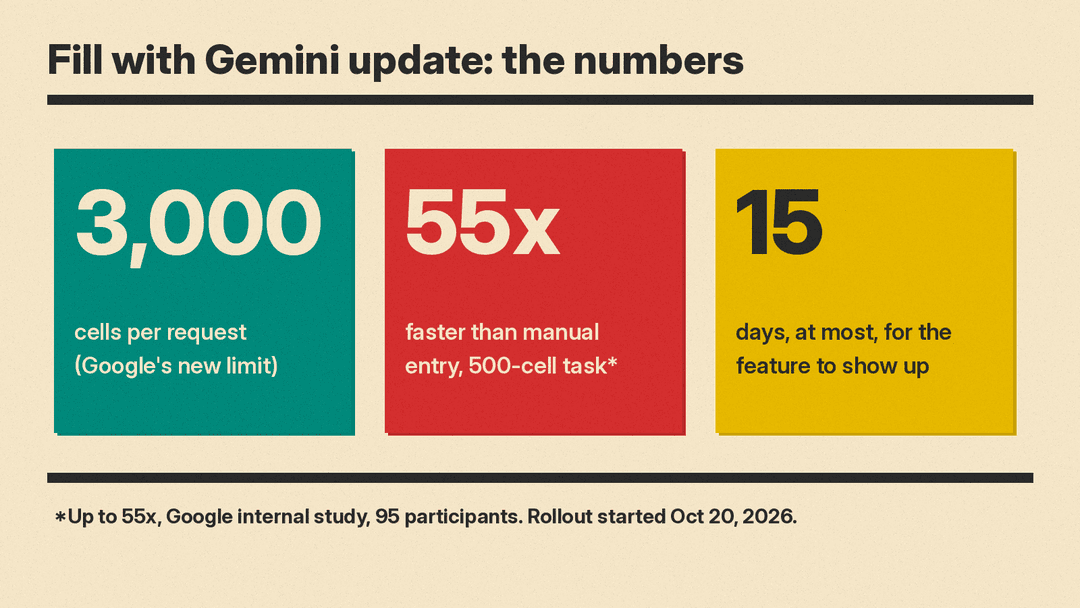
- Bigger requests. Fill with Gemini now supports up to 3,000 cells per request, so you can summarize, categorize or process more data in one pass.
- Faster, more consistent output. Google says upgraded processing gives faster responses and better "cell-over-cell consistency." It claims Fill with Gemini is up to 55 times faster than manual entry for 500-cell tasks.
That 55x figure comes with a footnote. Google says it is based on a 95-participant internal study that compared manual entry against Fill with Gemini on a 500-cell task, using English prompts with English-language users. It is Google's own measurement, not an independent test, and it compares the tool with typing values by hand, not with other AI tools.
What Fill with Gemini and the AI function do
Google's help page for the =AI() function also covers Fill with Gemini. According to Google's help page for the AI function, you can type =AI() or =Gemini() in a cell, give it a prompt and, optionally, a range of cells to work from. Google's examples include writing a one-sentence summary of customer feedback, sorting customer inquiries into compliments, exchange requests or return requests, scoring sentiment, and pulling current facts such as a city's population from Google Search.
The help page also describes two ways to fill whole columns. If a column already has at least one completed cell, you can drag to fill the rest based on the table's context. For an empty multi-cell selection, a one-click "Fill" option either fills cells automatically or takes a custom prompt.
The new citations are for web sources. Summarizing your own customer notes uses data already in the sheet. Questions such as a city's population pull current facts from Google Search, and those are the cells that now show their sources.
How to check a cell's sources
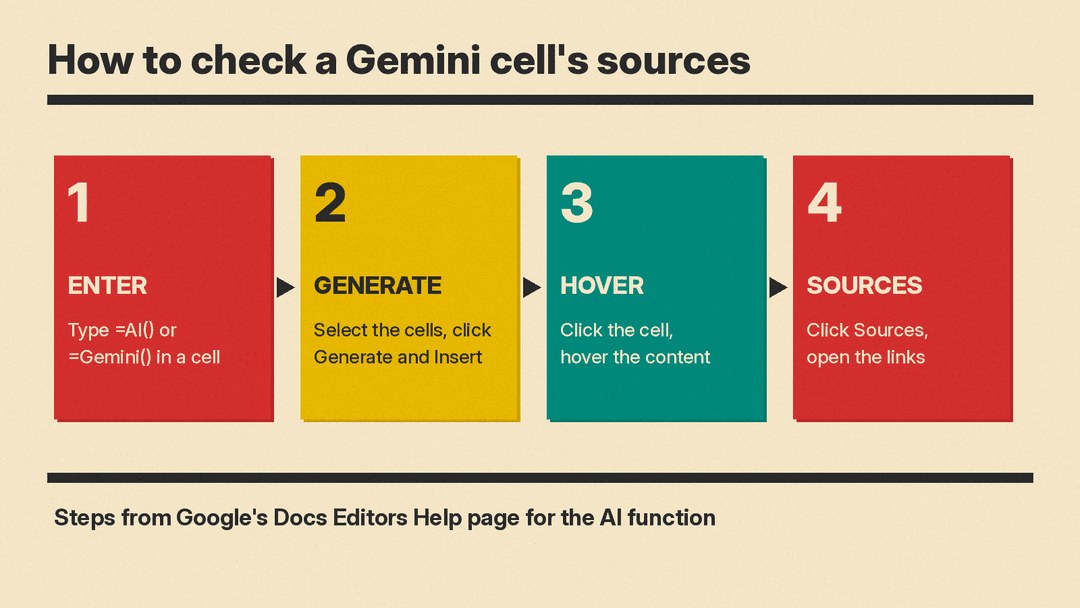
Google's help page gives these steps for the AI function:
- Open a spreadsheet in Google Sheets on your computer.
- In a cell, enter an AI function. You can use =AI() or =Gemini().
- Select the cell or cells with an AI function and click Generate and Insert.
- To see the web sources behind a response, click into a cell, hover over the content and click Sources.
To open Gemini in the side panel, the announcement says to click "Ask Gemini" (the spark button) in the top right corner of Sheets. Google's separate Gemini Agent for Work also runs in Sheets as part of longer tasks across Workspace apps; see our Gemini Agent for Work explainer.
Who gets it, and when
Google says the feature is on by default for users who have Gemini in Sheets enabled. The gradual rollout to both Rapid Release and Scheduled Release domains started on October 20, 2026, and can take up to 15 days for the feature to become visible.
Plans listed in the announcement:
- Business Standard and Business Plus
- Enterprise Standard and Enterprise Plus
- Google AI Pro and Ultra (consumer)
- Google AI Pro for Education
- the AI Expanded Access add-on
If you see an "AI function not available" message, the help page says the cause can be your plan, your admin settings, your language setting, or that you are not in the Workspace Experiments program.
For what these plans cost, see our Microsoft 365 Copilot vs Gemini in Google Workspace comparison.
Limits worth knowing
The help page lists several limits that still apply:
- Responses are text only.
- The AI function does not read your whole spreadsheet or other files in Google Drive. Put the data in the current sheet and pass it as the range argument; Google says this is "highly recommended" for better output.
- You cannot undo or redo the function. You regenerate instead.
- AI functions cannot be nested inside other formulas, such as an
IF. - There are short-term and long-term generation limits. If you hit the long-term limit, you may have to wait 24 hours.
- The AI function does not work when you open Sheets through other cloud storage providers, such as Box, Dropbox or Egnyte.
- When you select many cells that contain AI functions, the help page says only the first 350 selected cells are generated. You can then select more. The 3,000-cell figure in the announcement is for a single Fill with Gemini request.
The help page also warns that Gemini features "may suggest inaccurate or inappropriate information" and should not be relied on as medical, legal, financial or other professional advice.
Why it matters for teams
Google says the cell-level sources let you "audit, verify, and cross-reference outputs." The help page still warns that Gemini can be wrong.
Per-cell citations do not make the answers correct. They make each web-sourced value easier to check. A practical routine:
- Spot-check a sample of web-sourced cells before you share or act on the sheet.
- Open every source for anything that drives a decision, such as pricing, contact details or compliance facts.
- Prefer cells backed by an official or primary source over cells backed by aggregator pages.
- Keep a "checked" column so the team knows which rows a person has verified.
If you are comparing spreadsheet AI options, our guide to the best AI tools for Excel and Google Sheets covers the main tools side by side.
