
A long PDF lands in your inbox: a report, a contract, a research paper, a set of meeting minutes. ChatGPT, Claude and Gemini can all read an uploaded PDF and summarize it in a few seconds. The catch is that a summary can sound right and still be wrong, and you will not notice unless you know where to look.
This guide shows how to upload a PDF to each of the three chatbots, a five-step workflow that makes summaries easier to check, and copy-paste prompts for the most common jobs. We also ran the prompts on a small local model to see where summaries go wrong. Short version: the summary itself was mostly fine, but a question about something the document did not say got a confident, wrong answer.
How to upload a PDF to ChatGPT, Claude and Gemini
The steps below come from each company's help pages. Limits change, so treat the numbers as a snapshot as of October 2026 and check the linked page if a file is rejected.
ChatGPT. OpenAI's file upload help page says to select + in the prompt area, then Add photos & files, then describe what you want, such as "summarize a document." Document uploads are available on Free and paid plans "subject to plan-specific limits." As of October 2026 the page lists a maximum of 512 MB per document and 2 million tokens per text or document file, and says Free users are limited to 3 file uploads per day.
ChatGPT can also read charts and diagrams inside a PDF. OpenAI's file upload help page says it "can analyze both text and images in PDFs, including charts and diagrams," and that this also works when you attach the PDF directly in a chat with a GPT or in a project chat. One detail matters if you use Projects or custom GPTs: files saved as GPT knowledge or project files "are handled differently from direct chat attachments," and embedded images "may not be included automatically." If you want a chart summarized, attach the PDF to the chat.
Claude. Anthropic's upload guide says to click the + button in the lower left of the chat box, choose Add files or photos, and pick the file, or drag it into the chat. As of October 2026 it lists 500 MB per file, up to 20 files per chat, and a 1,000-page limit for PDFs. Claude analyzes "both text and visual elements" in PDFs of 100 pages or fewer. For PDFs from 101 to 1,000 pages, it "processes text only and doesn't analyze visual elements." Files added to a Project's Files section have a lower 30 MB limit.
Gemini. Google's Gemini Apps help page says to go to gemini.google.com, type your prompt, click Add files, then Upload Files (from your computer) or Add from Drive, and click Submit. As of October 2026 you can add up to 10 files in one prompt ("subject to availability"), and non-video files can be up to 100 MB. If Gemini says it failed to analyze your file, Google's advice is to re-upload it.
The limits matter most for very long files and for PDFs where the charts carry the meaning.
The 5-step workflow
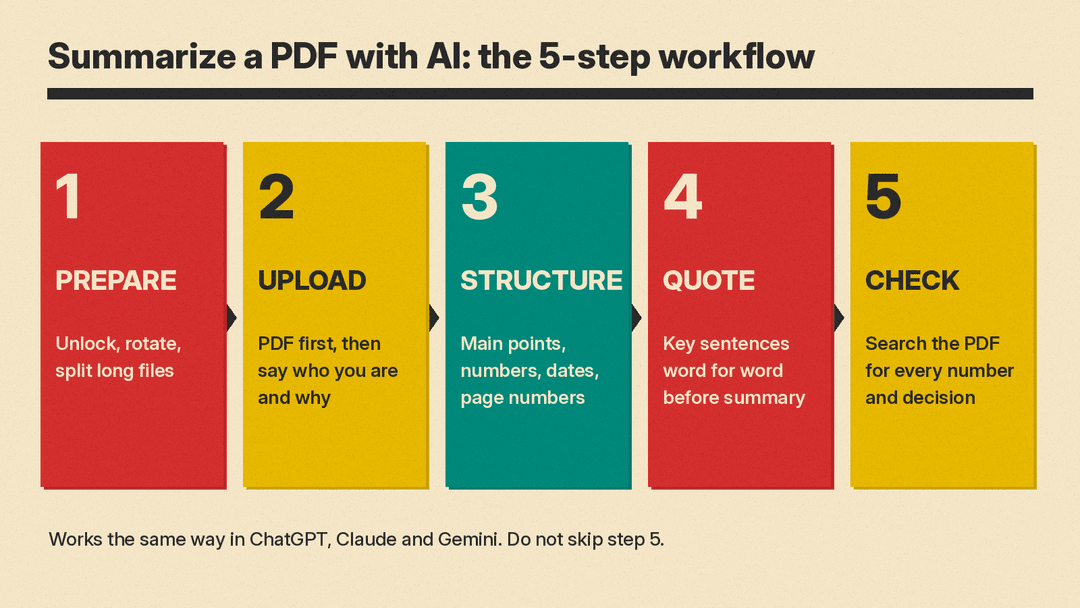
Step 1: Prepare the file
A few minutes here saves confusion later.
- Remove the password. Anthropic's PDF support docs list "Standard PDF (no passwords/encryption)" as a requirement. If your PDF asks for a password when you open it, save an unlocked copy first, if you are allowed to.
- Fix sideways pages. The same docs recommend you "rotate pages to proper upright orientation" and make sure text is "clear and legible."
- Split very long files. Claude's help page suggests "dividing them into smaller sections to stay within limits" for large documents. Anthropic's developer docs add that dense PDFs with small fonts, complex tables or heavy graphics "can fill the context window before reaching the page limit."
- Check what is in it. Before you upload a contract, a medical letter or anything with other people's personal data, check your employer's or school's rules on which AI tools you may use.
Step 2: Upload and tell the AI what the document is
Attach the PDF first, then write the prompt. Anthropic's prompting guide recommends placing long documents "near the top of your prompt, above your query," and says queries at the end "can improve response quality by up to 30 percent in tests, especially with complex, multidocument inputs." That advice is written for Claude, but putting the document first and the question last is easy to do in any app.
Then say who you are and why you need the summary. "Summarize this" gets a generic summary. "I am a new board member and need to know what was decided" gets a useful one.
Step 3: Ask for a structured summary
Ask for a fixed shape: what the document is, the main points, numbers and dates exactly as written, and what is still open. A fixed shape makes gaps easy to spot. If the "decisions" list is empty, you know to look.
Also ask for page or section references. Claude's help page notes that when you refer to pages, you should use "the PDF page numbers as shown in your PDF viewer, not the page numbers printed on the document itself." Ask the AI to cite pages the same way, so you can jump straight to them.
Step 4: Ground the summary in quotes
For long or important documents, ask the AI to copy the key sentences word for word before it summarizes. Anthropic's prompting guide calls this grounding responses in quotes: ask Claude "to quote relevant parts of the documents first before carrying out its task," which "helps Claude focus on the relevant content and ignore the rest of the document." Quotes are also easy to check: search the PDF for the exact words.
Step 5: Check the summary against the PDF
This is the step that is easiest to skip. Check these three things, in this order:
- Numbers, dates and names. Search the PDF (Ctrl+F or Cmd+F) for each one.
- Decisions and obligations. Check words like "approved," "must," "will" and "agreed" against the original wording. "The board asked for more quotes" is not "the board approved the repair."
- Anything you plan to act on. Open the page and read the original sentence.
OpenAI's own help article Does ChatGPT tell the truth? says the model "may express high confidence even in incorrect answers" and advises users to "always verify quotes, data, technical information or references to external documents." Our 5-minute fact-check routine covers this in more depth.
Copy-paste prompts for summarizing a PDF
Attach the PDF first, then paste one of these. Replace the parts in square brackets. They work in ChatGPT, Claude and Gemini; none of them uses a feature specific to one app.
1. The everyday structured summary
Summarize the attached PDF for a busy reader.
1. One sentence: what this document is, who wrote it, and when.
2. The 3 to 5 most important points, as bullets. After each bullet, give the PDF page number where it appears.
3. Every decision, deadline, date and number, copied exactly as written.
4. Anything left open, undecided or unclear.
Use only the document. If something is not in it, write "not stated".
2. Summary for a specific reader
I am [a new team member / a parent / a small business owner] and I need to understand the attached PDF so I can [decide whether to sign / prepare for a meeting / explain it to my team]. Summarize it in plain English in under 250 words. Then list the 3 questions I should ask before I act on it.3. Quotes first, then summary
First, find the sentences in the attached PDF that matter most for a summary. Copy them word for word, each with its PDF page number. Then write a 5-bullet summary that uses only what is in those quotes. Do not add anything that is not in a quote.4. Ask specific questions without guessing
Answer only from the attached PDF. For each question, give a short quote and the PDF page number that supports your answer. If the PDF does not answer a question, write "Not stated in the document" and nothing else for that question.
Questions:
1. [question]
2. [question]
3. [question]
5. Action items and deadlines
List every action, deadline and obligation in the attached PDF as a checklist. For each one, give: who is responsible (or "not stated"), what they must do, the deadline exactly as written, and the PDF page number.6. Charts and tables
Go through the charts and tables in the attached PDF one at a time. For each one, give its title or caption, the PDF page number, what it measures, and the main takeaway in one sentence. Copy any numbers exactly. If you cannot read a chart clearly, say so instead of estimating.7. A long PDF, section by section
This is a long document. Do not summarize it all at once. First, list its main sections with their PDF page ranges. Then summarize each section in 3 bullets. Finish with a 5-bullet summary of the whole document.8. Compare two PDFs
I attached two PDFs: [name of first file] and [name of second file]. Compare them. List what is the same, what changed, and what appears in only one of them. For each difference, give the file name and PDF page number. Quote the exact wording where the two versions differ.9. Study notes from a paper or textbook chapter
Turn the attached PDF into study notes for [a high school student / a first-year university student]. Include: the main argument in 2 sentences, key terms with a one-line definition each (using the document's own definitions), and 5 practice questions with answers that come from the text. Give a PDF page number for each answer.10. The self-check pass
Re-read the attached PDF and check your summary above against it. List any sentence in your summary that is not directly supported by the document, any number or date that does not match, and any important point you left out. Do not defend the summary; just list the problems.A self-check pass can catch some slips, but it is the same model checking its own work. Do the manual check in Step 5 for anything that matters. For more on how to shape prompts like these, see our beginner's guide to writing better AI prompts.
What happened when we tested these prompts
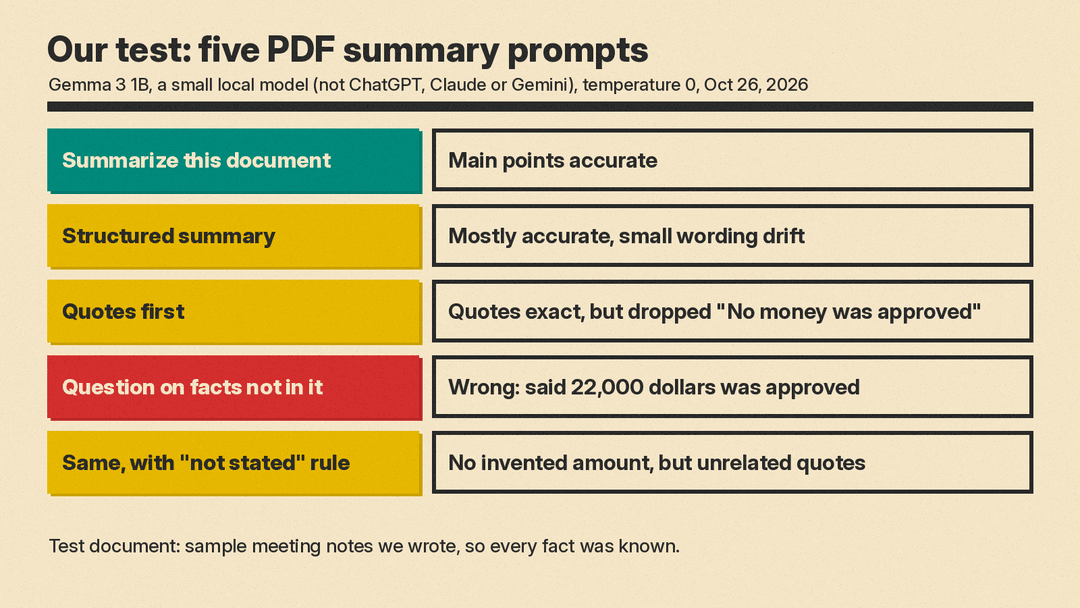
We tested five prompts on a small open model, Gemma 3 1B, running locally through llama.cpp at temperature 0 on October 26, 2026. A small local model is not ChatGPT, Claude or Gemini. The models behind those apps are much larger and results with them may differ, so treat this as a demonstration of the kinds of errors to look for, not as a rating of any app. Our test document was a short set of library board meeting notes that we wrote ourselves, so we knew every fact in it. We pasted its text into the prompt rather than uploading a file.
What we saw:
- "Summarize this document." The summary was accurate on the main points: the extended Saturday hours, the repair fund and roof quote, the postponed coding club and the late-fee question. It also ended by offering more help, which you can ignore.
- A shorter version of the structured summary (prompt 1), without page numbers. Mostly accurate, with small drift. The notes say "No vote was taken" on late fees; the model wrote that the board "decided not to vote," which is not quite the same thing. It also skipped the "who wrote it" part of the instructions.
- Quotes first (a version of prompt 3 without page numbers). Every quote it copied was word for word from the notes. But its final summary left out one key line it had quoted itself, "No money was approved," and it ignored the request for exactly 5 bullets.
- A question about something not in the document. We asked how much money the board approved for the roof and who would lead the coding club. The notes say "No money was approved" and that the club decision was postponed. The model answered that the board approved "22,000 dollars" for the roof (the amount of the repair quote) and that "the staff will lead the teen coding club." Both answers are wrong.
- The same question with the "Not stated in the document" rule (a version of prompt 4 without page numbers). This time it did not invent an amount, but it did not say "not stated" either. It returned unrelated quotes, one about Saturday hours.
The pattern fits the vendors' own warnings. In our test, summarizing what the document says went better than answering a question that assumed something it does not say, which got a made-up answer. That is why prompts 1 and 4 ask for page numbers and "not stated," and why Step 5 tells you to search the PDF for every number before you use it.
Long and scanned PDFs
- Very long documents. Ask for a section list first (prompt 7), then summarize section by section. Claude's help page says PDFs over 100 pages get text-only processing in chats, so charts in a 300-page report may not be read. Splitting the file keeps each part under that line.
- Scanned documents. Anthropic's developer docs explain that when you send a PDF through its API, each page is converted into an image and its text is extracted alongside it, and they recommend clear, legible, upright pages. If a scan is blurry or crooked, a summary of it may be unreliable; rescan it if you can.
- Charts that matter. Attach the PDF directly in the chat rather than saving it as a ChatGPT project file or GPT knowledge, because OpenAI says embedded images in those saved files may not be included automatically.
- Other formats. Google's Gemini API document guide says non-PDF documents are seen "as normal text," which loses "context like charts or formatting." If a Word file has important charts, exporting it to PDF may help.
Common mistakes
- Pasting only part of the document and asking for a summary of "the report." The AI cannot tell what it did not see.
- Asking yes or no questions ("Does the contract allow early cancellation?") without asking for the quote. Ask for the clause and page number.
- Trusting a number you have not searched for. In our test, the wrong roof answer reused a real number from the document in the wrong role.
- Using a summary as a substitute for legal, medical or financial advice. A summary can help you prepare questions. It does not replace reading the binding document or asking a professional.
Sources
- OpenAI Help Center: Uploading files and audio to ChatGPT
- OpenAI Help Center: Does ChatGPT tell the truth?
- Claude Help Center: Upload files to Claude
- Claude Docs: PDF support
- Claude Docs: Prompting best practices, long context prompting
- Gemini Apps Help: Upload and analyze files in Gemini Apps
- Google AI for Developers: Document understanding
