
Gemini is built into Google Docs as a side panel and a prompt bar. It can summarize a document, draft new text, rewrite a section, pull in facts from your Drive files or the web, make images, and even start a spreadsheet or a slide deck from inside a doc. This guide walks through each feature step by step, using Google's own help pages, and ends with prompt ideas you can copy.
If you are new to Google's assistant, start with our explainer on what Gemini is. This page focuses only on Docs.
Who can use Gemini in Google Docs?
According to Google's Collaborate with Gemini in Google Docs help page, the feature "requires an eligible Google Workspace or Google AI plan." Google also says it is available in Google Workspace Experiments, which it describes as "a trusted tester program for users with personal accounts to try new AI features."
Google's personalized documents page adds that the document creation feature "is also available for Google AI Ultra and Google AI Pro accounts" and that it "is currently available on desktop." The side panel works in some languages, not all; Google keeps a separate list of supported languages.
Check Google's Gemini in Workspace overview for your account type before you start.
How do you open Gemini in Docs?
There are two ways in.
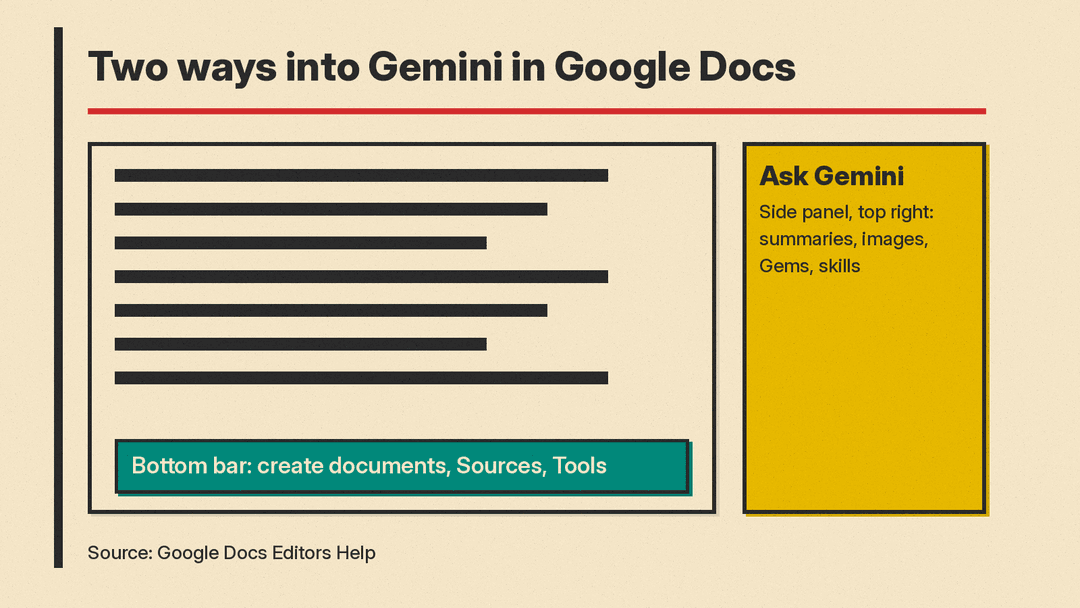
The side panel ("Ask Gemini")
- On your computer, open a document in Google Docs.
- At the top right, click Ask Gemini.
- In the side panel, pick a suggested prompt or type your own, then press Enter.
The bottom bar
Google's help pages describe a prompt field in a bar at the bottom of the document. You use it to create documents, add sources and pick a writing style. Google says that by default "the Gemini bar automatically minimizes to clear your screen." To hide it on purpose, click the overflow menu on the bar and choose Minimize Gemini bar. Hover over Gemini at the bottom to bring it back.
One warning from Google: the side panel does not keep your chat forever. You lose your conversation history when you refresh the browser, close and reopen the document, or your computer goes offline. Google's tip is to insert any output you want to keep into the document.
How do you summarize a document with Gemini?
Summaries are the simplest place to start.
- Open a document and click Ask Gemini.
- Google says that when you open a document that has text, the side panel shows a summary of it.
- For a different summary, ask for one. Google's own examples are "Summarize this document in 3 bullet points." and "Explain this document like I'm 5 years old."
To summarize only one part, highlight that text first, then ask Gemini in the side panel to summarize it. From there you can click Insert to add the summary to the document, Retry for a different version, or give feedback with Good suggestion or Bad suggestion.
The help page also lists summarizing your files from Google Drive and emails from Gmail as part of what Gemini in Docs can do.
How do you write a new document with Gemini?
Google calls this creating "personalized documents." The idea is that Gemini can write a first draft that uses context from your own files, not only general knowledge. Google says these drafts can "incorporate relevant context and sources from your files in Drive, Chat, Gmail, and the web."
- Open a document in Google Docs.
- At the bottom bar, in the prompt field, describe the document you want.
- Optional: point Gemini at an existing doc to match its format, its writing style, or its content (details below).
- Click Submit.
- Optional: select Sources to review the sources Gemini used.
Google's examples of what you can create include proposals, project plans and blog posts.
Match another document's format
You can use an existing Google Doc as a template. On an empty Google Doc tab, above the bottom bar, select Match doc format, pick the file, click Add, then type your prompt. Google says "the layout, style, and structure of the content will be based on the document you select."
Match a writing style
Gemini can copy the tone of a document you already wrote. Google lists "the tone of voice, sentence structure, and vocabulary complexity" as what it picks up.
- At the bottom bar, click Tools.
- Select Writing style, then Add doc from Drive.
- Pick the file and click Add.
- Gemini shows a short summary of the style it will use. Google's example: "Formal, objective, and direct. Concise phrasing but avoid acronyms."
- Click Confirm, or pick a different file if the summary is not what you want.
Use your own files as sources
To make Gemini write from specific files, click Sources on the bottom bar and choose Add from Drive or other location. You can also type "@" and pick a file from the menu. Select one or more files and click Add. Google's example prompt is "Update the project timeline based on the latest updates from our meeting notes doc."
You can also choose the locations where Gemini may search on its own for content related to your prompt.
How do you rewrite or improve text with Gemini?
This is the everyday editing feature.
- Select the text you want to rewrite.
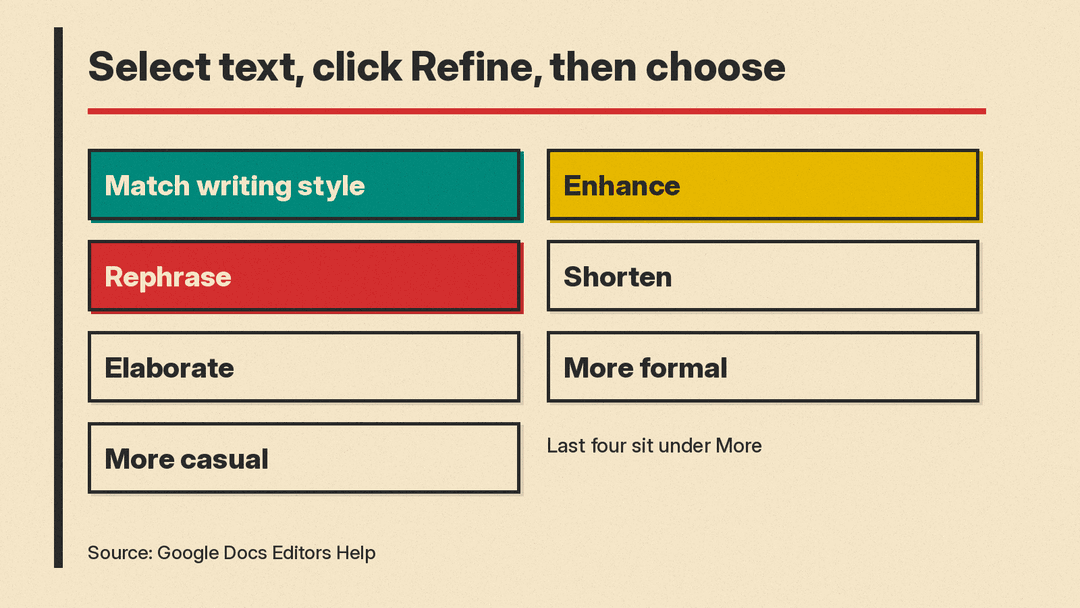
- On the floating bar, click Refine.
- Choose an option: Match writing style, Enhance, Rephrase, or, under More, Shorten, Elaborate, More formal or More casual.
- Or type a prompt. Google's examples are "Add evidence to my Research section." for one section and "Suggest places where I can better substantiate my argument." for the whole document.
- Review the suggested changes, then click Accept all or Reject all.
Google says Gemini "can pull stats, evidence, and citations directly from your Google Drive, Gmail, or the web into your document." Treat those additions like any other source: open the citation and check it before you keep it.
Google also has a tip for pasted text: if you paste new content into a doc and want it to fit, select Match writing style.
How do you get answers from the web in Docs?
To use the web, ask for it. Google's help page says: "To get answers from the web, make sure to include phrases like 'Use Google Search' or 'Using web search' in your prompt."
Google's example: "Write a paragraph describing the weather today in Mountain View, California using web search." The side panel also has a Retry with Google Search action, which Google describes as a way to "search on Google for more information about your question or request."
How do you create images in a document?
- Click Ask Gemini.
- In the side panel, describe the image. Google's example: "Create an image of a dog with glasses."
- Hover over the image you like and click Insert, or Generate more for similar images.
You can also click Edit prompt to change your request, or Generate more at the bottom for a new set.
Can Gemini in Docs make spreadsheets and slides?
Yes, according to Google's help page. From the Ask Gemini side panel in Docs you can describe:
- A spreadsheet. Google's examples include "Create a sheet to track my monthly expenses with columns for date, category, amount, and notes." and "Create a visual dashboard in Sheets of this sales data."
- A presentation. Google says you can create "a fully editable presentation in Google Slides with a single prompt." To copy the style of an existing deck, reference it with @ and its name. Google warns this "may take up to several minutes," so keep the tab open until it finishes.
- Email or chat drafts. For example, "Draft an email to Kevin summarizing our progress on Project Clover."
If you work in Sheets a lot, see our post on how Fill with Gemini in Sheets cites web sources per cell.
Can Gemini manage your Drive files from Docs?
Google's help page says you can use Ask Gemini "to move, rename, share, and copy files in Drive." Example prompts from Google:
- "Copy Q2 Operational Plan and name it Q2 Operational Plan v2"
- "Share the @Q3 Marketing Plan with @dougm as commenter."
- "Who is my Quarterly Review document shared with?"
Google's own warning here is short: "Review suggested file management actions before confirmation."
What are Gems and skills in Docs?
The side panel has a Gems button. Google describes Gems as a way "to save time with repetitive tasks." Its tip says you create one at gemini.google.com, and you "can then use your Gem in the Gemini app and Gemini side panel."
The same help page also describes skills, made with a Skill Builder:
- Open a doc, click Ask Gemini with skills, then Tools, then Skill builder.
- Describe the skill and review the instructions Gemini writes.
- Click Make this skill in Studio, then Turn on in Workspace Studio.
Google stresses that if you only generate the instructions, "your skill won't be created or saved." You must finish the Studio steps. To use a skill, type @ and the skill name in the Ask Gemini panel, for example "@Project Summary." For background on how Gems relate to skills, read our post on Gemini Gems becoming skills.
Prompt ideas for Gemini in Google Docs
These come from Google's help pages, grouped by goal:
- Match a template: "Draft a new project proposal for 'Project Apollo.' Match the format of the '2024 Template' file."
- Write in your voice: "Draft a project proposal for a new community garden. Match the writing style of my 'Previous Proposals' file."
- Use the web: "Generate two paragraphs on the impact of high speed mobile internet on the transformation of the taxi cab industry." (with web search turned on)
- Plan content: "Help me create a content plan for a blogpost on health conscious superfoods. Include potential recipes, nutritional information, ingredients, and personal tips."
- Get help with Docs itself: "How do I make my document pageless?"
Google's general advice for prompts is to use natural language, be specific about audience, purpose and goals, attach relevant documents with @, and refine with follow-up prompts.
Tips before you rely on it
- Insert what you want to keep. The side panel history disappears on refresh, reopen, or going offline.
- Ask for the web by name. Include "Use Google Search" or "using web search" when you need current facts.
- Check sources. Use the Sources view and open any citation Gemini adds.
- Review file actions. Moves, renames and shares need your confirmation for a reason.
- Be careful with feedback. Google says feedback "may be human readable" and asks you not to include personal, confidential or sensitive information.
For longer research jobs that need many sources, Gemini's separate Deep Research mode may fit better. Our guide on how to use Gemini Deep Research covers it.
This guide follows Google's help pages as checked on November 11, 2026 (PST). Google changes button names and menus often. If a step looks different, check the linked help page.
