
Gemini in Google Sheets is an AI helper that sits in a side panel next to your spreadsheet. You type a request in plain English, and it can build a table, write a formula, make a chart, explain your data or change the sheet for you. This guide covers how to open it, what it can do, prompts to try, and the limits to know.
Unless noted, everything below comes from Google's help page Collaborate with Gemini in Google Sheets, as read on November 11, 2026. Google changes these features often, so menu names may shift.
If you are new to Google's assistant in general, start with our explainer What Is Gemini?.
Who can use Gemini in Sheets
Google says the feature "requires an eligible Google Workspace or Google AI plan." It is also available through Google's trusted tester program, Google Workspace Experiments. Google keeps the list of eligible plans on its page Get started with Google Workspace with Gemini, and the supported languages on a separate page. Check both, because plan names and languages change.
One more note from Google: the feature "works best with native Google Sheets files." If you have an Excel file (.xlsx), Google says to use File and then Save as Google Sheets before you use Gemini.
How to open Gemini in Sheets
- On your computer, open a spreadsheet in Google Sheets.
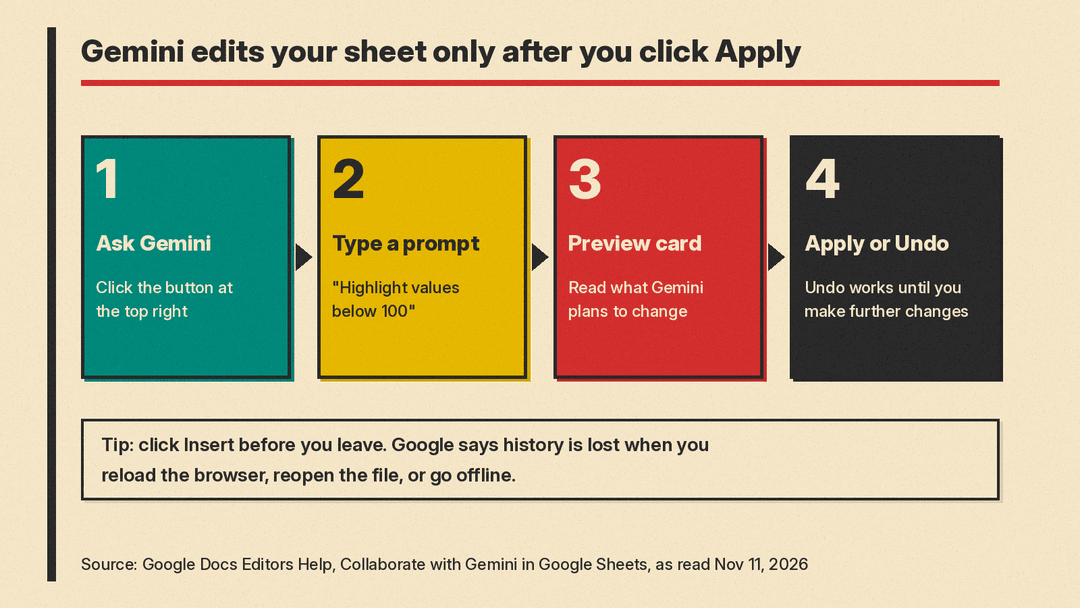
- At the top right, click Ask Gemini.
- In the side panel, pick a suggested prompt or type your own in the prompt box at the bottom.
- Press Enter.
When you open a sheet that already has data, Google says the side panel shows a summary of the spreadsheet. You can click View more to see all of it.
A few controls are worth knowing:
- Insert puts the generated text, table or formula into your sheet.
- Retry asks Gemini for a different version.
- Undo reverses the last Gemini action.
- More options and then Clear history removes your history.
- Export to Docs sends a response to a new Google Doc.
If your file has several tabs, you can point Gemini at only some of them. Use the dropdown menu in the prompt box and select just the tabs you want.
Save your work before you reload
Google says you lose your conversation history when you reload your browser, close and reopen the spreadsheet, or your computer goes offline. To keep a result, click Insert to put it in the sheet first.
What Gemini in Sheets can do
Google's help page covers these tasks:
- Create tables.
- Create formulas, and fix formula errors.
- Generate data analysis and insights.
- Build charts and graphs.
- Summarize emails and files from Drive and Gmail.
- Chat about and analyze large datasets in BigQuery.
- Perform actions such as conditional formatting, pivot tables, dropdowns, checkboxes, sorting, filters, find and replace, number formats, and inserting, deleting or freezing rows and columns.
- Solve optimization tasks.
- Create images.
The sections below explain each one, with example prompts taken from Google's help page.
The side panel is separate from the =AI() function and Fill with Gemini, which write AI results straight into cells. Our news post on Fill with Gemini web citations covers those.
1. Summarize a spreadsheet
Ask Gemini to explain a sheet you did not build. Google's example prompts:
- "Summarize this spreadsheet."
- "Explain this spreadsheet like I'm 5 years old."
Google lists a keyboard shortcut for a summary: Ctrl + Alt + n on Windows, and ⌘ + Ctrl + n on Mac.
2. Create a table from scratch
You can ask for a ready-made table, then refine it with follow-up prompts before you insert it. Google's examples:
- "Create a table for a full day team event."
- "Create a trip plan for a vacation in a national park."
- "Create a social media tracker for marketing."
Follow-ups such as "Add another 5 rows of different activities" or "Add details on cost" change the draft before it goes into your sheet.
3. Write formulas
Describe what you want using column names or cell references. Google's examples:
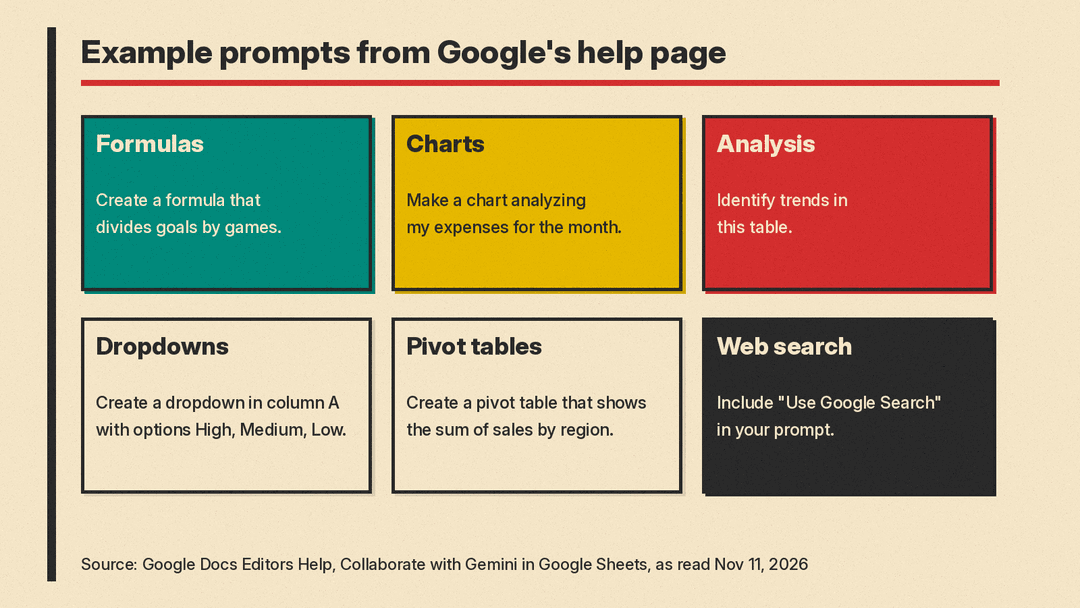
- "Create a formula that divides goals by games."
- "Create a formula to find cell C1 in range D:G and output value in column G."
You can also start in any cell by typing = and then pressing Ctrl + Alt + g on Windows and ChromeOS, or ⌘ + Ctrl + g on Mac.
When a formula shows an error, Google says you can hover over the cell and click Fix. Gemini then reviews the formula and analyzes the issue.
Always check a formula on a few rows you can verify by hand. Google itself warns that Gemini features "may suggest inaccurate or inappropriate information."
4. Analyze your data
Ask questions about the numbers in your sheet. Google's examples:
- "Identify trends in this table."
- "How can I show regression and prediction of this data?"
- "What analysis can you help me perform with this sheet?"
- "Help me understand month-to-month food prices."
Click Analysis steps to see how Gemini reached its answer. That is the fastest way to catch a wrong assumption.
5. Make charts
Describe the chart you want. Google's examples:
- "Create a chart with date on the x-axis and total on the y-axis."
- "Make a line chart."
- "Make a chart analyzing my expenses for the month."
When you click Insert, Google says the chart goes into a new tab along with its underlying data. One catch: Google says the generated chart "doesn't link or respond to changes in the original data set." If your data changes, make the chart again. The exception is a BigQuery Connected Sheet, where Google says the chart stays connected and updates when you refresh.
6. Let Gemini edit the sheet for you
Gemini can change the spreadsheet itself, not just answer questions. You type the action, Gemini shows an Action preview card, and nothing changes until you click Apply. After it finishes, you get Undo and, for some actions, Settings to adjust the result. Google says Undo "is available until you make further changes."
Prompts from Google's help page, by action:
- Conditional formatting: "Highlight rows where sales are greater than 500."
- Dropdowns: "Create a dropdown in column A with options 'High,' 'Medium,' 'Low'."
- Pivot tables: "Create a pivot table that shows the sum of sales by region."
- Filters: "Filter for sales greater than $1,000."
- Sorting: "Sort by date in descending order."
- Checkboxes: "Insert a checkbox in cell B5 and make sure it's unchecked by default."
- Number formats: a request to show a column as currency with two decimal places.
- Freeze: a request to freeze the top row so headers stay visible.
You can also combine several steps in one prompt. One of Google's examples asks Gemini to turn status and priority columns into dropdowns, add a "Days until due date" formula column and a Completed checkbox column, and highlight due dates in the next two weeks, all at once.
7. Pull in Drive files and Gmail
Gemini in Sheets can reference your Drive files and emails. Google's examples are "What are the main points of: Meeting Notes: Core Team sync" and "Catch me up on the latest Monthly Review emails." Below the response, click Expand Sources to see which files Gemini used.
8. Search the web
Google says that to get answers from the web, you should include phrases like "Use Google Search" or "Using web search" in your prompt. If you already have a response, the side panel also has a Retry with Google Search button.
9. Work with big data in BigQuery
For teams with data in BigQuery, Gemini can query a Connected Sheet. Google says you need access to BigQuery and a Google Cloud billing project. It also says Gemini "runs read-only queries" and "doesn't modify or delete data in BigQuery." Example prompts include "Compare our top 5 marketing campaigns month over month" and "Make a bar chart of clicks by campaign." Charts, pivot tables, formulas and extracts that Gemini makes here stay connected to BigQuery, according to Google.
10. Import from other apps
Gemini can import data through third-party connectors, using prompts like "Import [data] from @[source name]." Google notes that your Workspace administrator controls whether connectors are on, and that you must have enabled and logged in to the connectors in Google Workspace Marketplace.
11. Solve optimization problems
Google lists an Optimization problem solver for tasks such as allocating budgets, scheduling staff or optimizing supply chains. One of Google's examples: "I need to minimize total supplier spend. Adjust the order quantities for each supplier to meet my total demand of 1,000 units. Make sure no single supplier provides more than 40% of the total volume."
Tips for better results
- Name your columns clearly. Google's examples refer to columns by name ("goals," "games," "sales"). Clear headers make those prompts work.
- Point at the right tab or table. Google says you can focus Gemini on specific tables when a sheet has several.
- Insert before you leave. Your history disappears on reload.
- Check the preview card. Read what Gemini plans to do before you click Apply.
- Verify numbers. Use Analysis steps, and spot-check formulas by hand.
- Ask Sheets questions too. Google's examples include "How can I remove duplicates?" and "Teach me how to use conditional formatting with a color scale."
For bigger research tasks outside a spreadsheet, see our guide on how to use Gemini Deep Research. If you want to build your own tools on Gemini, our explainer What Is Google AI Studio? covers Google's builder.
Privacy and sharing warnings
If a file is shared with people outside your organization, Google says you may see this warning in the side panel: "Warning: Content added by Gemini may be visible to users outside your domain. Use caution with prompts and before enabling search settings." Google says it shows when the file has an out-of-domain user with view or edit access, or when an out-of-domain user created it.
Google also says not to rely on Gemini features "as medical, legal, financial or other professional advice." Treat a Gemini analysis as a first draft, not a final answer.
Frequently asked questions
Is Gemini in Sheets free? Google says it needs an eligible Google Workspace or Google AI plan. Check Google's getting started page for the current list.
Does it work with Excel files? Google says it works best with native Sheets files and recommends saving an .xlsx file as a Google Sheet first.
Can I undo what Gemini did? Yes. Click Undo after an action. Google says it stays available until you make further changes.
Will my chart update when my data changes? Not for regular sheets, according to Google. Charts from BigQuery Connected Sheets stay connected.
Does Gemini search the web? Ask it to. Google says to include "Use Google Search" or "Using web search" in the prompt, or click Retry with Google Search.
