
Gemini Canvas is a workspace inside Gemini where you create or edit a doc, an app, slides, or code together with the model. You write a prompt, Gemini builds a first version in a panel beside the chat, and then you change it by typing directly in the work or by asking for edits in plain language. When a draft is close to finished, you can turn it into another format, such as an Audio Overview, a quiz, a slide show, or a shareable app.
What is Gemini Canvas?
Canvas is the create and edit space inside Gemini. Google's help page describes it as a way to collaborate with Gemini to create or edit a doc, app, slides, or code, and to turn a creation into an Audio Overview, quiz, or other format.
Before you open it, a few basics matter:
- You must be signed in to Gemini Apps.
- "Canvas is available for all Gemini users," according to Google's Canvas page.
- Google's Canvas page also says Canvas works in all languages and countries where the Gemini app is available. You can open Canvas projects in the mobile app, but text style and format editing works only in the Gemini web app on desktop.
- Google AI Pro and Ultra subscribers get a larger 1 million token context window for more complex projects, according to the same page.
- Changes in Canvas are auto-saved, so you do not need to save manually as you work.
If you are new to the product as a whole, start with what Gemini is. Canvas also connects to Gemini Deep Research: Google says you can turn Deep Research reports into apps, games, interactive quizzes, web pages, and infographics. For other Google tools that work with your own material, see our explainers on Gemini Notebook and Google AI Studio.
How do you start a Canvas?
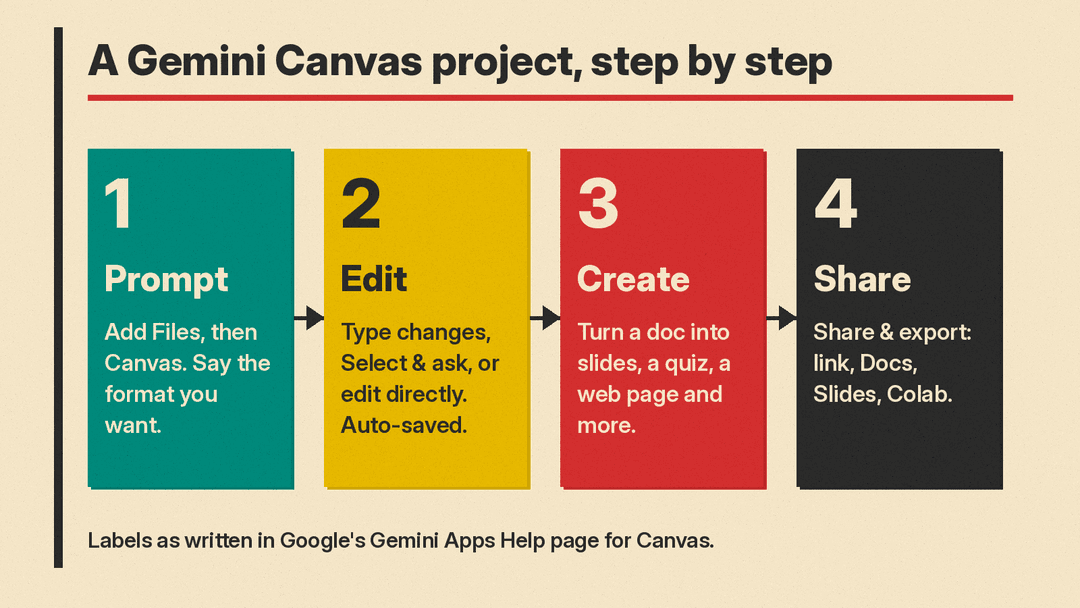
A Canvas starts from an ordinary Gemini prompt. The only difference is that you tell Gemini you want a Canvas before you type the request.
- Go to gemini.google.com.
- Below the text box, click Add Files.
- Click Canvas.
- Enter your prompt. Say what you want made, and name the format if you have one in mind. Google's tip is that to get a specific format like a slide deck, you should say so in the prompt.
- Optional: click Add files to upload files or an image.
- Click Submit.
Gemini then creates the first version in the Canvas panel. The examples on Google's help page are "Create a slide presentation about…" and "Create a quiz to test me on…". Both name the format.
If the first version is not right, you can ask Gemini for changes in the prompt box, as the next sections show.
How do you edit a doc in Canvas?
Docs give you four ways to make a change: type in the text, ask in the prompt box, select text and ask, or use the quick edit buttons.
- Edit text directly. Click into the document and write. Changes in Canvas are auto-saved.
- Ask in the prompt box. Describe the change you want in the chat and Gemini applies it to the doc.
- Select text and prompt for a change. Highlight the passage first, then type what you want done to it. After selecting, you can click Suggest edits to have Gemini recommend changes.
Two quick edit buttons cover the most common rewrites:
- Change length makes the selection longer or shorter.
- Change tone moves the writing toward more casual or more formal.
The formatting toolbar sits at the top of the doc and includes headings, bold, italic, bulleted lists, and numbered lists. If you cannot find the full toolbar, click More.
To move through your history, use Previous Version and Next Version to view saved versions.
Working with LaTeX
For math and science writing, Canvas has a LaTeX option. In the top right, click Create, then LaTeX. The help page notes two things:
- A doc with LaTeX can be exported as a PDF with a preview.
- Copying a response with LaTeX includes the unrendered LaTeX code.
How do you build an app in Canvas?
Canvas can also produce small working apps and games. Google's Canvas page says you can describe an idea and Canvas generates code for a working, shareable app or game.
You can also start from a drawing. In a November 5, 2026 walkthrough, Google says you can upload a photo of a sketch, such as an app mock-up, habit tracker or game board, select Canvas and ask Gemini to code the app, then test it in the preview window.
- Ask for changes in the prompt box. Tell Gemini to update the app or edit the code directly. Changes are auto-saved.
- Read the code. In the top right of the Canvas panel, click Code.
- Debug. Click Show console to see errors and logs from the preview.
- Review what changed. Click Code, then Show recent changes.
- Change one part at a time. In the bottom right, click Select & ask, select the section, type a prompt, and press Enter.
One way to work, as general advice: describe the app, look at the preview, open the console if something is broken, then ask for one specific change. Small requests are easier to correct than a rewrite of everything at once.
Adding Gemini features to your app
You must be signed in and 18 or over for this. In the bottom right of the Canvas panel, click Add Gemini features. You can add Gemini-powered features like text and image generation, and Gemini explains in the chat what it added.
Apps built in Canvas can share data between users, use Gemini-powered features, and save data across sessions and devices. Google's Canvas page lists use cases such as custom dashboards like team trackers, visualizing code and algorithms, and custom quizzes built from uploaded study guides.
What can you turn a Canvas doc into?
This set of features is not available to users under 18 for now.
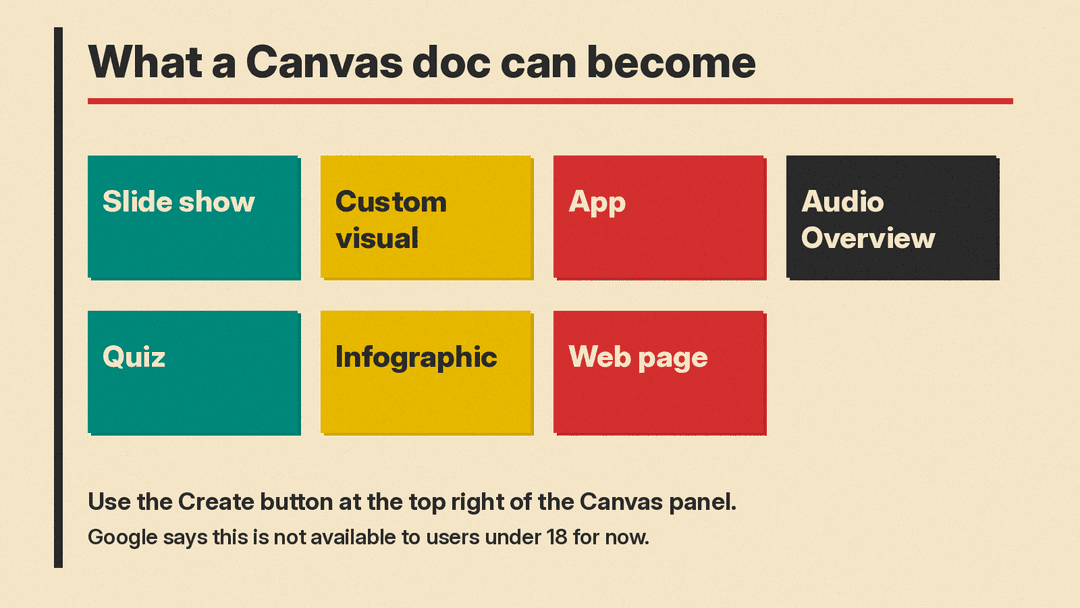
Once you have a doc you like, you can convert it instead of rebuilding it. In the top right, click Create, then do one of two things:
- Enter a prompt to turn the doc into a slide show, a custom visual, or an app.
- Or click one of the ready-made options: Audio Overview, Quiz, Infographic, or Web page.
The same idea applies to research you already did. Google says you can turn Deep Research reports into apps, games, interactive quizzes, web pages, and infographics.
How do you share or export from Canvas?
Sharing and exporting are separate actions, and both live under the same menu.
Share a Canvas
- Click Share & export, then Share.
- For apps, review the app info first.
- Copy the g.co/gemini/share link, or share to an available social platform.
Keep two limits in mind. Anyone with the public link to an app can view and edit data associated with the app. And shared links only open in gemini.google.com. You can't open shared Canvas content in the Gemini mobile app.
Open someone else's Canvas
When you open a shared Canvas, you can click Copy Canvas and keep editing your own copy. This is not available to users under 18 for now. If Keep Activity is on, the shared content is stored in your Gemini Apps Activity.
Export your work
Exporting is available on a computer. Click Share & export, then choose:
- Export to Docs, which opens the text in a new Google Doc.
- Export to Slides, which sends the work to Google Slides. Slides can also be exported as a PDF.
- Copy contents, for pasting into another tool.
For Python code, click Export to Colab, then Open Colab.
What should you watch out for?
- Public app links are open. Anyone with the link to an app can view and edit data associated with the app. Do not put anything sensitive into an app you plan to share publicly.
- Shared links are browser only. They open in gemini.google.com and not in the Gemini mobile app.
- Some features have age limits. Turning a doc into other formats, and using Copy Canvas, are not available to users under 18 for now. Adding Gemini features to an app requires you to be signed in and 18 or over.
- Changes are auto-saved. Learn where Previous Version and Next Version are before you make a large change.
- Keep Activity affects storage. If it is on, shared content you open is stored in your Gemini Apps Activity.
- LaTeX does not survive a plain copy. Copying a response with LaTeX includes the unrendered code, so use the PDF export when formatting matters.
- Review before you send. This is general advice rather than a Google claim: read generated docs for accuracy, and test generated apps and code yourself before you share a link or export the code to a project that matters.
- Plan for bigger projects. Google says AI Pro and Ultra subscribers get a 1 million token context window for more complex projects.
Prompt ideas to try
These are our own examples, written in the style of Google's: they name the format and add one detail. Replace the brackets with your own material.
- "Create a slide presentation about [your topic], with one main idea per slide."
- "Create a quiz to test me on [the notes I uploaded], and explain each answer after I respond."
- "Create a study guide for [subject or chapter], with key terms, short definitions, and a summary at the end."
- "Create an app that [simple task, such as tracking my weekly reading], with a form to add new entries."
- "Create a one page summary of [document] for readers who have not seen the original."
- "Create a web page version of this document, with clear headings and a short introduction."
After the first version, keep prompting in the chat for narrow changes. "Make slide three shorter," "add a question about [topic]," and "make the tone more formal" are examples of narrow follow-up requests.
Sources
- Google Gemini Apps Help: Create docs, apps & more with Canvas
- Google: Gemini Canvas overview
- Google Blog: Transform a quick drawing into a live app with Gemini (Nov 5, 2026)
