
If you already have something written, such as a blog post, a newsletter, a lecture script or a book chapter, you can turn it into audio without recording yourself. AI text-to-speech tools read your text in a synthetic voice, and some of them add the pieces you need for a finished episode: chapters, several voices, pauses, music and export.
This guide walks through the process for a beginner, step by step. It uses ElevenLabs Studio as the main example, because its documentation describes an audio project type built for this job, and mentions Microsoft's no-code tool as an alternative. The steps carry over to other tools.
What you need before you start
- A finished text. Audio is slow to edit compared with text, so finish the writing first.
- A tool that handles long text. Short-text voice tools are fine for a paragraph. For a whole post or chapter, use a tool built for long-form work. ElevenLabs says its Studio Audio projects are for creating "long-form narration, podcasts, and audiobooks," and that you can "Upload a script or document, assign voices, and arrange narration, music, and sound effects on the timeline." Microsoft points people who want "a no-code approach" to the "Audio Content Creation tool in Speech Studio," according to its text to speech overview.
- Headphones. You will need to listen closely for mistakes.
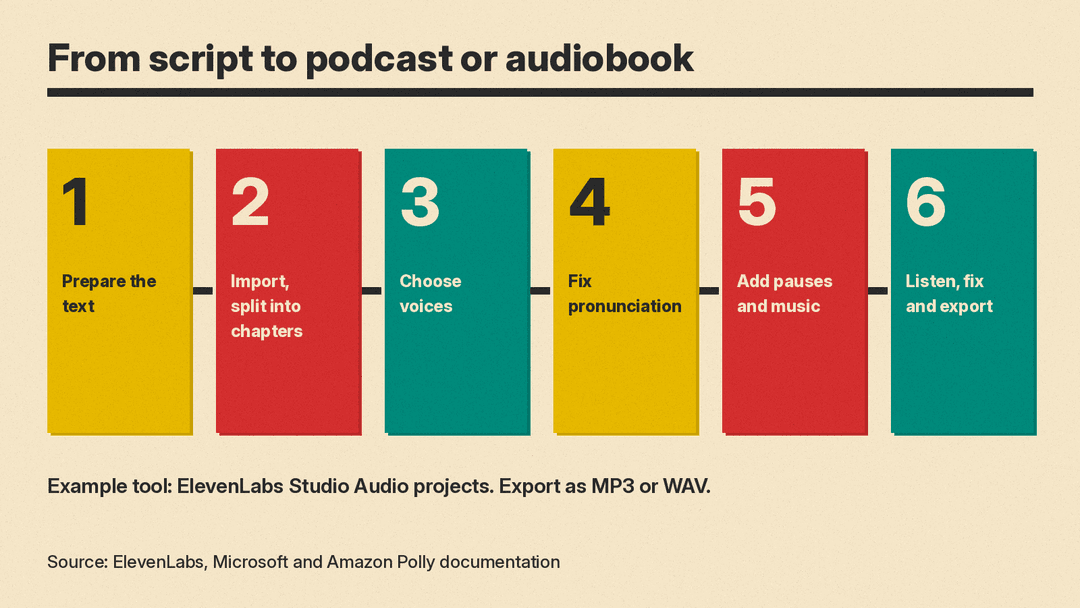
Step 1: Prepare the text for listening
Text written for the page does not always work for the ear. Before you import anything, make a listening copy of your post.
- Remove what cannot be heard. Links, image captions, tables and "see the chart below" lines do not make sense in audio. Rewrite them as a sentence, or cut them.
- Spell out tricky items. A text-to-speech engine may say exactly what is written. Amazon's guide to pronunciation lexicons says a TTS engine "reads the text literally, pronouncing the name exactly as it is spelled," which is why stylized words and acronyms can come out wrong.
- Watch numbers. Amazon notes that numbers written as digits "are synthesized in the language of the voice and not the text," according to How Amazon Polly works. If your text mixes languages, check how numbers are read.
- Use clear headings. Headings help the tool and the listener find the structure, which matters in the next step.
Step 2: Import the text and split it into chapters
In ElevenLabs Studio, you can start a project by selecting Upload "to start with your own script or document." Text files open in the audio layout. You can also choose + New blank project and then Audio project, which ElevenLabs says "creates a blank audio project for long-form narration, podcasts, and audiobooks."
Long pieces are easier to manage in parts. ElevenLabs says that when you create a new Audio project you get a Chapters sidebar, "and if you import a document, chapters will be automatically detected." You can add, rename, remove and reorder chapters.
For a blog post, one chapter is usually enough. For a book or a long series, use one chapter per section so you can fix and export each one on its own.
If you want a starting template for a talk-style show, ElevenLabs lists an "Audio podcast" Inspiration, described as "Conversational or interview-style audio content."
Step 3: Choose the voices
Decide first whether the piece needs one voice or several.
- One narrator suits most blog posts, essays and nonfiction chapters.
- Two or more voices suit an interview-style podcast, a dialogue, or fiction with characters. ElevenLabs' text to speech overview lists "Support for natural multi-speaker dialogue" among the features of some of its models.
In Studio, ElevenLabs says you can use Instant Voice Clones, Professional Voice Clones, voices from its Voice Library, and voices made with Voice Design. ElevenLabs describes Audio projects as a place to "assign voices." For fiction, Studio lets you give a voice a project-only alias. ElevenLabs' example: "if you're using a different voice for each character in your audiobook, you could use the character's name as the alias."
Pick the voice by listening, not by name. ElevenLabs says "Voice performance depends on the quality of the source audio, the model, and the language. Test several voices to determine which one fits the project." A practical test is to generate the same opening paragraph in two or three voices and compare them.
If you want the narration in your own voice, that is voice cloning, which needs a clean recording and the vendor's consent or verification steps. ElevenLabs' voice cloning guide covers how to record a sample.
Step 4: Fix pronunciation
Names, brands and acronyms can come out wrong in AI narration. The tools below let you set how to say a word, so you do not have to fix it by hand each time.
- Pronunciation dictionaries. ElevenLabs says Studio's pronunciation dictionaries let you specify how to say "character or brand names" or how "acronyms should be read," using "a phonetic alphabet (phoneme tags) or word substitutions (alias tags)." Once set, "Whenever one of these words is encountered in a project, the AI will pronounce the word using the specified replacement."
- Lexicons and SSML. Amazon Polly applies a lexicon "to the input text before the synthesis begins." Microsoft says its markup language, SSML, lets you "adjust pitch, add pauses, improve pronunciation, change speaking rate, adjust volume, and attribute multiple voices to a single document."
The simplest fix is an alias: tell the tool to say "W three C" whenever it sees "W3C."
Step 5: Add pauses, music and sound effects
Small breaks between ideas help listeners follow along. You may also want music for an intro and an outro.
- Pauses. In ElevenLabs Studio, the Insert break button inserts a break tag, set "By default" to 1 second and adjustable "up to a maximum of 3 seconds." ElevenLabs warns that "Some newer models may reduce or ignore break tags in favor of natural flow," and suggests the timeline "For precise timing."
- Timing. ElevenLabs says the timeline lets you "Adjust timing between paragraphs or individual sentences" and "trim, split, and duplicate clips."
- Music and sound effects. The Studio timeline shows "narration, music, and SFX at a glance." If you need background music, see our guide to ElevenLabs Instant Soundtracks, or our roundup of AI music generators for other tools.
Keep music low under speech. A voice that competes with a loud track is tiring to follow.
Step 6: Listen, fix and export
Listen to the whole piece before you export. You are listening for wrong words, odd stress, rushed sentences and missing pauses.
- Regenerate the bad parts only. In Studio, select Generate for the selected text. ElevenLabs says "Changing the text or voice removes the paragraph's generated status," so you regenerate only what you changed. Each paragraph keeps a generation history, and Restore generation takes you back to an earlier take.
- Let the export check itself. ElevenLabs says that when you export a full chapter or project, auto-regeneration "automatically checks the output for a range of issues," including volume distortions, voice similarity, mispronunciations, and missing or additional words.
- Export. For a single-chapter project, ElevenLabs says you can export "as MP3 or WAV." With several chapters you can export each one or the full project, either "as a single file, or as a ZIP file containing individual files for each chapter."
Very long pieces
For a long book, speed matters less than consistency. Microsoft offers "Asynchronous synthesis of long audio" for audio "longer than 10 minutes (for example, audio books or lectures)." You send the text, wait, and download the finished file. That route is for developers.
Before you publish
- Check the rights for your plan. ElevenLabs says "Commercial usage rights are determined by your subscription plan." Read the terms for whichever tool you use.
- Listen on the device your audience uses. A phone speaker and good headphones reveal different problems.
- Keep your text and project. If you edit the post later, you can update the matching paragraph and regenerate only that part.
Common beginner mistakes
- Importing the web page as is. Links, captions and table text end up read aloud.
- Choosing a voice from one sentence. Test a full paragraph, ideally one with names and numbers in it.
- Fixing the same word by hand many times. Add it to a pronunciation dictionary once.
- Relying only on break tags. Use the timeline when the timing must be exact.
- Skipping the full listen. Small errors are easy to miss in a skim and obvious to a listener.
If you want to understand what is happening inside the voice tool, our explainer on speech-to-speech and cascaded voice systems covers how text-to-speech fits into larger voice products.
