
ChatGPT lets you turn a conversation into a link that other people can open. It is a simple way to show a friend a recipe plan, send a colleague a draft, or hand a client the answer you worked out. It also raises fair questions: who can see the link, what it includes, and how to take it back.
This guide covers how shared links work, based on OpenAI's help article on sharing conversations and scheduled tasks. Menu names can vary by device and account, so follow the labels you see on screen.
What a shared link is
A shared link lets people view a ChatGPT conversation or an eligible scheduled task. OpenAI says the link "does not provide access to the creator's account," but anyone permitted to open it can view its shared content.
A shared conversation can include:
- the conversation history
- an individual assistant response
- supported images
- uploaded files
If you share a single assistant response, the link can be limited to that response rather than the full conversation. What is available depends on the sharing experience, your account features, and the recipient's permissions. OpenAI's advice is simple: review the entire shared preview before sending the link.
How to share a conversation
The help article lists these steps:
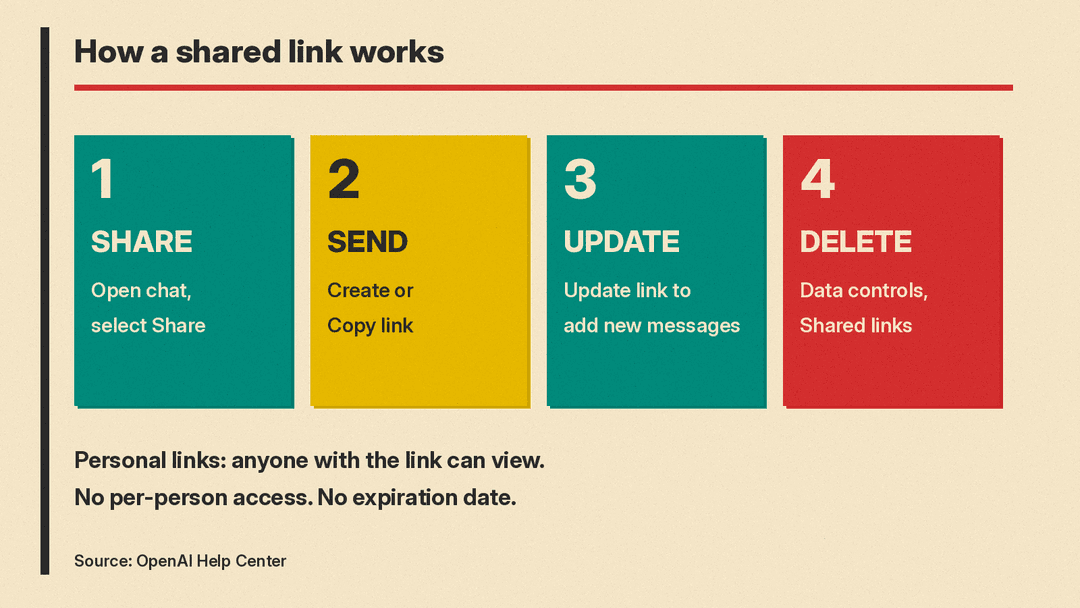
- Open the conversation.
- Select Share.
- Review the conversation and any available sharing options.
- Select Create link or Copy link, depending on the option shown.
- Send the link to the intended recipient.
You can also use the sharing option in the sidebar, or on an individual response when that option is available. On mobile, ChatGPT can open your device's share sheet, so you can send the link through your usual apps.
A new link can take a short time to become available. If the person you sent it to sees a loading state, the help article suggests trying again after a brief delay.
Who can open your link
This depends on the kind of account you used.
Personal accounts. Anyone who has a link created from a personal account can view the shared conversation. There is no list of approved viewers. If the link gets forwarded, the new person can open it too.
Work and school workspaces. A link created in a ChatGPT Business, Enterprise, or Edu workspace, or in a ChatGPT for Healthcare workspace, can be opened only by eligible members of the same workspace. People outside that workspace cannot view it.
The help article's FAQ answers two common questions directly:
- Can I limit a link to specific people? No. Shared links "do not offer recipient-by-recipient access controls."
- Can I set an expiry date? No. Shared links "do not have configurable expiration dates." Delete a link when access is no longer needed.
Do shared links show up in search?
OpenAI says shared link pages "are not intended for search-engine indexing, but this does not make a link private." Treat every personal-account link as something anyone could end up reading, because anyone who can open it can also forward it.
Snapshot or live: what happens when you keep chatting
This is the detail that catches people out.
- Personal accounts take a snapshot. The link includes the content available when it is created or updated. Messages you add later are not included automatically.
- Workspace links can stay live. Unlike a personal snapshot, a workspace conversation link can include messages added after sharing. OpenAI tells workspace users to review the sharing notice before adding new information to a shared conversation.
To refresh a personal snapshot, open the conversation, select Share, and select Update link.
Is your name on it?
Shared conversation links are anonymous by default. The help article adds that some existing or older sharing experiences may display the creator's name, so check the preview.
Anonymous does not mean clean. Names or personal details you typed into the conversation can still be visible, and supported images and uploaded files can appear too. OpenAI's guidance is not to include health information, financial details, passwords, account numbers, or other sensitive personal information in shared content.
Locked chats and shared links
If you lock a chat, an existing shared link is not deleted. People who can open it can still see what was shared before, but new messages sent while the chat is locked are not added. To stop access, delete the link separately. To create a new shared link from a locked chat, you have to permanently unlock it first. Our guide to Temporary Chat, locked chats and deleting chats covers locking in more detail.
How to find and delete your shared links
ChatGPT keeps a list of your shared conversation links and shared scheduled task links. The help article gives this path:
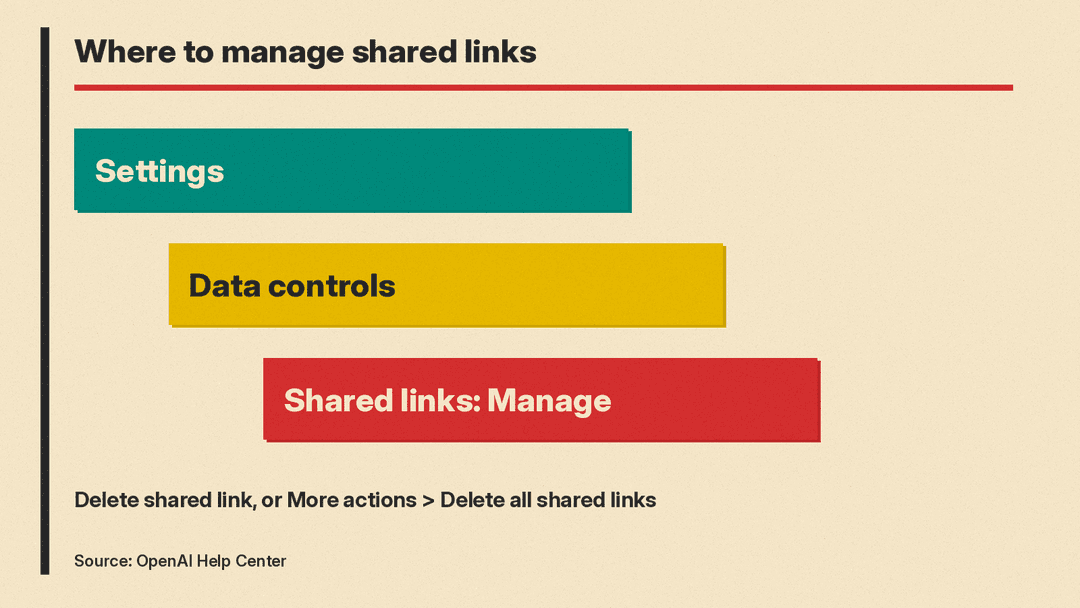
- Go to Settings.
- Select Data controls.
- For Shared links, select Manage.
From that list, select Delete shared link for a single item. To remove every link at once, open More actions and select Delete all shared links.
A few rules about what deleting does and does not do:
- Deleting a shared link stops future access to that link. It does not delete your original conversation.
- If someone continued your shared conversation, that created a separate, private conversation in their account. Deleting your link does not remove their copy.
- Deleting the original conversation removes its shared conversation link.
- Shared conversation links are deleted when their creator deletes the account.
Changing your model training setting does not clean up links either. OpenAI says that for a personal account, changing Improve the model for everyone "does not delete existing shared links or change who can open them." See our guide to ChatGPT data controls and the training opt-out for what that setting does.
Sharing a scheduled task
You can also share a scheduled task, a prompt that ChatGPT runs on a schedule. OpenAI says task sharing is available to eligible users across ChatGPT plans, including Free and Go. If you are new to tasks, start with our guide on how to schedule AI tasks.
To share one:
- Go to Scheduled.
- Select the task's more options menu (•••).
- Select Share.
- Review the task details in Share task.
- Select Copy link.
- Send the copied link to the intended recipient.
A shared task link includes the task title, full instructions, schedule, and original time zone. It does not include your profile name, chat history, previous task results, saved memories, custom instructions, uploaded or local files, connected-app data, or connected-app credentials. The person who receives it must sign in before scheduling it, and the task then runs under their own account and app permissions.
Some limits apply. Completed tasks cannot be newly shared, and tasks that run only on a computer cannot be scheduled from a shared link.
One point to remember when cleaning up: if you delete a conversation that has a scheduled task, the task pauses but its shared task link remains available. Delete the task link separately to stop access.
How to spot a fake shared link
OpenAI gives a simple check for whether a link is real. It says shared conversation links begin with https://chatgpt.com/share/ and shared scheduled task links begin with https://chatgpt.com/s/. Before opening one, confirm it uses the chatgpt.com domain and comes from a sender you trust.
If a shared conversation looks harmful, select Report conversation if that option appears. For a shared task, select Report if it is available. Otherwise, OpenAI points users to its content reporting form.
For work accounts: what admins control
Enterprise and Edu workspace admins can manage a permission called Share chats and scheduled tasks from Workspace settings > Permissions & roles when that permission is available. Turning it off stops members from sharing conversations or scheduled tasks, and from scheduling tasks from shared links, in that workspace.
ChatGPT Business links are restricted to their originating workspace, but OpenAI says Business "does not provide the same workspace-wide control" for turning shared links off.
Quick checklist before you share
- Read the whole preview, not just the last answer.
- Remove names, account numbers, health or money details, and anything else you would not post publicly.
- On a personal account, assume anyone could see the link, since it can be forwarded.
- Remember a personal link is a snapshot. Use Update link if you want the recipient to see new messages.
- Delete links you no longer need from Settings, then Data controls, then Shared links.
Shared links are handy for showing your work. Because they have no expiry date and no per-person access list, the safest habit is to share less, check the preview, and tidy up the list now and then. If you also want ChatGPT to forget things on its side, our guide to ChatGPT memory explains how to view and clear what it remembers.
