
What are apps in ChatGPT?
Apps connect ChatGPT to services you already use, such as Google Drive or Slack, so you can work with their information inside a conversation. Depending on the app, you can ask ChatGPT to find a file, summarize a document, or look up a message.
Some apps provide interactive experiences, such as maps or cards. Others let ChatGPT take supported actions in the connected service, for example creating or updating information.
Apps are not available everywhere. Availability depends on the app, your ChatGPT plan, region, workspace, role, model, and the ChatGPT interface you use. OpenAI's Help Center article Connected apps in ChatGPT has the current details. This guide reflects that article and its linked help pages as read on November 9, 2026.
Apps vs plugins: what is the difference?
An app connects ChatGPT to an external service so it can access information or perform supported actions. A plugin packages capabilities into a workflow and can include one or more apps, skills, or both. Some plugins include only skills.
In practice the two live in the same place. You enable and manage apps and plugins under Settings > Plugins, and connecting an app may start from installing the plugin that includes it.
Which apps can you connect?
The apps you can connect depend on your plan, workspace, and region. OpenAI lists provider guides for services including Google Drive, SharePoint, Microsoft Teams, Outlook Email and Calendar, Slack, GitHub, GitLab, Box, Notion, and iCloud Mail and iCloud Calendar. For Apple mail and calendar specifically, see this guide to connecting iCloud Mail and Calendar in ChatGPT.
Setup differs by app. Some apps require no individual sign-in. Others use an administrator-managed connection. Installing a plugin does not replace any account authorization or workspace approval, so you may still need to complete a sign-in or wait for an administrator even after a plugin appears in your list.
How to connect an app
Follow these steps:
- Open Settings > Plugins, and select the app or the plugin that includes it.
- Select Install plugin if shown. This may also start the app's connection or setup flow.
- If prompted, select Connect or continue the app's setup flow.
- If the app requires individual authorization, sign in to the account that already has access to the information you want to use.
- Review the requested services and permissions, then complete any required provider authorization.
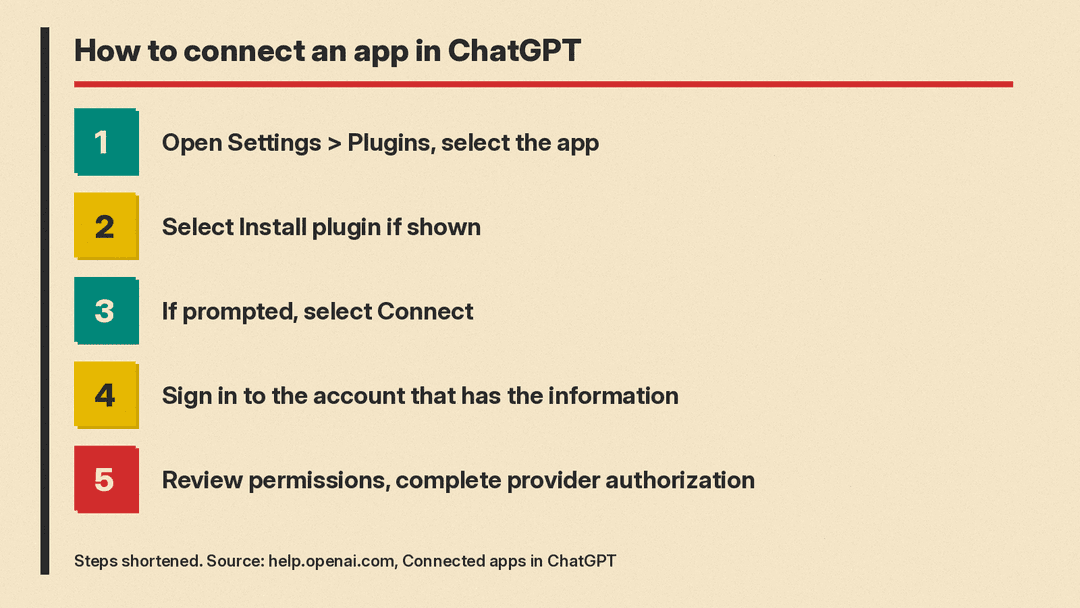
Two notes on this flow. First, very old versions of the iOS or Android app may show Apps instead of Plugins, and some accounts still see Apps in Settings. Use whichever label you see. Second, in step 4, sign in with the account that already has access to the files, messages, or repositories you want ChatGPT to use.
How to review a connection later
Open Settings, select Plugins, and select the app or connected account. Some apps support multiple connected accounts, so you may see more than one account listed for the same app. This is also where you can disconnect an app.
How to use an app in a conversation
Open a supported conversation and describe what you want. You can mention an available app or plugin with @, or select + and choose it from the available menu. Some interfaces place additional options under More.
OpenAI's example prompt is: "Find my project brief in Google Drive and summarize the next steps."
ChatGPT may ask for approval before reading information or completing an action. Review the request before approving it.
What can apps do?
Capabilities vary depending on the app. In general, connected apps can:
- Search and reference information from connected services
- Be used as sources in deep research, for supported apps. See this guide to using deep research in ChatGPT for how that feature works
- Interact with maps, cards, documents, or other in-chat app experiences
- Take supported actions, such as creating or updating information
What an app can do inside a service is limited by what your connected account can already do there. App permissions in ChatGPT do not expand that access. They only control how often ChatGPT asks you first.
On ChatGPT Free and Go, you can find plugins in the directory, but OpenAI says plugin extensions, such as interactive views and plugin forms, are not available on those plans.
Can you use apps in Voice conversations?
Live (voice) supports connected apps through the plugins available to your account, but support varies by app and feature. If an app is not available in voice, use a text conversation. If an app needs your approval during a voice conversation, you review it with on-screen controls in the Voice conversation.
Can apps trigger tasks automatically?
Eligible users can create a task in Work that runs when a supported connected app receives a matching event. Supported events include new Gmail messages, new Slack channel messages, and GitHub pull request activity in authorized github.com repositories.
A task can access only the connected account and information allowed by its existing app permissions. If an action requires approval, the task pauses until you review it.
Where connected-app subscriptions are supported, a conversation can also receive matching updates, for example new messages from a Slack channel you asked ChatGPT to monitor.
App permissions explained
Depending on the app or account, permission options may include:
- Always ask: ChatGPT asks before it reads app information or makes changes.
- Allow read actions: ChatGPT reads without asking but asks before it makes changes.
- Allow low-risk actions: ChatGPT approves low-risk actions. Higher-risk actions may need confirmation or be denied.
- Allow all actions, for an eligible app or account: ChatGPT can run supported actions without more approval prompts.
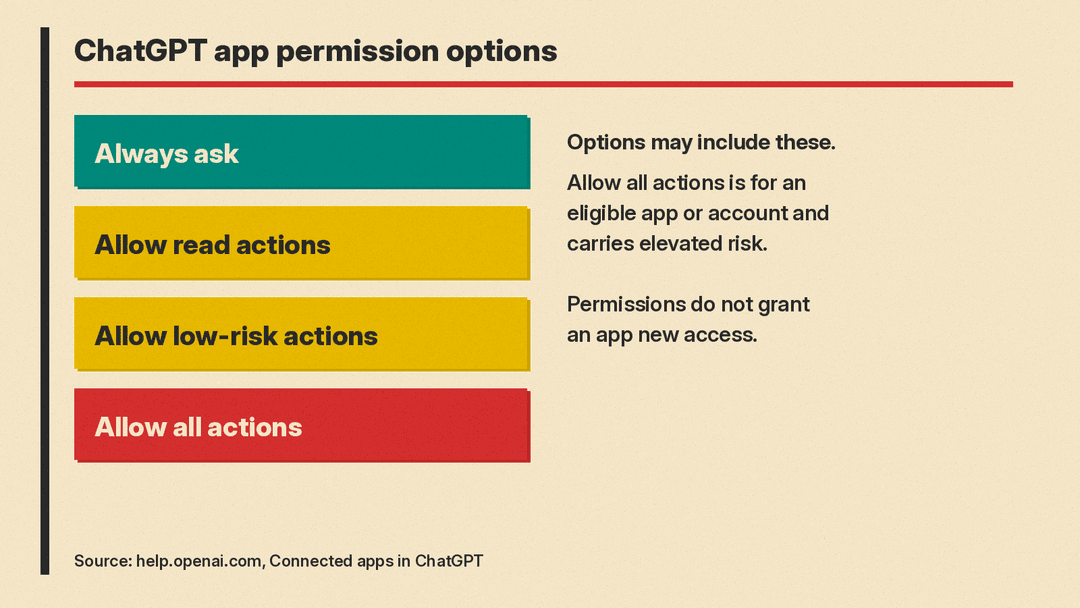
Allow low-risk actions applies when no account, workspace, app, or connection setting overrides it. Sensitive actions may require approval or be denied. OpenAI warns that "Allow all actions carries elevated risk because supported actions may run without another confirmation." The standard account-wide and workspace-wide permission selectors do not offer that option.
One point is easy to misunderstand: app permissions do not grant an app new access. Changing a permission only changes when ChatGPT asks before using the access the app already has. To remove access entirely, disconnect the app or ask your workspace administrator to disable it.
What does ChatGPT share with apps?
An enabled app may access relevant context from your ChatGPT conversations to help with your request. OpenAI's example is the Canva app using names or taglines you brainstormed to make a presentation. If Memory is on, the app may also use relevant information from your memories, for example Canva designing a flyer for your dog-walking business. Memory is a separate setting, and this guide to ChatGPT memory explains how to view, edit, or turn it off.
Apps may also see basic information typically shared when you visit a website:
- IP address
- Device or browser type
- Language and region settings
- Approximate location, meaning a general area like a city or region, not your exact street address or GPS position
Data shared with apps is handled under each app's terms of service and privacy policies. You will see them before you enable the app.
How does ChatGPT use information from apps?
ChatGPT uses information accessed from apps in a few ways:
- As context for its responses in the conversation
- If Memory is on, it may remember relevant information accessed from the app, unless the app or source restricts that
- It can use app information to inform web search queries
Are apps used to train ChatGPT models?
For ChatGPT Business, Enterprise and Edu, OpenAI does not use information accessed from apps to train models by default.
For Free, Plus, Go and Pro, OpenAI may use information accessed from apps to train models if the "Improve the model for everyone" setting is on. If you prefer not to allow that, the controls are described in this guide to ChatGPT data controls and opting out of model training.
How do apps work in a workspace?
In ChatGPT Business, many apps are enabled by default, but administrators can change access. New Enterprise and Edu workspaces start with a selected set of enabled apps, and in general new plugins and apps start disabled there until an administrator turns them on. If an app shows "Disabled by admin," ask an administrator to review the app or its plugin.
Enterprise organizations can restrict new connections to supported apps for accounts on their verified email domain. If that restriction applies to you, you must switch to an authorized workspace before you can connect the app.
How to disconnect an app
To disconnect, open Settings > Plugins and select the app. Open the account's more options menu (•••), or use Connection, then select Disconnect. The third-party app may also have its own unlinking options in the provider's settings.
Disconnecting stops future access through that account. Other connected accounts for the same app stay active. Disconnecting does not delete existing conversations, saved files, or memories. Uninstalling a plugin can disconnect all accounts connected through that plugin. Changing the permission setting back to Always ask does not remove anything. It only means ChatGPT asks you more often before using access the app still has.
Troubleshooting: what if an app is not working?
If an app is missing from your list, will not connect, cannot find information you expected, or cannot complete an action, check these areas:
- The selected account. Some apps support more than one connected account, so confirm which one is in use.
- App requirements. Some apps need individual sign-in, and some use an administrator-managed connection.
- Provider authorization. Return to Settings > Plugins, select the app, and check whether the authorization is complete.
- Workspace restrictions. An administrator may have disabled the app or restricted new connections.
Remember that availability depends on the app, your plan, region, workspace, role, model, and interface, so an app someone else uses may not appear for you at all.
App use may also count toward your ChatGPT plan limits, feature-specific allowances, and limits imposed by the app provider.
Key points to remember
- Apps connect ChatGPT to services you already use, such as Google Drive or Slack.
- Connect from Settings > Plugins, sign in with the account that has the information, and review the requested permissions.
- In a chat, describe what you want, mention an app with @, or pick one with +.
- Permissions control when ChatGPT asks, not what the app can reach. Disconnecting is how you remove access.
- Apps may see conversation context, memories if Memory is on, and basic technical data. Each app's own privacy policy governs that data.
- Whether app information is used for training depends on your plan type and settings.
- If something fails, check the account, app requirements, provider authorization, and workspace rules, and consult the Connected apps in ChatGPT help article.
Sources
- OpenAI Help Center: Connected apps in ChatGPT
- OpenAI Help Center: Connecting and managing app accounts in ChatGPT
- OpenAI Help Center: Managing app permissions in ChatGPT
- OpenAI Help Center: Plugins in ChatGPT
- OpenAI Help Center: Troubleshooting plugins and apps in ChatGPT
- OpenAI Help Center: Admin controls, security, and compliance for plugins and apps
