
ChatGPT handles drafts and code inside the chat itself. OpenAI says writing and coding now happen directly in chat responses, through writing blocks and code blocks. This guide explains what each block does, how to get one, how to edit and format it, how Preview and Run work, how your edits save, and why some options may be missing. It is based on the OpenAI Help Center article Working with writing blocks and code blocks in ChatGPT.
What are writing blocks in ChatGPT?
Writing blocks are editable areas for draft text. Common examples include emails, messages, social posts, and documents. You can select a writing block and edit the text directly inside the conversation.
Available actions vary by plan, device, workspace settings, model, and rollout, so what you see may differ from what someone else sees.
How do you get a writing block?
When ChatGPT creates text that you are likely to revise or reuse, it may place the draft in a writing block. You can also ask ChatGPT to create a draft that you can edit directly in the conversation.
The help article says "may", so not every draft will land in a block. OpenAI's own example prompts are everyday tasks such as an email reply or a short team update.
How to edit a writing block
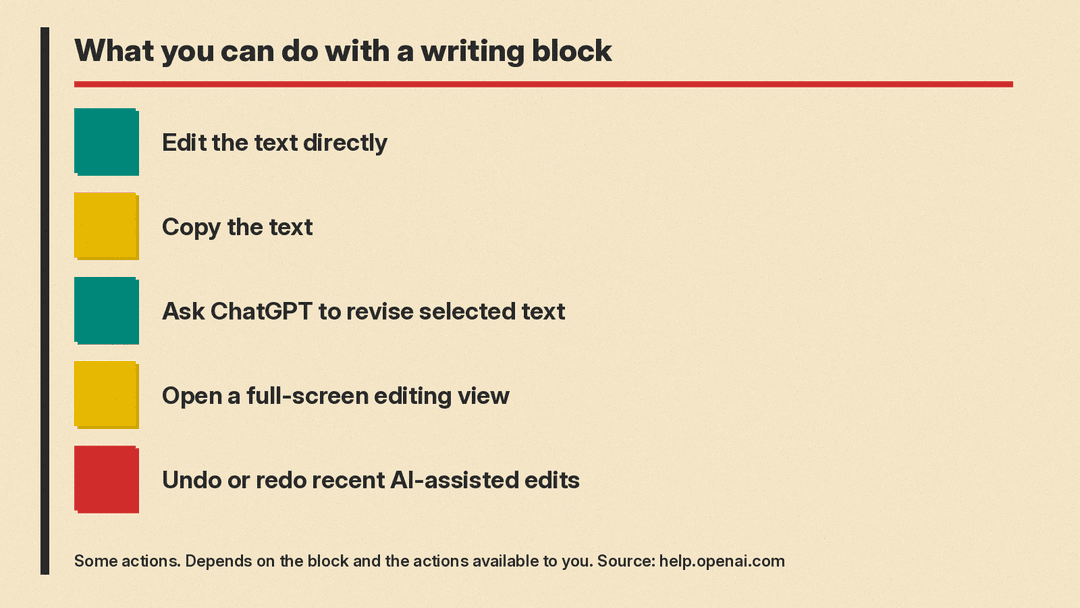
Depending on the block and the actions available, you can:
- Select the block and edit the text directly
- Copy the text
- Ask ChatGPT to revise selected text or the entire draft
- Open the block in a full-screen editing view
- Undo or redo recent AI-assisted edits
- Send supported email drafts directly from ChatGPT, when available, or open them in an email app
- Save supported document drafts to your Library, when available
Direct editing works the way you would expect: select the block and change the words. If you would rather have ChatGPT make the change, you can select the text you want changed and ask for a revision, or ask about the entire draft. Undo and redo cover recent AI-assisted edits, which helps when a revision goes in a direction you did not want.
How to format text in a writing block
Writing blocks support common formatting, including:
- Bold and italic text
- Headings
- Links
- Bulleted and numbered lists
- Checklists
That covers the structure most everyday documents need, such as emails, agendas, and short posts. As with editing, the options you see may depend on the block, your device, and your account settings.
What are code blocks in ChatGPT?
Code blocks keep code and supported preview content separate from the rest of the response, which makes it easier to read, edit, copy, preview, or run. ChatGPT usually places code in a code block.
Depending on the block and the actions available, you can:
- Copy the code
- View the language label, such as Python, JavaScript, or HTML
- Edit supported code blocks directly
- Ask ChatGPT to edit the code
- Open supported code blocks in full screen
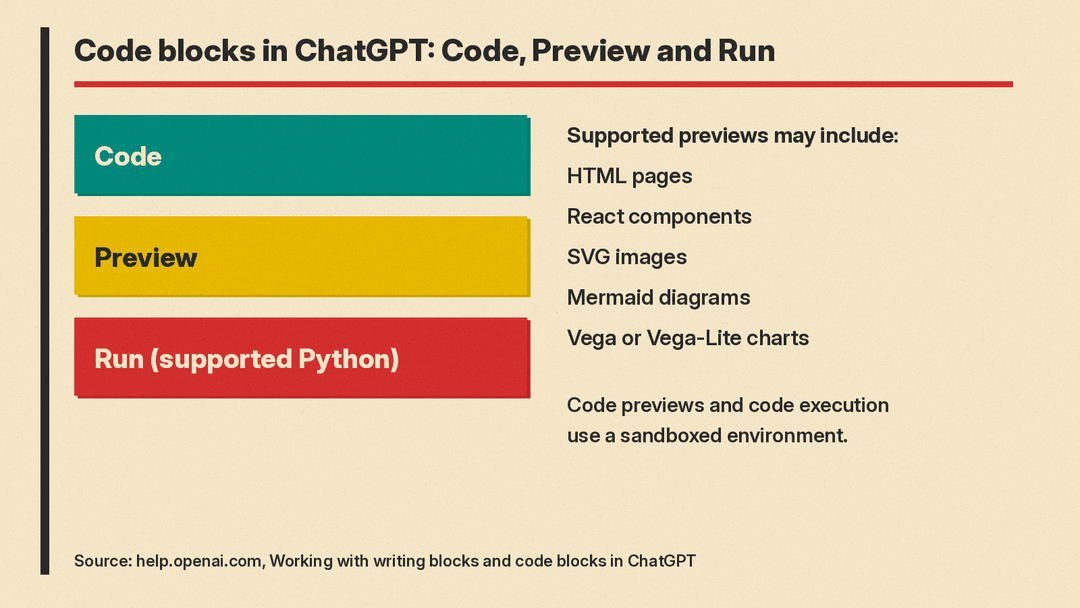
- Switch between Code and Preview for supported previews
- Run supported Python code and view console output
The language label tells you which programming language the block contains, which helps when you copy code into another tool. Editing works in the same two ways as writing blocks: change the code yourself, or ask ChatGPT to change it for you.
How to preview code in ChatGPT
For supported code blocks, select Preview to view the result inside ChatGPT. Instead of reading the raw code, you see what the code produces. Supported previews may include:
- HTML pages
- React components
- SVG images
- Mermaid diagrams
- Vega or Vega-Lite charts
If Preview does not appear, the code block does not support a preview. You can still copy the code and use it elsewhere.
How to run Python code in ChatGPT
For supported Python code blocks, select Run to open a code workspace where you can view output or errors in the console. You can stop code that is still running.
Code previews and code execution use a sandboxed environment. If a preview requires outside resources, ChatGPT may ask for permission before connecting. Workspace admins can also control whether code execution and network access are available, so these features may be limited on some accounts.
If you work with your own spreadsheets or data files, a related set of features applies, covered in our guide to ChatGPT file uploads and data analysis.
How do edits save in writing blocks and code blocks?
Edits to supported writing blocks and code blocks save with the conversation after a short delay. ChatGPT can then use the latest version when you ask follow-up questions, so a follow-up can work from your edited text or code.
One exception involves Temporary Chat. In Temporary Chat, edits may not persist after the conversation ends. If you produce something you want to keep in a temporary conversation, copy it out before the chat closes.
Why you might not see these options
You may not see every action in every conversation. According to the OpenAI Help Center article on writing blocks and code blocks, the available actions depend on:
- The type of block
- Your device
- Your plan
- Workspace settings
- Whether the feature is enabled for your account
Rollout is another factor listed in the help article, so a feature may be available on some accounts before others. If a control such as Preview, Run, or full-screen editing is missing, it may not be available for that block, that device, or that account. On a work or school account, workspace settings can also play a part, so your workspace admin is the person to ask.
What happened to canvas?
If you previously edited drafts and code with canvas in ChatGPT, writing blocks and code blocks now cover that work in newer models. In a May 28, 2026 entry, OpenAI's model release notes say canvas would no longer be available in GPT-5.5 Instant or GPT-5.5 Thinking, and that "Writing and coding functionality is now supported directly in chat responses through writing blocks and code blocks." The same note said paid users could keep using canvas for a limited time through legacy models until those models are sunset.
Example prompts to try
The prompts below are suggestions only. They do not guarantee a particular result, and whether ChatGPT responds with a writing block, a code block, or plain text depends on the factors described above.
OpenAI's help article uses these examples:
- "Draft a reply email to my manager."
- "Write a short Slack update for my team."
- "Turn these notes into a one-page document."
For code, describe what you want the code to do and name the language, such as a Python script, an HTML page, or a chart. You can also ask ChatGPT to create a draft that you can edit directly in the conversation.
Practical tips
- Edit the block instead of asking for a full rewrite. Small direct edits save with the conversation after a short delay, and follow-up questions use the latest version.
- When available, select only the text you want changed before asking ChatGPT to revise it.
- Use the full-screen editing view for longer drafts and larger code blocks, when supported.
- If Preview does not appear on a code block, that block does not support a preview. Copy the code and use it in your own tools.
- Watch the console when you run Python. Errors appear there, and you can stop code that is still running.
- In Temporary Chat, copy out anything you want to keep, since edits may not persist after the conversation ends.
- If you produce similar drafts often, it can help to keep related instructions and files in one place. Our guide to ChatGPT Projects explains how to organize chats, files, and instructions.
- If an expected option is missing, remember that actions depend on the block, device, plan and workspace settings. Workspace admins control whether code execution and network access are available.
