
ChatGPT can remember things about you between conversations. That can save time, because you do not have to explain your job, your preferences or your project every time. It also raises fair questions. What exactly does it keep? Where can you see it? How do you make it forget something, or stop remembering at all?
This guide explains how ChatGPT memory works in plain English, using only what OpenAI's own help pages say. It covers saved memories, chat history reference, the memory controls in Settings, Temporary Chat, and how memory fits with the separate privacy setting for model training.
One caution first. OpenAI's Memory help page says memory features and controls "can vary by plan, region, platform, and workspace settings." If you do not see a setting described here, it may not be available for your account yet.
What ChatGPT memory is
OpenAI's help page puts it simply: when Memory is enabled, ChatGPT "can remember relevant preferences and details from your chats and other available sources," which can help you pick up where you left off and repeat yourself less.
Depending on your plan and region, the help page says those sources can include:
- past chats
- saved memories
- custom instructions
- files in Library
- content from connected apps, such as Gmail
Memory is not a full recording of everything you have said. The help page says memory "does not retain every detail from every conversation." ChatGPT decides which information is relevant to a response, and what it remembers can change as your context changes. It also does not search your history for every reply. According to OpenAI, it looks for relevant context "when it is likely to improve a response."
OpenAI's original memory announcement gives everyday examples. If you have explained that you like meeting notes with headlines, bullets and action items at the bottom, ChatGPT can recap meetings that way. If you have said you own a neighborhood coffee shop, it knows where to start when you brainstorm a social post.
ChatGPT Finances adds a dedicated type of memory called financial memories, such as a savings goal or a loan you owe. Our post on ChatGPT Finances voice explains how to view or delete them.
The two main parts: saved memories and chat history
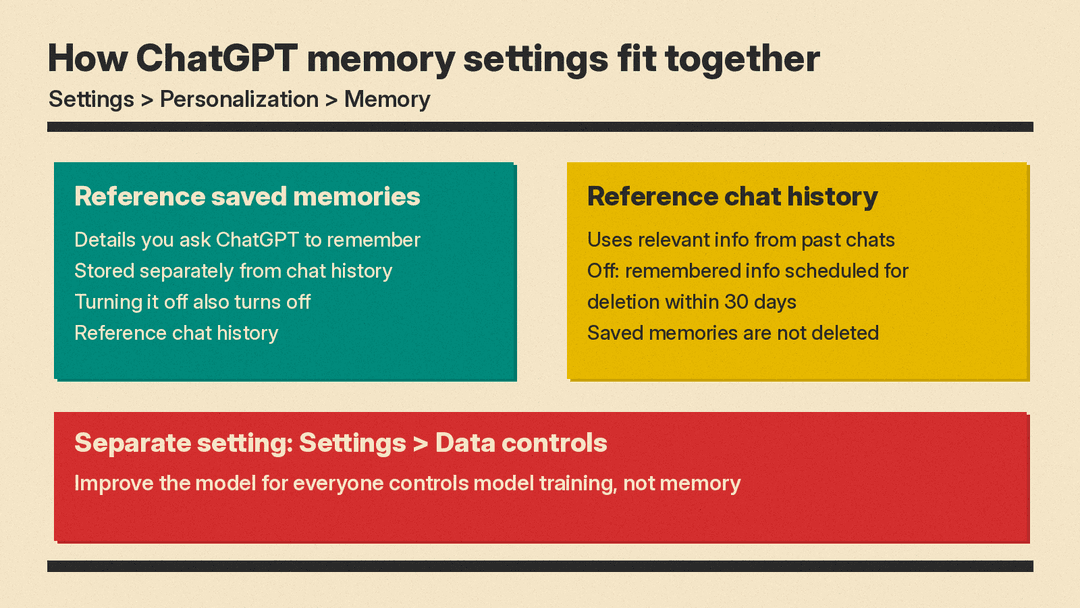
OpenAI's announcement describes memory as working in two ways: "saved memories" you have asked it to remember, and "chat history," which it describes as insights ChatGPT gathers from past chats to improve future ones. In Settings, the matching controls are called Reference saved memories and Reference chat history.
Saved memories
The help page defines saved memories as "details that you explicitly ask ChatGPT to remember or that ChatGPT saves as useful context when that behavior is available." OpenAI's announcement says you can explicitly tell ChatGPT to remember something, ask it what it remembers, and tell it to forget.
Two points matter here:
- Saved memories are stored separately from chat history. Deleting the original chat does not automatically delete a saved memory that came from it.
- Deleting a saved memory stops it from being used for future personalization, but the help page says it "does not remove mentions of that information from past conversations."
You can ask ChatGPT to forget a saved memory, or delete it from Memory settings. Depending on your plan and platform, the help page says saved-memory controls can also include search, sorting, automatic prioritization and version history.
Reference chat history
When Reference chat history is on, ChatGPT can use relevant information from past conversations to personalize future responses. Unlike a saved memory, the help page says information derived from chat history "can change as ChatGPT updates what is most useful to remember."
The help page lists a few rules for this setting:
- If you turn Reference chat history off, information remembered from past chats "is scheduled for deletion from OpenAI systems within 30 days." Your original chats stay in your history unless you delete them.
- Turning off Reference chat history does not delete your saved memories.
- Turning off Reference saved memories also turns off Reference chat history. When Reference saved memories is on, you can manage Reference chat history separately.
Memory is not the same as custom instructions
Custom instructions are a separate feature. The help page describes them as "direct guidance that you provide about what ChatGPT should know and how it should respond." Memory, by contrast, can use information that builds up across conversations and other sources. OpenAI's announcement suggests putting explicit information or instructions in custom instructions, and letting memory handle details you share in conversation.
How to view what ChatGPT remembers
To find the memory controls, the help page gives these steps:
- Open Settings.
- Select Personalization.
- Select Memory.
Depending on your memory experience, OpenAI says the controls there may include Memory, Reference saved memories, Reference chat history, Memory summary, Manage, or Saved memories.
The memory summary
Where it is available, the memory summary is "a high-level view of information that ChatGPT may use to personalize responses." It is not a complete list. The help page says it may leave out details that are less relevant, unsuitable for the summary, or drawn from sources that are not shown one by one.
You can also simply ask ChatGPT what it remembers about you. OpenAI's announcement and help page both mention this option.
Sources under a reply
When ChatGPT uses personal context, Sources may appear below the response. These can point to a past chat, saved memory, custom instruction, file, or connected email that helped shape the answer. The help page notes that Sources "may not show every factor that shaped a response," and that memory Sources are not included when you share a conversation through a shared link.
How to edit or correct a memory
If ChatGPT has something wrong or out of date, you have a few options, according to the help page:
- Tell ChatGPT in the chat that the information is incorrect or outdated.
- Edit the memory summary or a saved memory, when those controls are available.
- In the memory summary, enter a correction in the text field, or highlight text and provide a correction.
There is also a softer option. Selecting Don't mention this again, when it appears, "reduces future references to the information." You can also tell ChatGPT not to use something in future responses. The help page is clear that this changes how ChatGPT personalizes replies but "does not delete the underlying chat, file, email, or other source." If you want the information gone, delete it instead.
How to delete a memory
Deleting remembered information depends on where it lives. The help page lists these steps:
- Delete an item from the memory summary or saved-memory controls.
- Delete the chat where you shared or referenced the information.
- Delete relevant files from Library.
- Disconnect an app that contains the information when you no longer want ChatGPT to access it.
To fully remove something, OpenAI advises deleting the saved memory and the chat where you first shared it, and removing the information from any other place it appears: the memory summary, saved memories, regular and archived chats, files in Library, and connected apps.
Two details are easy to miss:
- Deleting a chat alone "does not necessarily delete a separate saved memory created from that chat." OpenAI's announcement makes the same point: you must delete the memory itself.
- Deletion takes time. The help page says it "can take time for deletion and Memory updates to propagate," and that OpenAI "may retain logs of deleted saved memories for up to 30 days for safety and debugging purposes."
Disconnecting an app prevents future access to that app. The help page says it does not delete past conversations that already used content from the app.
How to turn memory off
You can turn Memory off in Settings, under Personalization, then Memory. There is also a one-step option in the memory summary: Delete and turn off memory, found in the more options menu (•••). The help page says this "deletes the remembered information shown in the summary and turns Memory off," but does not delete past chats.
Here is what turning memory off does and does not do, according to OpenAI:
- It does not delete your past chats.
- If you turn Memory back on later, ChatGPT may create new remembered information from chats still in your history.
- It does not switch off what OpenAI calls "limited safety and security uses of context in rare, high-risk situations." The help page says those uses are separate from personalization controls.
So if your goal is a clean slate, turning memory off is only part of the job. You may also want to delete saved memories and old chats.
Temporary Chat: a conversation that does not add to memory
Temporary Chat is the tool for a one-off conversation you do not want in your history. OpenAI's Temporary chat help page gives these steps:
- Open a new chat.
- Select Temporary.
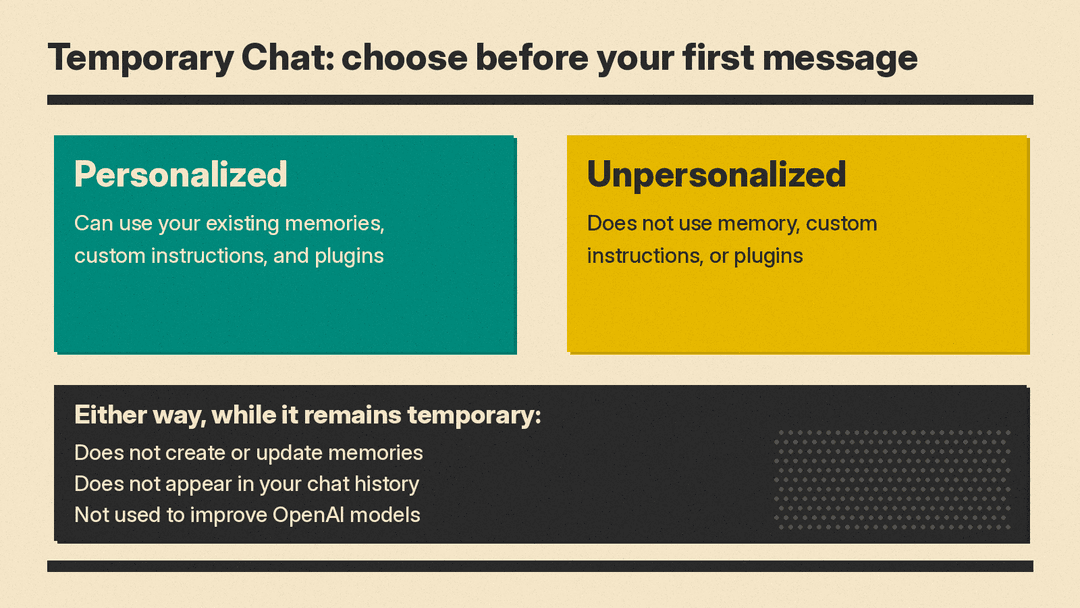
- Choose Personalized or Unpersonalized before you send your first message.
- Enter your message.
The two choices work like this:
- Unpersonalized: does not use memory, custom instructions, or plugins.
- Personalized: can use your existing memories, custom instructions, and plugins.
Neither option creates or updates memories while the chat remains temporary. You cannot change the personalization choice after the conversation starts, and your account and workspace restrictions take priority over it.
OpenAI's Data controls help page says that while they remain temporary, these chats:
- do not appear in your chat history
- do not create or update memories
- are not used to improve OpenAI models
- may be retained for up to 30 days for safety purposes
There is one catch. If you save a temporary chat, it becomes a regular chat. From then on it follows your account's personalization and model-improvement settings, and if Memory is on, ChatGPT may use it to personalize future responses. If you do not save it, it will not appear in your history and you cannot reopen it from history after you leave.
The help page adds a note on GPTs: if a GPT uses actions, data sent to a third party through an action is governed by that recipient's privacy policy, and the recipient may keep it longer than 30 days and use it for other purposes.
How memory relates to privacy and model training
Memory and model training are controlled by different settings.
OpenAI's Data controls page says: "Memory controls how ChatGPT personalizes responses. Model-training controls determine whether eligible content can be used to improve OpenAI models. These are separate settings."
The model-training setting is called Improve the model for everyone. For personal ChatGPT accounts, the Memory help page says OpenAI may use chats and remembered information to improve models when this setting is on. The Data controls page says that on personal workspaces with ChatGPT Free, Plus, or Pro, data sharing is enabled by default.
To turn it off on the web, OpenAI lists these steps:
- Open your account menu.
- Select Settings.
- Select Data controls.
- Select Improve the model for everyone, turn it off, and select Done.
On iOS and Android, open the sidebar, select your profile icon to open Settings, select Data controls, and turn off Improve the model for everyone. When you are signed in, the setting applies to your account across web and mobile.
A few points from the Data controls page are worth knowing:
- Turning off Improve the model for everyone does not delete or hide saved chats. Your new conversations are not used for training, but they can still appear in your chat history.
- Voice mode has a separate control for sharing data for model training.
- If you give feedback after opting out, such as a thumbs up or thumbs down on a response, "the entire conversation associated with that feedback may be used to train OpenAI models."
- Turning off model training does not delete your chats. Delete a chat or your account separately if you want to remove content.
For work accounts, the Data controls page says that by default OpenAI does not use content from ChatGPT Business, Enterprise, Edu, or ChatGPT for Healthcare workspaces to train its models. Managed workspaces can also have their own retention, Memory and access settings, and the help page says workspace owners and admins can manage supported memory settings. If a memory setting is missing in a work account, OpenAI suggests contacting your workspace admin.
Sensitive information
The Memory help page is direct: "Sensitive information can appear in Memory if you share it with ChatGPT." Its advice is to review your Memory settings and Sources, and to choose a non-personalized temporary chat when you do not want a conversation to use or create memories.
OpenAI's original 2024 memory announcement said it was taking steps to steer ChatGPT away from proactively remembering sensitive information, like health details, unless you explicitly ask it to. Sensitive details can still end up in memory if you share them, so checking your memories now and then is a good habit. Treat ChatGPT's answers about you the way you would treat any AI output, and check what matters. Our guide on how to fact-check AI answers has a quick routine for that.
A simple checklist
If you want to take control of ChatGPT memory today, here is a short routine based on OpenAI's help pages:
- Go to Settings, then Personalization, then Memory, and see which controls you have.
- Read your memory summary or saved memories. Correct or delete anything wrong.
- Decide whether you want Reference saved memories and Reference chat history on.
- To remove something fully, delete the saved memory and the chat where you shared it.
- Use Temporary Chat, set to Unpersonalized, for one-off conversations you do not want remembered.
- Check Settings, then Data controls, and set Improve the model for everyone the way you want. This is separate from memory.
Memory can make ChatGPT more useful for everyday tasks. If you use it for work writing, our list of ChatGPT prompts for work pairs well with saved preferences such as tone and format. If you are comparing assistants, see our ChatGPT Plus vs Claude Pro vs Google AI Pro comparison.
