

This guide explains how ChatGPT search works in plain English, using OpenAI's own help pages, plus its 2024 announcement of the feature. It covers when ChatGPT looks things up on the web, how to start a search yourself, how to read the sources it shows, what happens to your question and your location along the way, and how to check an answer before you rely on it.
OpenAI's Searching the web with ChatGPT help page opens with a short summary: "ChatGPT can search the web to answer questions with current information and links to relevant sources." The rest of this article unpacks that sentence.
What ChatGPT search is
Without search, ChatGPT answers from what the model learned in training. OpenAI's Does ChatGPT tell the truth? page says so directly: "Without search enabled: Responses are based on what the model has learned during training." It also lists a knowledge cutoff as a limit. The models are trained on data up to a certain point, and "responses do not incorporate information about events beyond that, unless tools are used."
Search is one of those tools. With search on, ChatGPT can look up current information on the web and answer with links to the pages it used. A search-backed answer can point you to a source.
The help page also says ChatGPT can "use location information to find local results, including restaurants, news, and weather." Location is covered in its own section below.
Web search is not sidebar search
The help page draws a line between two features that share a name. Web search looks outside ChatGPT. Sidebar search "helps you find existing chats, projects, and files in your ChatGPT account." If you want to find an old conversation, you want sidebar search. If you want ChatGPT to look something up online, you want web search. This guide covers only web search.
Where you can use it
As of November 4, 2026, the help page lists web search as available on ChatGPT Free, Go, Plus, Pro, Business, Enterprise and Edu, and says people who are not signed in can also use it. You can search the web on chatgpt.com and in the ChatGPT desktop and mobile apps.
Two hedges from the page apply. First, "Searches are subject to your plan's usage limits." Second, some features, such as restaurant reservations, have additional eligibility requirements. The troubleshooting list also tells people in a managed workspace to ask their administrator whether web search is enabled for their role. If something described here does not appear for you, check your plan and workspace before assuming the feature is broken.
When ChatGPT searches on its own
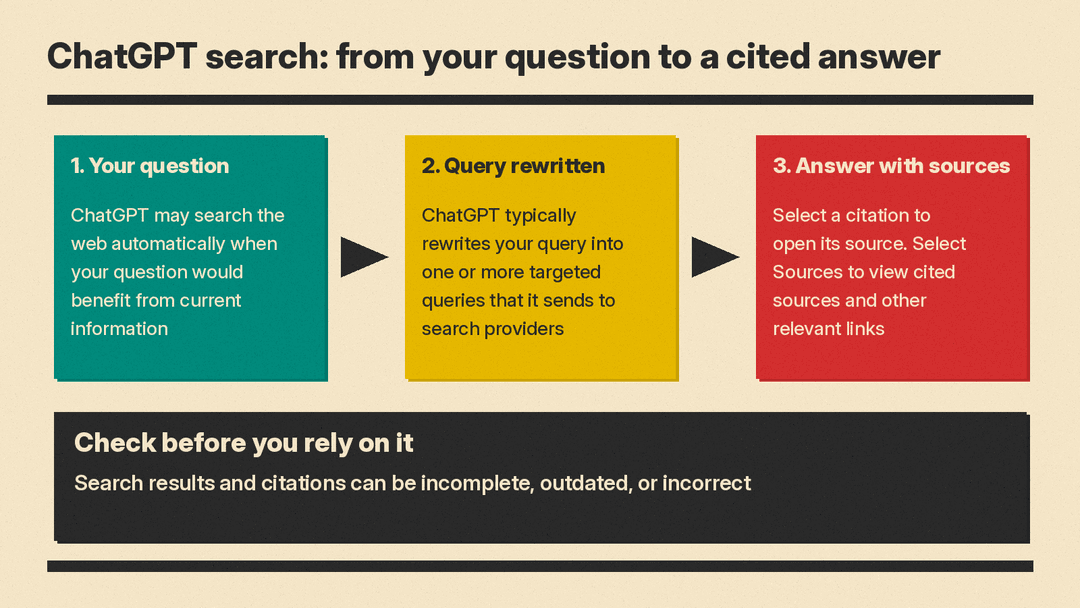
You do not always have to ask. The help page says: "ChatGPT may search the web automatically when your question would benefit from current information."
OpenAI's announcement of ChatGPT search describes the same behavior: ChatGPT chooses to search based on what you ask, or you can choose to search manually. That announcement is an older post (October 31, 2024), and its own banner says it introduced the feature and points readers to current pages for the current experience. This guide relies on the help pages for current steps.
The "Does ChatGPT tell the truth?" page gives a way to check whether search was used. Look at whether the search or deep research icons are enabled in the input bar when you type, or whether sources from the web are cited in the response.
How to start a web search yourself
Here are the steps from the help page, word for word:
- Open a conversation in ChatGPT.
- Select View all tools.
- Select Search.
- Enter your question and send it.
The page gives a shortcut: "You can also enter / in the message composer and select Search."
It also covers an answer you have already received. To regenerate an existing response with web results, "select the refresh control and choose Try again or Search the web, when available." The words "when available" matter. The option may not appear in every situation.
How to read the sources
A search-backed answer may include citations. The help page explains how to use them:
- Select a citation to open its source.
- On desktop web, you can also point to a citation to preview it.
- Select Sources, when available, to view cited sources and other relevant links.
- If a response includes images, select an image to view its source.
- On iOS and Android, relevant results may also include a map.
Note the phrase "cited sources and other relevant links." The Sources view can show more than the pages cited inside the answer text. That can help when you want to see what else ChatGPT found on the topic.
The older announcement describes the same feature: chats include links to sources such as news articles and blog posts, and the Sources button opens a sidebar with the references.
A citation is not proof
The help page is blunt about the limits: "Search results and citations can be incomplete, outdated, or incorrect." It tells readers what to do about that:
- Open a cited source to check that it supports the answer.
- Review when it was published or updated.
- Use an authoritative source when accuracy matters.
This is the most useful habit to build. A link next to a sentence shows where ChatGPT looked. It does not show that the page says what the sentence says. Open the page. Read the relevant paragraph. Check the date.
If a result looks wrong, the help page suggests a fix: "ask ChatGPT to search again using a specific source, date, or location." For example, you could ask it to search again and use a specific publication, or to look only for information from a certain period. The page does not promise this will fix the problem, so treat the second answer with the same care as the first.
What happens to your question
Many people want to know what leaves ChatGPT when they search. The help page has a section titled "Information shared with search providers," and it is worth reading in full. Here is the plain version.
Your question may be rewritten
The page says "ChatGPT search sometimes partners with other search providers." When it does, it "typically rewrites your query into one or more targeted queries that it sends those providers." The page gives an example. A researcher asks about the latest on drugs that target a certain cancer protein, and ChatGPT might send a shorter, more specific query to a search partner. After reviewing the first results, ChatGPT "may send additional, more specific queries to other search providers."
So the text a search provider sees may not be your exact message. The page says ChatGPT typically rewrites your query into targeted queries.
What is and is not shared
The page says ChatGPT "also collects general location information based on your IP address and may share that general location with third-party search providers to improve the accuracy of your results." Then it states a limit: "ChatGPT does not share the IP address itself, or any of your ChatGPT account information, with third-party search providers in order to run the search."
The page points readers to the privacy statements of the providers it names, Microsoft and Shopify, for details on how they process queries.
Memory can shape the query
If you have turned on memory, it can affect what gets searched. The help page says: "If memory is enabled, ChatGPT may use relevant saved memories when rewriting a search query." Its example is a person who has shared that they are vegan and live in a certain city. When that person asks for nearby restaurants, ChatGPT may search for vegan restaurants in that city.
To see or change what is stored, read our guide to ChatGPT memory: how to view, edit or turn it off. For the separate question of whether your chats are used to train models, see ChatGPT data controls: how to opt out of model training.
Location and local results
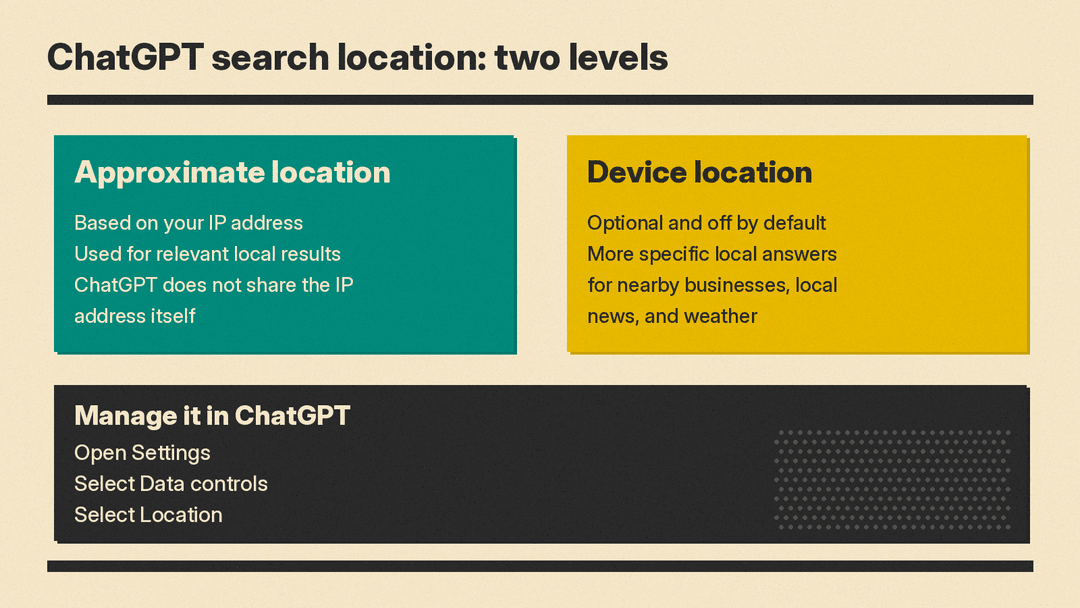
Local questions are where location matters most. The help page says ChatGPT "may use an approximate location based on your IP address to provide relevant local results." It adds: "Device location sharing is optional and off by default."
If you choose to share your device location, ChatGPT "can use more specific information to answer questions about nearby businesses, local news, and weather." On iOS and Android, you may be able to turn off precise location separately while you continue to share an approximate device location.
How to manage location sharing
The help page gives these steps:
- Open Settings.
- Select Data controls.
- Select Location.
- Review or update the available location permissions.
When you enable location sharing, your browser or device may ask you to allow access once, allow access while using ChatGPT, or deny access. You can also manage ChatGPT's location permission in your device settings. If your browser previously denied access, the page says to open its site settings for chatgpt.com, set Location to Allow, and refresh the page.
Precise location is not required. The FAQ answers this directly: "You can search the web without sharing your device's precise location, but local results may be less specific."
If local results show the wrong area
The help page lists three fixes:
- Include your city, neighborhood, or postal code in your question.
- If you choose to share your device location, check your location permissions in ChatGPT and your browser or device settings.
- Ask your question again after updating a location permission.
It also notes that "A VPN or network location may affect the approximate location inferred from your IP address." If memory is enabled, saved location information may influence results too.
What ChatGPT stores about location
The page says ChatGPT "does not separately save or store your precise location outside of what information is included in your ChatGPT conversation and context." Information in the response, such as nearby places, "will remain in your chat history until you delete it." Maps shown in a response stay in your conversation history, but your precise location is removed from the map. The page also says ChatGPT may share your location with trusted third-party providers that supply local information, such as nearby business listings or weather reports, and that it takes steps to minimize the amount of information shared.
Search during a voice conversation
The help page says that during a voice conversation, "you can ask ChatGPT to search the web." Those searches are also subject to your plan's usage limits. The page points to a separate help article on ChatGPT Voice for more.
Restaurant reservations
The same help page also covers finding restaurants and reservation times, with availability from OpenTable, Resy, or Yelp, depending on the restaurant. It says some features have additional eligibility requirements and that reservation search is not available in voice conversations. This guide leaves out the rest because it depends on your plan and region.
Why ChatGPT can still be wrong
Search improves the odds of a current, checkable answer. It does not remove the basic limits of a language model. The "Does ChatGPT tell the truth?" page says ChatGPT "can produce incorrect or misleading outputs" and that it can sound confident when it is wrong. It lists examples of what can go wrong:
- Incorrect definitions, dates, or facts
- Fabricated quotes, studies, citations or references to non-existent sources
- Overconfident answers to ambiguous or complex questions
The page also says the model "may not be able to obtain relevant information from a given website due to technical issues, paywalls or preferences set via robots.txt." In plain terms, if a page is behind a paywall or blocks automated access, ChatGPT may not be able to read it. An answer that leans on other pages may leave out what that page says.
The page ends with practical tips:
- "Use ChatGPT as a first draft, not a final source."
- Always verify quotes, data, technical information or references to external documents.
- Use available tools like search or deep research and check sources when accuracy matters by visiting links directly.
- Encourage critical thinking, especially in educational settings.
If Search is missing
The help page has a short troubleshooting list for when Search is missing or ChatGPT says it cannot search the web:
- Start a new conversation and check the tools menu for Search.
- Update the ChatGPT app or try chatgpt.com in your browser.
- Check that you are using the intended account or workspace and have not reached your plan's usage limit.
- In a managed workspace, ask your administrator whether web search is enabled for your role.
If search is still unavailable, the page says to contact OpenAI Support and include your plan, device, app or browser version, and the exact error message.
For website owners: appearing in ChatGPT search
Readers who run a website may wonder how pages get included. The help page says "ChatGPT ranks search results using multiple factors intended to help users find relevant, reliable information. Placement is not guaranteed." To make a website eligible for inclusion, it says to allow OAI-Searchbot to crawl the site and confirm that the website host or content delivery network allows traffic from OpenAI's published searchbot IP addresses. Separately, in November OpenAI was reported to be testing a Business Hub that would show verified businesses how often ChatGPT mentions them and how many clicks they get.
That is all the page commits to.
If you organize research in ChatGPT, our guide to ChatGPT Projects explains how to keep related chats, files and instructions together.
FAQ
Does ChatGPT always search the web?
No. The help page says it "may search the web automatically when your question would benefit from current information." You can also start a search manually with View all tools, then Search.
How do I know whether ChatGPT used search?
The "Does ChatGPT tell the truth?" page says to check whether the search or deep research icons are enabled in the input bar, or whether sources from the web are cited in the response.
Are the sources always correct?
No. OpenAI says "Search results and citations can be incomplete, outdated, or incorrect." Open the cited page and check that it supports the answer.
Does ChatGPT send my IP address to search providers?
The help page says it does not. It says ChatGPT "does not share the IP address itself, or any of your ChatGPT account information, with third-party search providers in order to run the search." It does say ChatGPT may share a general location based on your IP address.
Do I have to share my precise location?
No. Device location sharing is optional and off by default. Local results may be less specific without it.
Can my memories change what ChatGPT searches for?
The help page says that if memory is enabled, ChatGPT may use relevant saved memories when rewriting a search query.
