
OpenAI plans to retire custom GPTs and wants their creators to move them to plugins. Its retirement FAQ says the change affects all ChatGPT plans and that custom GPTs are scheduled to retire on Dec 11, 2026. For affected Enterprise workspaces with an approved deferral, the date is Feb 11, 2027.
There is a second change that trips up anyone searching "how to make a custom GPT" today. OpenAI's GPT help page now says new GPT creation and publishing are not available on personal ChatGPT accounts, including Free, Go, Plus and Pro. Business, Enterprise and Edu users can still create, edit and publish GPTs when their workspace settings allow it.
So the practical question for most people is no longer how to build a GPT. It is how to keep the GPT you already have working after December. This guide walks through the move, step by step, using OpenAI's own documentation as of October 19, 2026. We did not have an Enterprise workspace to run a migration ourselves, so the steps below follow OpenAI's docs. We did test one prompt, and we show exactly what it produced.
What a plugin is, in plain terms
OpenAI's Build plugins guide describes a plugin as "a reusable package that helps ChatGPT do a task." It can hold two kinds of parts:
- Skills: reusable instructions for a task, such as summarizing a document in a set format.
- Apps: connections to other services, such as file storage or project tools, that let ChatGPT read information or take supported actions.
A plugin can have skills, apps, or both. If your GPT was mostly a block of instructions plus a few uploaded files, its replacement will mostly be a skill with reference files.
The way you start one also changes. With a GPT, you open it or mention it with @. With a plugin, OpenAI's migration guide says you can pick it with an @ mention or from + then More, where supported. ChatGPT can also use an installed skill on its own when the skill's description matches your task. The guide adds that this automatic selection "depends on the task and available capabilities," so an installed plugin will not run on every request.
What moves over, and what does not
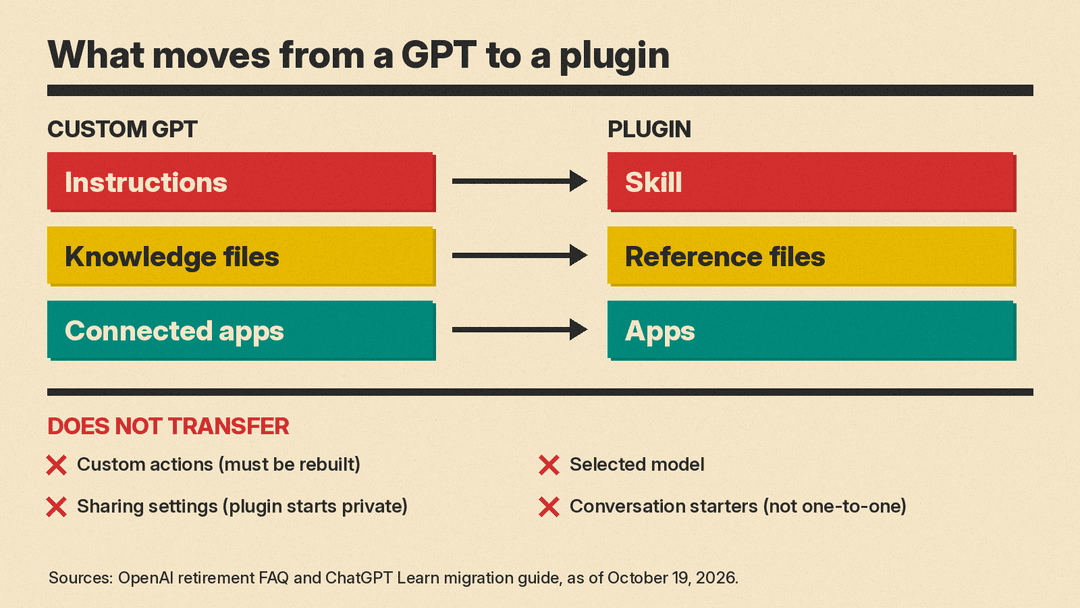
Per the retirement FAQ and the migration guide:
- Your GPT's instructions become a skill inside the new plugin.
- Its knowledge files are copied into the plugin's reference files.
- Connected apps are added to the plugin as apps.
These do not carry over:
- Custom actions. They have to be rebuilt with a supported connector or a custom MCP server (Model Context Protocol, an open standard for connecting tools to AI apps).
- The selected model. In Enterprise workspaces, Enterprise defaults apply.
- Conversation starters. The migration guide says they "do not transfer one-to-one," so save the useful ones yourself.
- Sharing settings. The new plugin starts private, and access to the old GPT does not give anyone access to the plugin.
The guide also warns that capability settings, such as web search, image generation or data analysis, "don't guarantee the same setup." Test any tool your workflow needs.
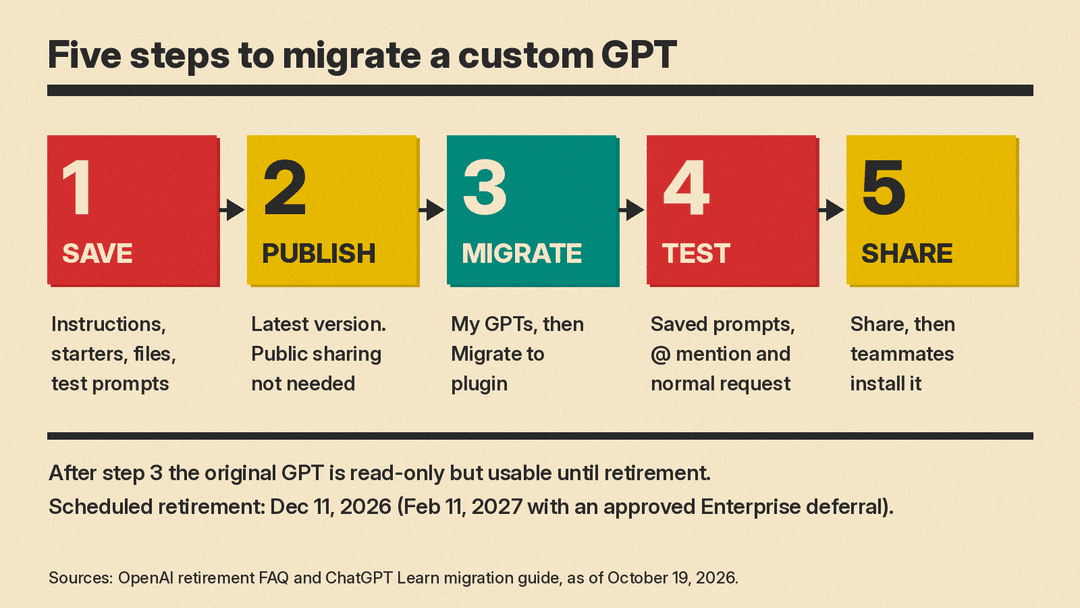
Step 1: Save what you will need to compare
Before you touch anything, write down how your GPT behaves today. The migration guide suggests saving a few familiar prompts with good results, including one harder case. Copy these somewhere outside ChatGPT:
- The GPT's full instructions.
- Its conversation starters.
- The list of knowledge files, and the files themselves if you still have them.
- Who uses it, if you shared it.
- Any custom actions, and which service each one calls.
This list becomes your test plan in Step 4.
Step 2: Publish your latest version
Migration uses the GPT's latest published version. Drafts and unpublished edits do not transfer. If you have changes you want to keep, open the GPT, finish them, and publish.
Publishing does not mean making it public. The FAQ says publishing a GPT "does not require sharing it publicly," so you can publish with access limited to yourself.
Finish all your edits now. After migration, the original GPT becomes read-only. It stays usable until retirement, but every later change has to happen in the plugin.
Step 3: Select Migrate to plugin
When migration is available for your account, go to My GPTs, find your GPT under Created by me, and select Migrate to plugin. Review the migration details and follow the prompts.
If you do not see the option, the FAQ lists the usual reasons:
- Migration is not available for your account yet. It may reach accounts at different times.
- Plugin access is disabled for you.
- You are signed in to a different account or workspace from the one where you created the GPT.
- You did not create the GPT. Permission to use someone else's GPT does not let you migrate it. In an Enterprise workspace, an admin can migrate on a creator's behalf.
If you are on a personal plan, the FAQ says migration and plugin access may differ by account and tells you to follow your in-product notice. OpenAI's detailed migration guide is written for Enterprise admins and creators, so expect some screens to differ on other plans.
Step 4: Test the plugin against your saved prompts
Start a new chat, type @, pick your plugin, and run the prompts you saved in Step 1. The migration guide gives four checks:
- Is the right skill selected, and does it follow your instructions?
- Does it use the expected reference material and produce the structure, fields and format you need?
- Does it handle the harder case correctly, in a workable amount of time?
- Are the tools and integrations it needs available?
Run each test twice: once with an explicit @ mention, and once as a normal request without naming the plugin. That shows you whether ChatGPT picks up the skill on its own.
The migration guide's admin FAQ says a migrated plugin "may respond differently from the original GPT." If a required capability is missing, its advice is to wait to switch that workflow until you have a tested alternative.
To find your plugins later, the migration guide says to select Customize, then Plugins, in the left navigation. To change one, the build guide says to open Plugins, select it, and choose Edit Plugin, which opens a conversation for the update. Rerun your saved prompts after every edit.
Step 5: Share it and confirm people can install it
The plugin starts private. To share it with people or groups, you need the Share plugins permission. To list it in your workspace directory, you need Publish plugins to workspace.
Sharing and installing are separate steps. People you share it with still need to install the plugin, unless an admin has installed it for them. If the plugin uses an app, each person also needs access to that app and any account connection it requires. Ask one teammate to open the plugin and run a familiar task before you announce the switch.
Building a new plugin instead of migrating
If you never had a GPT, or you want to start fresh, the build guide uses a helper called Plugin Creator. Start a chat, type @, search for Plugin Creator, and describe the workflow. OpenAI's plugins help page says you may need to install Plugin Creator from the plugin directory first.
The build guide says a good brief covers four things:
- Purpose: the recurring task and when you will use the plugin.
- Inputs: the information you will provide and how to use each attached file.
- Output: who the result is for, plus its format, length and tone.
- Rules: required steps, what needs your review, and how to handle missing information.
OpenAI's own example brief is a good model to copy:
Create a plugin called Document Summary. Summarize documents I provide in three sections: Overview, Key points, and Open questions. Use the attached template for the format. Base the summary only on the document. If requested information is missing, mark it as not provided. Do not edit the source document.The build guide requires the Use plugins permission and says Plugin Creator must be available in your workspace. Its advice is to keep the first version focused on one workflow, with a clear name and description so you and your teammates know when to use it. If you want a refresher on writing instructions a model follows, our guide to writing better AI prompts covers the basics.
A tested prompt: turn old GPT instructions into a plugin brief
Many GPT instructions were written loosely. Before you paste them into Plugin Creator, you can ask a model to reshape them into the four-part brief above. Here is the prompt we used:
Rewrite the custom GPT instructions below as a brief for a ChatGPT plugin. Use exactly four headings: Purpose, Inputs, Output, Rules. Keep every rule from the original. Do not add features the original does not mention. If something is missing, write "not specified".

GPT instructions:
[paste your GPT's instructions here]
We tested it on October 19, 2026 with a small local model, Google's Gemma 3 1B running in Ollama on our own Linux machine, not in ChatGPT. Our sample GPT was a "Recipe Helper" with these rules: up to 3 dinner recipes, 30 minutes or less, ingredients and numbered steps, metric units, no peanuts, and ask for more if the user lists fewer than 3 ingredients.
What the model got right:
- It used the four headings in order.
- It kept the 3-recipe limit, the 30-minute limit, the numbered steps, the no-peanuts rule and the follow-up question.
What it got wrong:
- It added rules the original never had, such as suggesting "only" recipes that use the listed ingredients and keeping a "diverse selection."
- It broke the metric rule in its own examples, with "1 lb chicken" and "1 cup flour."
That is the lesson for any migration. A model that rewrites your instructions can add or soften rules, as this one did. Read the result line by line against your original before you save it, and run the same check on whatever Plugin Creator drafts.
Timeline and checklist
- Now: save your instructions, starters, files and test prompts. Publish any unfinished edits.
- When your account shows the option: migrate, then test with your saved prompts.
- Before Dec 11, 2026: share the working plugin, confirm teammates can install it, and rebuild any custom actions.
- Dec 11, 2026: scheduled retirement. The migration guide says custom GPTs then "stop running and leave the GPT directory." Affected Enterprise workspaces with an approved deferral get until Feb 11, 2027.
If you miss the date, the migration guide says you can still migrate a GPT after retirement, although the GPT itself will no longer run. That is a fallback, not a plan: you lose the chance to compare old and new side by side.
If you use someone else's GPT, you cannot migrate it. The FAQ says to check its notice and the creator's guidance about a replacement. For more ready-made prompts you can turn into skills, see our 50 ChatGPT prompts for work.
