
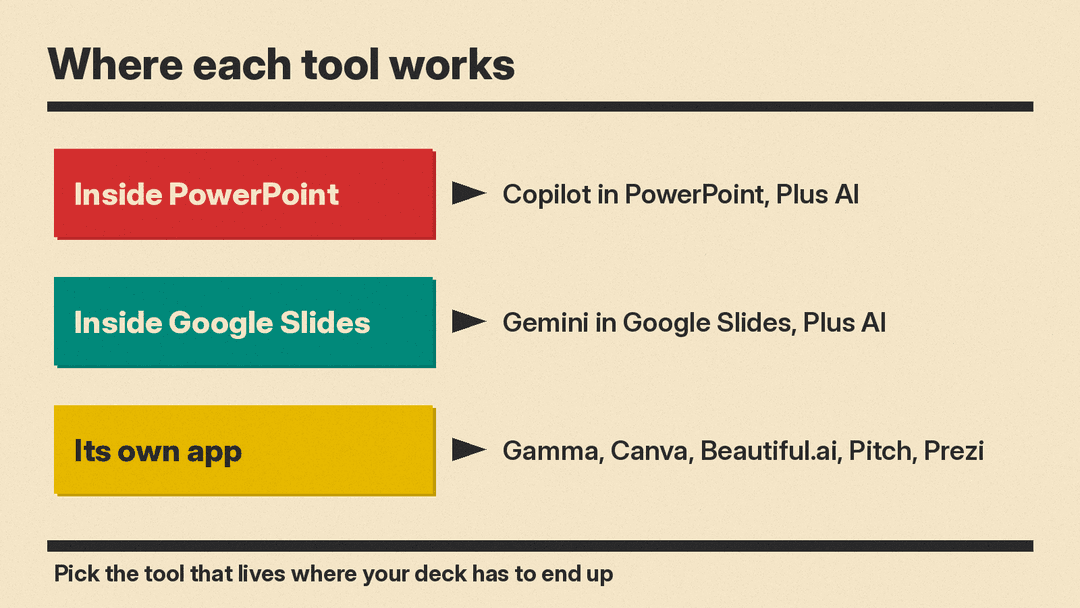
AI presentation makers turn a prompt, a set of notes or a document into a first draft of a slide deck. They do not all work the same way. Some live inside PowerPoint or Google Slides, so the deck stays in the file format your team already uses. Others are their own apps with their own editors, templates and sharing links. This guide covers eight real tools, grouped by where they work, so you can pick one that fits where your deck has to end up.
Features below are as described on each vendor's own pages when we checked them in October 2026. Plans and limits change, so check each vendor's pricing page before you sign up. If you also need help writing the words, our best AI tools for writers guide covers drafting and editing tools.
Tools that work inside PowerPoint and Google Slides
Pick from this group if your company sends decks as PowerPoint files or keeps everything in Google Drive.
Copilot in PowerPoint
Microsoft's Copilot in PowerPoint builds a new presentation from a prompt you type in Copilot Chat inside PowerPoint. Microsoft's help page says Copilot "may ask clarifying questions, such as who the audience is, how long the deck should be, which template or design direction to use, and what kind of imagery to include." You can answer them or skip them and let Copilot decide.
It can also build a deck from a Word document. Microsoft's tips: use Word Styles so Copilot understands the structure, include relevant images, and start from your organization's template so Copilot keeps its theme and layouts. Business users can attach a Brand Kit with logos, fonts, colors and brand voice.
One catch: Microsoft says that if you don't see Copilot, "it might not be included with your Microsoft 365 subscription or available based on your organization's settings."
For how Copilot and Gemini compare across the two office suites, see our Microsoft 365 Copilot vs Gemini in Google Workspace guide.
Good for: people who already work in Microsoft 365 and need a native PowerPoint file.
Gemini in Google Slides
Gemini in Google Slides can "generate fully editable presentations." You describe the topic in the side panel, optionally add files from Drive as sources, and can point it at an existing deck to match its style. Gemini then shows a presentation plan with an overview, sources and a slide-by-slide outline. You can edit, add or delete steps and click Approve before it builds the slides.
After that, Google says you can generate a single slide at a time with Gemini, edit elements by hand, and ask Gemini to add or edit images.
Google's page lists three conditions: it "requires an eligible Google Workspace or Google AI plan," it is offered to personal accounts through the Workspace Experiments tester program, and it is "currently available on desktop and in English only."
Good for: teams that live in Google Drive and want the deck to stay a normal Slides file.
Plus AI
Plus AI is an AI assistant that "works directly inside PowerPoint and Google Slides." You describe the presentation in a few sentences or upload a PDF, Word document, PowerPoint file or text file. Plus says it can rewrite and reformat slides "in one click," add images, icons and charts, and turn any slide, even a block of plain text, into a design you choose.
For teams, Plus lists custom templates, shared libraries, saved prompts and custom instructions. It also says "everything you generate with Plus is yours forever."
Good for: people who want AI help in both PowerPoint and Google Slides without switching apps.
Tools with their own app
These tools have their own editor. Each one says it can import or export PowerPoint files, but you build and often present inside the tool.
Gamma
Gamma makes presentations, documents and webpages from a prompt. Its help center says creating now "starts with a conversation": you tell the AI agent what you are making, answer a few quick questions, and it builds the whole thing. Gamma's classic generator, which it says is still available, lists three starting points: generate a draft from a topic, paste in text you already wrote and have Gamma format it, or import a PowerPoint, document or URL.
A mode picker lets you review the template and plan before Gamma builds, skip the review, or pull sources from the web first. You can also generate text only or leave image placeholders to fill in later.
Good for: fast first drafts from a topic, your own text or an existing file.
Canva
Canva calls its AI presentation feature a "guided presentation builder." Canva's FAQ says you open Canva AI, choose Design for me and then Presentation, pick audience, style and length options, and enter a short prompt. Canva generates an outline first. You can reorder or add sections, then click Generate design.
Canva says you can export slides "as a PowerPoint presentation, PDF, video slideshow, or Canva website," and present with polls, quizzes and presenter notes on your phone. On cost, Canva's FAQ says Canva AI "is available with a Free account, but you only get a limited number of uses," and Canva Pro unlocks more.
Good for: visual decks, social-style designs and people who already use Canva for other graphics.
Beautiful.ai
Beautiful.ai is built around Smart Slides, layouts that it says "realign, resize, and animate your content automatically." Its AI workflow lets you prompt a topic, paste a full outline or add source material, then "review and refine a slide-by-slide outline" before it generates slides. You can then try other Smart Slide layouts "while preserving your exact copy and content."
Beautiful.ai says it has over 300 Smart Slide layouts, data slides for charts and timelines, and locked themes so teams stay on brand.
Good for: business teams that want consistent, tidy layouts more than free-form design.
Pitch
Pitch calls itself "the AI presentation workspace." Its focus is teams: you generate and edit slides together in one cloud workspace, set brand guardrails, and upload custom fonts and media. Pitch says its slides stay "fully editable" with full design control.
It also leans into sales. Pitch lists deal rooms, tracking of who opens your presentations and downloads your files, and an MCP connection and API so you can "make decks from your AI tools or automate workflows, like generating QBR decks from call transcripts." MCP (Model Context Protocol) is an open-source standard for connecting AI applications to external systems.
Good for: sales and marketing teams that make many decks and want to see who views them.
Prezi
Prezi is aimed at live sessions. You bring slides from PowerPoint, Google Slides, Canva or a PDF, "or describe what you're covering in a sentence and Prezi builds it from there." Its main pitch is audience participation: polls, quizzes, Q&A and word clouds that people join by scanning one QR code.
After the session, Prezi says people can revisit the material with flashcards, self-tests, a podcast or a narrated video.
Good for: teachers, trainers and anyone who presents to a room and wants it to take part.
How to pick
Start with where the deck has to end up:
- Your company sends PowerPoint files: Copilot in PowerPoint or Plus AI.
- Your team works in Google Drive: Gemini in Google Slides or Plus AI.
- You want a fast first draft in a separate app: Gamma or Canva.
- Your team needs every deck on brand: Beautiful.ai or Pitch.
- You present live and want the audience involved: Prezi.
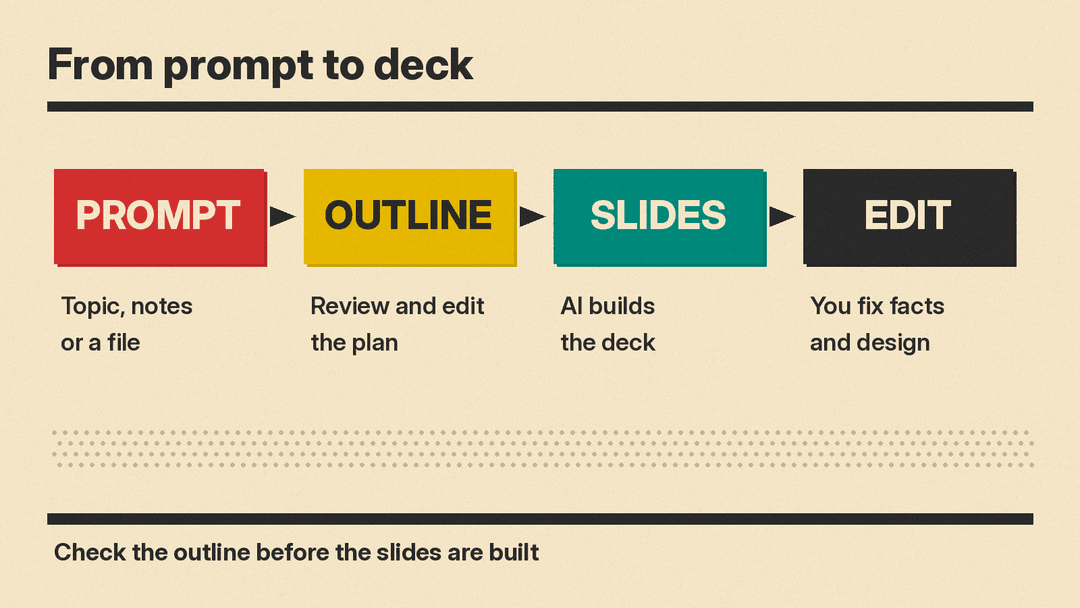
If you are not sure, try two tools on the same prompt and compare the outlines. Gemini, Canva, Beautiful.ai and Gamma let you review an outline or plan before the slides are built.
Tips for better AI slides
- Give the tool your real material. A document, notes or a source file gives better slides than a one-line topic. Copilot, Gemini, Gamma, Beautiful.ai and Plus AI all accept source files.
- Fix the outline first. Gemini, Canva, Beautiful.ai and Gamma all show a plan or outline you can edit. Changing it there is easier than moving slides around later.
- Check every fact and number. Google's Slides help page asks you to report a suggestion that is inaccurate, so read each slide before you present it.
- Start from your template. Microsoft says starting from your organization's template lets Copilot keep the theme. Gemini can match an existing deck's style, and Beautiful.ai, Pitch and Plus AI all support shared brand settings.
- Check who owns the result. Canva's FAQ notes that "the law is currently unclear on who owns the copyright in AI-generated content." Read each tool's terms if that matters for your work.
Sources
- Microsoft: Create a new presentation with Copilot in PowerPoint
- Google: Generate presentations with Gemini in Google Slides
- Google: Generate a slide with Gemini in Google Slides
- Plus AI
- Gamma
- Gamma Help Center: How do I create a new presentation, document, or webpage in Gamma?
- Canva: Presentations
- Beautiful.ai
- Pitch
- Model Context Protocol: What is MCP?
- Prezi
