
Many small businesses repeat the same few chores each week: saving attachments, sorting the inbox, summarizing meetings, copying a form response into a spreadsheet. AI automation tools now let you describe one of these chores in plain language and get a working flow back. You still have to decide which chores to hand over, and where a person should check the result.
This guide covers how to pick the first tasks, how to build a flow in three common tools (Google Workspace Studio, Power Automate with Copilot, and Zapier Agents), and how to keep a person in control. Product details are as of November 2026. These tools change often, so check each vendor's page before you commit.
What an AI automation is
An automation is a rule that runs without you: when something happens, do something else. The "when" is a trigger, such as an email arriving, a form being submitted, or a time of day. The "do" is one or more actions, such as saving a file, posting a message or drafting a reply.
The AI part comes in two places. First, you can build the flow by describing it in plain language instead of dragging blocks around. Second, a step inside the flow can use AI to read, summarize, label or draft something.
Microsoft describes cloud flows in Power Automate the same way: they can be triggered by events, such as the arrival of an email, or a specific time of day, and can perform actions across multiple services.
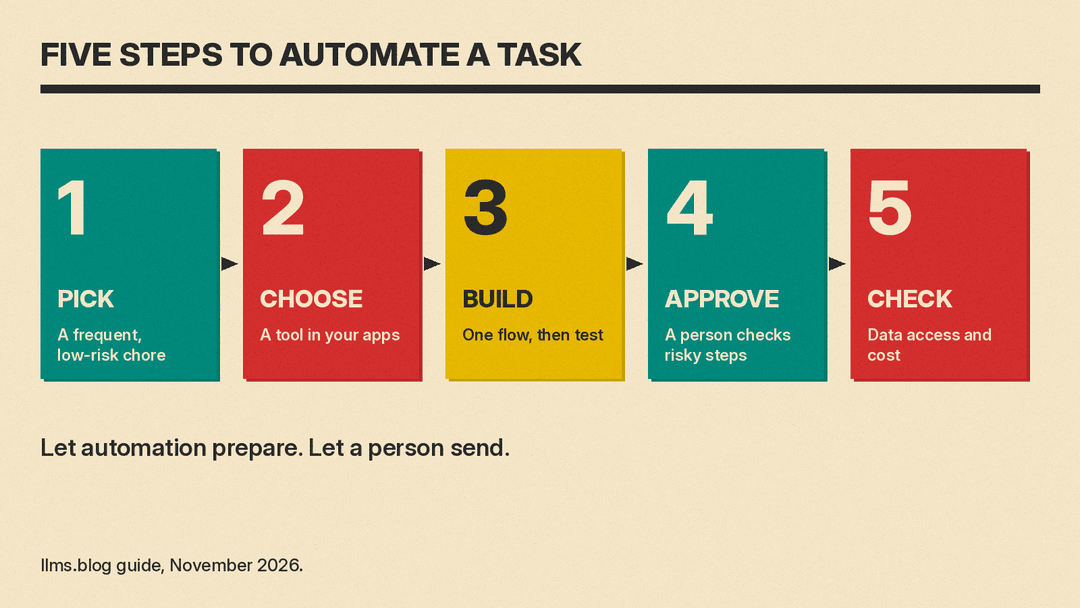
Step 1: Pick tasks that suit automation
Start small. A good first task has four traits:
- It happens often, at least weekly.
- The steps are the same every time.
- A mistake is cheap to fix. Labeling an email is low risk. Sending a refund is not.
- You can tell at a glance whether the result is right.
Good first candidates for a small team include:
- Saving email attachments to a shared folder and logging them in a sheet.
- Labeling or starring emails that contain a request or deadline.
- Summarizing upcoming meetings, or sending action items after one.
- Posting a chat alert when a form is submitted.
- Sending a morning digest of unread messages.
Poor first candidates are anything that moves money, deletes data, or sends a message to a customer without review. You can automate those later, with an approval step (see Step 4).
Other jobs suit AI help too. Our guides to the best AI tools for small business owners and the best AI receptionists for small business cover tools for broader tasks and for answering calls.
Step 2: Choose a tool that fits where you already work
The simplest choice is the tool that lives inside the apps you already use. Here are three common options.
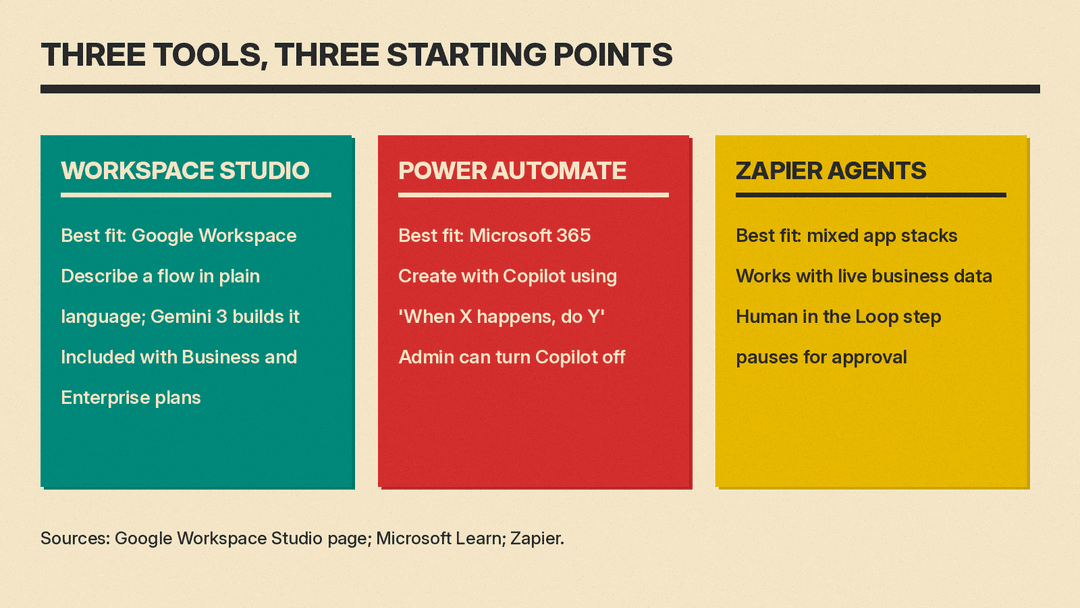
Google Workspace Studio, for teams on Google Workspace
Google Workspace Studio is Google's place to design, manage and share AI-powered flows, and it grew out of the alpha program called Workspace Flows. Google says it is generally available with all Business and Enterprise Workspace plans.
Google's page says you describe what you want to automate in plain language and Gemini 3 creates the flow. Google also lists prebuilt steps for building flows quickly. You can modify flows and track their activity without leaving Gmail, Chat or Drive. Example flows on Google's page include:
- Saving attachments to a Drive folder and recording them in Sheets, from inside Gmail.
- Detecting and labeling high-priority emails.
- Summarizing upcoming meetings in Chat, based on the meeting's details, attendees and attachments.
- Capturing meeting action items, translating them, and drafting an email to share them with the team.
On data handling, Google says Studio follows its existing Gemini and Workspace commitments. Customer data stays the customer's property, data processed in Studio is not used to train Google's general AI models outside the customer's domain, and Studio can only access data the person who started the flow has permission to see. Google also says Studio does not override Data Loss Prevention (DLP) controls for services such as Drive, but that broader DLP integration for third-party services is being contemplated and is not yet part of its immediate plans. If you handle sensitive client data, ask your admin which outside services should be connected.
Google's Workspace Updates blog says that on September 17, 2026 it added custom starters, custom steps, third-party integrations (in beta) and webhooks to flows in Workspace Studio. Google says these features are off by default until an admin turns them on. Details are in the Workspace Updates post, so check with your admin which of them are enabled before you plan around them.
Power Automate with Copilot, for teams on Microsoft 365
Power Automate is Microsoft's automation product. Its Copilot lets you create a cloud flow by describing it in natural language, then keep refining it through conversation. According to Microsoft's documentation, Copilot can create a flow from your scenario, set up connections, apply parameters from your prompt, make changes you ask for, and answer questions such as "What does my flow do?"
The documentation gives a prompt tip that works in any tool: write it in the form "When X happens, do Y", be specific, and name the app you want. Microsoft's own example of a weak prompt is "I want to process an email". Its stronger version is "When an email arrives, I want to post the subject of the email to 'Contoso' Teams General channel."
A few details from Microsoft's pages worth knowing:
- Copilot is turned on by default, but an admin can disable it.
- Copilot is available only in the new flow designer, not the classic one.
- After Copilot builds the structure, you check that each connection is set up correctly, then save and test the flow.
- Microsoft notes that Copilot is new technology that is still being developed, and it is optimized for English.
Zapier Agents, for teams that use many different apps
If your tools do not all come from one vendor, Zapier Agents is another route. Zapier describes agents as AI teammates that you equip with live business data. Its page description says they can work across more than 8,000 apps, on command and while you sleep, while its menu cites 9,000+ app connections for the Zapier platform. Its examples include preparing a dossier on attendees before external meetings, alerts when qualified leads come through forms, and offloading Zendesk tickets by auto-answering common questions and escalating complex ones.
Zapier's Agents page is a marketing page. It links to pricing instead of stating costs, and its FAQ list includes questions about agent reliability and about support during a Beta. Read the pricing and limits before you build anything your business depends on.
Wix has also launched Symphony, a standalone team of AI agents that you run through one chat, with a free plan. Our Symphony by Wix explainer covers its plans and credits.
Step 3: Build and test one small flow
Use the same routine in any of the three tools:
- Write the flow in one sentence, using the "When X happens, do Y" form. Example: "When an email with an attachment arrives in the shared inbox, save the file to the Clients folder and add a row to the Intake sheet."
- Name the apps involved, so the tool picks the right connections.
- Review what the tool generated. Check the trigger first, since a wrong trigger fires at the wrong time. Then check each action.
- Test with a real but harmless example, such as an email you send to yourself.
- Switch it on, and look at its activity or run history for the first few days.
Change one thing at a time. If a flow misbehaves, you want to know which edit caused it.
Step 4: Keep a person in the loop
AI steps can be wrong, and a fast automation repeats a mistake quickly. For anything that touches customers, money or records, add an approval step so a person confirms before the flow continues.
Zapier has a built-in tool for this in its Zap workflows. Its Human in the Loop action pauses a Zap at a chosen step so a reviewer can approve, decline or edit the data before the run continues. You can send the review request by email or Slack, and set what happens if nobody answers in time: continue or end the run. Zapier lists it as a premium app that needs a paid account, and notes that reviewers need a Zapier account.
Microsoft lists sending an approval in Teams or SharePoint as an example of an instant cloud flow. In Workspace Studio, a simple pattern is to have the flow draft an email instead of sending it, so you read it before it goes out. Google's own example for meeting action items is built that way: the flow drafts the email rather than sending it.
A simple rule of thumb: let automation do the preparing, and let a person do the sending.
Step 5: Check the data and the cost
Before you turn a flow on for real work, answer three questions:
- What data does it touch? A flow that reads client emails sees client data. Confirm that your plan's data terms allow it, and use the least access the flow needs.
- Who can change it? Decide who may edit or share a flow, so one person's tweak does not quietly change how the whole team works.
- What does it cost to run? Some tools bill by task or by usage. Zapier, for example, counts successful Human in the Loop actions toward task usage. Check how your tool counts runs before you automate something that fires hundreds of times a day.
A starter plan for the first week
- Day 1: List five chores you repeat every week. Cross out any that move money or contact customers.
- Day 2: Pick the one that is most frequent and lowest risk. Write it as a "When X happens, do Y" sentence.
- Day 3: Build it in the tool that matches your email and calendar. Test it with a harmless example.
- Day 4 to 7: Watch its activity log. Fix anything odd, then pick the second chore.
A flow that saves you ten minutes a day may be worth building. The bigger gain may come from repeating the process on the next chore, with a person still checking the parts that matter.
If one of your chores involves writing customer messages, our ChatGPT prompts for small business give you copy-paste starting points.
Sources
- Google Workspace Studio
- Create your first cloud flow using Copilot, Microsoft Learn
- Overview of cloud flows, Microsoft Learn
- Power Automate, Microsoft
- Zapier Agents
- Request approval with Human in the Loop, Zapier Help Center
- Google Workspace Updates: Automate workflows with custom starters and steps, third-party integrations, and webhooks in Workspace Studio
