
A weekly status report is a small job that eats a surprising amount of time. You know what happened this week, but turning scattered notes, tickets and chat threads into a tidy update takes a block of attention most people would rather spend on the work itself. An AI assistant is good at exactly this kind of task: shaping material you already have into a clear, consistent format.
This guide shows a simple way to do it with any chat assistant (ChatGPT, Gemini, Claude, Copilot or similar). It covers what to collect, a reusable prompt, how to check the draft, and how the document tools in Microsoft 365 and Google Workspace can pull from your own files.
What a good status report contains
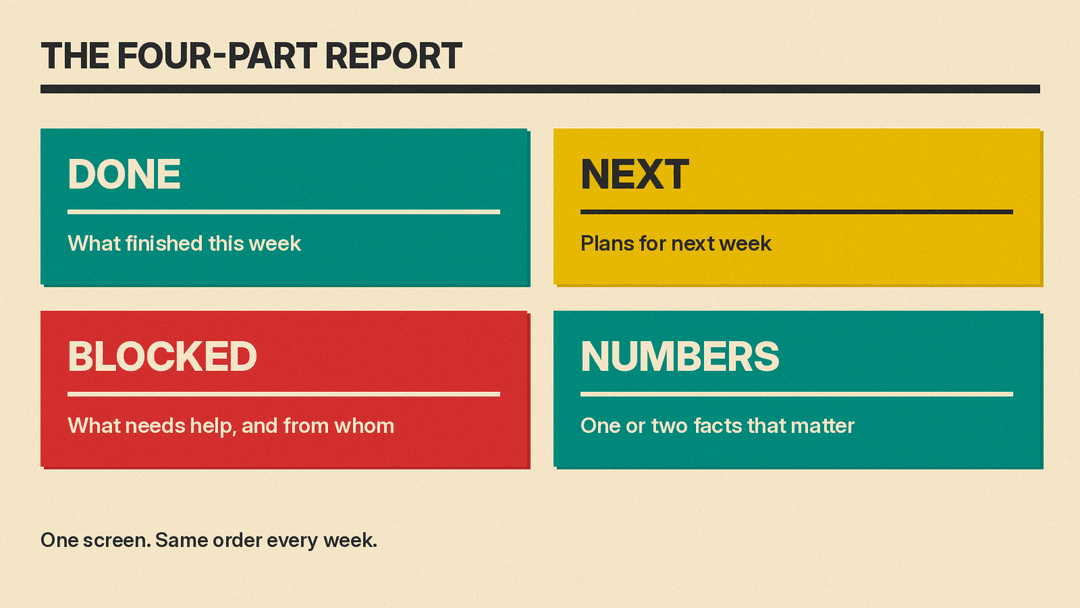
Before you involve AI, decide on the format. A status report is read by someone busy, usually between other tasks. A format that works for most teams has four parts:
- Done: what finished this week, in one line each.
- Next: what you plan to do next week.
- Blocked: anything that needs a decision or help, with the name of the person who can unblock it.
- Numbers: one or two facts that matter, such as tickets closed, deals moved, or tasks late.
Keep it to one screen. If your manager or client already has a template, use theirs. The point is that the structure stays the same every week, so readers learn where to look. AI tends to do better at filling a fixed structure than at inventing a good one.
Step 1: Collect the raw material
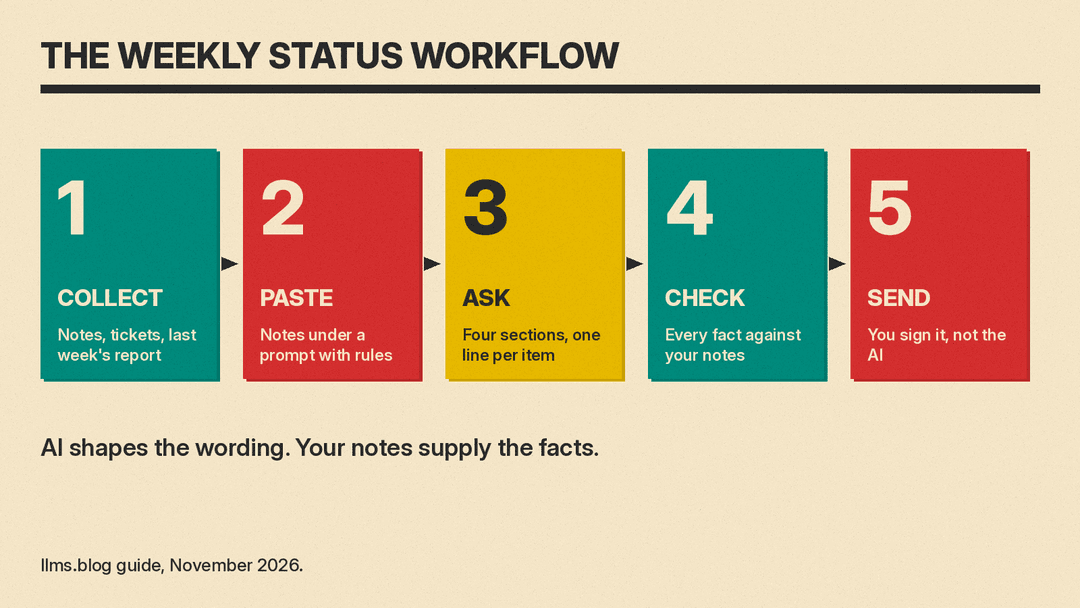
The quality of the report depends on what you give the assistant. Spend five minutes gathering:
- Your own notes or a running to-do list for the week.
- Titles and status of tickets or tasks you touched (copy them from your tracker).
- Short notes from meetings, such as decisions and action items.
- Last week's report, so the assistant can keep the same tone and carry open items forward.
You do not need to clean any of this up. Messy bullets are fine. What matters is that every fact in the report comes from something you pasted in, not from the assistant's imagination.
Check what you are allowed to paste before you start. Customer names, salary details, unreleased plans and legal matters may be off limits for a public chat tool under your company's rules. When in doubt, replace names with roles ("the client", "the vendor") or use the AI tool your company has approved.
Step 2: Use a prompt that sets the rules
Here is a prompt you can adapt. Paste your notes below it.
You are helping me write my weekly status report for my manager.
Use only the notes below. Do not add facts, numbers or dates that are not in them.
If something is unclear, list it at the end as a question for me.

Format: four sections called Done, Next, Blocked and Numbers.
Write one short line per item, in plain language, no jargon.
Keep it under 200 words. Match the tone of last week's report.

Last week's report:
[paste]

This week's notes:
[paste]
Two lines in that prompt do most of the work. "Use only the notes below" cuts down on invented detail. "List unclear items as questions" gives you a place to see what the assistant could not work out, instead of letting it guess.
If the first draft is too long, reply with a short instruction such as "Cut it to five lines" or "Make Blocked the first section." Short follow-ups are quicker than rewriting the prompt.
Step 3: Check the draft like an editor
AI drafts read smoothly, which makes mistakes easy to miss. Go through the draft with a short checklist:
- Does every item match something in your notes?
- Are names, numbers and dates exactly right?
- Is anything stated as finished that is only in progress?
- Does the Blocked section say who needs to act, and by when?
- Would you be comfortable if the person you wrote about read it?
Microsoft's guidance for Copilot in Word says to review and verify details, especially facts, numbers, citations, names and policy statements, and that you decide whether to keep, revise or remove the content before sharing. Treat that as a rule for every status report, whichever tool you use. You are the one who signs it.
Using your documents directly in Word and Docs
If your reports live in a document, the built-in assistants can read your files so you do not have to paste anything.
In Word, Microsoft's support page for Copilot says you can ask for a first draft from a simple request, an outline, notes or reference files. To use a specific source, you type a slash and choose the file, if available. It lists the details worth putting in your request: topic, audience, tone, format and length. Copilot in Word requires an eligible Microsoft 365 subscription or a Microsoft 365 Copilot license, and some features roll out gradually depending on your license and settings, so check what your account shows.
In Google Docs, Google's help page for Gemini says you can draft and refine content using information from your files in Drive, Chat, Gmail and the web. You can add sources from the bottom bar or by typing an at sign and picking a file, and Google's own example is asking Gemini to update a project timeline based on the latest meeting notes doc. Google's page also describes editing in the style of an existing file, which would help you keep last week's tone, but it lists that option under Workspace Experiments, a trusted tester program for personal accounts. Gemini shows its changes as suggestions in the document, and you can accept them one at a time or accept or reject all of them. The feature needs an eligible Google Workspace or Google AI plan.
Whichever you use, the same rules apply: point the assistant at the right files, set the four-part format, and read the result before it goes out.
Make it a habit, not a project
The report gets easier when the inputs build up during the week. A few small habits help:
- Keep one running notes file and add a line whenever something ships or stalls.
- Write the Blocked item the moment you get blocked, while the details are fresh.
- Save your prompt as a note or template so you paste it, not retype it.
- Keep last week's report in the same place every time.
Done this way, Friday afternoon becomes a two-minute paste, a quick check and a send. If your report goes to a customer or a leadership team, read it twice and keep an eye on tone, as covered in our guide to work documents people trust when everyone uses AI. For related workflows, see how to use AI for work email in Gmail and Outlook, our guide to replying to customer reviews with AI, and our guide to using AI for proposals and RFP responses.
For review season, our guide to how to prepare for a performance review with AI uses the same notes-first method.
When not to use AI for your status report
Skip the assistant, or at least slow down, when the report covers a sensitive situation: a missed deadline with legal or contract consequences, a personnel matter, or a security incident. In those cases the wording carries real weight, and the facts should come straight from you. A shorter, plainer report written by hand is better than a polished one that glosses over what happened.
