
A Trinity Valley SBDC article tells of a furniture maker who picked a price that felt fair, stayed busy, and still had little money left at the end of each month. AI tools in Excel, Google Sheets and ChatGPT can make the work behind a price faster: adding up costs, comparing scenarios, and turning notes on competitors and customers into a short list of options. They cannot tell you what your customers will pay. This guide shows a five-step workflow, the prompts to use, and where a person has to make the call.
What a good price has to do
University of Maine Cooperative Extension gives three guiding principles for small business pricing: a price should cover your total costs and give a reasonable profit, be competitive with similar products or services, and fall in a range most of your target customers are willing to pay. The same guide says the goal is the largest total profit, not the greatest sales volume. A low price can bring high volume and still fail to cover expenses.
Salesforce's small business pricing guide lists the most common pricing approaches for small businesses: cost-plus, competitive, penetration, price skimming and value-based pricing. AI helps most with the first two, because they rest on numbers you already have. It helps less with value-based pricing, because that depends on what your customers think, and only your customers can tell you that.
The five-step workflow
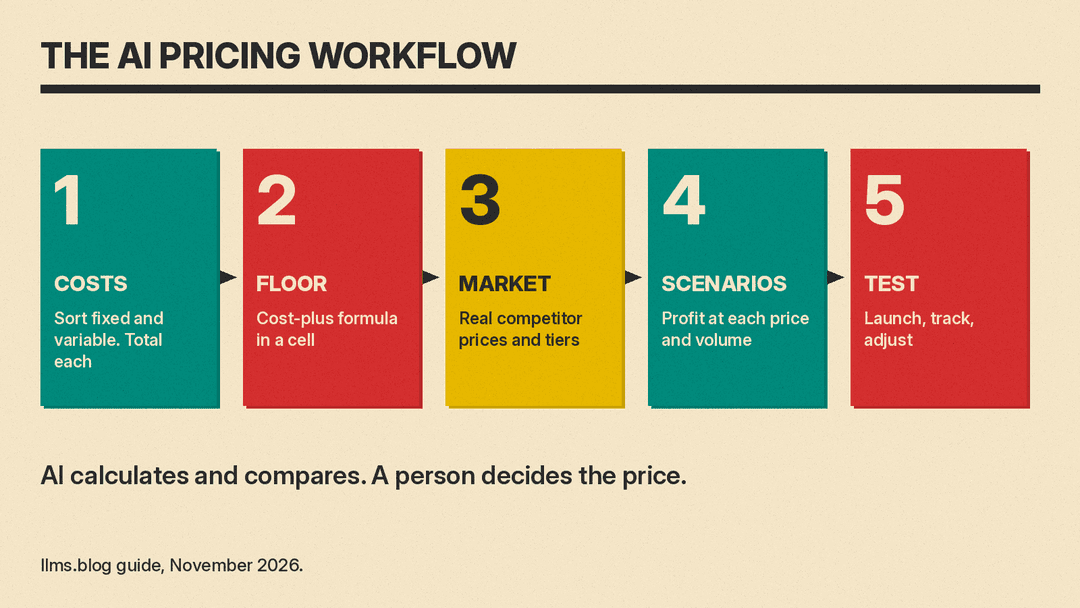
- Know your costs. Put every cost for the product or service in one sheet: materials, labor, overhead, delivery. Split fixed costs from variable costs.
- Set a floor price. Use a cost-plus formula to find the lowest price that still gives your target margin.
- Check the market. Collect what similar products cost and how sellers justify the price.
- Model scenarios. Ask the AI to show profit at a few prices and sales volumes, side by side.
- Decide, test and track. Pick a launch price, watch the results, and change it when the numbers say so.
Step 1: Know your costs
The UMaine guide calls knowing your costs "the first essential element" of pricing. It splits costs into variable costs, which rise with each unit you make or sell, and fixed costs (overhead), which you pay no matter how much you sell.
This is where AI saves the most time. Export your expenses from your accounting tool to a spreadsheet, then ask the AI to sort each line into fixed or variable and to total each group. In Excel, Microsoft says Copilot can update budgets, build financial models and analyze data with normal Excel tables, formulas and PivotTables, and the content stays editable. In Excel on Windows, Mac, the web and iPad, its plan mode shows a plan you review before it changes the workbook, and its chat mode answers questions without changing anything. Use chat or plan mode first when the sheet holds your real books.
Check the sort yourself. An AI tool does not know that your "software" line is one fixed subscription and not a cost per order.
Step 2: Set a floor price with cost-plus
The Trinity Valley Small Business Development Center gives a simple cost-plus formula: price equals total cost divided by (1 minus your desired profit margin). Its example: a product that costs $40 to make, with a 30% target margin, gives $40 divided by 0.70, or $57.14.
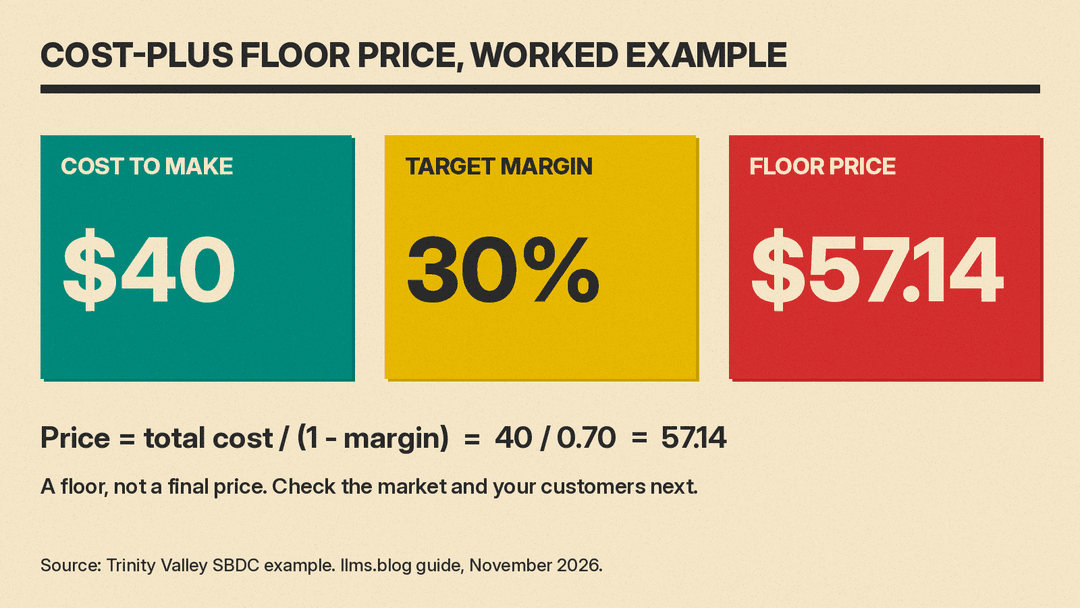
Ask the AI to put this formula in a cell, not just to tell you the answer. A formula you can see is a formula you can check, and you can reuse it when costs change. This price is a floor, not a final answer. The same SBDC article warns not to copy competitors, because their costs may be very different from yours, and the UMaine guide adds that matching a competitor can still lose money if your expenses are higher.
For more ready-made formula requests, see our ChatGPT prompts for Excel formulas.
Step 3: Check the market
Collect prices for similar products by hand or from public pages, and put them in a sheet with a column for what each seller includes (features, warranty, delivery, support). AI is useful for the next part: summarizing how each seller explains its price, and grouping competitors into budget, middle and premium tiers. Salesforce suggests looking at how comparable sellers justify their price "in features, branding, or positioning", not only at the number.
Keep this sheet to facts you collected. If you ask a chatbot what competitors charge without giving it the data, it may give old or made-up prices. If you want more help with this step, our guide to AI for market research covers customer and competitor research in more detail.
Step 4: Model scenarios
This is a good job for a spreadsheet AI tool. Ask it to build a small table: three or four candidate prices, each with a low, expected and high sales volume, and the profit for each cell after fixed costs. Then ask for the break-even volume at each price.
In Google Sheets, Google says you can ask Gemini to create tables, formulas, pivot tables and charts, and generate analysis, and you can open the "Analysis steps" to see how it got there. Note that a chart Gemini inserts does not update when your source data changes, so rebuild it after you edit costs. In ChatGPT, OpenAI's data analysis help page says it can analyze uploaded spreadsheets and run Python calculations, and that you should review the code, outputs and assumptions before you rely on the result.
Our roundup of the best AI tools for Excel and Google Sheets compares more options for this step.
Step 5: Decide, test and track
Salesforce's sequence ends with two steps that need you: have a few honest conversations with prospects about what they would like to pay, then set a first price and change it as needed. It suggests tracking conversion rates, average deal size and abandoned carts. Put those numbers in the same workbook each month and ask the AI to compare them before and after the change.
Copy-paste prompts for pricing
Change the sheet and column names to match your file. Each prompt keeps the AI inside your data and asks it to show its work.
- Sort costs. "Using only the Expenses sheet, label each line as fixed or variable, explain any line you are unsure about, and total each group. Do not change the original data. Show the formulas."
- Cost per unit. "Using the Costs sheet and the expected monthly volume in cell B2, calculate the full cost per unit, including a share of fixed costs. Put the calculation in cells I can see."
- Floor price. "Add a column that calculates price as cost per unit divided by (1 minus the target margin in cell B3). Use a formula, not a typed number."
- Competitor summary. "Using only the Competitors sheet, group these sellers into budget, middle and premium tiers based on price and what is included. List what the premium sellers include that the budget sellers do not. Do not add any seller or price that is not in the sheet."
- Scenario table. "Build a table with prices of [A], [B] and [C] as rows and monthly volumes of [low], [expected] and [high] as columns. Show profit after fixed costs in each cell, and the break-even volume for each price. Show your calculations."
- Price change check. "Compare conversion rate, average order value and total profit for the 30 days before and after the price change on [date], using only the Sales sheet. Say if the difference is too small to draw a conclusion."
- Explain the price. "Using my notes in the Positioning sheet, draft three short sentences I can use on my pricing page to explain what the customer gets at this price. Do not invent features."
Common mistakes
- Asking for "the right price." A chatbot will give a number, but it does not know your costs, customers or goals unless you give them. Ask it to calculate and compare, not to decide.
- Messy sheets. OpenAI says files work best with headers in the first row, one row per record, and no unrelated tables in one sheet. Use the same layout in Excel and Sheets.
- Typed numbers instead of formulas. If the AI types a result into a cell, you cannot see how it got there or update it later.
- Copying a competitor. Their costs and positioning differ from yours.
- Pasting sensitive data without checking. Supplier contracts and customer lists may be confidential. Check your company's AI settings and rules first.
The bottom line
AI makes the arithmetic of pricing quick: costs sorted, a floor price in a formula, and a scenario table in minutes. The decision still rests on things only you know, such as your customers, your brand and how much risk you can take. Use AI to see the options clearly, then test a price and let your own sales numbers tell you if it works.
Related guides
- How to use AI for market research
- ChatGPT prompts for Excel formulas
- Best AI tools for Excel and Google Sheets
- Best AI tools for small business owners
Sources
- Basic Pricing Strategies for Small Businesses, Bulletin #3000 (University of Maine Cooperative Extension, PDF)
- How to Determine Your Pricing Strategy (Trinity Valley SBDC)
- Tips on Pricing Your Products to Match Your Value (Salesforce)
- Get started with Copilot in Excel (Microsoft Support)
- Collaborate with Gemini in Google Sheets (Google Docs Editors Help)
- Data analysis with ChatGPT (OpenAI Help Center)
