
Notion's October 13 release, Notion 3.8, is pitched around one word: context. The idea is that your team's docs, task trackers and customer records should live in one place that any AI agent can read, so you can switch agents or models without explaining everything again. For most teams, the parts that matter are two-way MCP connections and column permissions in databases. Together they decide what your agents can see and what they can do.
This guide explains each change in plain terms, who gets it, and what to set up before you let agents loose on a shared workspace.
What is in Notion 3.8
The release notes list these changes:
- Connect outside agents to Notion with MCP. Any MCP-compatible agent can read your workspace and update docs and task trackers.
- MCP controls for admins. Admins can see who connected each AI tool, check when it was last used, and revoke one person's access without breaking other connections.
- Connect Notion's own agents to 150+ tools. Notion Agent and Custom Agents can pull context from outside tools and take actions in them.
- Skills in Notion. Write a skill once and use it with every agent. A new Skills API loads skills from Notion into GitHub.
- Better version history. Edits by people and agents are highlighted and attributed, across pages and databases, with one-click restore.
- Use your ChatGPT plan in Notion. ChatGPT Plus or Pro subscribers can connect their plan to cover AI usage in Notion. Notion says this is for Business and Enterprise plans and adds no markup.
- Column permissions in databases. Database owners control which properties each person or agent can view or edit.
- Rebuilt synced databases, starting with GitHub, Jira and Salesforce, with a live health status for each sync.
- Seven new models, including GPT 6.1-Sol, GPT-6 Luna, Opus 5.5 and Sonnet 5.5.
- Redesigned Connections settings and Notion notifications in Microsoft Teams.
We covered Notion's later agent rebuild and the ChatGPT plan option in our Notion AI agents explainer. This post focuses on connections and permissions.
MCP, in plain terms
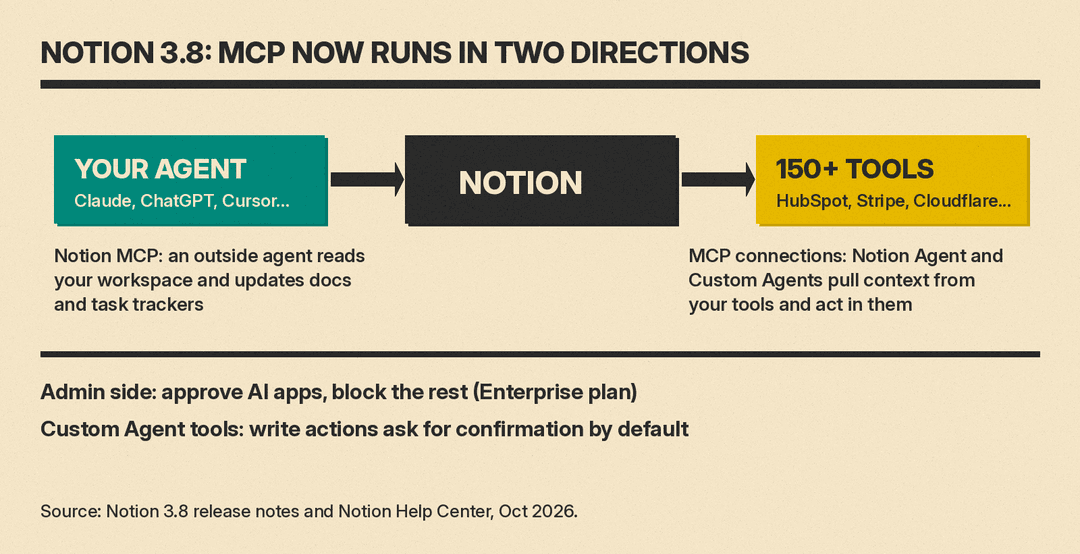
MCP (Model Context Protocol) is a standard way for an AI app to talk to another service. Notion now uses it in two directions.
Direction one: your agent reads Notion
Notion MCP lets AI apps such as Claude, ChatGPT and Cursor read from and write to your Notion pages. Notion's help page gives example uses by role:
- Developers can have Cursor generate technical documentation from code and create project pages.
- Product teams can have an AI app turn user feedback into feature specs or launch checklists.
- Content creators can generate editorial calendars, blog outlines and campaign tracking pages.
- Anyone can turn meeting recordings into task lists.
You can connect from Notion's MCP gallery, from the AI app's own settings, or by hand using Notion's developer docs.
One warning from Notion's help page matters more than the rest: MCP tools act with your full Notion permissions. They can access everything you can access. Notion also suggests starting with single-player uses, meaning your own AI app working with your own workspace, and using clear page titles, since AI apps rely on titles to understand how content is organized.
Direction two: Notion's agents reach your other tools
The release also lets Notion Agent and Custom Agents connect to more than 150 tools over MCP. Notion's examples:
- Build an account brief in Notion from HubSpot pipeline data.
- Add Stripe billing details to a customer health review.
- Bring Cloudflare infrastructure details into a postmortem.
For sales, support and customer success teams, that means a Custom Agent can assemble a briefing from systems you already pay for, inside the page where the team works.
How Custom Agent MCP connections behave
Notion's help page on MCP connections for Custom Agents has the practical details:
- MCP connections for Custom Agents are on Business and Enterprise plans only. Each connection belongs to one agent. It uses the credentials of the person who signed in. If agent A has a Figma connection, agent B needs its own.
- Read tools and write tools are treated differently. Read tools search, fetch, list and view. Write tools create, update, delete, send and post.
- Write actions ask first by default. Each tool can be set to "Run automatically" or "Always ask." Notion recommends running automatically only for read tools. "Always allow" approves every tool from a server and removes future prompts.
- Only the person who signed in can change tool settings for that connection, even if others have full access to the agent.
- Anyone who can chat with the agent can use its tools. That includes people with "Can view and interact" access, even if they have no access to that tool outside the agent. They can also approve write actions when asked.
That last point is the one to plan around. A Custom Agent works with its own access, not the access of the person using it. Notion's sharing and permissions page says that if the agent can see more rows than the person using it, the agent may expose information that person cannot open directly. Give each agent only the pages, databases and tools it needs for its job. Other MCP servers also gate writes: Meta's new app setup tools for agents ask you to confirm each of their four write tools.
Admin controls for MCP
On the Enterprise plan, admins can turn on MCP governance. Per Notion's help page, they can:
- Approve specific AI apps and MCP clients that may connect to Notion MCP.
- Block any tool that is not on the approved list.
- Enforce this at the workspace level.
- Set up enterprise-managed connections, so a company identity provider such as Okta handles connections for supported AI apps.
Workspace owners find the setting under Settings, Connections. Under AI apps, set "Restrict AI apps members can connect" to "Only from approved list." Apps already connected are added to the approved list automatically, so review that list right after you switch it on.
The help page FAQ adds two limits. A tool removed from the approved list may still show under connected tools, because Notion cannot revoke its old tokens, but Notion blocks every call from it. And to cut one app off for everyone, the current workaround is to disconnect all Notion MCP connections and have people reconnect from approved tools. The release notes describe newer controls for seeing who connected each tool and revoking one person's access, so check what your own admin settings show.
Column permissions: what they do
Notion says column permissions were a top requested feature for years. With them, a database owner can set access per property. Notion's two examples: a recruiting team can work on candidates without exposing compensation, and support agents can use account context without seeing restricted customer data.
The basics:
- Available on Business and Enterprise plans.
- You need full access to the database, and you set rules on web or desktop, not mobile. Rules still apply on mobile.
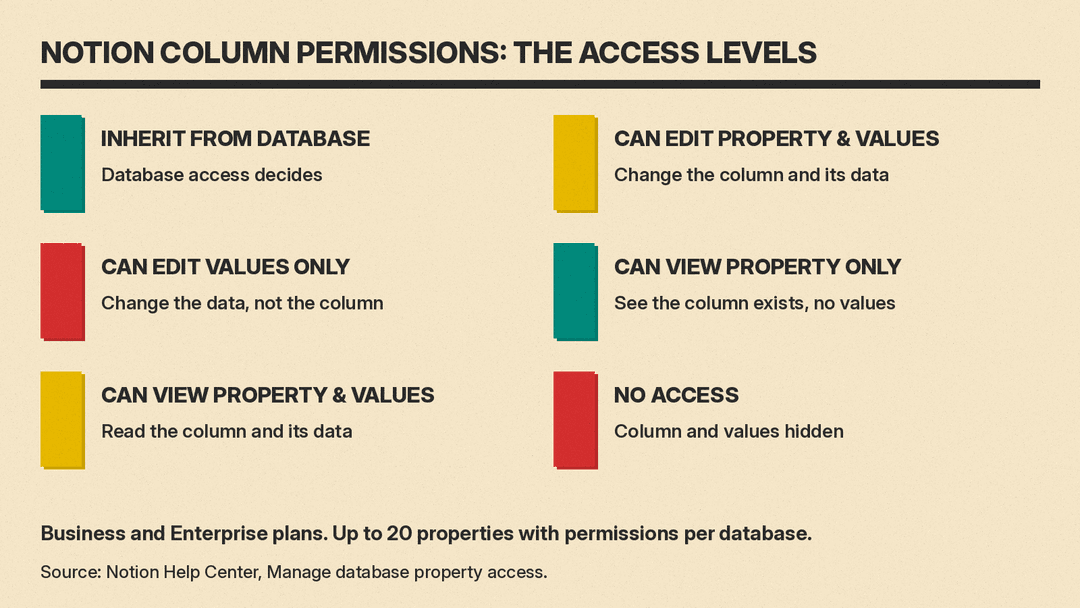
- Up to 20 properties per database can have permissions.
- Set rules on the original database in a table view, not a linked view.
- Add exceptions for a person, a group, a person property, or an agent.
- Use Preview to see what a given person will get before you save.
The six access levels are: inherit from database, can edit property and values, can edit values only, can view property only, can view property and values, and no access.
The person property option is useful for small teams. In Notion's example, a projects database has a Project Owner column and a Cost column. You can let each owner view and edit the cost of their own project but not the others.
How column rules interact with agents
Agents can be given their own permissions on properties. Notion AI usually inherits the user's permissions, so if you cannot see a column, Notion AI acting for you cannot read it or fill it in. Notion warns that in that case the AI may report that the column does not exist. If an agent says a field is missing, check permissions before you check the data.
Rules that catch people out
- People with full access to the database are never restricted by a column rule. Test with someone who does not have full access.
- Column rules never give access to a page someone cannot already open.
- If a person matches more than one exception, they get the least restrictive level.
- A view that filters, sorts or groups by a hidden column may not open for some people. Build views for each audience.
- Title, ID, created and edited fields, some synced properties, and subitem or parent relations cannot be restricted.
- Wiki databases do not support column rules.
- Buttons, automations, formulas or rollups can stop working for someone who cannot see a column they depend on.
- The first rule on a column can take a few minutes to save on large databases.
A setup checklist for small teams
- Decide which databases hold sensitive fields. Pay, pricing, customer contact details and contract terms are common ones. Add column rules there first, then preview as a regular member.
- Scope every Custom Agent. Give it specific pages and databases, not workspace-wide access, and only the MCP tools it needs.
- Leave write tools on "Always ask" until you trust an agent's output. Switch read tools to run automatically if the prompts slow people down.
- Watch who can chat with each agent. Anyone with "Can view and interact" can trigger its tools, including write actions.
- On Enterprise, turn on the approved AI apps list and review what was already connected.
- Use version history after agent runs. Notion now highlights and attributes agent edits, so you can see what changed and restore an earlier version.
Why it matters
Most of the risk in workplace agents is about access, not intelligence. An agent that can read a whole workspace and write to a CRM is useful and also easy to misconfigure. Notion 3.8 gives teams the controls to narrow that: per-column access, per-agent tool settings, confirmation on writes, and an approved list for outside AI apps. The defaults are reasonable, but two of them lean open. Outside MCP apps act with your full permissions, and Custom Agents use their own access rather than the user's. Set those deliberately before you share agents across a team.
Sources
- Notion 3.8: Context for your agents (Notion release notes, October 13, 2026)
- Connect AI tools with Notion MCP (Notion Help Center)
- MCP connections for Notion Custom Agents (Notion Help Center)
- Custom Agents sharing and permissions (Notion Help Center)
- Manage database property access (Notion Help Center)
