
AI image tools can produce a striking square image in seconds. But streaming stores do not just look at the art. They publish written rules for cover files, covering size, format, text and content. A good image can still fail those rules. This guide walks you from a concept to a cover file that meets the published requirements of Spotify and Apple Music.
What Size and Format Does Album Cover Art Need?
Stores have specific file requirements. Here are the key specifications, taken from each store's own pages.
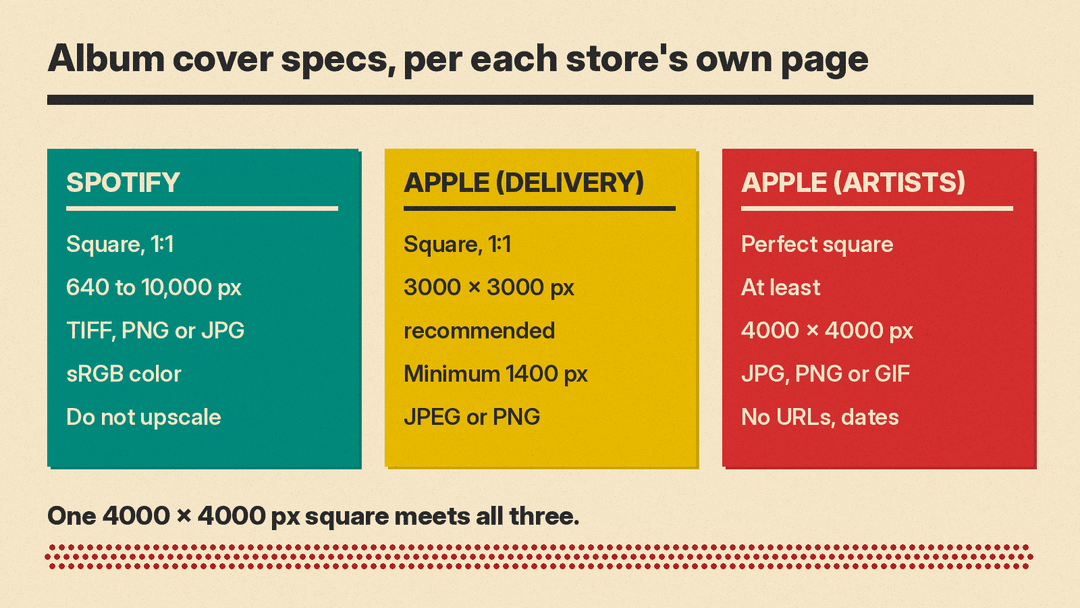
Spotify requires TIFF, PNG, or JPG with lossless encoding. The resolution must be between 640 pixels and 10,000 pixels wide and tall. It must be a perfect 1:1 aspect ratio. The color space must be sRGB with 24 bits per pixel. Color profiles must be applied directly to the image. Spotify explicitly states, "Don't upscale images." Embedded color profiles and orientation metadata are not supported.
Apple Music's provider guidelines recommend 3000 x 3000 pixels or larger. The minimum is 1400 x 1400 pixels. The image must be square (1:1). Use JPEG or PNG at 100% quality.
The Apple Music for Artists cover art page lists slightly different needs. It accepts JPG, PNG, or GIF. The image must be a perfect square. It asks for at least 4000 x 4000 pixels.
If you release through a distributor, it may have its own rules on top of the store rules. Always check your distributor's help page before uploading.
The practical takeaway is simple. Plan for a large square master file. Aim for 4000 x 4000 pixels. One file at this size meets all the requirements above.
Why Resolution Is a Problem With AI Images
Some AI image generators output images around 1,000 to 2,000 pixels per side. xAI's image API, for example, lists 1k and 2k as its resolution options. That is under the 3000 pixels Apple recommends and the 4000 pixels the Apple Music for Artists page asks for.
Spotify asks you not to upscale images. This creates a conflict. You need a large file, but you cannot simply stretch a small one.
You have three main options. First, generate the image at the largest native size your tool offers. Some tools allow higher resolutions if you adjust settings. Second, use the tool's own built-in upscale feature, but only for stores that allow it: Spotify's page says not to upscale, and its 640-pixel minimum does not call for it. Third, rebuild the final cover in a design app. Use the AI image as a base layer. Add typography as real text on top. Export the final composition at full resolution.
Be honest about the results. An upscaled file can look soft or blurry when viewed at full size. Zoom in to 100% to check for artifacts. If the edges look jagged or the details disappear, consider regenerating or using a different method. For more on this topic, see our guide to upscaling AI images.
Start With a Concept, Not a Prompt
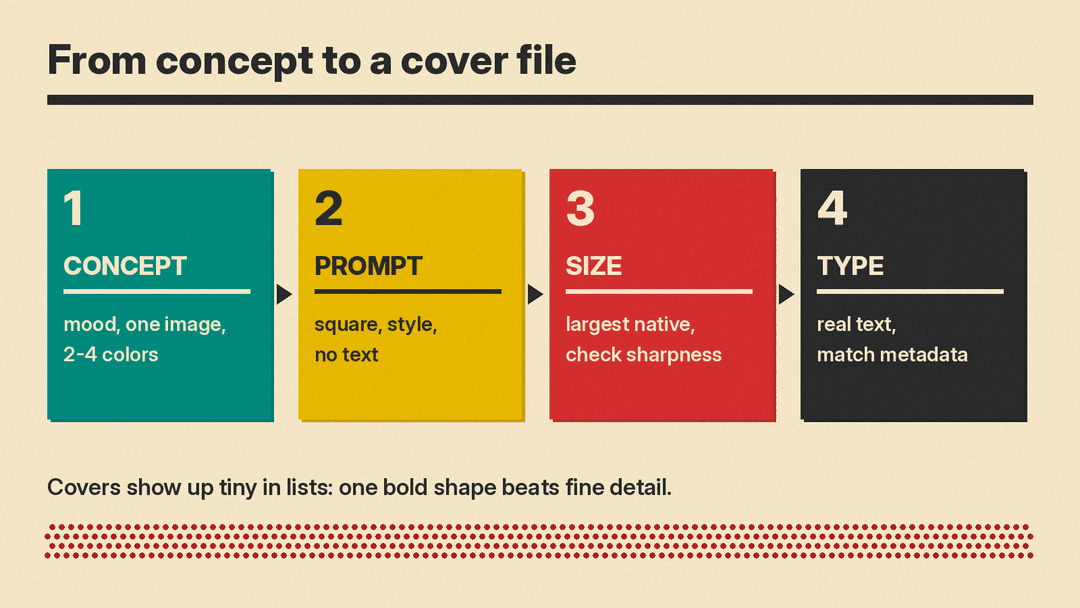
Do not start typing into a prompt box immediately. Think about the music first. What is the mood? Is it calm, aggressive, nostalgic, or futuristic? Choose one central image that captures this feeling.
Pick a color palette of two to four colors. Consistent colors make the cover feel professional. Consider genre conventions. Ambient music might use soft gradients or nature scenes. Metal might use dark textures or sharp contrasts. Indie folk may lean toward warm tones or vintage photography.
Remember that covers are seen tiny in playlists and search results. A single bold shape reads better than fine detail. Complex patterns turn into noise at thumbnail size. Keep the composition simple. Ensure the focal point is clear even when the image is small.
Writing an Album Cover Prompt
When you are ready to generate, structure your prompt clearly. Specify the aspect ratio as square or 1:1. Describe the subject. Define the style, such as photograph, risograph print, oil painting, collage, or minimal graphic. Mention lighting and color palette. Crucially, add "no text" to the prompt. AI models can misspell words and break layouts. You will add the title later in a design app.
Here are six sample prompts for different genres. Each is designed to produce a clean, square image without text.
- "Square 1:1 abstract gradient background, deep blue fading into purple, soft fog texture, no text, high resolution"
- "Square 1:1 urban night scene, neon lights reflecting on wet pavement, cinematic lighting, moody atmosphere, no text"
- "Square 1:1 vintage film photograph of a forest path, warm autumn tones, grainy texture, soft focus, no text"
- "Square 1:1 geometric shapes, black and white contrast, brutalist architecture, sharp lines, minimal style, no text"
- "Square 1:1 dark fantasy illustration, gothic cathedral silhouette, red mist, dramatic shadows, detailed texture, no text"
- "Square 1:1 jazz club interior, dim amber lighting, smoke haze, blurred instruments in foreground, retro vibe, no text"
If you plan to include text within the AI generation itself, be aware that many tools can still misspell words or distort letters. It is safer to leave text out entirely. For more details on handling text in AI images, read our article on AI tools and text in images.
Should You Put the Title on the Cover?
Text is optional. None of the store pages above require a title on the cover, and Apple Music for Artists notes that Remi Wolf rarely puts her name or song title on her covers. Adding text to the image is a stylistic choice, not a requirement.
If you choose to add text, keep it short. Apple says to include only relevant information, such as the artist name and the exact release title as released.
Do not rely on the AI generator to spell your text correctly. Check every letter, or better, set the text yourself. Set the type yourself in a design application like Photoshop, Canva, or Affinity Designer. Use standard fonts. Ensure the text is readable at thumbnail size. Test your cover by shrinking it to 100x100 pixels. If the title becomes illegible, simplify the font or increase the size.
What Gets Cover Art Rejected?
Knowing the content rules saves time. The Apple Music for Artists guidelines say cover art should have none of the following:
- Social media handles, email addresses, or website URLs.
- Logos or references to competitors.
- Pricing information.
- Brand names or advertising content.
- Years or dates.
- Barcodes.
- Pornographic imagery, or a URL for a website that contains or links to pornography.
- References to physical packaging, digital packaging, or retailers, such as vinyl or CD.
- Images from other copyright holders without written permission.
- Blurry, pixelated, tilted, or cropped images, unless the effect is intentional and artistic.
- Misleading or generic art, such as prominently showing an artist who does not perform on the album.
- Parental advisory logos if the release is not explicit.
A practical tip for AI users: do not prompt for a real musician's face. Apple's rule against misleading art names artists who do not perform on the album, and you may not have the rights to someone's likeness. Also, avoid prompting for famous existing album styles that include recognizable logos or trademarks. Keep the imagery original and free of third-party intellectual property.
Do You Need to Disclose AI Cover Art?
Apple's Music Specification, the delivery format for providers, includes an optional tag called ai_transparencies. For AI-generated album artwork, the value for this tag is "Artwork". This covers both static and motion artwork.
The specification marks the tag as optional. If you release through a distributor, ask it whether it asks for AI disclosure and how it passes it on to stores. Do not assume every store has the same rule. If your distributor asks, tell it the truth.
Who Owns an AI Album Cover?
Ownership questions are complex. In the United States, the Copyright Office concluded in January 2025 that AI outputs can be protected only where a human author has determined sufficient expressive elements. Creative human arrangements or modifications of the output can qualify, but prompts alone do not.
This means if you simply click "generate" and upload the result, you may not own a copyrightable work. If you curate the output, edit it in a design app, and arrange elements creatively, you may have a stronger claim to the parts you made.
Check the terms of service of the image tool you use. Some tools grant commercial rights to outputs. Others restrict usage. This is not legal advice. Consult a lawyer if you have significant concerns about ownership or licensing.
Final Checklist
Before uploading, verify every item on this list.
- The image is a perfect square (1:1 aspect ratio).
- The resolution is at least 3000 pixels wide and tall (aim for 4000 for Apple Music for Artists).
- The file format is JPG or PNG.
- The color space is sRGB, as Spotify requires.
- The image is sharp when viewed at full size.
- The main visual element is readable at thumbnail size.
- Any text matches the metadata exactly (artist name and album title).
- There are no URLs, social media handles, logos, dates, or barcodes.
- You have rights to every element in the image.
- You have disclosed AI generation if your distributor requires it.
