
You do not need an instrument, a studio or any music theory to make a song with AI. Tools such as Suno, Udio and ElevenLabs Music take a written description, and optionally your own lyrics, and return a finished track with instruments and vocals. The hard part is not pressing the button. It is describing what you want clearly enough that the result sounds like your idea and not like the most average version of it.
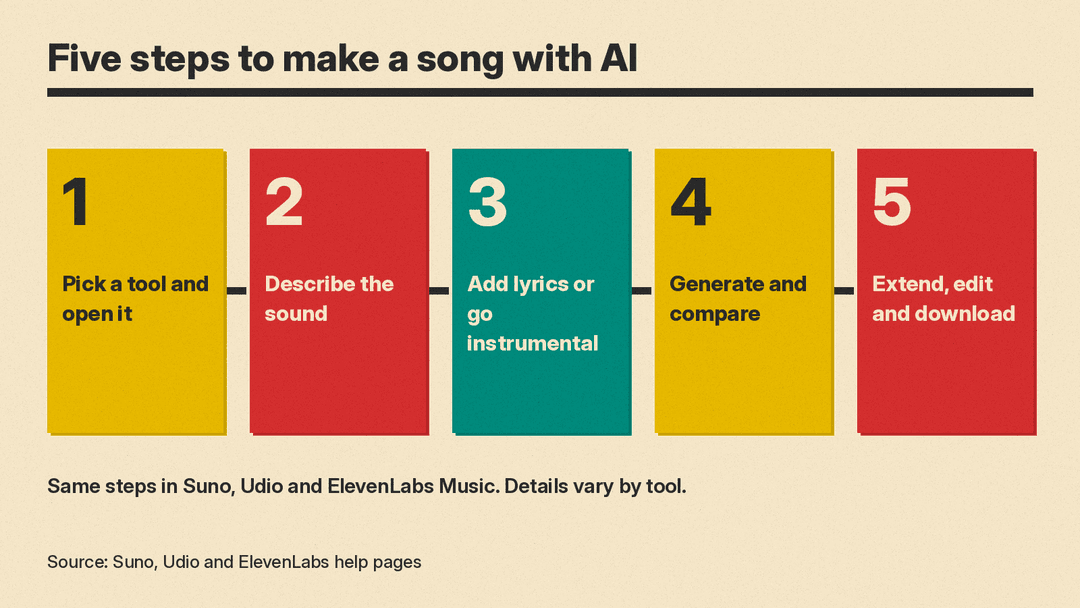
This guide walks through the process step by step, using the three tools as examples. The steps are the same in each one: pick a tool, describe the sound, add lyrics or go instrumental, generate and compare, then extend, edit and download. Where a feature is specific to one tool, the guide says so and links to that tool's own help page.
If you have not picked a tool yet, our comparison of Suno and Udio and our roundup of AI music generators cover the differences in more depth.
How an AI song generator works, in one paragraph
You type a prompt that describes the song: its genre, mood, instruments, tempo and what it is about. The tool writes lyrics for you or uses yours, and generates a complete audio file. ElevenLabs puts the core idea plainly in its music prompting guide: a prompt answers five questions, "genre, mood, instrumentation, tempo, and production era," and "Any question you leave open, the model answers with the most statistically likely choice." In other words, every detail you leave out gets filled in with a safe default. Most of the craft is in deciding those details yourself.
Step 1: Pick a tool and open its create page
Each of the three tools has a dedicated place to start a song.
- Suno. Go to suno.com/create. Suno has two ways to start. In Simple mode you "write a description of what you want to hear." In Custom mode you get extra fields, "including a space to enter your own lyrics." Suno also has mobile apps, and its iOS guide says creating there "follows the same steps you would use in our web workflow."
- Udio. Udio's help center says you start on the Home Page or the Create Page, where you type a prompt. Its lyrics guide covers both generated and custom lyrics.
- ElevenLabs Music. ElevenLabs describes Eleven Music as "an end-to-end workflow for music creation" where you "Generate songs in any style and at your desired length using natural language prompts."
A practical tip: start with the simplest mode the tool offers. Suno's Simple mode is a good first try, because you only write one description. Once you know what the tool does with a short prompt, move to the detailed options.
Step 2: Describe the sound
This is the step that decides whether the song sounds like yours. A good description covers a handful of things.
- Genre. Rock, jazz, synthwave, country, lo-fi hip hop. Udio's prompting guide says a great prompt includes a topic and a genre or tags, for example "A song about summer rain" followed by "jazz, mellow, warm."
- Mood. Happy, dreamy, dark, nostalgic. Udio suggests asking yourself about mood, genre, tempo, instruments and theme before you write.
- Instruments. Acoustic guitar, violin, synths, brushed drums.
- Tempo. Slow and smooth, or fast. ElevenLabs says its model "accurately follows BPM and often captures the intended musical key," so you can write "130 BPM" or "in A minor" if you know what you want.
- Era. Udio suggests setting a time period, such as "1970s disco groove." ElevenLabs calls production era "a dial like tempo."
- Vocals. Suno's help center says it can guide a song toward a voice style, "including male or female voice," and that in Simple mode you can use the word male or female in your description.
The difference between a vague and a specific prompt is easy to hear. ElevenLabs gives this pair as an example. The vague one is "upbeat electronic track." The specific one is "French house, 122 BPM, filtered disco sample chops, sidechained bass, tight four-on-the-floor kick, rooftop-at-sunset mood, warm analog glue." The second leaves far fewer choices to the model.
You do not need studio vocabulary. ElevenLabs suggests that if you do not know the terms, you "describe the space," for example "sounds like it was recorded in a stairwell." Udio makes a similar point: describe a scene instead of only listing song elements, such as "A peaceful melody capturing a sunrise walk through a blooming forest, folk."
Two more prompt habits help:
- Say what you do not want. Suno's Exclude option, under Advanced Options in Custom mode, lets you "Enter any information (instruments, etc) that you do not want in your track." Udio has a "Style Reduction" control in Advanced Controls to minimize unwanted elements.
- Repeat what matters. Udio's guide says that to emphasize something, you can repeat key words in your prompt.
A note on naming artists: Udio's guide shows a style reference such as "in the style of Billie Holiday" and says Udio will not copy an artist's voice but will capture a similar musical feel. If you want a particular feel, describing the instruments, era and mood is usually the more reliable way to get it.
Step 3: Add lyrics, or go instrumental
You have three options here.
Let the tool write the lyrics. In Suno's Custom mode you can "Enter your own lyrics, or have Suno generate lyrics for you." Udio says that if you describe your song's theme in the prompt field, it "will generate lyrics for you." ElevenLabs says that "If lyrics are not provided, the model will generate structured lyrics that match the chosen or auto-detected length."
Write your own. In Udio, you select Custom under Write Your Lyrics, then type or paste them into the Lyrics Editor. Udio's Extended Editor can also draft lyrics from a song description with "Write for me," and you can regenerate or edit them by hand. Suno's help center notes that "you retain ownership and rights to any original lyrics you input into Suno."
Make an instrumental. In Suno, toggle Instrumental. In Udio, select "Instrumental Mode." In ElevenLabs, "add 'instrumental only' to your prompt."
If you write lyrics, structure them. Section labels in square brackets tell the tool where each part goes. ElevenLabs uses labels such as [Verse 1], [Chorus] and [Bridge] in its composition plan guide. Udio's guide says you can add tags like [Scream], [Chorus] or [Guitar Solo] and use parentheses for backing vocals.
If a word comes out wrong, spell it the way it sounds. Udio suggests breaking words into syllables, such as "Un-be-liev-a-ble," and spelling out acronyms, such as "En-Bee-Ay (NBA)."
Step 4: Generate, listen and compare
Press Create, or the equivalent button, and listen. Expect more than one take. ElevenLabs lets you choose the number of Variants before you generate. Udio's guide says "A single prompt can generate different results" and suggests generating multiple versions and tweaking details such as instruments or tempo.
Listen to each version all the way through before you change the prompt. Then change one thing at a time. If the drums are too busy, add that to what you exclude. If the mood is wrong, change the mood words and keep the rest. Changing everything at once makes it hard to tell what helped.
ElevenLabs offers a useful pattern for longer songs: "start with a short duration like 30s and iteratively adding new sections as you work on the song." You can also set a fixed duration or choose Auto.
Step 5: Extend, edit and download
Most first generations are a starting point. All three tools let you build on a take you like.
- Extend. In Suno, open the song's menu, find Remix/Edit and select Extend. You choose where to extend from, add new lyrics or style details, and then use "Get Whole Song" to stitch the new part to the original. In Udio, select a song and click Extend, then choose Before or After, Intro or Outro, or Crop and Extend. Udio's help page says you can extend up to 10 sections total, and leaving the lyrics blank gives you an instrumental break.
- Edit sections. Udio's Edit feature, which Udio says is available only for paid subscribers and creators trialing a subscription, lets you replace a section or edit lyrics in a highlighted part of the song. ElevenLabs lets you add and remove sections, edit the lyrics or prompt of a section, and include or exclude styles for one section at a time. Suno's help center lists Crop and Replace Section for its Pro and Premier subscribers.
- Download. Suno says you can download songs from your Library or Workspace through the More Actions menu. ElevenLabs says to click the Download button "to save your high-fidelity audio file," or use Share to make a link with a visualizer.
Before you publish a song anywhere, read the tool's terms on ownership and commercial use for your plan.
A worked example
Here is how the steps fit together for a short song about a road trip.
- Tool: Suno, Custom mode.
- Style: "Upbeat indie folk, acoustic guitar and hand claps, warm male vocal, 1970s feel, open-road mood."
- Exclude: "synths, heavy drums."
- Lyrics: Your own, with
[Verse],[Chorus]and[Bridge]labels. Keep the chorus short and repeat it. - Generate: Listen to both takes. If neither fits, change one detail, such as the tempo or the vocal, and try again.
- Extend: Add an outro with Extend, then use Get Whole Song.
The same idea works in Udio, where the style words go in the prompt and the lyrics go in the Custom lyrics editor, or in ElevenLabs, where you can describe the whole arrangement in order. ElevenLabs suggests narrating it "the way you'd brief a band," using small words like "start with," "just," "then" and "bring in."
Common beginner mistakes
- Prompts that are too vague. "A happy song" leaves genre, instruments, tempo and era open. Fill in at least three of them.
- Too many conflicting styles. Udio suggests mixing genres for a unique sound. If a mix does not work, add styles one at a time so you can hear what each one changes.
- Mixing directions into lyrics. ElevenLabs separates the two in its composition plan guide: lyrics and short cues go in the text, while broader traits such as "genre, instrumentation, or overall vocal style" go in the style list.
- Judging after one take. Generate a few versions before you rewrite the prompt.
- Forgetting the ending. Use Extend to add an intro or outro instead of regenerating the whole song.
Where to go next
If you want vocals that speak rather than sing, Suno also has a speech feature, which we cover in Suno Speech explained. If you need music under a video, ElevenLabs has a tool built for that, covered in ElevenLabs Instant Soundtracks explained.
Sources
- Suno Help: Make a song in Simple Mode
- Suno Help: Can I use my own lyrics?
- Suno Help: iOS Create: Custom Mode
- Suno Help: How do I exclude elements of a song?
- Suno Help: How do I make my song longer?
- Suno Help: How do I download songs?
- Suno Help: Making Music (article index)
- Udio Help: Prompt Like a Master
- Udio Help: Create a Song with Your Own Lyrics
- Udio Help: Extend Your Song
- Udio Help: Edit Your Song Music and Lyrics
- ElevenLabs Docs: Music
- ElevenLabs Docs: Music best practices
- ElevenLabs Docs: Composition plans
