
Suno now lets Pro and Premier subscribers start a song from a MIDI file. According to Suno's help center, the option sits in Create, in Simple mode, on desktop web, and works much like adding audio files or images. The help article was edited on November 4, 2026, and Unite.AI reported the launch the same day.
The change matters for anyone who already has notes written down but no finished sound: a score, an old session, a melody exported from a music program. Here is what the feature does, how to use it, and what Suno says about its limits.
What a MIDI file is
Suno's help article describes MIDI as "the language music gear has spoken since the 1980s." A MIDI file (.mid or .midi) holds no audio at all. It is "a set of instructions - which notes play, when, how long and how hard." That is why opening one on its own sounds like nothing until an instrument plays it.
In its announcement, Suno adds that a MIDI file can contain up to 16 channels of pitch and timing data, each with up to 120 controller lanes for things like modulation, volume and sustain. Suno also lists the format's downsides: even well-programmed MIDI cannot express certain articulations and timbre adjustments, and turning raw MIDI into full-sounding output with sample-based instrument plugins takes time and specific programming skills.
What Suno does with the file
Suno says a MIDI file holds the exact notes and timing of a musical part, so it is a more precise starting point than any other way of creating on Suno. You then describe in plain language how closely Suno should follow it. Suno's announcement names three ways to use it:
- Ask the model to play the notes exactly as written.
- Take the top-line motif from the file and develop it into new ideas.
- Play the part on new instrumentation.
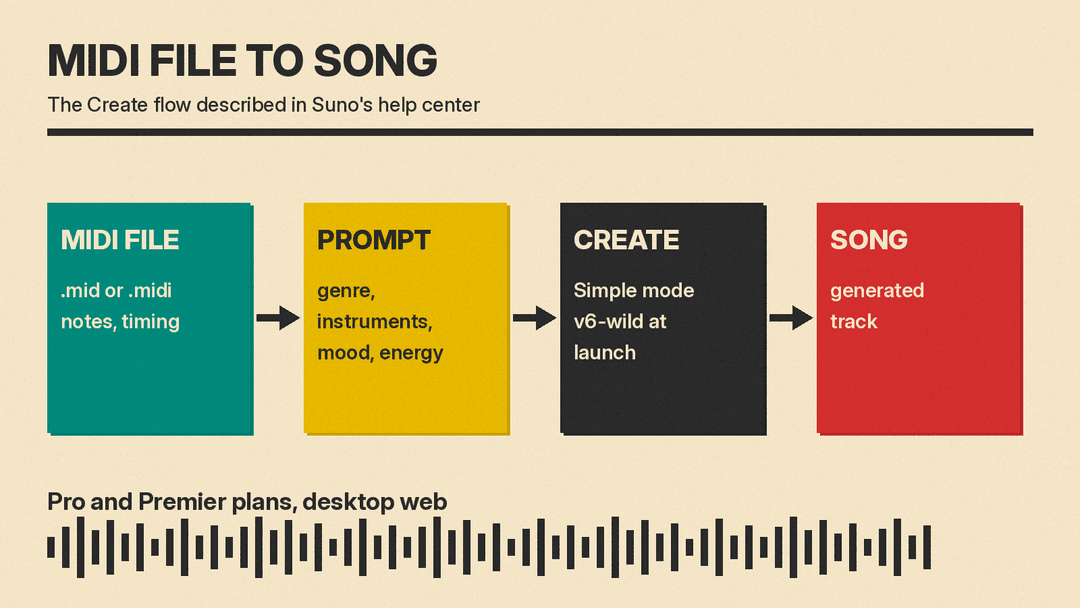
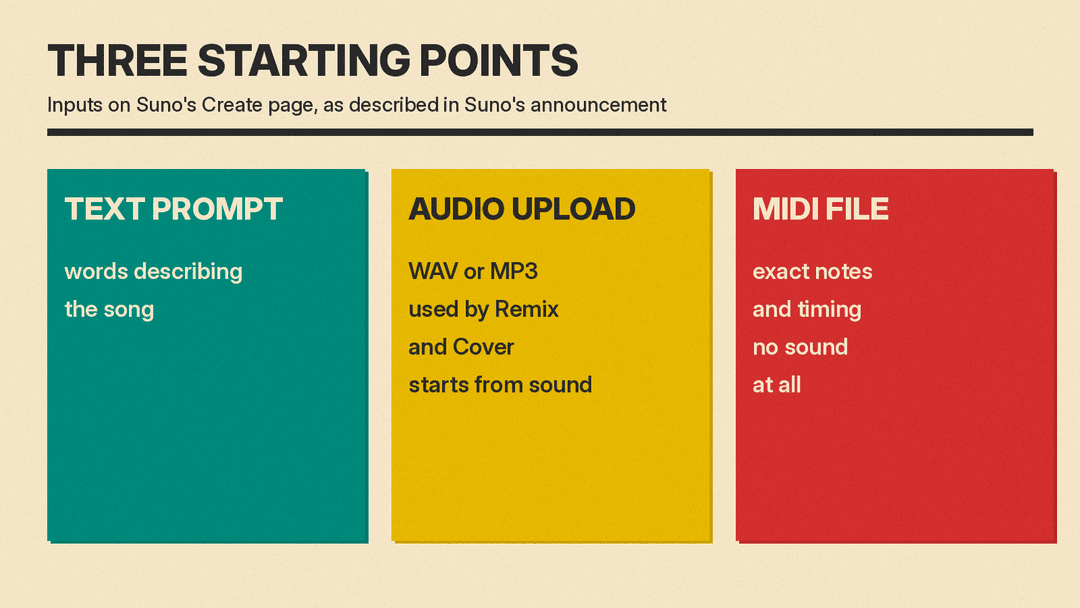
Suno contrasts this with Remix and Cover, which adapt an uploaded audio file (WAV or MP3). Those start from recorded sound. MIDI starts from note and timing information with no sound attached, so you can keep a melody or chord progression and change the instruments.
How to upload a MIDI file
The steps below come from Suno's help article.
- Open Create.
- In Simple mode, upload a MIDI file from your file browser, or drag and drop it into the Create form.
- Write a prompt describing the sound you want: genre, instrumentation, mood, energy.
- Hit Create.
Suno's summary of the split is "Your MIDI shapes the bones of the song. Your prompt shapes everything else." Its tips for better results are to name your instruments, because the file tells Suno what to play and the prompt tells it what to play it on, and to describe the feel and not only the genre. Suno's example is that "Late-night, loose, brushed drums" could get you further than just "jazz."
Suno also lists example prompts in its announcement:
- "Arrange this MIDI for a full orchestra, with strings, brass, woodwinds and percussion."
- "Transform this MIDI into a gospel choir with piano accompaniment."
- "Transform this MIDI into a string quartet. Use the notes and chord progressions exactly as they appear in the MIDI file."
If you want more general prompt-writing habits for Suno, our Suno prompts guide covers templates for text prompts.
Who Suno built it for
The help article names three groups. Producers with half-finished sessions can export the MIDI and "unlock those ideas as full tracks." Composers and arrangers can hear a score played as a full ensemble "instead of a stock piano patch." Teachers and students can hear what is on the page with instrumentation.
Limits to know before you try it
- Plan. Suno says MIDI upload is available on desktop web on Pro and Premier plans.
- Model. At launch, MIDI uses Simple Create mode with v6-wild. Our Suno v6 explainer and Suno's v6 FAQ say v6-wild is built for exploration and is "less predictable and more varied, producing unexpected, textured and ambitious results," while v6 is the flagship that is "reliable, precise and consistently delivers polished music genres and styles." So a file with exact notes goes into a model Suno describes as less predictable. If you need the notes followed exactly, say so in the prompt, as in Suno's string quartet example.
- Roadmap. Suno says it plans to expand MIDI capabilities over time. It did not give dates in the pages we read.
- Editing the file first. The help article suggests using Studio to edit MIDI files, for example quantizing notes, nudging them off the grid for a more human feel, or changing the key and scale.
How this relates to Studio 2.0
Suno already had MIDI inside Studio. In its Studio 2.0 announcement on August 13, 2026, Suno said you can import, record and edit MIDI on the timeline, design sounds with a wavetable synth, and use MIDI clips as a prompt for new audio generations. It said Studio 2.0 is available to Premier subscribers. The new Create option is a lighter route: upload a file and a prompt, without opening the timeline. Per Suno's Create announcement, it is open to Pro as well as Premier.
If you want to separate a finished track into parts afterward, see our guide to AI stem splitters and vocal removers. If you are new to Suno, our beginner's guide to making a song with AI covers the steps for a first song. To start a song from inside an AI chat instead, see our guide to the Suno MCP connector.
