
Asking an AI chatbot for a bash script takes one sentence. Knowing whether that script is safe to run on your real files takes a little more work. We asked an AI model for the same file-sorting script 8 times, ran every script on a test folder full of awkward file names, and checked the results.
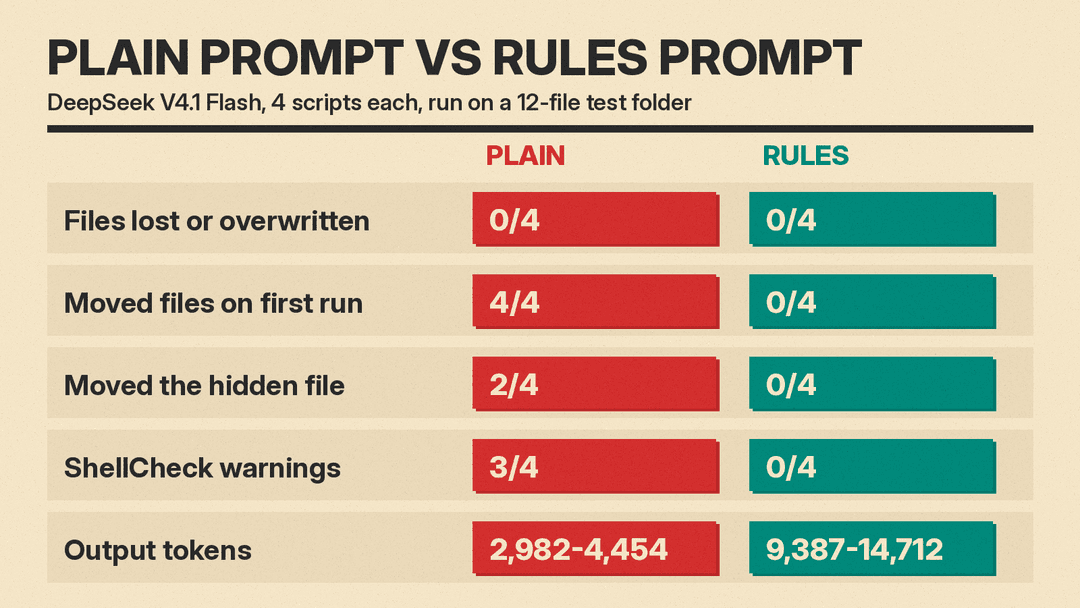
The short version: none of the 8 scripts lost or overwrote a file. But the one-line request produced scripts that moved files the moment we ran them, made quiet choices we never asked for, and 3 of 4 carried a bug that sends TypeScript files into a Videos folder. A prompt with seven plain rules fixed all of that, at about three times the token cost.
What we tested
We used one task that many people actually want: sort a messy Downloads folder into subfolders by file type.
- Model: DeepSeek V4.1 Flash through OpenRouter, low reasoning effort, no system prompt.
- Prompt A (plain): "Write a bash script that sorts the files in my Downloads folder into subfolders by file type."
- Prompt B (rules): the template shown below, which names the system, the folder argument, a dry run default, and how to handle odd names and name clashes.
- Runs: 2 prompts x 4 runs = 8 replies. Five Prompt B requests timed out in our test tool with no reply and were sent again; we scored the 4 that came back.
We ran each script inside a locked sandbox where only a fake home folder could be changed. The fake Downloads folder held 12 files built to trip scripts up: names with spaces, a double space, a leading dash (-notes.txt), an asterisk (glob*.txt), an uppercase extension (photo.JPG), a file with no extension, a hidden file, archive.tar.gz, a half-finished download (movie.mp4.part) and a Projects subfolder with a file inside.
Then we added a second report.pdf with different content and ran each script again, the way a real Downloads folder fills up between runs. We also checked every script with ShellCheck, a free tool that finds common bash mistakes.
The results
What both prompts got right
- No lost files. All 8 scripts kept every file. When the second
report.pdfarrived, plain scripts saved it asreport (1).pdfand rules scripts saved it asreport_1.pdf. Nothing was overwritten. - Odd names. Spaces, the double space, the leading dash and the asterisk worked in all 8.
- Subfolders. All 8 left the
Projectsfolder alone.
Where the plain prompt fell short
- It acts at once. All 4 plain scripts moved files the first time we ran them. Each one offered a preview flag (
-nor--dry-run), but you had to know to type it. All 4 rules scripts only printed a plan until we added--apply, and their dry runs changed nothing. - Hidden files. Two of 4 plain scripts moved the hidden file
.hidden.txt: one into aNoExtensionfolder, one intoDocuments. The other two plain scripts and all 4 rules scripts left it where it was. - A silent sorting bug. In 3 of 4 plain scripts, ShellCheck flagged the same warning, SC2221: "This pattern always overrides a later one." The cause was the extension
ts. The scripts listed it under Videos (MPEG transport stream files) and again under Code (TypeScript). In bash'scasestatement the first match wins, so every TypeScript file would land in Videos. The script still runs and prints no error. The rules scripts had zero ShellCheck warnings.
What the rules prompt cost
- Tokens. Plain replies used 2,982 to 4,454 output tokens. Rules replies used 9,387 to 14,712, most of it hidden reasoning. On a paid API that is roughly three times the cost per script.
- Literal folder names. We asked for folders named after the extension, and that is what we got:
archive.tar.gzwent togz/andmovie.mp4.partwent topart/. Three of 4 rules replies listed the.tar.gzcase in their own "still gets wrong" notes. The plain scripts used friendlier category folders such as Images, Documents and Archives. If you want categories, say so in the prompt.
The prompt template
This is Prompt B exactly as we sent it. Change the goal and the rules to fit your task, and keep the structure.
Write a bash script for me. I will run it on Ubuntu with bash 5.

Goal: sort the files in a folder into subfolders by file extension (for example pdf/, jpg/, txt/).

Rules:
- Take the folder as the first argument. Stop with a clear message if it is missing or not a folder.
- Dry run by default: only print what it would do. Move files only when I add --apply.
- Only move regular files at the top level. Do not touch subfolders or hidden files.
- File names can have spaces, start with a dash, or contain * or other odd characters.
- Use the lowercase extension as the folder name. Files with no extension go to other/.
- Never overwrite a file. If the target name exists, add _1, _2 and so on before the extension.
- Print one line per file: old path -> new path.

After the script, list any cases it will still get wrong.
Why each part of the prompt matters
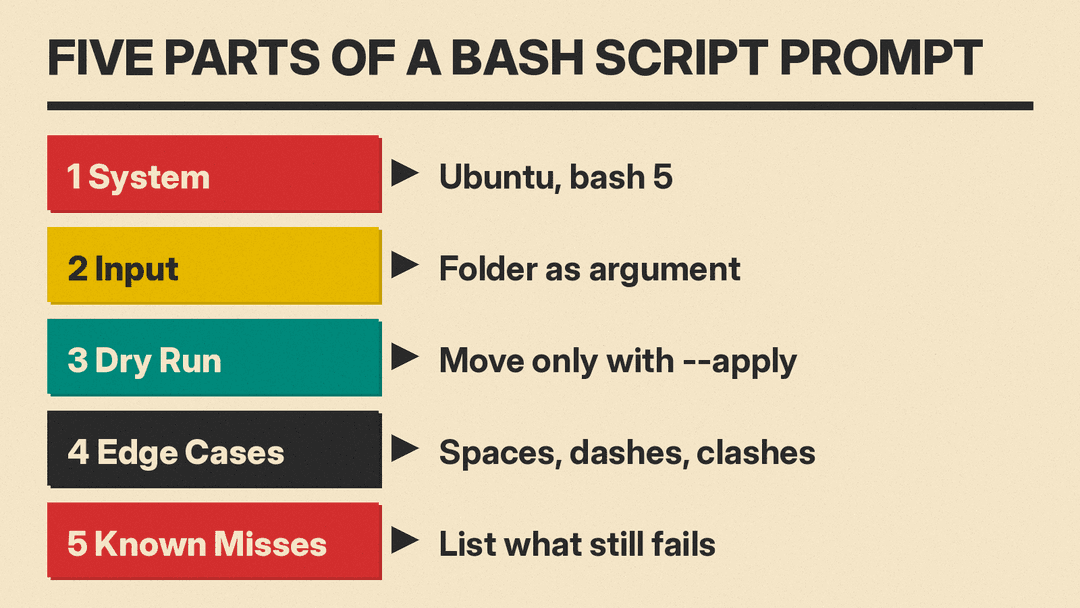
- Name the system. "Ubuntu with bash 5" tells the model which shell and tools the script will meet, so it does not have to guess. Our test only covered Linux; if you use a Mac, say so in the prompt.
- Take the folder as an argument. A script that always targets
~/Downloadsis harder to try safely on a copy. With an argument you can point it at a test folder first. - Dry run by default. This was the clearest difference in our test. A preview you have to ask for is a preview many people skip.
- Say what not to touch. Without the rule, the model decided on its own whether hidden files count, and two plain scripts decided yes.
- List the odd names. All 8 scripts in our test quoted file names and used
mv --, so names with spaces or a leading dash were safe. Naming these cases in the prompt makes that a requirement instead of luck. - Say what happens on a clash. "Never overwrite" plus a naming rule gives you a predictable result. The GNU
mvcommand also has a--no-clobberoption that will "not overwrite an existing file; silently skip instead." The same manual marks that option as deprecated and describes --update=none as the newer way to skip existing files. - Ask for known misses. The model's own list pointed at the
.tar.gzissue in 3 of 4 runs. It is a cheap way to find the weak spots before you do.
5 steps before you run any AI-written bash script
- Read it once, top to bottom. Look for
rm,mv,>(which empties a file before writing to it) and any path outside the folder you meant. If you cannot tell what a line does, ask the AI to explain that line. - Run ShellCheck. Paste the script into shellcheck.net or install it locally. In our test it caught the TypeScript bug that no amount of running would show on our test files.
- Try it on a copy. Make a test folder with a few fake files, including ones with spaces and dashes in their names, and run the script there first.
- Use the dry run. Read the planned moves. If one looks wrong, fix the script before you add
--apply. - Run it again. A good sorting script should be safe to run twice. Add a file with a name that already exists and check that nothing gets replaced.
More prompt starters (not tested)
These follow the same structure. We did not run them for this article, so check the output with the 5 steps above.
- Rename photos by date: "Write a bash script for Ubuntu with bash 5. Rename every .jpg and .jpeg in the folder given as the first argument to YYYY-MM-DD_HHMMSS.jpg using the file's modified time. Dry run by default, rename only with --apply. Never overwrite; add _1, _2 on a clash. List cases it will still get wrong."
- Back up a folder: "Write a bash script for Ubuntu with bash 5. Copy the folder given as the first argument into ~/backups/NAME-YYYY-MM-DD. Do not delete anything. Stop with a clear message if the backup folder for today already exists. List cases it will still get wrong."
- Find large files: "Write a bash script for Ubuntu with bash 5 that lists the 20 largest files under the folder given as the first argument, with human-readable sizes. Read only: it must not change, move or delete anything."
When bash is the wrong tool
All 8 of our scripts ran from 100 to 147 lines. Google's Shell Style Guide says: "If you are writing a script that is more than 100 lines long, or that uses non-straightforward control flow logic, you should rewrite it in a more structured language now." For a one-time cleanup, a bash script is fine. For anything you plan to keep, extend or share, asking the AI for a Python version is worth a try.
The same lesson showed up in our earlier tests of SQL prompts and regex prompts: the AI usually gets the core logic right, and the trouble comes from what you left unsaid. Tell it where the code runs, what it must not touch and what to do when something goes wrong.
FAQ
Can I trust an AI-written bash script? Trust it after you check it. In our test none of the 8 scripts lost a file, but 3 of 4 plain scripts had a sorting bug that only ShellCheck caught.
Which AI is best for bash scripts? We tested one model, DeepSeek V4.1 Flash, so we cannot rank models. The prompt is plain text, so you can paste it into ChatGPT, Claude, Gemini or Grok, but we did not test those models.
Do I need to know bash to use these scripts? It helps to know enough to read the script once. If a line is unclear, ask the AI to explain it before you run anything.
What does a dry run do? It prints what the script would do without changing any files. In our test, all 4 rules scripts made dry run the default and none of their dry runs changed a file.
