
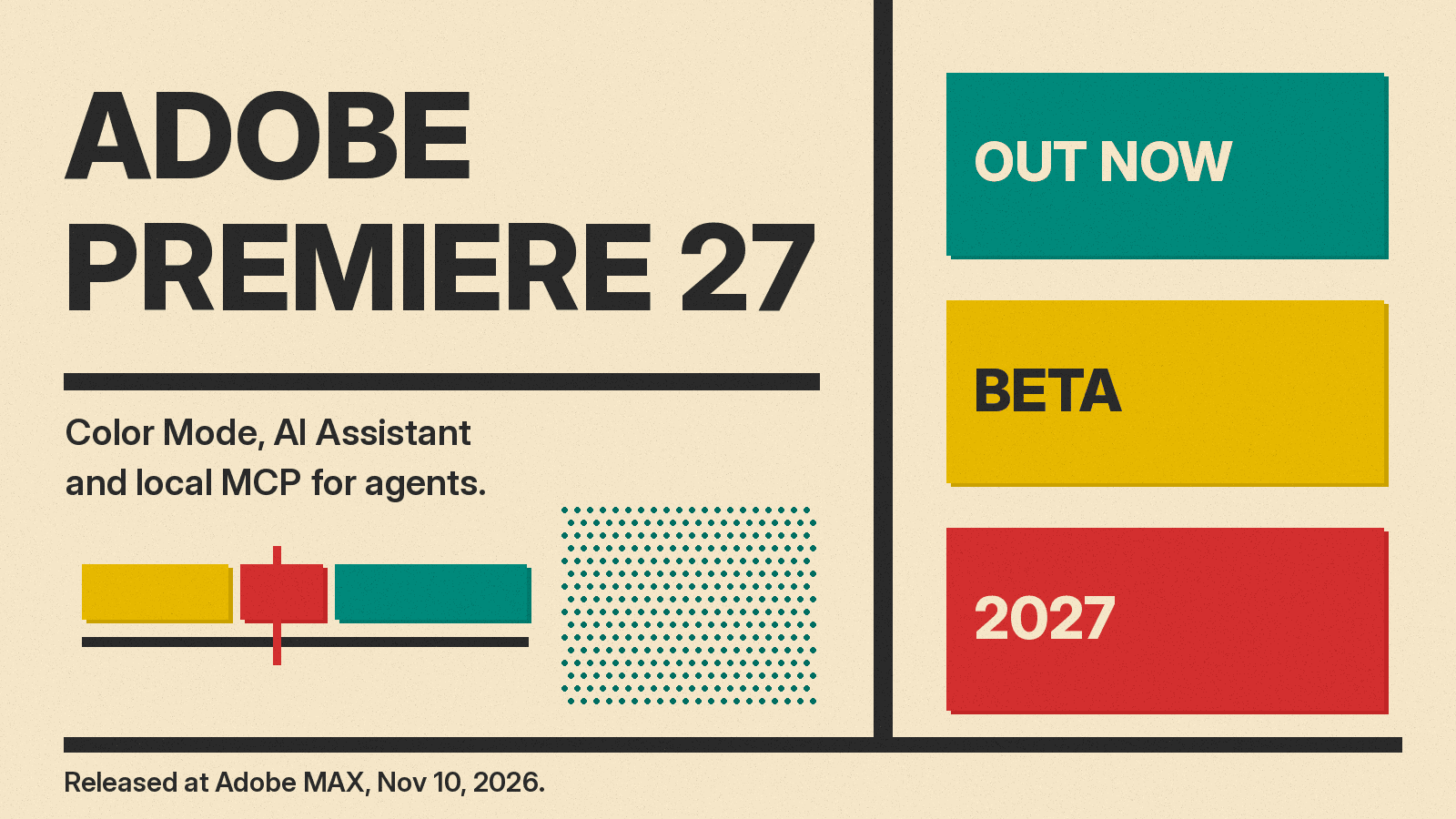
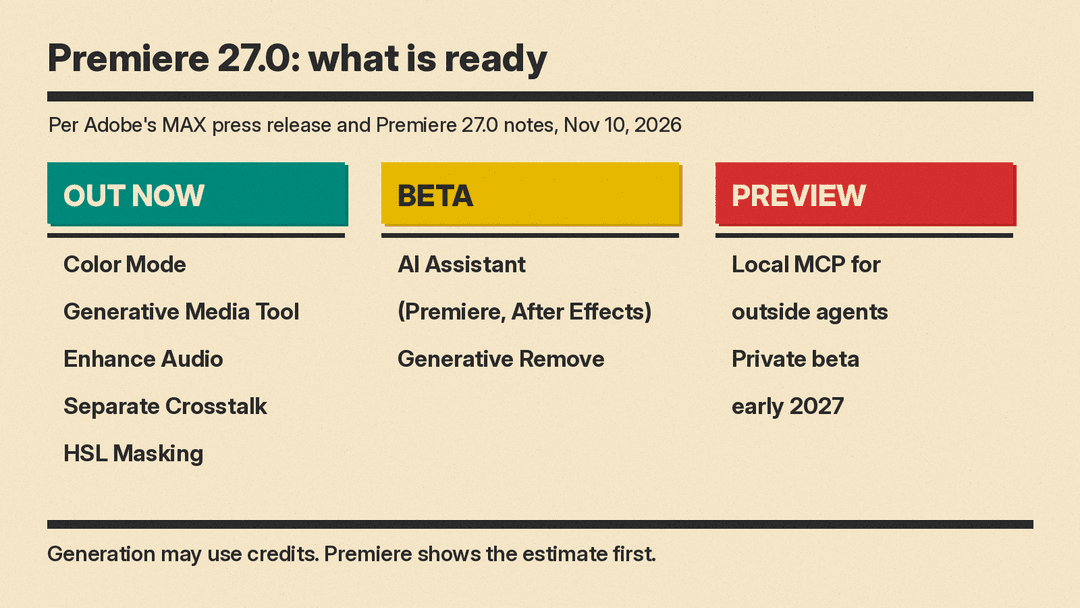
Adobe released Premiere 27.0 on November 10, 2026, at Adobe MAX. It adds a long list of AI features, but not all of them are ready. Some features are out now, some are in beta, and one is only a preview for 2027. This guide sorts the three layers: Color Mode, the AI Assistant, and local MCP integrations for outside agents, plus the generative tools in the timeline.
What is new in Premiere 27.0?
Adobe's MAX press release lists the Premiere highlights: Color Mode, the Generative Media Tool, AI audio tools (Enhance Audio, Separate Crosstalk and Separate Sound Source) and Generative Remove (beta), which removes unwanted objects from a video and fills the space. Adobe says the new Creative Cloud capabilities are generally available now, apart from the features it labels beta.
The Premiere 27.0 announcement on Adobe's community site adds smaller changes. HSL Masking isolates areas by hue, saturation and luminance. Generative Extend can now create missing frames when a clip does not have enough media for a transition. There are eight new effects, including Bevel Alpha, Posterize, Radial Blur and Zoom Blur.
What is Color Mode in Premiere?
Color Mode is a dedicated color grading workspace inside Premiere. Adobe calls it "a first-of-its-kind color grading system." You open it with the Color tab next to Edit in the upper-left corner of the app.
Adobe's Color Mode help page says it is built for editors who are not experienced with color, but it still has the full set of controls for detailed work. The main parts are:
- Clip Grid, only in Color Mode. You filter and sort clips, copy and paste color operations, and put clips into groups.
- Three operation types. Adjust includes Auto Color, which sets exposure and white balance. Style includes Midtones, Variable Vibrance, Film Color and Vignette. LUT lets you add LUTs to the grade.
- Three levels. You can apply color to one clip, to a group of related shots, or to the whole sequence.
The Lumetri Color panel is retired in 27.0, but the Lumetri Color effect stays, and old projects that use it keep their color as before. Adobe gives one warning: check the sequence color setup before you grade, because a change after grading can change how your clips look. Color Mode works on sequences that use Color Management, with Direct Rec. 709 (SDR) as the default for most new sequences.
How does the Generative Media Tool work?
The Generative Media Tool puts AI generation inside the timeline. You select a range, type a prompt, choose a model, and Premiere adds the result to your sequence as an editable clip. The help page says it can make video, sound effects and images, and it can use frames from your sequence as visual references.
Adobe first shipped the tool in September. Its September 8 blog post named the video models: Adobe Firefly plus partner models from Google Veo, Kling, Runway and Luma. If you are picking between two of them, our Kling vs Runway comparison covers how they differ for creators. In 27.0, the tool also makes images, music and soundscapes. Generate Soundscape looks at your video and builds matching ambiance and sound effect layers.
Two practical points from Adobe's release notes:
- Credits. Generation may use generative credits. Premiere shows the estimated credit cost before you generate, and a retry may use more.
- Commercial use. Adobe says its Firefly models are designed to be commercially safe. With a partner model, you are responsible for checking that the model and its output fit your project.
The same MAX event brought new video tools to Firefly on the web, covered in our post on Firefly Build a Story and the clip editor.
What is the AI Assistant in Premiere and After Effects?
The AI Assistant is a panel that understands your Premiere project and helps with editing tasks when you ask in plain language. It runs on the Adobe Creative Agent, which Adobe says is now in Premiere, Illustrator, InDesign, After Effects and Frame.io.
According to the press release, the new Premiere capabilities are:
- applying effects across every clip in a sequence
- tracking masked subjects through a frame
- adjusting color and exposure across an entire sequence at once
The AI Assistants are in beta in Adobe's flagship desktop apps. Photoshop is the exception: there, the assistant is only in the separate Photoshop beta app.
What are Adobe's local MCP integrations?
MCP, the Model Context Protocol, is a standard that lets an AI agent use other software. Our plain-English guide to MCP explains the basics.
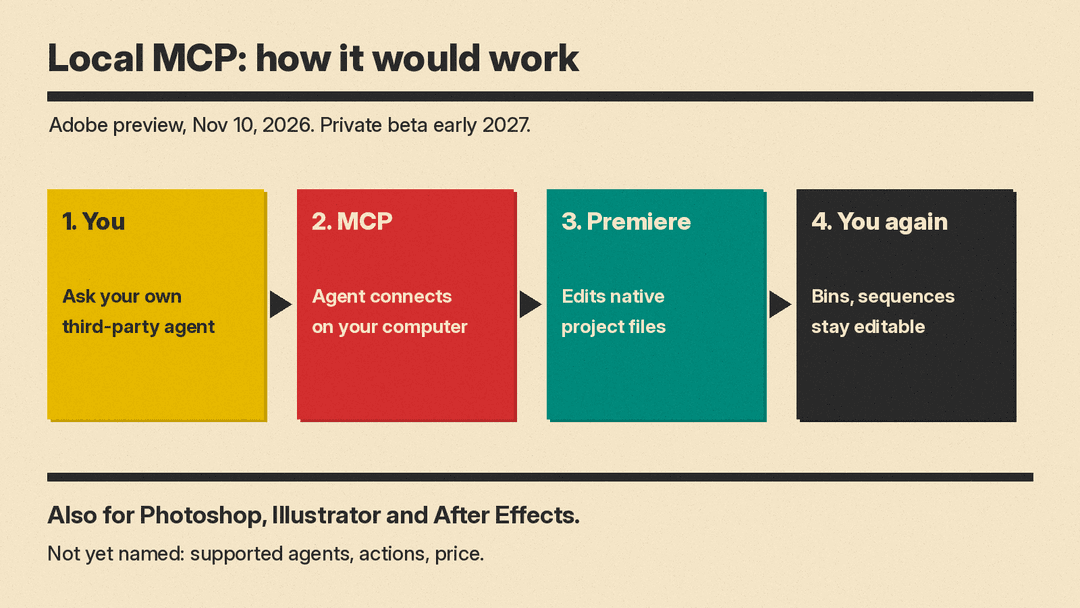
Adobe previewed local MCP integrations that will let you direct your preferred third-party agent to work in Photoshop, Illustrator, Premiere and After Effects on your own computer. Adobe says the agent makes changes directly in native project files, and layers, vectors, bins and sequences stay editable, so you can step in by hand at any time. If the agent also connects to other MCP tools such as Google Drive or Slack, Adobe's example has it pull a brief from Google Docs and share the result in Slack.
This part is not out. Adobe says the integrations will be available in private beta in early 2027. The Post Flow notes that Adobe has not said which agents are supported, what actions an agent can take, the price, or the platforms, and that the only published demo is in Photoshop, with none yet for Premiere or After Effects. Adobe vice president Deepa Subramaniam told TechCrunch the company is still deciding what to expose: "We are still figuring out where and when and how to draw the line."
What do you need to run Premiere 27.0?
Adobe lists these requirements:
- Windows 11 version 24H2 or later, with a detected, supported GPU.
- On Mac, an Apple silicon Mac with macOS 15 or later. Intel Macs are not supported.
- An internet connection for cloud-based generative features.
Premiere 27.0 also adds native Windows on ARM support for systems with the NVIDIA RTX Spark (N1X) chip. Adobe notes that generative features, AI models and partner models may vary by plan, region, language and hardware.
Why it matters for AI video editors
Premiere now has AI at three depths: generation in the timeline, an in-app assistant that changes whole sequences, and, from 2027, a door for outside agents. That last layer could matter most for long-term workflows, but today it has no list of actions, no supported agents and no price. For now, the useful parts are Color Mode and the timeline tools.
What should editors do now?
- Try Color Mode on a copy of a real project, and check the sequence color setup first.
- Test the AI Assistant beta on a duplicate project before you trust it with a live edit.
- Check the credit estimate before each generation, and review partner model terms for commercial work.
- Watch for the local MCP private beta in early 2027.
Sources
- Adobe: Adobe Transforms its Creative Cloud Tools into Agentic Workflows (Nov 10, 2026)
- Adobe Community: Welcome to Adobe Premiere 27.0
- Adobe Community: New in Adobe Premiere 27.0, Meet Color Mode
- Adobe Help: Color Mode in Premiere
- Adobe Help: Generative Media Tool overview
- Adobe Blog: Generate and create directly in your timeline (Sep 8, 2026)
- TechCrunch: Adobe brings AI agents and new creative tools to Photoshop, Premiere, and Firefly
- The Post Flow: Adobe MCP for Premiere, Photoshop and After Effects
