
Adobe used the first day of Adobe MAX 2026 in Miami Beach on November 10 to rebuild Firefly Video around one idea: go from a story idea to a finished cut without leaving Firefly. Two new beta workspaces carry that plan. Build a story turns a prompt into planned scenes and shots, and Assemble short video gives you a simple editor to put the clips in order. Adobe also says it has added newer partner models, including Kling 4.0 and Dreamina Seedance 2.5. Here is what each tool does, who can use it, and where it falls short.
What did Adobe announce for Firefly Video?
In its Firefly press release, Adobe describes expanded video editing that lets creators "go from concept to final cut in one workflow." The list covers building a story "from narrative arc to scenes and shots," assembling clips in a simplified timeline, adding captions, and generating transitions and b-roll with AI models in Firefly.
The same release lists recent image and video model additions in Firefly: Dreamina Seedance 2.5, Kling 4.0, GPT Image 2.6 Sunburst, GPT Image 2.6 Flare and Nano Banana 2.1. Adobe says Firefly now offers models from Adobe, Topaz Labs and partners including ByteDance, Google, Kling, OpenAI and ElevenLabs. As of November 11, Adobe's Kling help page still lists only Kling 2.5 Turbo, Kling 3.0 and Kling 3.0 Omni, and its Seedance help page, last updated in July, says Seedance models are not available to Firefly users in the United States. Check the model menu to see what your account shows.
What is Build a story in Adobe Firefly?
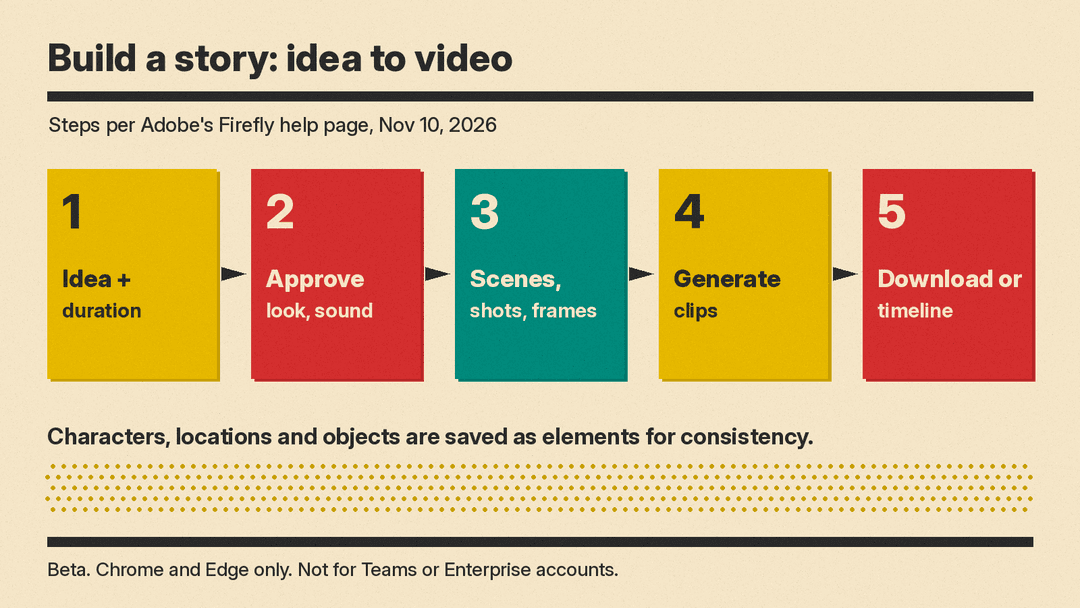
Build a story is a beta tool under Video in the Firefly menu. Adobe's Build a story help page walks through the process:
- You type your idea to the Firefly AI Assistant, or pick a ready-made skill. You can add a reference image for a character, a location, an object or a theme.
- You choose how long the full video should be. The assistant then proposes the look, the sound, the number of scenes and shots, and the characters, locations and objects. You accept or change the plan.
- After you accept, the assistant saves the characters, locations and objects as "elements" so they stay consistent from shot to shot. It plans the scenes, writes a beat description for each shot and generates a first frame for each one.
- You pick a resolution and aspect ratio. Adobe notes you cannot change them after the frames are generated.
- Each shot appears as a card on a canvas, grouped by scene. You can fix a shot in the Shot editor or ask the assistant, then generate clips one card at a time or all at once with "Generate all."
- When it looks right, you download the video or select "Open in timeline" to keep editing.
What are the limits of Build a story?
The help page lists four limits for now. It runs only in Chrome and Edge on desktop. It does not support mobile web or windows smaller than 1080 by 700 pixels. You cannot upload clips from your computer into a card; clips must come from your Firefly generation history in Adobe cloud storage. And it is not available to Creative Cloud for Teams or Creative Cloud for Enterprise users. RedShark News summed this up as leaving Build a story "limited in scope for now."
What is Assemble short video?
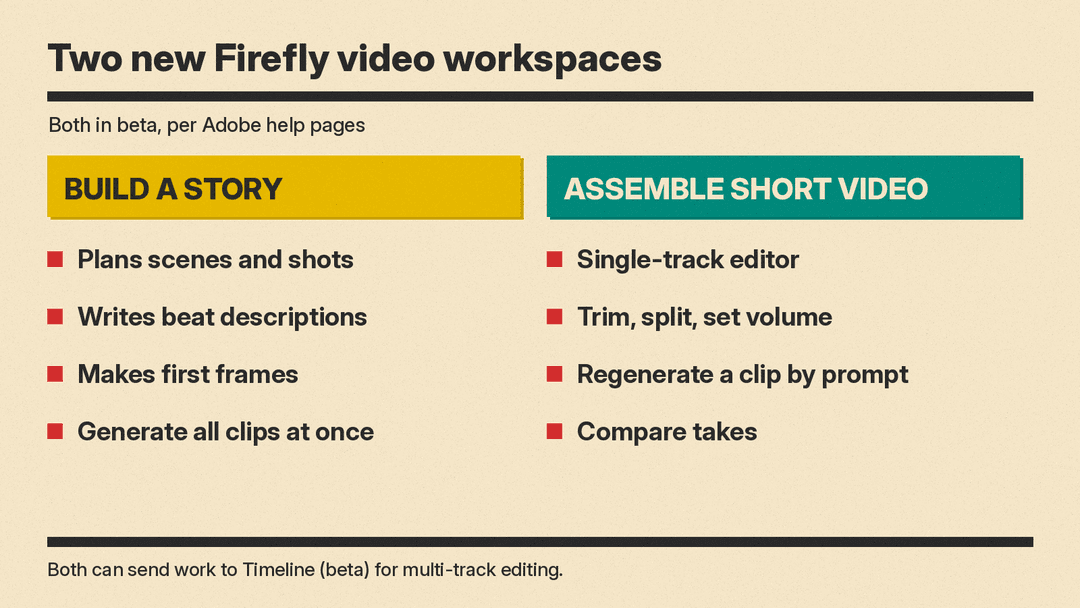
Assemble short video is the second half of the workflow. Adobe's Assemble short video help page calls it a lightweight, single-track workspace. In it you can:
- Arrange clips in order, trim them, or split one clip into two.
- Change the volume of each clip.
- Pick a clip and type a prompt to regenerate it, with an optional reference image.
- Compare the original and each regenerated version, which Adobe calls takes, and keep the one you like.
- Detect cuts and split clips at those points automatically.
- Change the aspect ratio, then send the video to Timeline (beta) for multi-track editing.
Before you regenerate a clip, a cost indicator shows how many generative credits it will use. You can open the workspace from Video in the Firefly menu, from the "Edit video" button after some Quick Actions, or from the AI Assistant after you generate a video with an omni model. Like Build a story, it is not available to Teams or Enterprise accounts.
How the AI Assistant fits in
Both tools lean on the Adobe Creative Agent, which powers the Firefly AI Assistant (beta). Adobe added a few controls that matter for video. Plan Mode lets you review, edit and approve the agent's plan before it starts, or let it run on its own. A Model Selector lets you pick a model for a session or leave it on Auto-Select. You can also save formats, colors, brand guidelines, characters and products once and reuse them across projects. Always-on agents that keep working in the background are in preview.
Is it available now?
Adobe says Edit Text, Retouch, Relight and Quick Actions are generally available in Firefly today, and that "other new tools and capabilities are available in beta." Both video workspaces are betas offered for testing and feedback. Regenerating a clip uses Firefly generative credits, and pricing is on Adobe's Firefly plans page. For editors who finish in Premiere, the same MAX event brought Color Mode and an AI Assistant beta, covered in our guide to Adobe Premiere 27.
Why it matters for AI video creators
Many AI video tools are good at single clips and weaker at full stories. A model makes a strong 10-second shot, then you leave for an editor to string shots together and fix the character who changed outfits halfway through. Build a story tries to solve the planning and consistency part, and Assemble short video handles the rough cut, inside the same app that hosts many partner video models.
That puts Firefly in the same lane as other prompt-to-video agents, such as Synthesia Syren and the DeepBrain AI Studios 5.0 Video Agent. Those tools focus on avatar and business video. Adobe's pitch is broader: story-driven social clips and short films, using whichever model fits the shot. It follows Adobe's Disney alliance, which showed the studio side of Adobe's AI plans. This launch is the creator side.
The beta limits are real. Without uploads into story cards and without Teams or Enterprise access, Build a story is mostly a tool for solo creators who generate everything in Firefly. Forest Key, Adobe's Vice President for Firefly and Agentic AI, said the goal is an agent that works "across tools, models and workflows where your taste, style and vision lead." Whether the planning step saves time over a manual storyboard is something creators will find out in the beta.
Sources
- Adobe: Adobe Firefly Expands as the AI Creative Studio (Nov 10, 2026)
- Adobe: Adobe Powers a New Era of Creativity (Nov 10, 2026)
- Adobe Help: Build a visual story
- Adobe Help: Assemble short video overview
- Adobe Help: Generate videos using Kling
- Adobe Help: Generate videos with Seedance
- RedShark News: Adobe Firefly's Build a story
