
Kling and Runway both turn text and images into short AI video clips. They overlap a lot, and in one case you do not even have to choose: Runway now offers Kling models inside its own app and API. This guide compares the two on the things that matter for day-to-day work, using each company's own help pages and pricing pages as the source.
It sticks to how the tools work, not which model version tops a leaderboard this month. For a head-to-head on specific models, see our Kling 4.0 vs Seedance 2.5 comparison.
The short version
- Both make short clips from a text prompt or from a still image, and both sell access through credits.
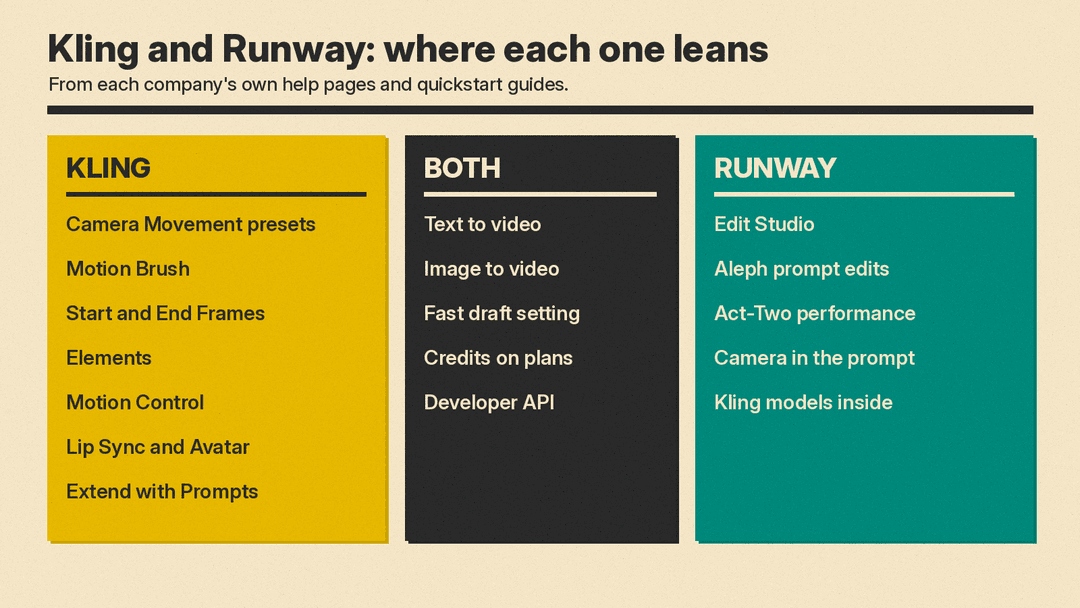
- Kling's guides focus on fine control inside a single generation: a Motion Brush for specific parts of an image, start and end frames, reusable "Elements" for consistent characters, preset camera moves, and lip sync and avatar tools.
- Runway's guides focus on working with footage you already have: Aleph and Edit Studio change existing video with a text prompt, and Act-Two moves a character using a recorded performance.
- You can use both in one place. Runway's pricing page lists Kling models among the video models its plans can run.
Text to video and image to video
Both tools accept the two basic inputs.
Kling's text-to-video guide describes a prompt formula of subject, subject movement and scene, plus optional camera language, lighting and atmosphere. It also offers two quality settings. According to Kling's guide to video modes, Standard Mode "generates videos faster and has lower inference costs," while Professional Mode "generates videos with richer details and higher inference costs."
Runway's Gen-4.5 help page says Gen-4.5 offers Text to Video and Image to Video. Runway's advice for writing prompts differs by input: image-to-video prompts should focus on the motion of the scene, and text-to-video prompts should describe both the visual elements and the motion. Runway also keeps older models that, per its getting started guide, generate videos faster and cost fewer credits. Its Gen-4 help page recommends exploring ideas first in Gen-4 Turbo "because of the reduced credit cost and faster generation times," then switching up if the results fall short.
The pattern is similar on both sides: a cheaper, faster setting for drafts and a slower, more detailed setting for final shots.
Control inside a single clip
Kling documents a set of dedicated tools for this. From Kling's own quickstart guides:
- Camera Movement. Kling's camera guide lists six basic camera movements (horizontal, vertical, zoom, pan, tilt and roll) and four preset "Master Shots," with a setting to adjust how far the camera moves.
- Motion Brush. Kling's Motion Brush guide lets you select an area of an uploaded image, draw a motion path, and describe the motion in text. It supports up to six elements and their paths at once. A Static Brush marks areas that should stay still.
- Start and End Frames. You upload two images, and the start and end frames feature generates a transition between them. Kling says the two images should be as similar as possible, because large differences may cause a shot switch.
- Elements. Kling's Elements guide lets you upload 1 to 4 images, pick subjects in them (people, animals, objects or scenes), and describe their actions. Kling says this helps keep a character's look consistent across shots.
- Motion Control. Kling's Motion Control guide assigns motion to one character in an image, taken from an uploaded video or a motion library.
Runway puts more of this control into the prompt itself. Its Gen-4.5 page says the model "excels at understanding and executing complex, sequenced instructions," including "detailed camera choreography" and "precise timing of events," all within a single prompt. That is Runway's own description, so test it on your shots. Runway also publishes a camera terms guide with example prompts, linked from the same page.
Characters that talk and act
Both tools have a way to drive a character with a voice or a performance, but they take different routes. For dubbing and standalone lip sync tools beyond these two, see our guide to the best AI lip sync tools.
Kling generates the performance from audio and text. Its Lip Sync feature syncs a character's lips to an uploaded voiceover or to a voice made with its text-to-speech. Kling says it works for human characters (real, 3D or 2D) with a complete face, not for animal characters. Kling's Avatar 2.0 guide describes a separate tool: upload a character image, add a voiceover, describe the expressions, and it generates an avatar video.
Runway copies a real performance. Its Act-Two help page says you provide a "driving performance" video of someone acting out a scene, plus an image or video of a character, and Act-Two transfers the movement to the character "with realistic motion, speech, and expression." With a character image, the performance can also control hand and body gestures. Runway says Act-Two works with a range of angles, non-human characters and styles.
The practical difference: Kling suits creators who want a talking character from a still image and a voice track. Runway suits creators who are willing to act out the scene on camera and want that exact timing in the result.
Editing footage you already have
Runway has a dedicated tool for this. Its Edit Studio guide describes a video editing tool, powered by Aleph 2.0, that changes "existing traditional or generated footage" using prompts. Runway lists uses such as swapping products, replacing characters, removing or replacing backgrounds, removing unwanted objects, and inserting new elements and effects.
Runway's Aleph 2.0 prompting guide says the model is designed to "change only what you ask for and preserve everything else," and suggests prompts built from an action verb (add, remove, change, replace, re-light, re-style) plus the change you want, such as "Change the outfit and bag to soft yellow."
On Kling's own site, the quickstart guides cover lengthening a generated clip with Extend with Prompts. Kling says a generated video can be extended by 4 to 5 seconds at a time, for a total length of up to 3 minutes. "Auto-Extend" continues the clip on its own, and "Customized Extend" lets you steer the next part with a prompt. Runway's API documentation also says Kling 4.0 generates and edits video from text, frames, and image or video references.
How you pay
Both companies sell credits, and both put them on monthly plans. Prices change often, so this section covers how the systems work. For current dollar figures, see our AI video generator pricing comparison, and check each pricing page before you buy.
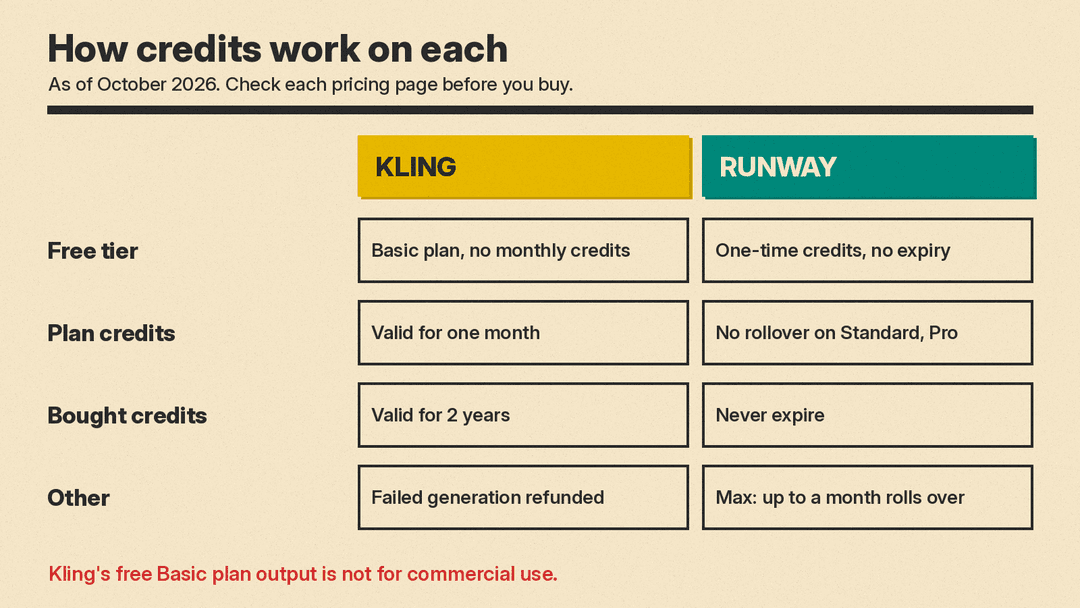
Runway, per its pricing page as of October 2026:
- Each model uses a set number of credits per generation, depending on the model, duration and resolution.
- The Free plan includes a one-time deposit of credits that doesn't expire.
- On the Standard and Pro plans, monthly credits don't roll over. On the Max plan, up to one month of unused credits rolls over.
- Extra credits you buy never expire.
Kling, per its credits policy and its credit cost guide:
- The free Basic plan has no monthly credits, and its generated content is not for commercial use.
- Paid plans add benefits such as 1080p video generation, watermark removal, video extension and commercial use of generated content.
- Monthly subscription credits are valid for one month. Purchased credits are valid for 2 years.
- If a generation fails, Kling says the credits are refunded.
- Kling notes that credits, prices, plan benefits and access rules "can change as Kling AI products are updated."
The commercial-use point matters for anyone making client work or ads: on Kling, check that your plan allows commercial use before you publish.
Using Kling through Runway
The two tools are not fully separate products anymore. Runway's pricing page lists Kling video generation among the models its plans can run, next to Runway's own models. On the developer side, the Runway API documentation says Runway Dev lets you bring models "from Runway and other labs, including Kling, Seedance and GPT Image" into apps through one API.
Kling also runs its own developer platform for people who want to call its models directly.
So if you already pay for Runway, you can try Kling's models without a second subscription. If you want Kling's own app features, such as Motion Brush, Elements and Avatar, you would use Kling's site.
Which one should you pick?
There is no single winner. Match the tool to the job:
- Pick Kling if most of your work starts from still images and you want to direct exactly what moves: Motion Brush, start and end frames, Elements for a recurring character, and lip sync or avatar videos from a voice track.
- Pick Runway if you work with existing footage and want to change it with prompts (Aleph and Edit Studio), or if you want to drive a character with your own recorded performance (Act-Two).
- Use Runway with Kling models if you want one bill and one workspace but still want to try Kling's video models.
- Test before you commit. Runway's Free plan includes a one-time credit deposit, and Kling has a free Basic plan. Check what each free tier includes, then run the same prompt and the same image through both.
If you are still deciding which tools belong on your shortlist at all, our guide to the best AI video generators covers more options.
Sources
- Kling AI: Quickstart guides
- Kling AI: Text-to-Video Prompt Guide
- Kling AI: Standard Mode and Professional Mode
- Kling AI: Camera Movement
- Kling AI: Motion Brush
- Kling AI: Start and End Frames
- Kling AI: Elements
- Kling AI: Motion Control
- Kling AI: Lip Sync
- Kling AI: Avatar 2.0 User Guide
- Kling AI: Extend with Prompts
- Kling AI: Credits Policy
- Kling AI: Credit Cost Guide
- Kling AI: Developer platform
- Runway: Pricing
- Runway: Creating with Gen-4.5
- Runway: Getting Started with Generative Video
- Runway: Creating with Gen-4 Video
- Runway: Performance Capture with Act-Two
- Runway: Creating with Edit Studio
- Runway: Aleph 2.0 Prompting Guide
- Runway API documentation
