
"Computer use" is the name AI companies give to a skill where an AI model looks at a screen and then clicks, types and scrolls, the way a person does at a keyboard and mouse. Anthropic, OpenAI and Google all document a computer use tool for developers. This guide explains what the term means, how the tool works step by step, what people use it for, where it falls short, and the safety rules the three vendors publish.
You do not need to write code to follow along. The goal is to help you understand what is happening when a product says its AI agent can "use a computer."
The short definition
Anthropic's computer use tool page describes the feature this way: "Claude can interact with computer environments through the computer use tool, which provides screenshot capabilities and mouse/keyboard control for autonomous desktop interaction."
OpenAI's computer use guide says: "Computer use lets a model operate a browser or desktop interface. Use it to fill out forms, test user flows, or complete tasks in an application."
Google's Gemini API computer use page puts it in terms of seeing and acting: "Using screenshots, the model can "see" a computer screen, and "act" by generating specific UI actions like mouse clicks and keyboard inputs."
So in plain terms, computer use has two halves:
- Seeing: the model gets a picture of the screen (a screenshot).
- Acting: the model answers with an action, such as "click here" or "type this text."
The model does not have hands. A separate program carries out each action and then sends back a new screenshot. Anthropic's page says: "The core of computer use is the "agent loop"."
How it works: the screenshot loop
All three vendors describe the same basic cycle, which they call an agent loop.
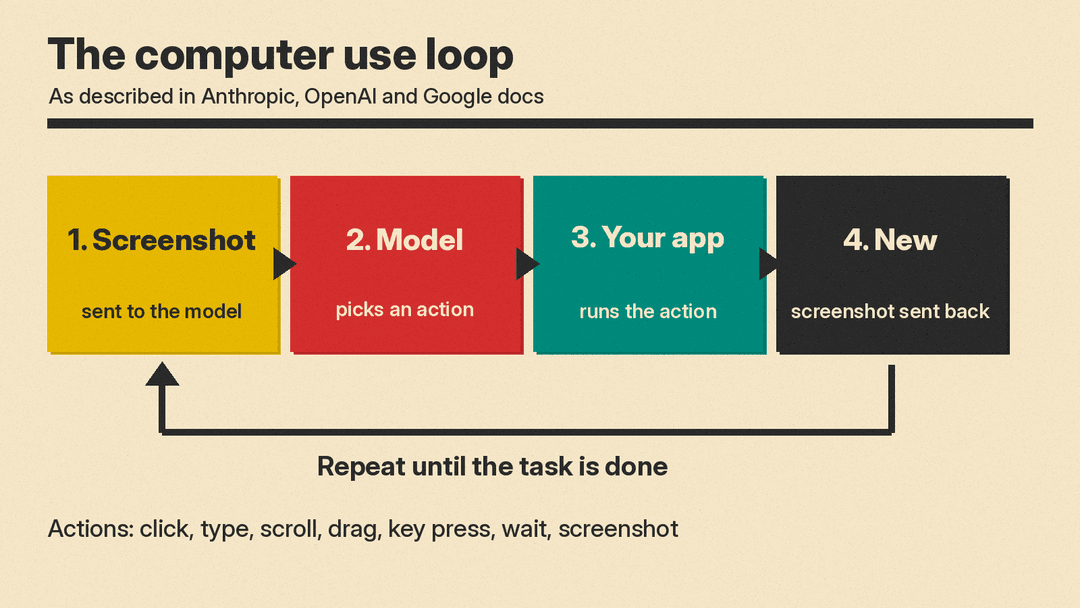
Here is the cycle in plain steps, based on Google's "How Computer Use works" section and Anthropic's "How computer use works" section:
- Send the task and a screenshot. The application sends the model the user's request plus a picture of the current screen. Google's page lists "the user's prompt, and a screenshot of the current screen" as part of the request.
- The model picks an action. The model looks at the screen and the request, then returns an action such as a click at a spot on the screen, a scroll, or a keystroke.
- The application runs the action. Code on the developer's side moves the mouse, clicks or types in the real (or virtual) computer.
- Capture the new state. The application takes a fresh screenshot and sends it back to the model.
Then the cycle repeats until the task is done. Anthropic's page says that steps like these, "repeated without user input, form the "agent loop"."
A few details make this loop work in practice:
- Coordinates. When the model says "click," it gives a position on the screen. Google's page says its model returns positions on a normalized 1000x1000 grid, and the application must "scale them from the normalized 1000x1000 coordinates" to the real screen size. Anthropic's page says Claude's coordinates are "in screenshot pixels," so the application must scale them back if it shrank the screenshot.
- Several actions at once. Anthropic's page says Claude "can plan a short sequence of actions, such as click, type, and then take a screenshot, and return them together in one response," which it calls a batch action. OpenAI's guide says a computer call "contains an ordered
actionsarray." - A stop condition. The loop ends when the model stops asking for actions. Anthropic's example loop also sets a maximum number of rounds, which it says "prevents potential infinite loops that could result in unexpected API costs."
What actions can the model take?
The action lists are short and familiar. They match what a person does with a mouse and keyboard.
OpenAI's guide says "the model can request click, double_click, drag, move, scroll, keypress, type, wait, or screenshot."
Anthropic's toolset includes member tools "such as screenshot, left_click, type, and zoom," along with right click, drag, scroll, holding a key, and waiting. The zoom action lets Claude look at one part of the screen at full resolution, which the page says helps with "small text or dense UI that isn't legible in a downscaled full screenshot."
Google's page splits its actions by environment:
- Browser: clicks, typing, scrolling, drag and drop, key presses, plus web steps such as
navigateto a URL,go_backandgo_forward. - Mobile: an Android-focused set that includes
open_app,list_appsandlong_press. - Desktop: operating-system level cursor and keyboard commands.
Google's page also says that on the models it names, actions include "an intent field that explains the model's reasoning behind each step."
Where the computer actually is
A common question: whose computer is the AI using?
In the API versions described here, the developer supplies the computer. Anthropic's page says "your application runs every call in an environment you control," and that "Claude doesn't directly connect to this environment." Google's page says "you will need to implement the client-side execution environment."
That environment is usually not someone's everyday laptop. Anthropic's page describes a sandboxed setup with a virtual display, a lightweight desktop, and preinstalled "Linux applications such as Firefox, LibreOffice, text editors, and file managers." Its reference version "runs all of this inside a Docker container," which is a sealed-off software box.
OpenAI's guide lists three starting points: screenshots and mouse or keyboard actions in your own browser or desktop, a browser toolset that reads page text and uses controls, or a browser hosted by OpenAI, covered in a separate guide. It also names hosted environment partners, including Browserbase, Browser Use, Daytona and E2B Desktop, for teams that want "a partner's browser or desktop instead of running one yourself."
OpenAI's guide says "Your application owns the session, permissions, and cleanup."
Computer use vs a browser agent vs an API
Computer use overlaps with two ideas you may have seen on llms.blog.
Browser agents. A browser agent works inside a web browser. Computer use can reach the whole desktop, including apps that are not websites. Anthropic's page says: "For tasks that stay inside webpages, the browser use tool is the closer fit: its member tools read and act on the page itself, and it doesn't need a full desktop environment." OpenAI's guide makes a similar split between its screenshot-based computer tool and a browser toolset for reading page text and using controls and tabs.
APIs and plain search. If a task does not need clicking at all, OpenAI's guide points to a simpler tool. OpenAI's guide says: "For public information that needs no interaction, use web search." Computer use is for cases where the only way in is the screen a person would see.
Coding agents. A coding agent works with files and terminal commands. Computer use works through a screen. Anthropic's quick start declares the computer use tool next to a text editor tool and a bash (command line) tool, "which Claude typically uses alongside computer use."
OpenAI also describes a second style of computer use. Instead of returning one click at a time, the model can write a short program that uses a tool such as PyAutoGUI or Playwright "to operate the interface. One call can combine actions, loops, or conditional logic." The screenshot loop still applies: the code runs, and screenshots come back.
What people use computer use for
The vendors name a short list of uses in their own docs.
Google's page says developers can build agents that:
- "Automate repetitive data entry or form filling on websites."
- "Perform automated testing of web applications and user flows"
- "Conduct research across various websites (e.g., gathering product information, prices, and reviews from ecommerce sites to inform a purchase)"
OpenAI's guide says to use computer use "to fill out forms, test user flows, or complete tasks in an application."
Anthropic's page points to "use cases where speed isn't critical (for example, background information gathering, automated software testing) in trusted environments."
For a news example, see our post on Gemini API Computer Use becoming generally available.
Limits the vendors name
Each vendor lists limits for its own product. These are their words.
Speed. Anthropic's page says computer use latency "might be too slow compared with regular human-directed computer actions."
Misplaced clicks. Anthropic's page says "Claude might make mistakes or hallucinate when outputting specific coordinates while generating actions." It adds that some elements "(such as dropdowns and scrollbars) might be tricky for Claude to manipulate using mouse movements," and suggests keyboard shortcuts instead.
Checking its own work. Anthropic's page warns that "Claude sometimes acts as if its actions succeeded without explicitly checking their results," and offers a prompt that asks Claude to take a screenshot after each step and confirm it worked.
Harder apps. Anthropic's page says "reliability might be lower when interacting with niche applications or multiple applications at once," and on spreadsheets it says: "Complex spreadsheet operations might still require multiple attempts."
Messy screens. Google's page says: "Unexpected pop-ups, notifications, or changes in layout can confuse the model." It suggests starting each task "from a known, clean state" where possible.
Errors in general. Google's page carries this note: "Computer Use may contain errors and security vulnerabilities. We recommend supervising closely for important tasks, and that you avoid using the Computer Use capability for tasks involving critical decisions, sensitive data, or actions where serious errors cannot be corrected."
Anthropic's page ends its limits section in a similar way: "Do not use Claude for tasks requiring perfect precision or sensitive user information without human oversight."
The big risk: instructions hidden on the screen
Computer use means the model reads whatever is on the screen. That includes text written by strangers on web pages, in documents and in images. This creates a risk called prompt injection, where text on the screen tries to give the model new orders.
Anthropic's page says: "In some circumstances, Claude follows commands found in content even when they conflict with your instructions. For example, instructions on webpages or contained in images might override your instructions or cause Claude to make mistakes."
OpenAI's guide sets the rule for builders: "Treat screen content as untrusted. Text in a page, document, or tool result cannot grant permission or override the user's instructions."
The vendors describe extra defenses:
- Anthropic: its page says "classifiers automatically scan what the tool returns, such as screenshots, to flag potential prompt injections," and when one is flagged, they "steer the model to check whether the instruction really came from you before acting on it." The page adds that the earlier precautions "remain important even with these classifiers in place."
- Google: for the models it lists, its page describes an opt-in check that looks at whether a screenshot "contains hidden adversarial instructions (for example, "Ignore previous commands") and blocks execution when detected." The page says "Prompt injection detection is an opt-in feature. The default is
false."
How the vendors say to keep it safe
The three safety sections share a small set of controls. Here they are, grouped by theme.
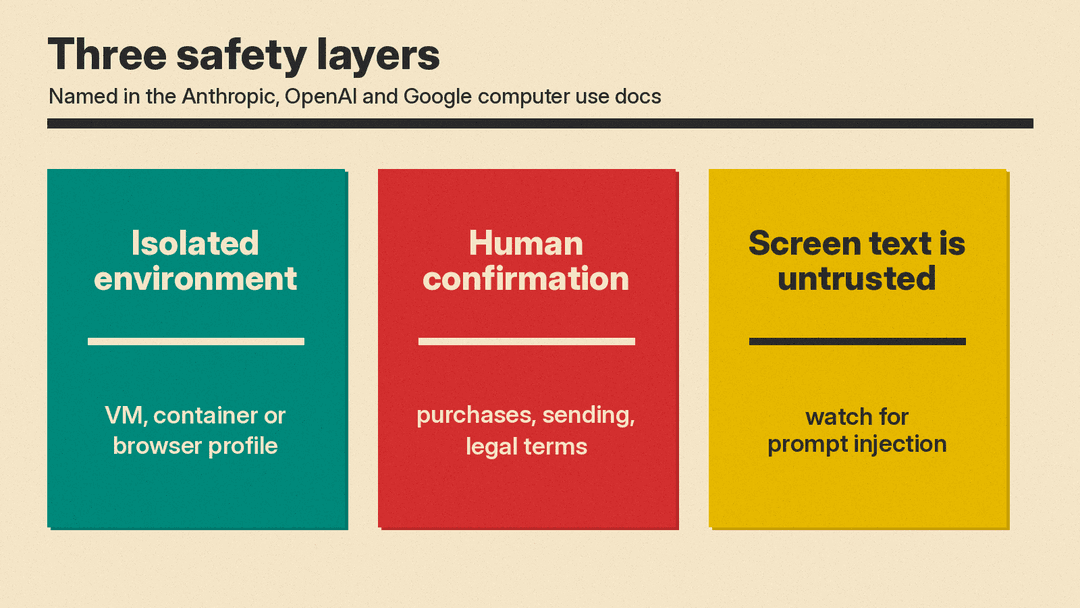
1. Run it in a separate, limited space. Anthropic's page lists "Using a dedicated virtual machine or container with minimal privileges to prevent direct system attacks or accidents." Google's page suggests "a sandboxed virtual machine (VM), a container (e.g., Docker), or a dedicated browser profile with limited permissions." OpenAI's guide says "Use an isolated browser or VM and an allow list of sites and actions."
2. Limit where it can go. Anthropic's page lists "Limiting internet access to an allowlist of domains to reduce exposure to malicious content." Google's page says: "A blocklist of prohibited websites is a good starting point, while a more restrictive allowlist is even more secure."
3. Keep secrets out of reach. Anthropic's page lists "Avoiding giving the model access to sensitive data, such as account login information, to prevent information theft." OpenAI's guide says to "keep credentials out of page text and screenshots."
4. Ask a person before big steps. Anthropic's page lists "Asking a human to confirm decisions that might result in meaningful real-world consequences," naming "accepting cookies, completing financial transactions, or agreeing to terms of service." OpenAI's guide says: "Keep users in control of purchases, data transmission, destructive changes, and other actions that are hard to reverse." It adds: "Typing sensitive information into a form counts as transmission." Our explainer on AI agent permissions shows how coding agents such as Claude Code, Codex and Copilot CLI handle the same question.
Google builds this into the response itself. Its page says each suggested action may come with a safety_decision that marks it as allowed, require_confirmation, or blocked. Google lists safety categories that can trigger this, including financial transactions, sending emails or chat messages, creating accounts, accepting legal terms, and cookie consent prompts. When the decision is require_confirmation, the page says to "prompt the end user."
5. Set limits and check the result. OpenAI's guide says: "Set step, time, or cost limits, support cancellation, and check the actual outcome instead of relying only on the model's final answer." Google's page recommends logging "prompts, screenshots, model-suggested actions (function_call), safety responses, and all actions ultimately executed by the client."
What about cost and data?
This guide does not list prices, because they change. The docs do explain what drives cost.
Screenshots are images, and images cost money to send to a model. OpenAI's guide says "Screenshots count as image input." Anthropic's page says screenshot and zoom images are "billed as image input." Anthropic's page also notes that "Long agent loops accumulate screenshots quickly."
On data, the answer depends on the vendor:
- Anthropic's page says computer use is "a client-side tool," and: "All screenshots, mouse actions, keyboard inputs, and any files involved in a session are captured and stored in your environment, not by Anthropic." It adds that Anthropic "processes the screenshot images and action requests in real time as part of the API call."
- OpenAI's guide says "The SDK sends returned page text or screenshots to OpenAI," and that turning off storage in its examples "does not remove every form of data retention."
If you use a product built on computer use, its own privacy policy is the place to check what happens to the screenshots.
Questions to ask before you try a computer use product
These questions come straight from the controls the vendors describe:
- Where does it run? On your own computer, or in a separate virtual machine or hosted browser?
- What can it reach? Can you limit it to certain sites or apps?
- When does it stop and ask? Does it ask before purchases, sending messages, accepting terms or deleting things?
- Does it see your passwords? Can you sign in yourself instead of handing over login details?
- Can you watch and stop it? Is there a log of each step and a way to cancel?
- Who stores the screenshots? The product, the model vendor, or only your machine?
Quick glossary
- Computer use: an AI model that sees screenshots and returns mouse and keyboard actions.
- Agent loop: the repeat cycle of screenshot, action, new screenshot.
- Batch action: several actions returned together in one step (Anthropic's term).
- Sandbox: a sealed-off computer, such as a virtual machine or container, where the agent works.
- Allowlist: a list of the only sites or apps the agent may use.
- Prompt injection: text on the screen that tries to give the model new instructions.
- Safety decision: Google's label on an action that says it is allowed, needs confirmation, or is blocked.
