
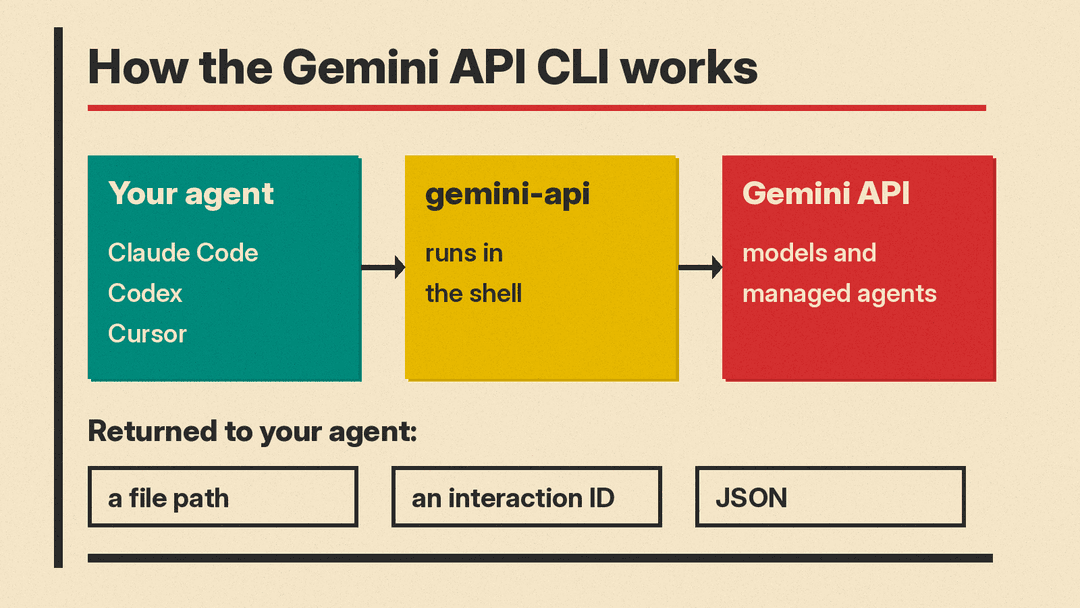
Google has a new way for coding agents to use Gemini, and it is not another coding agent. The Gemini API CLI, a command-line tool called gemini-api, lets an agent you already use, such as Claude Code, Codex, Cursor or Google's own Antigravity, call Gemini models from the shell to make images, video, speech and music, read files, and start background research jobs.
Google published the experimental preview on October 19, written by Dmitry Lyalin and Philipp Schmid. The GitHub repository shipped version v0.4.4 on October 23. This explainer covers what it does, how it differs from Google's other developer tools, and what to keep in mind before you hand it to an agent.
What the Gemini API CLI is
It is a single binary for macOS, Linux and Windows. Google calls it "zero-dependency" and "stateless": each command runs on its own, and the CLI stores no local conversation state. The agent that calls it keeps the context and decides the next step. The README sums it up as "Your agent plans the work. Gemini provides models and managed agents."
That is the main idea. Instead of asking developers to switch to a Gemini-only agent, Google is offering Gemini as a tool that any agent with shell access can pick up. Google's post names Claude Code, Codex, OpenClaw, Hermes, Cursor and custom agent loops as examples.
Google's stated reason is practical. Without a CLI, its post says, "agents guess model IDs, write throwaway SDK scripts, and dump raw base64 payloads into their context windows." The CLI is meant to replace that guesswork with fixed commands and clean output.
What it can do
The README groups the commands into a few sets. Each one has a default model, which Google lists in the repository:
- Create:
generatefor text (defaultgemini-3.8-flash),imageto make or edit images (gemini-nano-banana-2.1),ttsfor speech (gemini-3.8-flash-tts),music(lyria-3.5) andvideo(gemini-omni-1.1-flash). - Understand:
analyzeanswers questions about PDFs, images, audio, video, CSV or text files and YouTube URLs.transcribeturns audio or video into Markdown, plain text, JSON or SRT captions. - Manage:
agentruns and checks interactions with models or managed agents,filesuploads files to the Files API (which keeps them for 48 hours), andmodelslists available models. - Advanced: commands for sandbox environments, stored credentials, webhooks and cron triggers for managed agents.
A typical command looks like this, from Google's post:
gemini-api image "Isometric icon of a distributed database" --out ./assets/The image is written to disk and the CLI prints only the file path. Google says that is deliberate: media commands never push the raw file into the agent's context, which keeps the agent's working memory small.
For longer work, the CLI can start a managed agent such as Deep Research in the background, return an interaction ID, and let the calling agent check back later for the result.
Built for agents first
Most CLIs are written for people. This one is written for software that reads its own help pages. According to the README:
--helpand--usagedescribe every command and flag.--usageprints the full command tree in KDL, a machine-readable format.--schemaprints the JSON Schema for any command that takes a request body.--dry-runchecks a call and shows the HTTP request it would send, with credentials hidden, without any network call.--output-format jsonor the compacttoonformat, plus--jqfilters, let an agent pull out only the fields it needs.--agent-modeturns on structured JSON errors, and exit codes separate success (0), API failures (1), bad input (2) and authentication failures (3).
Google suggests adding a short instruction block to your agent's AGENTS.md, CLAUDE.md or .cursorrules file that tells it the tool exists and how to use it. Be careful what you let into those files: llms.blog recently covered how a planted AGENTS.md file hijacked Codex, and the same instruction files that teach an agent a new tool can also mislead it.
CLI vs SDK: which to use
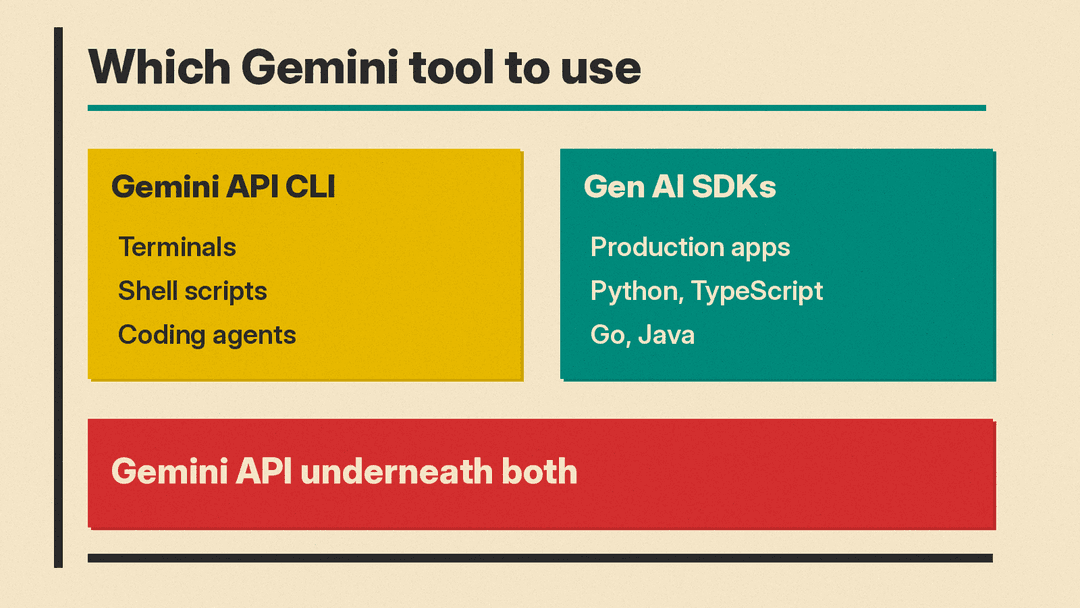
Google now describes a three-layer Gemini developer stack:
- The Gemini API itself, which serves the models and managed agents.
- The Google Gen AI SDKs, typed client libraries in Python, TypeScript, Go and Java for production apps and backend services.
- The Gemini API CLI, for terminal work, shell scripts and coding agents.
Google's own guidance is simple: use the SDKs when you build Gemini into an application, and use the CLI for interactive terminal work, scripts and autonomous agents. If you are a developer who just wants your coding agent to make a hero image or caption a recording while it builds your app, the CLI is the shorter path.
How to get started
Google lists four steps:
- Install the binary with the install script for macOS and Linux, the PowerShell script for Windows, or
go install. - Set a Gemini API key from Google AI Studio as
GEMINI_API_KEY, or store it in your OS keychain withgemini-api configure. - Check the setup offline with
gemini-api whoamiand a--dry-runcall. - Explore with
gemini-api explore,gemini-api modelsand--schema.
The recommended macOS and Linux install pipes a script from GitHub straight into bash. If your company has rules about that, the repository also offers prebuilt binaries on its releases page and a Go install.
The CLI itself is free to download under the Apache 2.0 license. Every call it makes goes through your Gemini API key, and Google's launch post does not list any separate pricing for the CLI.
Caveats
- It is experimental. Google calls this v0.4.x release an "experimental preview." The README says it is in beta and that "breaking changes may occur between releases," and it recommends pinning a version in CI.
- Antigravity integration is not finished. Google says native integration with Antigravity is "coming soon," though Antigravity can already call the CLI from its shell.
- Your agent gets real power. An agent with this tool and your API key can generate media and launch background managed agents on your key. Treat the key the way you would any other credential.
Why it matters
The CLI is a small release with a clear strategy behind it. The README's tagline is "Gemini models and managed agents for the agent you already use." Google is making Gemini's media models and managed agents, such as Nano Banana images, Omni video, Lyria music and Deep Research, easy to call from inside agents made by Anthropic, OpenAI and Cursor. If that works, Gemini gets API usage even when a developer's main agent is someone else's.
It also fits Google's wider push on its model lineup, from Gemini 4 Argon at the top end to the Omni Flash video model that replaced Veo 3.1 Preview in the Gemini API. The CLI is the glue that puts those models one shell command away.
