
You do not need to buy a graphics card to learn deep learning or run a small research project. Several platforms give away GPU time every week, and cloud companies run credit programs for students and academics. The catch is that each one has its own limits, waiting times and eligibility rules, and the free tiers change often.
This guide sorts the options into two groups: free GPU time you can use today with a normal account, and credit programs you apply for. Every limit below is quoted from the provider's own page as of October 2026. Check the linked page before you plan a project around a number, because several providers say their limits can change without notice.
Free GPU time you can use today
These need little more than a sign-up. They are the right place to start if you are learning, following a course, or testing an idea.
Google Colab
Google Colab is a hosted Jupyter notebook service. Its FAQ says it "provides free of charge access to computing resources, including GPUs and TPUs" and answers "Is it really free of charge to use?" with "Yes."
The limits are deliberately vague. Google says Colab "does not publish these limits, in part because they can vary over time," and that in the free version "access to expensive resources like GPUs is heavily restricted." The GPU and TPU types on offer also "vary over time." The one hard number in the FAQ: free notebooks "can run for at most 12 hours, depending on availability and your usage patterns."
Colab also says it "prioritizes users who are actively programming in a notebook." Its FAQ notes that free users "commonly experience runtime terminations" when they bypass the notebook UI and use a web UI on a Colab managed runtime for content generation. So Colab works best for interactive learning and short experiments, not long unattended jobs.
Tip from the FAQ: switch to a standard runtime when you are not using the GPU (Runtime, then Change Runtime Type, then set Hardware Accelerator to None). Google says this makes it less likely you will run into usage limits.
Kaggle Notebooks
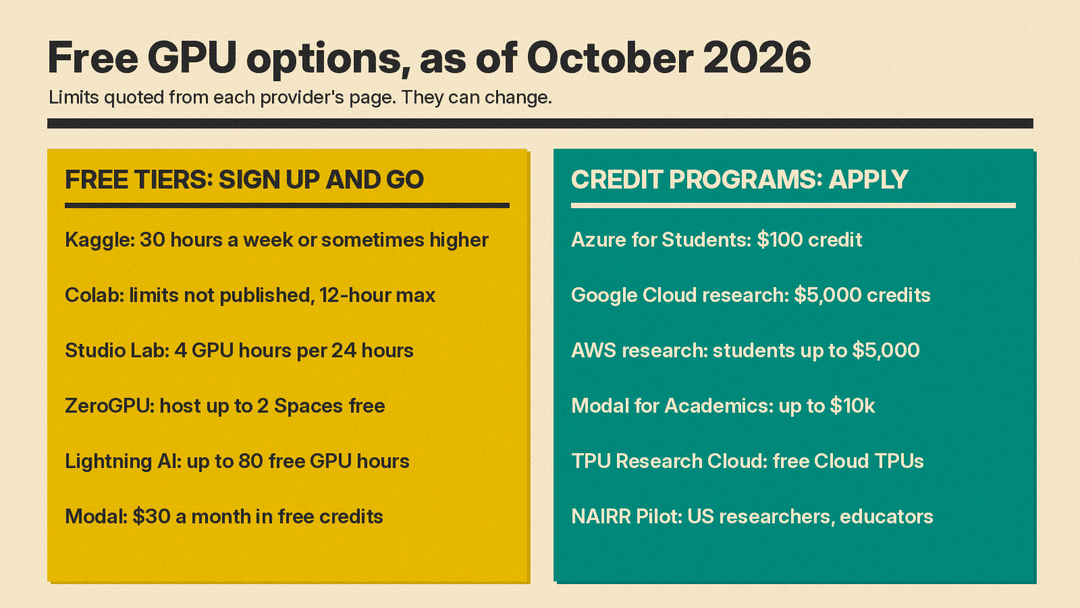
Kaggle publishes a fixed weekly GPU quota. Its GPU usage page says you can use GPUs up to a weekly quota that "resets weekly and is 30 hours or sometimes higher depending on demand and resources."
The Notebooks documentation lists the hardware: a single NVIDIA Tesla P100, a pair of NVIDIA Tesla T4 GPUs, or a TPU v3-8. Sessions run for up to "12 hours execution time for CPU and GPU notebook sessions and 9 hours for TPU notebook sessions." Free availability is limited, and Kaggle warns that "in busy times, you might be placed in a queue."
Kaggle's own advice for stretching the quota: turn the GPU on only when your code uses a GPU library such as PyTorch or TensorFlow, stop interactive sessions before you close the window (Kaggle says this "can save you up to 60 minutes of compute"), and cancel duplicate batch runs.
Kaggle also suits learners because datasets and competitions sit next to the notebooks. If you are still choosing a project, our guide to free datasets for machine learning lists good starting points.
Amazon SageMaker Studio Lab
SageMaker Studio Lab is, in AWS's words, "a free service that gives customers access to AWS compute resources," and you can run notebooks "without signing up for an AWS account." According to the Studio Lab overview, you get 15 GB of storage and 16 GB of RAM.
The GPU limit is tight: "up to 4 hours at a time with a limit of 4 hours in a 24-hour period." CPU sessions get "up to 4 hours at a time with a limit of 8 hours in a 24-hour period." AWS says availability "is not guaranteed and is subject to demand" and that "Studio Lab does not support time limit increases." One useful detail: you can start a training run and close your browser, and the instance keeps running up to the daily limit.
Hugging Face ZeroGPU Spaces
ZeroGPU is different from a notebook. It is shared GPU hardware for Hugging Face Spaces, the hosted demo apps on the Hub. Hugging Face says it "dynamically allocates and releases NVIDIA RTX Pro 6000 Blackwell GPUs as needed."
Two things are free. First, "ZeroGPU Spaces are available to use for free to all users," so you can try many open models in the browser. Second, free personal accounts "in good standing (verified email, account older than 30 days) can host up to 2 ZeroGPU Spaces for free." That makes it a good way to publish a demo of a model you trained elsewhere. The limits: ZeroGPU Spaces "are exclusively compatible with the Gradio SDK," and there is a daily usage quota. PRO users get "x8 more daily usage quota" and can host up to 10 ZeroGPU Spaces.
Lightning AI
Lightning AI runs cloud development environments called Studios. Its pricing page says you can "Get up to 80 free GPU hours to start" and run "1 Studio free 24/7" with "No credit card." Free Studios "require restart every 4 hours."
The free plan is listed for "Students, researchers, hobbyists" with "up to 30 credits," single GPUs, "Up to 2 concurrent GPUs" and "Persistent storage (200 GB limit)." The 80-hour figure carries an asterisk that reads "Prices vary," and the free plan also lists "Unlimited background execution."
Modal
Modal is a pay-per-second cloud for running Python code on GPUs. Its free Starter plan costs "$0 + compute / month" and includes "$30 / month free credits," with up to "10 GPU concurrency." GPU prices on the page are listed per second. With Modal you run Python code rather than notebook cells.
Credit programs you apply for
If a free tier is too small for your project, these programs give larger amounts of credit or hardware. Most require a school email, an application, or both.
Azure for Students
Azure for Students is "Available only to full-time university students" and needs "No credit card." It includes a "$100 credit to use on Azure services within 12 months," plus free monthly amounts of selected services. You sign up with your school email and can "renew yearly while you're a student." The same offer is listed in the GitHub Student Developer Pack, described there as "$100 in Azure credit. For students aged 18+."
Google Cloud research credits
Google Cloud's research page offers a form to "Apply for $5,000 in research credits" and says leaders in "over 70 countries" use its research credits. Separately, new Google Cloud customers get "$300 in free credits" under the Google Cloud free program. Read each program's terms for what the credits cover.
Google TPU Research Cloud (TRC)
The TPU Research Cloud gives accepted researchers "access to Cloud TPUs at no charge" from "a cluster of more than 1,000 Cloud TPU devices." In return, participants are expected "to share their TRC-supported research with the world through peer-reviewed publications, open source code, blog posts, or other means," and to give Google feedback. You apply through the "Express interest" form on that page. The TRC page says participants can use TensorFlow, PyTorch, Julia and JAX.
AWS Cloud Credit for Research
The AWS Cloud Credit for Research program is open to full-time faculty and research staff at accredited research institutions, and to "Graduate, post-graduate, or PhD students." AWS says "Student awards will be up to a maximum of $5,000.00. Faculty and Staff awards are not capped." Plan ahead: "Typical review cycles are 90 to 120 days," and expedited reviews are not possible.
Modal for Academics
Modal's academics page says researchers can "Unlock up to $10k of credits to be used on Modal." Its pricing page describes the offer as for "Graduate students, labs, and researchers."
NAIRR Pilot (US researchers and educators)
The National AI Research Resource Pilot, led by the National Science Foundation, "aims to connect U.S. researchers and educators to computational, data, and training resources." The site lists "940+" supported research projects. Its Start-Up Projects call is open to "US-based researchers and educators from US-based institutions," including "graduate students with a support letter from a faculty advisor." You must apply with an institutional email address; Gmail-style addresses "will not be considered."
There is also an education call for instructors who teach AI courses to US-based students and need computing for coursework. If you are a student, ask your instructor about it.
Which option to pick
- You are learning from a course or tutorial: start with Kaggle for its clear weekly quota, and use Colab when a course ships Colab notebooks.
- You want to train for hours without watching the screen: Kaggle's Save & Run All runs a notebook top to bottom in a separate session for up to 12 hours, and Lightning AI's free plan lists unlimited background execution. Colab favors active use.
- You need no AWS account and only light GPU use: SageMaker Studio Lab, with its 4-hour daily GPU limit.
- You want to show a model to other people: host a Gradio demo on a ZeroGPU Space.
- You write Python scripts and want a pay-per-second cloud: Modal's $30 monthly credit.
- You are a university student with a bigger project: Azure for Students first, then AWS research credits or Google Cloud research credits with an advisor.
- You are an academic researcher in the US: NAIRR Pilot and TRC, which you apply for as a researcher.
If you are still building the skills to use this hardware, our lists of free AI courses and YouTube channels to learn AI pair well with Colab and Kaggle. For a full plan, see how to become an AI engineer.
Tips to make free GPU time last
- Develop on CPU, train on GPU. Write and debug code with the accelerator off, then switch it on for the training run. Colab and Kaggle both advise turning the GPU off when your code does not use it.
- Save checkpoints. Every free tier above can stop your session. AWS recommends checkpointing for Studio Lab deep learning jobs, and the same habit protects you on Colab and Kaggle.
- Close sessions you are not using. Kaggle says stopping a session before you close the window "can save you up to 60 minutes of compute."
- Do not break the rules to get more time. Colab's FAQ lists "using multiple accounts to work around access or resource usage restrictions" as disallowed.
- Apply early for credits. AWS reviews take 90 to 120 days, and most academic programs need an institutional email or an advisor letter.
Sources
- Google Colab FAQ
- Kaggle: Efficient GPU usage tips
- Kaggle Notebooks documentation
- Amazon SageMaker Studio Lab documentation
- SageMaker Studio Lab overview and compute limits
- Hugging Face: Spaces ZeroGPU
- Hugging Face pricing
- Lightning AI pricing
- Modal pricing
- Modal for Academics
- Azure for Students
- GitHub Student Developer Pack
- Google Cloud for Researchers
- Google Cloud free program
- Google TPU Research Cloud
- AWS Cloud Credit for Research
- NAIRR Pilot
- NAIRR Pilot Start-Up Projects
- NAIRR Pilot education call
