
Google Antigravity's agent can now drive the app's own built-in browser. On personal Google Accounts, you no longer need to install Chrome, turn on remote debugging or type a command first. You describe a task, and the main agent starts a browser subagent that clicks, types and checks pages in a side panel next to your chat.
The official @antigravity account posted on Nov 11 that "Browser use has been rolling out in Antigravity, closing the loop between researching, writing code, and verifying it live." Varun Mohan posted the same day that "Antigravity now supports agentic browser use for the built-in browser," and added: "Still more to come this week."
Who gets it
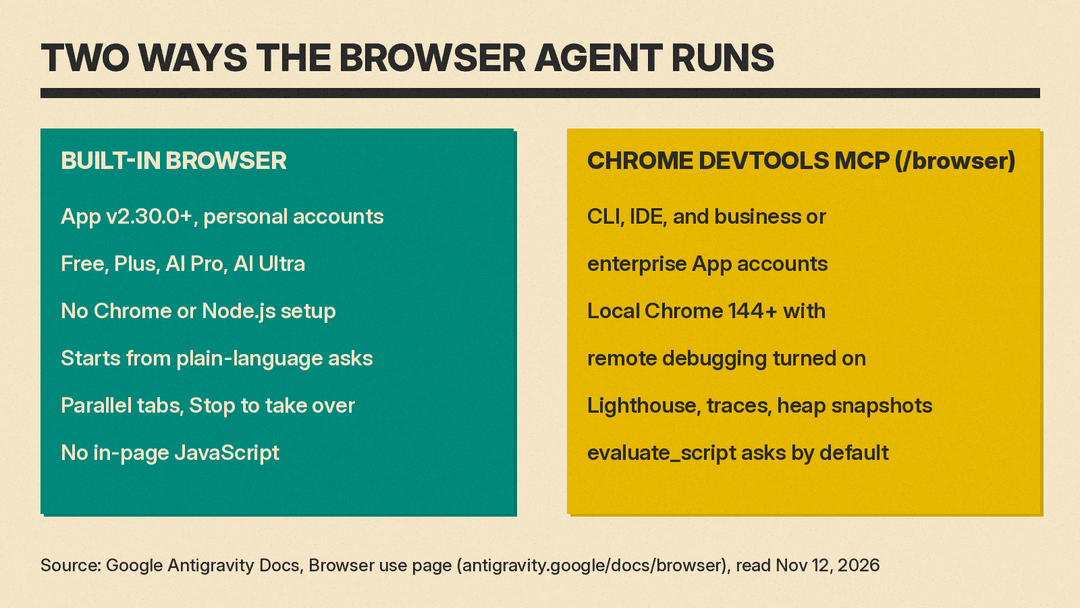
Google's Browser use docs page sets the scope. The built-in browser agent needs Antigravity App v2.30.0 or later. The page says it is "Rolling out" on macOS, Windows and Linux for personal Google Accounts across Free, Plus, Google AI Pro and Google AI Ultra plans.
The same page lists what is not covered yet. The built-in browser agent is "Not yet available" for business or enterprise accounts, Remote Agents, or SSH workspace windows. Business and enterprise accounts keep the older path: the /browser command drives a local copy of Google Chrome 144 or later through the Chrome DevTools MCP server, with remote debugging turned on.
To check which path you have, the docs say to open Settings, then Browser, and look under Browser Actuation Rules. If the new agent is active, the screen reads "It runs in the built-in browser, so no separate browser install is needed." If not, it reads "Requires Google Chrome."
What the agent does in the browser
Per the docs, the agent can open pages, use your running app, inspect console errors and failed network requests, take screenshots and check visual fixes before it finishes a task.
Some details from the page:
- No slash command needed. On personal accounts, the main agent starts a browser subagent on its own when a task needs live pages, clicks, form input, layout checks or signed-in pages. You can still type
/browserto force it. - Parallel tabs. The agent can run several browser subagents at once, each in its own tab. A subagent cannot touch another subagent's tab or tabs you opened.
- You can take over. A red Stop button on each agent-controlled tab halts that subagent and hands the tab back to you.
- Its own cookies. The built-in browser keeps a separate, persistent sign-in profile for each Antigravity account, apart from your Chrome profile.
- Flash by default. Browser subagents run on a Gemini Flash model by default "to keep UI interactions fast and conserve higher-tier quota." If Flash quota runs out, the agent stops and asks you what to do instead of switching models.
The /browser command page says the Chrome path has more developer tools: performance traces, Lighthouse audits and heap snapshots. The built-in path shows console errors and sanitized network requests.
Sign-ins and approvals
The agent does not type your passwords. When a task reaches Google Sign-In, an SSO provider such as Okta or Microsoft, multi-factor authentication, a passkey prompt or a CAPTCHA, the docs say the agent leaves the page open, pauses and asks you to finish. You sign in in that tab and reply, for example "Signed in, continue," and the subagent picks up again.
Sites need approval too. Under the Request Review, Default and Auto presets, a visit to a site you have not approved pauses with a prompt. You can allow it once, for the conversation or always. Each localhost port needs its own approval. Google properties such as Gmail, Docs, Drive and Calendar "are never covered by a general google.com" grant.
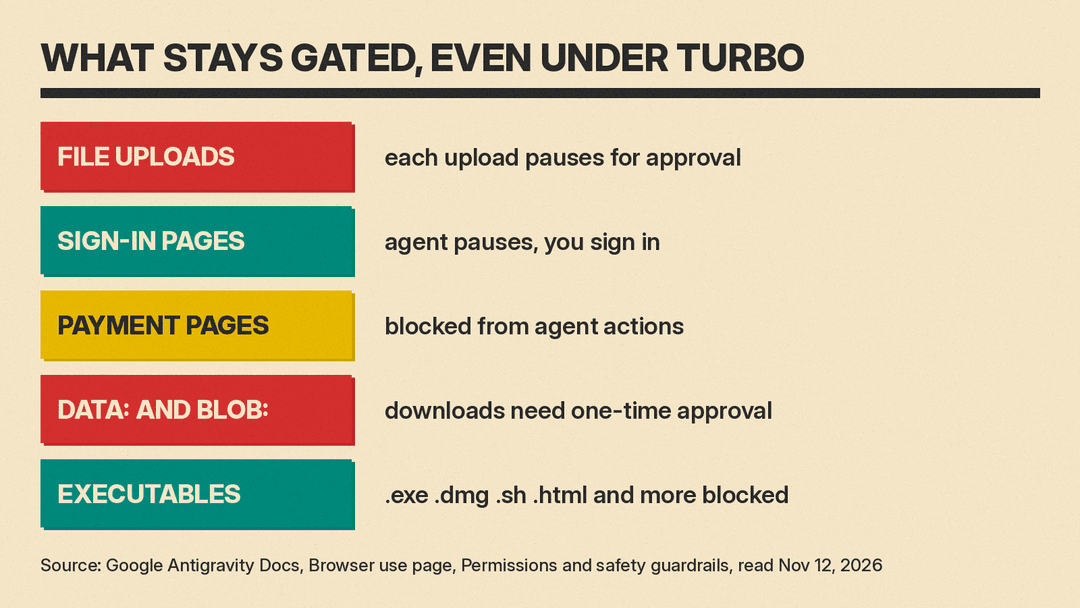
Some gates stay on even under the Turbo preset, which approves general site visits and standard downloads on its own. Per the docs:
- Every file upload pauses for approval, and the agent can only pick files staged for the task.
- Sign-in pages and payment processors such as Stripe and PayPal are blocked from agent actions. Payment and sign-in frames are masked out of screenshots before they reach the model.
data:andblob:downloads need one-time approval.- Downloads of executables, installers, scripts and active markup, such as
.exe,.dmg,.shand.html, are blocked in agent-controlled tabs.
The Antigravity changelog entry for v2.31.0 (Nov 9) adds that a browser agent download "now pauses until you approve it," and that pages it controls "can no longer lock your mouse pointer or keyboard."
Where this fits
Earlier llms.blog posts covered Antigravity voice mode with Gemini Live and the /swarm preview for multi-agent teams. For a plain guide to the idea, read our explainer on what a browser agent is. Open source projects work on the same problem; see our post on Browser Use 1.0.
The v2.30.0 changelog also adds a simpler Knowledge Work layout for research and writing. Mohan wrote that browser use is "super helpful for knowledge work tasks but also core software tasks like app verification or research where CLIs don’t already exist."
