
AI video upscalers promise to turn a soft 480p clip, an old family tape or a 768p AI generation into something that holds up on a 4K screen. Some of them do that well. None of them recover detail that was never captured. Krea's own documentation puts it plainly: its Enhancer reconstructs what a sharper version might look like, and "it does not recover what was originally there."
This guide covers ten real tools for upscaling video, as of October 2026: what each one is for, where it runs, the limits and prices each company lists, and which kind of footage it suits. It is about moving video only. Still photos need different tools.
Quick picks
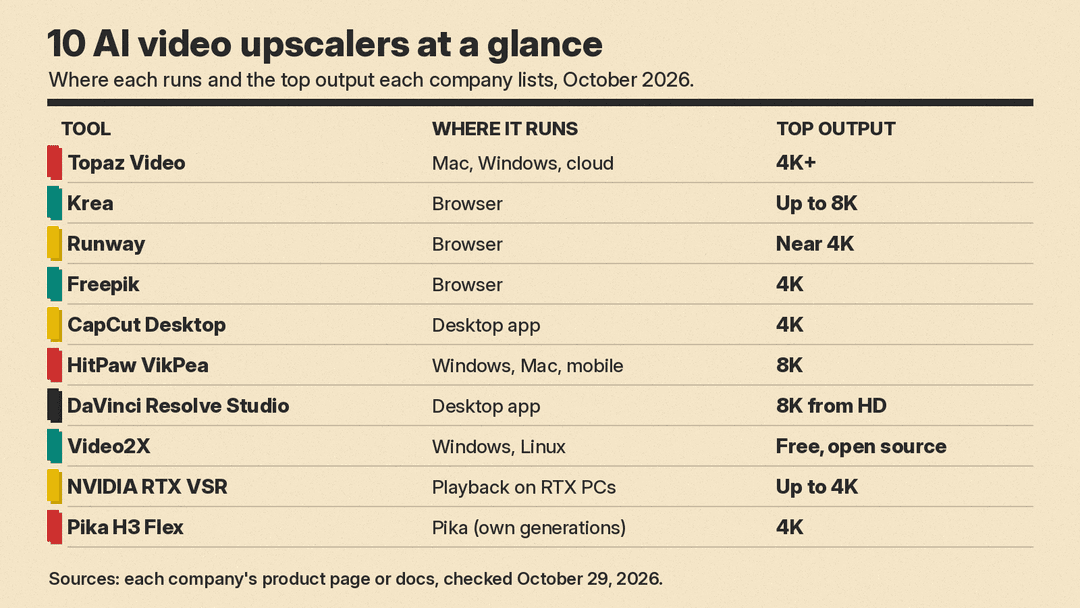
- Best for serious restoration on your own computer: Topaz Video
- Best free try in a browser: Krea's video upscaler
- Best one-click 4K for short clips: Runway Upscale Video
- Best if you want a choice of faithful or creative models: Freepik Video Upscaler
- Best free option inside an editor: CapCut Desktop
- Best for 8K output from a simple app: HitPaw VikPea
- Best for editors who already grade in Resolve: DaVinci Resolve Studio Super Scale
- Best free and open source: Video2X
- Best for watching, not exporting: NVIDIA RTX Video Super Resolution
- Best for finishing your own AI generations: Pika H3 Flex
What an AI video upscaler actually does
A normal resize stretches each frame and smooths the result, so edges go soft and blocky. An AI upscaler uses a trained model to predict the missing detail for every frame. NVIDIA describes its RTX Video Super Resolution network as predicting a "residual image" at the target resolution and laying it over a traditional upscale, which also removes compression blocks and sharpens edges.
Video is harder than a photo because the detail has to stay stable from frame to frame. As one reviewer quoted on Topaz's page puts it, "Motion amplifies the imperfections of upscaling." Many of the tools below also include denoising, deinterlacing and frame interpolation for the same reason: the upscale is only one part of a clean result.
There are two broad styles. Faithful upscalers try to keep the result close to the source. Creative or generative upscalers add more invented texture, which can look sharper but can also change faces, text and small objects. Freepik's page makes this split explicit: its Magnific model will "reimagine details," while its Topaz model aims for "true-to-source clarity."
The 10 best AI video upscalers
1. Topaz Video
Topaz Video is the pro pick, and Topaz says it is trusted by major film studios. Topaz Labs describes it as software to denoise low-light footage, "recover and upscale old archival videos to 4K," restore focus and change frame rate. It runs on Mac and Windows, as a standalone app or as a plugin for After Effects and DaVinci Resolve.
The draw is choice. Topaz lists separate models for different footage: Proteus for general noise and compression artifacts, Iris for faces in noisy or interlaced footage, Rhea for 4x upscaling of fine textures, and Starlight, which it calls "a diffusion upscaler" for degraded or low-resolution footage. It also includes frame interpolation (Apollo, Chronos), SDR to HDR conversion and stabilization.
Local rendering keeps files on your computer, which Topaz pitches to people handling confidential material. Cloud rendering uses credits instead of your hardware. Topaz Video was listed at $59 a month when we checked, with a Personal plan at $299 billed annually. A browser version, Topaz for Web - Video, was listed at $29 a month (shown at $19 with a limited-time discount) with 200 monthly cloud video credits. Topaz says its plans cover personal use and commercial use for organizations under $1 million in annual revenue.
Use it for: old tapes, archival footage, client work, and anything where you want to test several models side by side.
2. Krea video upscaler
Krea's video upscaler is the easiest free test on this list. Signed-in free users can enhance up to 4 videos every 24 hours. It accepts MP4 files, and you choose 1x, 2x, 4x or 8x depending on your source resolution and plan.
The full Krea Enhancer goes further. Its documentation lists video output up to 8K (model dependent), Topaz sub-models (Proteus, Iris, Artemis, Nyx, Gaia and Apollo), settings for interlaced footage, and frame interpolation to 30, 60, 90 or 120 fps. Krea warns that video upscaling "can consume your compute budget quickly," especially at high resolutions with interpolation on. The Enhancer page lists a 75MB and 15-second limit per upload.
Use it for: a quick free check of whether AI upscaling helps a clip at all, and short social clips.
3. Runway Upscale Video
Runway offers upscaling two ways. Under any finished generation, "Upscale to 4K" sharpens a clip you made in Runway. The Upscale Video app takes any uploaded video up to 40 seconds and returns 4K with no settings to tune. Apps need a Standard plan or above, the app costs 2 credits per second, and it is also available in Unlimited Explore mode without credits.
Runway's help center adds useful detail. The output lands "near 4K" rather than at one fixed size: from a 16:9 source, 480p comes back at 3416x1920, and 720p or 1080p at 4096x2304. If you need exact UHD, scale down to 3840x2160 in your editor. For longer videos, split them into clips of 40 seconds or less and join them after. If you also want HDR, convert to HDR first, because HDR conversion rejects inputs at 4K.
Use it for: short clips, AI generations made in Runway, and creators who want no settings at all.
4. Freepik Video Upscaler
Freepik's Video Upscaler, which the page now calls the Magnific AI Video Upscaler, upscales to as high as 4K (2160p) and can raise frame rate from 24 up to 60 fps. You pick one of two models: Magnific for creative enhancement of AI-generated clips, or Topaz for faithful restoration of real footage.
It accepts MP4, MOV, AVI, WebM and MKV, but clips can be at most 8 seconds long. It needs a paid plan, and credit use depends on resolution, frame rate, model and settings. Freepik says uploaded videos are not used to train its models.
Use it for: short AI-generated shots where you want to compare a creative and a faithful result.
5. CapCut Desktop
CapCut puts upscaling inside the editor many short-form creators already use. In CapCut Desktop you import a clip, open Enhance quality, choose HD, UHD or 4K, preview the result and export. CapCut's page bills it as a free AI video upscaler.
Use it for: TikTok, Reels and YouTube creators who want a quick quality pass without leaving their editor.
6. HitPaw VikPea
HitPaw VikPea, renamed from HitPaw Video Enhancer on October 29, 2024, upscales video to 4K and 8K. It offers several models, including General Restoration, Portrait, Color Enhancement and Video Quality Repair, plus batch upscaling and colorization of black-and-white footage. HitPaw also pitches it for AI-generated videos from Sora, Kling, Veo 3 and Seedance.
It runs on Windows 10 and 11 and macOS 13 or higher, with iOS and Android apps. HitPaw says the free trial lets you preview the enhancement on your own footage.
Use it for: people who want 8K output and a simple one-click app.
7. DaVinci Resolve Studio (Super Scale)
If you already edit or grade in Resolve, you may not need another app. Blackmagic Design says the DaVinci AI Neural Engine in DaVinci Resolve Studio powers "Super Scale high quality image uprezzing so you can create 4K and 8K images from HD sources." The Neural Engine features are exclusive to the paid Studio version, not the free DaVinci Resolve. Studio was listed at $295, on sale for $236 when we checked.
Use it for: editors who want upscaling inside a full finishing workflow.
8. Video2X
Video2X is the free, open-source pick. It is licensed under GNU AGPL version 3 and wraps well-known open models: Real-ESRGAN, Real-CUGAN and Anime4K v4 for upscaling, and RIFE for frame interpolation. It has a Windows installer with a GUI, Linux packages, and container images for Linux and macOS.
The hardware bar is real: your CPU needs AVX2 support and your GPU must support Vulkan. If your computer cannot keep up, the project offers a Google Colab notebook that borrows a free cloud GPU for up to 12 hours per session.
Use it for: anime and animation, tinkerers, and anyone who wants no subscription.
9. NVIDIA RTX Video Super Resolution
RTX Video Super Resolution is different from everything above: it improves video while you watch it, rather than making a new file. It needs an NVIDIA GeForce RTX GPU, works in Chrome, Edge and Firefox and in VLC, and supports inputs from 360p to 1440p. NVIDIA says it upscales "up to 4K, matching the user's native display resolution." Some DRM-protected content and YouTube Shorts are not supported. You turn it on in the NVIDIA Control Panel or NVIDIA App.
Use it for: making old streams and downloaded videos look better on a 4K monitor when you do not need a new file.
10. Pika H3 Flex (for AI generations)
Some AI video generators now upscale inside the model itself. Pika H3 Flex lets you draft at 768p and then "upscale to 1080p, 2K, or 4K in finishing mode." Its draft-to-video option finishes an earlier draft at higher resolution, keeping the same take and audio, and Pika says you pay only the difference. We covered the model in detail in our Pika H3 Flex explainer.
Use it for: AI clips you generate yourself, where finishing at the source beats upscaling a downloaded file later.
How to choose
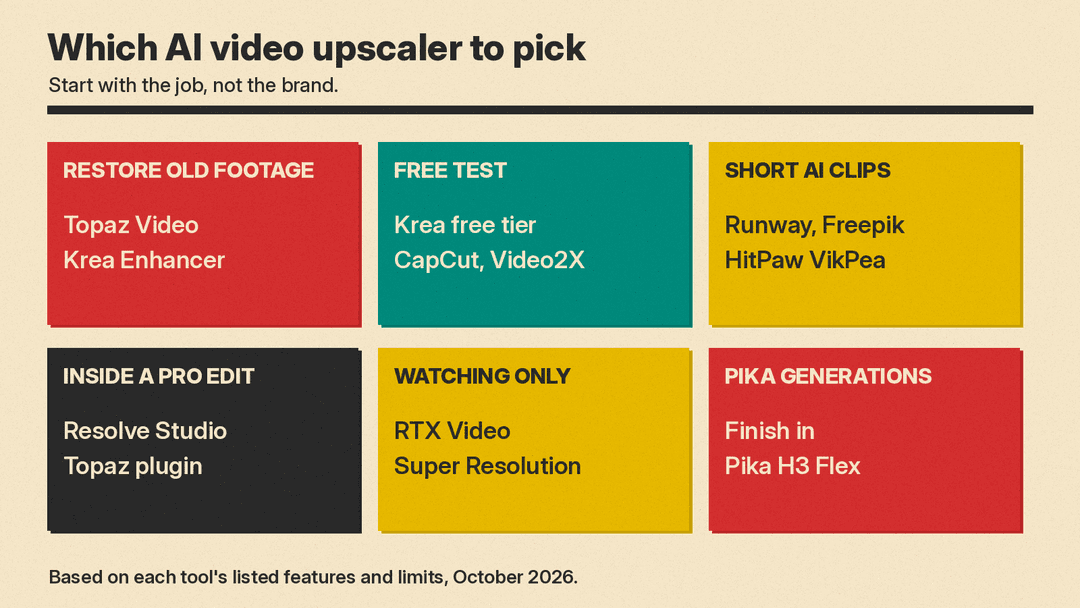
Start with the job, not the brand.
- Restoring old or archival footage: Topaz Video, or Krea's Enhancer with Topaz models. Pick a faithful model first, then test a creative one.
- A free test: Krea's free tier, CapCut Desktop, or Video2X if you have a capable GPU.
- Short AI clips: Runway, Freepik or HitPaw. If the clip came from Pika, finish it in Pika.
- Inside a pro edit: DaVinci Resolve Studio or the Topaz plugin.
- Watching only: RTX Video Super Resolution.
Check the length limits before you upload. Freepik caps clips at 8 seconds, Krea's Enhancer lists 15 seconds per upload, and Runway's app takes up to 40 seconds. Desktop tools such as Topaz, HitPaw, Resolve and Video2X are the practical choice for long videos.
Tips for better results
- Tell the tool what kind of footage you have. Topaz has models for interlaced and noisy footage, and Krea's Enhancer asks whether a video is progressive or interlaced.
- In Runway, do HDR conversion before you upscale, not after.
- Upscale only as far as you need. Krea warns that higher resolutions and frame interpolation use up compute quickly.
- Watch faces and text closely. Krea calls its Enhancer "a creative tool, not a forensic one." It cannot reveal what a blurry sign said.
- Compare models on a 5 to 10 second test clip before rendering a whole video.
- Keep your original file, so you can try a different model later.
If you are building a full AI video workflow, see our guide to the best AI filmmaking tools for indie creators, and our roundup of the best AI lip sync tools for dubbing and talking videos.
Sources
- Topaz Labs: Topaz Video
- Krea: Free AI Video Upscaler and Enhancer
- Krea documentation: Enhancer
- Krea: Enhancer
- Runway: Upscale Video app
- Runway help center: Upscaling videos and images
- Freepik: AI Video Upscaler
- CapCut: AI Video Upscaler
- HitPaw: VikPea Video Enhancer
- Blackmagic Design: DaVinci Resolve Studio
- Video2X on GitHub
- NVIDIA: RTX Video FAQ
- NVIDIA blog: RTX Video Super Resolution
- Pika: Pika H3 Flex
