
Roblox games are scripted in Luau, which Roblox calls "the scripting language creators use in Roblox Studio". An AI helper can write a first draft of a script, explain an error and suggest a plan. It cannot play your game, and it can be wrong about Roblox. So the work becomes a loop: ask, run it in Studio, read what happened, ask again.
This guide gives you eight steps and six copy-paste prompts for a small first game: an obstacle course with coins to collect. It covers Roblox's own AI helper inside Roblox Studio. The prompts are plain text, so you can also paste them into a chat tool. We ran three of them on a small local model, and the results show why you must test every script.
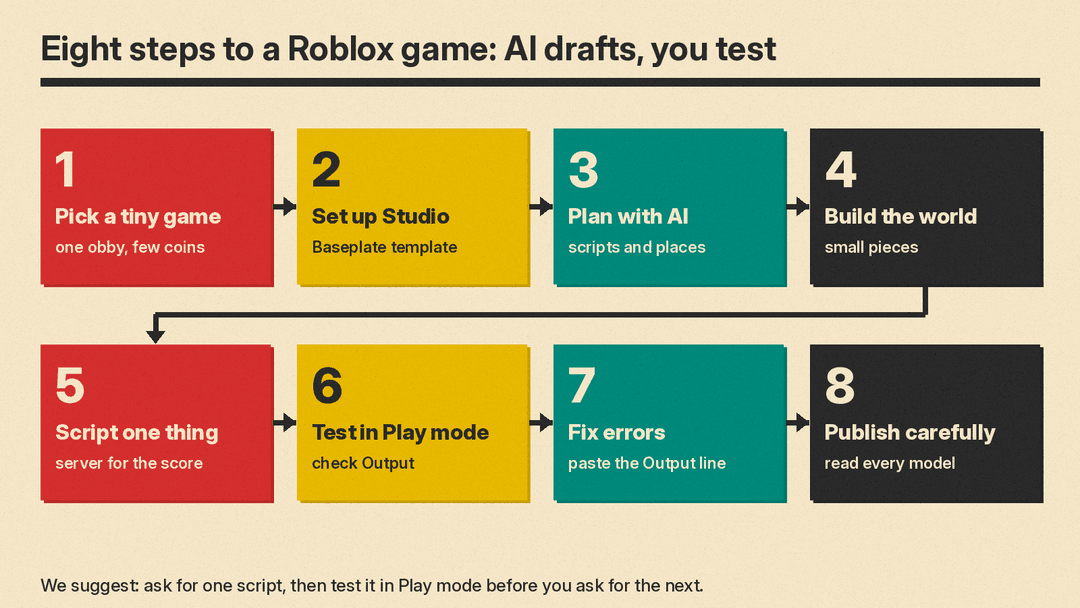
The short version: keep the game tiny, ask for one script at a time, test in Studio after every change, and paste the exact Output window error back into the chat when something breaks.
What you need
You need Roblox Studio, a Roblox account and an AI helper. Roblox's setup page calls Studio "a free application available on Windows and Mac". The AI helper can be Roblox's own Assistant, which lives inside Studio, or a chat tool in a browser tab.
Roblox's guide describes Assistant like this: "Assistant is an AI helper that helps you build games faster by answering questions, generating content, and performing actions directly in Studio." To open it, the guide says to click Assistant on the right side of the mezzanine bar and enter a request.
We did not check which accounts or plans can use Assistant, or what limits apply to it. Look at the in-app screen for your account. The guide does state one limit: up to 50 procedural models in a rolling 24-hour window, which only matters if you generate 3D models.
A chat tool outside Studio cannot see your game. It only sees what you paste, so you must describe your objects exactly.
Step 1: Pick a tiny game
Most first projects fail because they are too big. Pick one idea you can finish in an evening.
We suggest this size: one short obstacle course (an "obby"), a few coins, and a score that shows on the leaderboard. That is one world, two scripts and one rule.
Do not ask AI to copy a game you like. Anthropic added a rule to Claude Code to steer it away from rebuilding a specific existing game, and then loosened it so that naming a game to describe mechanics works again. Our post on the Claude Code game-cloning rule has the details. The practical lesson holds for any tool: describe your own game and the mechanics you want, and do not ask for a copy of someone else's.
Step 2: Set up Studio
Install Studio from Roblox's setup page, sign in, and create a new game. Roblox's publishing page lists templates. It says the Baseplate template "Starts with a SpawnLocation and a baseplate." We suggest that one for an obby.
Learn three places in Studio before you ask AI for anything: Explorer, which lists the objects and scripts in your game; Properties, which holds the settings of the selected object; and Output. Roblox's page says Output shows errors from running scripts, messages from calls to print(), and errors from calls to warn(). Without these, you cannot follow an instruction such as "put this script in ServerScriptService".
Step 3: Plan with AI before you build
Ask for a plan first. A plan is cheap to fix. A half-built game is not.
Here is the prompt we tested. We ran it four times on a small local model, with the results below.
I am a beginner who wants to make a simple Roblox game. My idea: an obstacle course (obby) with coins to collect.
Write a plan with these headings, in this order: Goal, Parts to build, Scripts needed, Test steps.
Under Scripts needed, list at most three scripts. For each one, say if it is a server Script or a LocalScript, and where it goes in Explorer.
Use plain words. Keep the whole plan under 150 words.
Asking for a type and a location for each script forces the AI to commit to something you can check. Read the answer against Step 5 before you trust it.
Assistant also has a Planning Mode. Roblox's guide says you can turn it on with the /plan command, and that "Plans never auto-execute or time out into acceptance." The build starts only when you click Build. That is a useful pause. Read the plan, edit it, and only then click.
Step 4: Build the world in small pieces
Build the course by hand if you like. Dragging parts in Studio is quick. Use AI for the parts that take time, such as many copies of an object, or a first draft of a lighting setup.
If you use Assistant, Roblox's prompt guide has one rule that applies to any assistant: "If Assistant fails, add more details to your prompt and try again." It adds that you should use instance names "exactly as they're spelled" and say which type of object you mean, such as a part or a model. Its examples contrast "Make the part move" with "Add a script to make 'my_part' move up and down 10 studs repeatedly using TweenService."
A prompt in that style for your course:
In Workspace, make a row of 10 Parts named Platform1 to Platform10. Each Part is 6 studs wide, spaced 12 studs apart in a straight line, anchored, and colored teal. Do not add scripts.We did not test this prompt. Check the result in the viewport before you move on. We suggest you finish the course layout first and check it before you add scripts.
Assistant can also search the Creator Store. The guide says it "presents relevant options for you to choose from before anything is placed in your workspace". We suggest you look at each model before you accept it, and open it in Explorer to see what is inside.
Our guide to prompt chaining explains the same idea for any task: one small request per message, so that you can check each result.
Step 5: Script one thing at a time
This is where beginners get stuck, and where AI gets things wrong most often. First you need one idea: where a script runs.
Roblox's client-server page says "The Roblox server is the ultimate authority for maintaining the game's state". Each player's device is a client. The scripts page lists three script types in plain terms:
- Script: code that runs on the server or the client, depending on where it sits and its RunContext setting. A normal Script placed in ServerScriptService runs on the server.
- LocalScript: code "that runs only on the client".
- ModuleScript: code you can reuse in other scripts.
For a first game, we suggest this rule: anything that changes the score, the coins or the leaderboard goes in a server Script. A LocalScript is for things only one player sees, such as a button on that player's screen. Roblox says "Roblox games are multiplayer by default", so we suggest keeping the score on the server.
Now the score. Roblox's leaderboard page says a folder named leaderstats under each player drives the leaderboard. It warns: "It's essential that the folder is named leaderstats with all lowercase letters." This prompt asks AI for the setup script:
Write a Luau server Script for ServerScriptService. When a player joins, create a Folder named leaderstats inside the Player, and inside it an IntValue named Coins with a starting value of 0. Explain each line in one short sentence.We did not run this prompt on any model. The same page has a script that does this job for a stat called Gold. Compare the AI's answer with that page.
Next, the coin. This is the prompt we tested four times:
Write a Luau script for Roblox Studio. It is a server Script that sits inside a Part named Coin.
When a player's character touches the Coin, add 1 to that player's leaderstats stat named Coins, then destroy the Coin.
Rules: Use Players:GetPlayerFromCharacter. Do not use LocalPlayer. If the player or the stat is missing, do nothing. Do not invent functions.
Output one code block, then two short sentences: where the script goes, and how to test it.
For comparison, here is a version we adapted by hand from the pickup script on Roblox's leaderboard page, which uses a stat called Gold. We changed the stat name and the variable names. We checked that it parses with the open-source Luau analyzer. We did not run it in Studio.
local Players = game:GetService("Players")

local coin = script.Parent

local function onCoinTouched(otherPart)
	local player = Players:GetPlayerFromCharacter(otherPart.Parent)
	local leaderstats = player and player:FindFirstChild("leaderstats")
	local coins = leaderstats and leaderstats:FindFirstChild("Coins")

	if coins then
		coin:Destroy()
		coins.Value += 1
	end
end

coin.Touched:Connect(onCoinTouched)
Read it line by line. The Touched event gives you the part that touched the coin. For a player, that part is usually part of their character, so its parent is the character. GetPlayerFromCharacter turns that into a player. The "player and" and "leaderstats and" parts make a missing object give nil instead of an error.
One more warning from Roblox's debounce page: "the Touched event fires multiple times in quick succession based on subtle physical collisions." Roblox's own pickup example destroys the coin on the first touch. For a trap that does damage, the page adds a cooldown. If you build one, ask your AI helper for a "debounce".
Use this prompt to learn what you pasted:
Explain what this script does, line by line, for a beginner.
###
[paste the script]
###
The ### lines come from Roblox's own prompt guide, which says that separating the question from the script this way "helps Assistant deconstruct and organize the information".
Step 6: Test in Play mode
Click Play. Roblox's testing page lists the Test mode (shortcut F5) as the one that starts the game and puts your avatar in. It says Stop (Shift F5) "resets all objects and instances to how they were before the playtest". So a coin that vanished during a test is back when you stop.
In Test mode Studio runs a client and a server. The page says you can toggle between them, and that in the Output window "messages are labeled blue (client) or green (server)". If a message is blue, a LocalScript or client code printed it. If it is green, server code did.
Our checklist:
- Walk into one coin. Does the leaderboard show 1?
- Walk into the same spot again. Does it stay at 1?
- Reset your character. Does the course still work?
- For more than one player, use the Server & Clients option. The page says it can simulate up to eight clients, and that one or two is usually enough.
Do not rely on the AI's own "how to test it" text. In our run, two replies told us to press the "E" key, but their scripts had no code for that key.
Step 7: Fix errors with the Output window
When a script breaks, the Output window shows an error line. Copy the full line, the script, and what you expected. Then ask.
I am a beginner. My Roblox script gives an error in the Output window.

My script (a server Script inside a Part named Coin):
###
[paste the script]
###

The Output window says:
###
[paste the error line]
###

My leaderstats setup script creates a stat named "Gold".
Explain in plain words what the error means, in 60 words or fewer. Then give the fixed script in one code block.
We tested a close version of this prompt. We pasted in a short script of our own that looks for a stat called Coins, and this error line, which we wrote by hand and did not get from Studio: "Workspace.Coin.Script:8: attempt to index nil with 'Value'". The setup script made a stat called Gold, so the lookup finds nothing. The fix is to use the same name in both places.
Roblox's prompt guide has a related note: Assistant "sometimes confuses the difference between edit time and run time". It suggests asking for a script, for example "add a script to make the time of day 8:00 AM", instead of asking for the change directly. If the AI says it changed something but nothing happens in Play mode, this is a likely reason.
We suggest that if the same fix fails twice, you start a new chat and paste the current script. Roblox's guide says "Each chat has its own context window". The few-shot habit from our guide to few-shot prompting helps here: paste one working script as the example of the style you want.
What we tested
We ran three of the prompts above on Gemma 3 1B, a small model running on our own machine (llama.cpp, temperature 0.7, seeds 0 to 3, November 5, 2026). Four runs each. This is not Roblox Assistant, ChatGPT, Claude or Gemini, and it says nothing about how those tools perform. We chose a small model because it shows the failures you must watch for. We could not run Roblox Studio, so none of the code was run in a game.
We checked for exact things, then read every reply.
- Plan prompt: all 4 replies had the four headings in order and listed at most three scripts. 0 of 4 stayed under 150 words (the replies ran 152 to 173 words). 0 of 4 named a real place in Explorer such as ServerScriptService. They wrote "Server Scripts" or "LocalScripts" as if those were folders. All 4 gave coin collection to a LocalScript.
- Coin script prompt: 4 of 4 gave one code block that parses. Only 1 of 4 used Touched:Connect. 0 of 4 called GetPlayerFromCharacter with the touching part's parent. 0 of 4 used leaderstats. Two included a Destroy call. The one script that used Touched added to a local number named Coins, which does not touch the leaderboard.
- Debug prompt: 0 of 4 said the real cause, that the code looks for Coins and the stat is named Gold. 0 of 4 changed the code to Gold. Three returned the same script that we pasted in. The explanations blamed a missing Value on a Coin variable, on the Script, or on Players.
Here is what the code looked like. One reply called player:IsPlayer(), and another called game.Players:GetPlayerFromCharacter() with no argument, which Roblox's own example does not do. Two treated Coins as a property of the Player, so they would not reach the leaderboard folder.
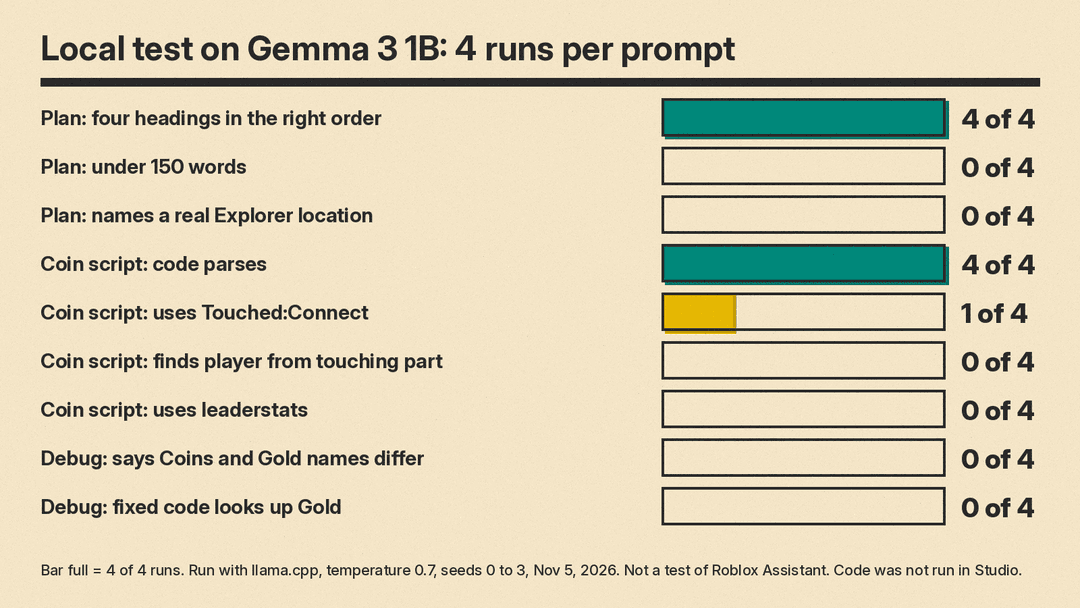
Notice the first result: all 4 scripts parsed. A script can be valid Luau and still be wrong. A syntax check is not a test. Only Play mode tells you the truth.
What AI gets wrong
From our tests and from Roblox's own pages, these are the failures to look for.
- It writes code that looks right but uses the wrong objects. Check every service and function name against the docs or Studio's autocomplete.
- It puts code in the wrong place. A score script in a LocalScript will not change the leaderboard for other players.
- It acts at the wrong time. Roblox says Assistant may do an action at edit time when you wanted it at run time.
- It forgets the cooldown. A Touched event can fire many times in a row.
- It misses a name mismatch. Capital letters and spelling matter, as the leaderstats warning shows.
- It says "it works" without running anything. Roblox's own guide says "The generated script might not function flawlessly."
Roblox's prompt guide ends with a point we agree with: "AI in its current state requires work." Plan for that.
Step 8: Publish carefully
When the game works in Play mode, use File and then Publish. Roblox's publishing page says "By default, new games are only accessible to you as the creator, users with Edit access, and group members" with the right permissions, until you release the game to the public.
Before you release it, check these:
- We suggest you remove every free model you did not read.
- Make sure the game is your own idea, not a copy.
- If your game lets players talk to an AI character, Roblox has separate rules. Its generative AI page says that with third-party tools "You are responsible for the content delivered to users, even if it is AI-generated." Read that page before you add such a feature. Using AI to help you build a game is a different case from putting an AI inside the game.
What we could not verify
- We did not run any code in Roblox Studio.
- We did not test Roblox Assistant, ChatGPT, Claude or Gemini.
- We did not check which accounts can use Assistant or what limits apply beyond the one in its guide.
- We did not check Roblox's Terms of Use on AI-generated content for creators beyond the generative AI page linked below.
Sources
- Roblox Creator Hub: Assistant for Studio
- Roblox Creator Hub: Assistant prompt guide and examples
- Roblox Creator Hub: Luau
- Roblox Creator Hub: Roblox Studio setup
- Roblox Creator Hub: Create and publish games and places
- Roblox Creator Hub: Client-server runtime
- Roblox Creator Hub: Script types and locations
- Roblox Creator Hub: Leaderboards
- Roblox Creator Hub: Debounce patterns
- Roblox Creator Hub: Studio testing modes
- Roblox Creator Hub: Output
- Roblox Creator Hub: Games with generative AI
- Luau, the open-source analyzer used for the syntax check
- llms.blog: Claude Code 2.1.317 loosens its game-cloning rule
