
Most meetings end with the same problem. Everyone nods, and a week later nobody agrees on what was decided or who has to do what. Minutes fix that, but writing them takes time that few people want to spend. AI can do the first draft in seconds. It cannot know what was true, so a person has to check the result.
This guide gives you eight steps, seven copy-paste prompts and the results of a small local test on a made-up meeting. It works for a team sync, a club committee, a client call or a school board. It does not depend on one app. You can paste a transcript from Zoom, Google Meet or Microsoft Teams into a chat tool, or you can paste your own typed notes.
The short version: get consent first, let the AI draft, and check every name, date and number against the recording or the notes before you send anything.
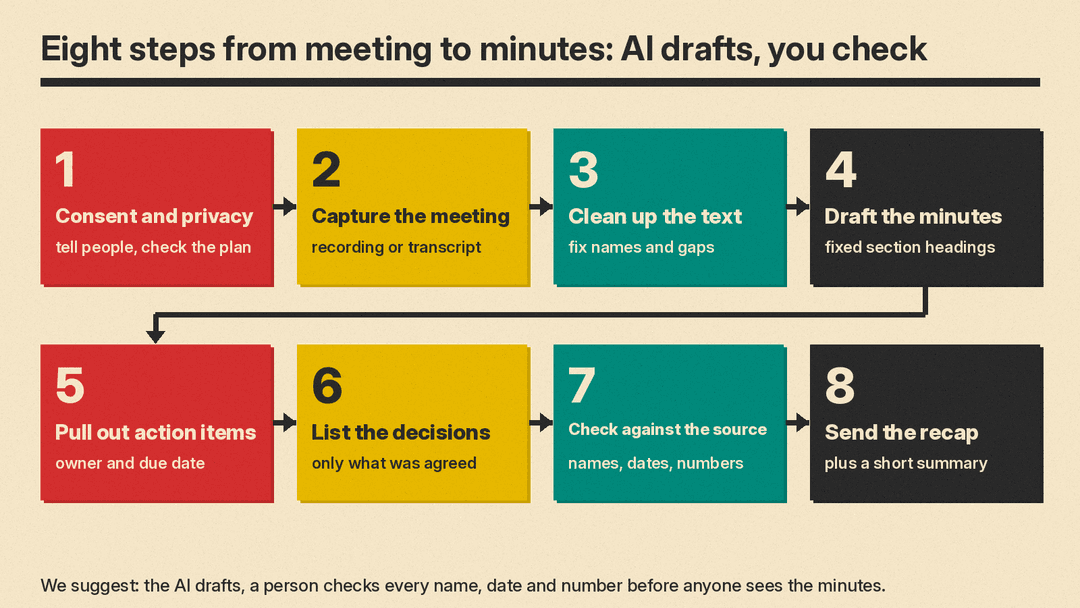
Step 1: Consent and privacy
Do this before the meeting starts, not after.
We suggest you tell attendees in the invite and again at the start of the call that the meeting will be recorded or transcribed, and that an AI tool will help write the minutes. If someone objects, take typed notes instead. Rules about recording differ by place and by employer, so check your own policy.
The big meeting apps have their own notice or consent features. The details differ by app and by plan, so read the help page for yours. Here is what three of them say:
- Google Meet: the help page says "Your administrator may require all participants to provide explicit consent before the use of certain meeting features like" "Take notes for me", Record and Transcribe. It adds: "This setting is off by default, and your administrator can choose to turn it on."
- Zoom: the Meeting Summary help page says: "Participants will see the diamond change color as indication that AI features (including Meeting Summary) are active." It also says that "Anyone who receives the meeting summary may save and share it with apps and others."
- Microsoft Teams: the help page for intelligent recap without transcription says: "Participants receive a banner notification when intelligent recap is turned on or off."
Then think about where the text goes. If you paste a transcript into a chat tool, the plan's data policy decides who may use it. Check the page for your plan before you paste anything confidential:
- ChatGPT: OpenAI's help page says: "When you use our services for individuals (Free, Plus, Pro), we may use your content to train our models. You can choose whether your conversations help improve our models." For business plans it says: "By default, we don’t use inputs or outputs from ChatGPT Business, ChatGPT Enterprise, ChatGPT Edu, or our API to improve our models."
- Gemini: Google's privacy page says: "Please don’t enter confidential information that you wouldn’t want a reviewer to see or Google to use to improve our services, including machine-learning technologies."
- Claude: Anthropic's privacy center lists conditions under which chats may be used to improve its models, including "You choose to allow us to use your chats and coding sessions to improve Claude". It also says: "Your Incognito chats are not used to improve Claude, even if you have enabled Model Improvement in your Privacy Settings."
Settings and plans change, so read the current page. We suggest a simple rule: if the meeting covers HR cases, legal advice, health details, unreleased financials or a client's private data, do not paste the transcript into a tool until your company says that tool is approved. Replace names with placeholders such as "Client A" if you must use a tool you are unsure about, and put the real names back by hand.
Step 2: Capture the meeting
You need a source to work from. There are three common options, and the right one is the one your group already has and has agreed to.
- A built-in AI notes feature. As of November 2026, Google Meet has "Take notes for me", and its help page says the feature "requires an eligible Google Workspace edition or Google AI plan". The page also says it is "recommended for meetings of 15 minutes to a maximum of 8 hours". In Teams, the recap help page says "AI summaries are available for events transcribed in a supported language. The event must also be five minutes or longer in duration." In Zoom, the help page says "Meeting summary uses speech-to-text data to generate summary of the meeting", and lists paid Zoom Workplace plans as requirements. We did not test any of these apps.
- A transcript file. Many tools can save a transcript. A transcript is the best input for the prompts below because every claim in the minutes can be traced to a line.
- Your own notes. Typed notes work too. They are shorter, so the AI has less to get wrong, but they only hold what you noticed.
If you are still choosing a tool, see our list of the best AI note-taking apps for meetings and lectures. A built-in feature gives you a summary. The prompts in this guide give you control over the format, so the two work well together: use the app to get the transcript, then use a prompt to get the minutes in the form your group likes.
Step 3: Clean up the text
Raw transcripts and rough notes are messy. Names are misspelled, there is shorthand, and half sentences are common. A short cleanup pass makes the next steps easier, and it is the place to fix a name before the error spreads through every list.
This prompt is for typed notes or a rough transcript. We did not test it.
Clean up these meeting notes. Fix spelling and expand shorthand. Keep every name, number and date exactly as written. Do not add anything.
If a note is unclear, leave it as it is and put [UNCLEAR] after it.
Keep the notes in the order they were written. Output only the cleaned notes.

Notes:
[paste notes]
The rule "keep every name, number and date exactly as written" matters. A cleanup prompt that is allowed to "improve" the text will sometimes change a fact. The [UNCLEAR] tag gives the AI a safe way out when it is unsure, which is better than a guess. Read the cleaned text once and fix any name that is wrong, because every later step copies it.
A made-up meeting for the tests
To see how the prompts behave, we wrote a short fictional meeting of four people. All names, dates and numbers below are invented. It has 269 words. It has one clear decision, four tasks with an owner and a date, one task with no owner (the survey), and one idea that nobody decided (the discount code). Those are the points where AI tools tend to slip.
Priya: Okay, let's start. Today is Tuesday, March 10. We have three topics: the launch date, the help center, and the survey.
Elena: On the launch date, engineering needs two more weeks for the sign-in fix. I would say we move launch from March 20 to April 3.
Marcus: That works for design. The new onboarding screens are done, so we lose nothing.
Priya: Okay. Decision: we move the launch to April 3. Tom, any concern from support?
Tom: Support is fine with April 3, but I need the help center articles before then. Right now we have zero articles for the new sign-in flow.
Priya: Tom, can you draft five help articles by Friday, March 20?
Tom: Yes, I can do that. Marcus, I will need screenshots.
Marcus: I will send Tom the screenshots by Wednesday, March 18.
Elena: I will finish the sign-in fix and hand it to QA by Friday, March 27.
Priya: Good. Now the survey. Last month 48 customers answered. Does anyone want to run the next one?
Marcus: I would run it, but I am out the second half of the month.
Elena: Maybe we should drop the survey and use support tickets instead. I am not sure.
Priya: Let's not decide that today. We will come back to the survey next week, and nobody owns it yet.
Tom: One more thing. Should we offer a discount code at launch?
Priya: Maybe, but that is a budget question for Dana in finance. I will email Dana about it by Thursday, March 12.
Priya: Okay, that is all. Next meeting is Tuesday, March 17.
The right answers are known. One decision: move the launch from March 20 to April 3. Tom drafts five help articles by March 20. Marcus sends Tom screenshots by March 18. Elena hands the sign-in fix to QA by March 27. Priya emails Dana about the discount code by March 12. The survey has no owner, and the discount code is not decided.
Step 4: Draft the minutes
Ask for a fixed structure. When you name the sections, the AI has less room to wander, and every set of minutes looks the same, which makes them easy to scan. OpenAI's help page on prompt best practices says: "Ensure your prompts are clear, specific, and provide enough context for the model to understand what you are asking." A fixed list of headings is one way to be specific.
This is the prompt we tested.
Turn the transcript below into meeting minutes.
Use exactly these section headings, in this order: Attendees, Decisions, Action items, Open questions.
Under Decisions, list only things the group clearly agreed. Under Open questions, list topics that were raised but not decided.
Under Action items, write one line per task: owner, task, due date. If the transcript does not name an owner or a date, write "not stated". Never guess.
Use only facts from the transcript. Do not add names or dates that are not in it.

Transcript:
[paste transcript]
The prompt includes "write not stated" for missing facts, in the same way a good form has a "not applicable" box. We suggest you always give the AI a way to say that it does not know.
Step 5: Pull out action items
Action items are the part of the minutes that people actually use, so they deserve their own pass. Each item needs three things: an owner, a task and a due date. We suggest you make the AI show all three on every line, and make it mark what is missing instead of filling the gap.
List the action items from the transcript below.
Write one line per item in this format: Owner | Task | Due date.
Use only the owner and due date that someone said in the transcript. If no one took the task, write "no owner". If no date was said, write "no date". Never guess an owner or a date.
Output only the list.

Transcript:
[paste transcript]
If a task has no owner, that is useful information. Raise it in the recap so a person takes it. Do not let the AI pick one for you.
Our guide on prompt chaining shows how to split a big task into smaller prompts, which is what this guide does.
Step 6: List the decisions
A decision is not the same as a topic. A list of "what we talked about" is easy to produce and not very useful. A list of "what we agreed" is the record that settles later arguments, so keep it short and strict.
From the transcript below, list the decisions the group made.
A decision is something the group clearly agreed. Ideas, questions and maybes are not decisions.
Write one short bullet per decision. If there are none, write "No decisions". Output only the bullets.

Transcript:
[paste transcript]
What a small local model did with these prompts
We ran the three prompts above, plus the summary prompt from step 8, on Gemma 3 1B. It is a small model that runs on a local computer through llama.cpp. This is not a test of ChatGPT, Claude, Gemini, Copilot or Zoom. Gemma 3 1B is small, so treat the results as a rough check of what can go wrong, not as a ranking. Each prompt ran four times (seeds 0 to 3, temperature 0.7) on the fictional meeting above. We pasted the transcript into each prompt in place of the line "[paste transcript]". Our first scoring checks were too loose and missed swapped owners, so we read the replies and tightened the checks. The final numbers are in our results file.
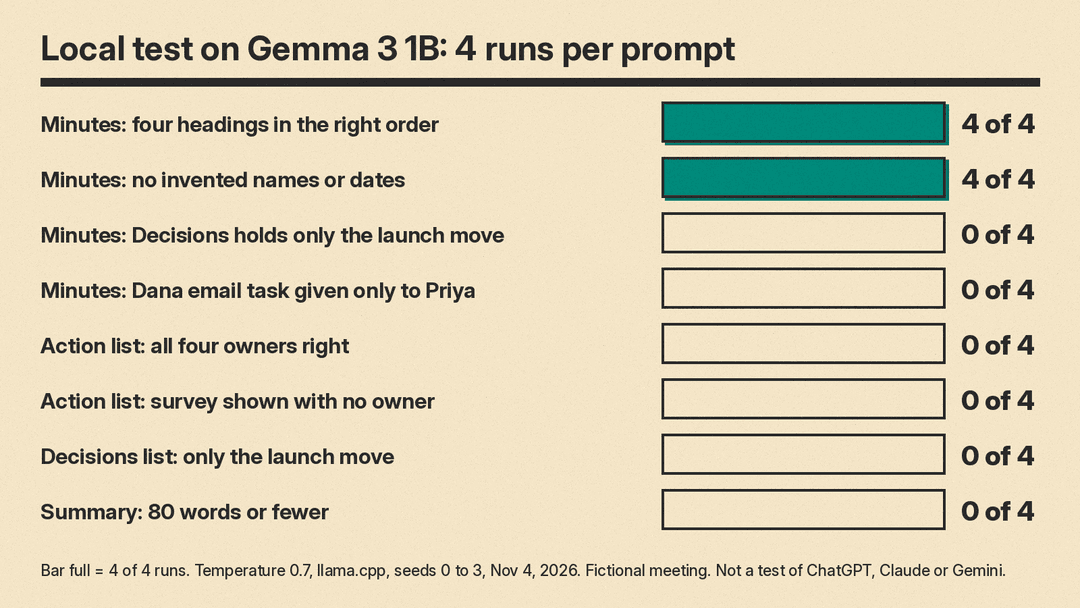
Minutes prompt. All 4 replies used the four headings in the right order. None invented a name or a date. But the Decisions section held 5 bullets in every reply: the launch move, three task commitments and a line saying the survey was not decided. None held only the launch move. All 4 replies listed an action item with Dana as the owner of "Email Dana", and each also had a line for Priya. In one reply the Decisions section said "Tom will send Tom the screenshots". None of the 4 listed the discount code under Open questions.
Action-item prompt. In every reply, 2 of the 4 tasks with an owner were right (Marcus and Elena). Tom's help article task was also given to Priya in all 4 replies. Dana was named as owner of the email to Dana in all 4. For the survey, which had no owner, none of the 4 replies marked it "no owner" with no name. In all 4, Priya was named on the survey line. No reply invented a date or a name.
Decisions prompt. All 4 replies listed the April 3 launch. None listed only the launch: the replies had 5, 4, 5 and 5 bullets. All 4 listed the help article task as a decision. One reply listed "Run the next survey next week" and an email about a discount code as decisions, though the group decided neither.
What this shows is plain. The small model kept the format and did not invent names or dates. It got the people wrong, and it mixed up tasks, decisions and open items. A larger model may do better, but we did not test one. This is the reason for step 7.
Step 7: Check against the source
Never send AI minutes without a check. Vendors say the same. Google's Meet help page says: "Sometimes, the meeting summary can be incomplete, inaccurate, or not generated." Microsoft's Teams recap page says: "Be sure to verify your results because AI-generated content could be incorrect." Google's Gemini privacy page says: "LLM experiences (Gemini Apps included) can hallucinate and present inaccurate information as factual."
Our test shows what to look for. The errors were not spelling errors. They were wrong owners, a task given to two people and a maybe turned into a decision. We suggest you check these four things on every set of minutes:
- Names: is each owner the person who said "I will" or who was asked and said yes?
- Dates: does each due date match what was said? Convert "Friday" to a date and check the weekday.
- Numbers: do counts, amounts and percentages match the source?
- Decisions: was each one agreed, or only suggested?
You can also ask the AI to show its evidence. This prompt is a second pass, and we did not test it. A small model may do poorly on a long transcript, so you still need to read the lines yourself.
Below are a transcript and draft minutes. Check each decision and each action item in the minutes against the transcript.
For each one, copy the exact transcript line that supports it. If you cannot find a supporting line, write NO SUPPORT.
Then list every name and date in the minutes that does not appear in the transcript. Output only the checks.

Transcript:
[paste transcript]

Minutes:
[paste minutes]
Treat the output as a pointer to the lines you should read. If the AI says it found support, open the transcript and look at the line. If you have the recording and the item matters, listen to the clip.
Step 8: Send the recap
Once the minutes are checked, send two short things: a follow-up message for attendees and a summary for people who missed the meeting. If you also write status reports, see our guide on how to use AI to write weekly status reports. Minutes record one meeting. A status report covers a period of work.
This follow-up email prompt is untested. It uses the minutes you checked in step 7, not the raw transcript.
Write a short follow-up email to the attendees of this meeting. Start with one sentence on what was decided.
Then list each action item with owner and due date, one per line. End with the date of the next meeting.
Plain words. Use only facts from the minutes. Do not add names or dates. If an owner or date is missing, write [TO CONFIRM].

Minutes:
[paste checked minutes]
This is the summary prompt we tested, for a colleague who missed the meeting.
Write a summary of this meeting for a colleague who missed it. Use 80 words or fewer. Plain words, no headings.
Say what was decided and who has to do what by when. Use only facts from the transcript. Do not add names or dates that are not in it.

Transcript:
[paste transcript]
Summary prompt, test results. None of the 4 replies stayed within 80 words. Counting the whole reply, they had 106, 92, 98 and 94 words. All 4 mentioned April 3, and none invented a date or a name. But the summary never said that Priya was to email Dana. In all 4 replies Dana or "you" was given the discount code task, and the name Priya did not appear in any of the 4. Three of the 4 said the survey would be run next week or handled through support tickets, which the group did not decide. Three of the 4 also began with a lead-in line such as "Okay, here’s a summary for your colleague". Count the words yourself, and cut the lead-in before you send.
Teams and Zoom both build in a review step. In Teams, the recap email is drafted for you and the steps say to "Edit the drafted email for accuracy." In Zoom, the help page says "Only the host can edit the summary." We suggest you use the same habit with any AI text: edit it, then send it.
A quick checklist
- You told attendees about the recording and the AI tool before the meeting.
- You checked the data policy for your plan before pasting a transcript.
- Names in the cleaned text are right.
- Every owner, date and number matches the transcript or the notes.
- Each decision was agreed, not only suggested.
- Every task with no owner is flagged, and a person takes it.
- You sent the recap with the real next-meeting date.
Sources
- Prompt engineering best practices for ChatGPT, OpenAI Help Center
- How your data is used to improve model performance, OpenAI Help Center
- "Take notes for me" in Google Meet, Google Meet Help
- Gemini Apps Privacy Hub, Gemini Apps Help
- Is my data used for model training? Anthropic Privacy Center
- Recap a Teams meeting, Microsoft Support
- Recap in Microsoft Teams, Microsoft Support
- Use intelligent recap in Microsoft Teams meetings without transcription, Microsoft Support
- Using Meeting Summary with AI, Zoom Support
- Our own test: Gemma 3 1B through llama.cpp, four runs per prompt, November 4, 2026, on a fictional meeting. Prompts and replies are saved in our test log.
