
Gemini 4 Neon is Google's new middle model in the Gemini 4 family. Google's developer guide places it between Carbon, for the hardest long-horizon projects, and Hydrogen, for fast everyday work, and says Neon "balances depth and efficiency" for complex coding, analysis and enterprise workflows. Prices, access and limits are in our launch post, Gemini 4 Neon: Price, Access and Limits for Builders.
Neon also changes how you should prompt it. It reasons by default, ignores the sampling dials many old prompts were tuned around, and rejects a few settings outright. This guide turns Google's published guidance into 8 copy-paste templates and a list of things to strip from older Gemini prompts.
How this guide was made: every template is built from Google's Neon developer guide, the What's new in Gemini 4 Neon page, Google's prompt design strategies and its agentic prompt guide. We did not run these templates on Neon for this post, so treat them as starting points and test them on your own tasks.
Pick a thinking level before you tune the prompt
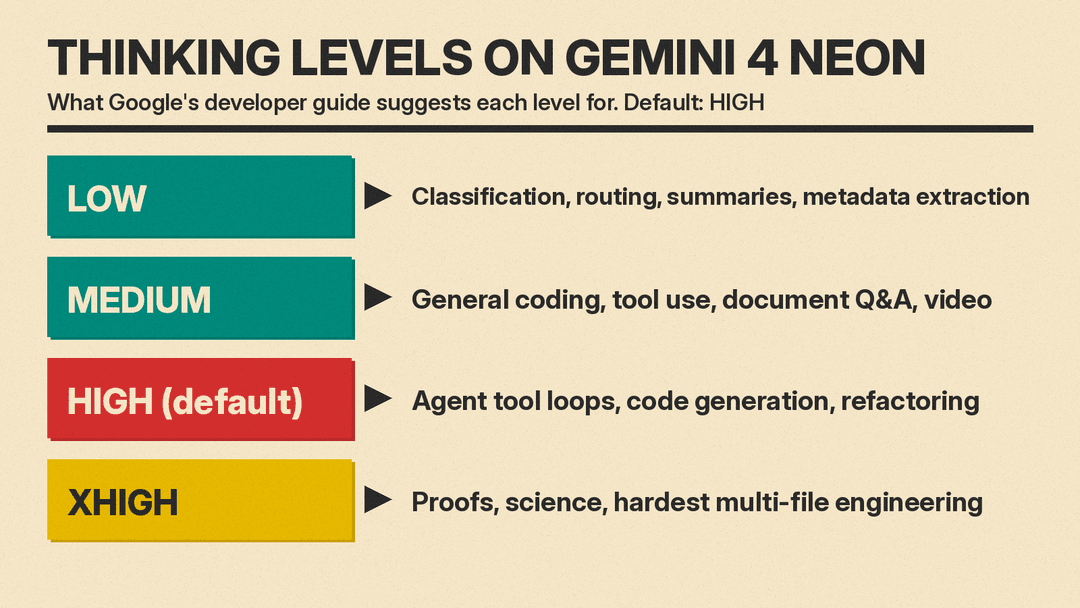
On Neon, reasoning depth is a setting, not a prompt trick. The \thinking_level\ parameter takes \LOW\, \MEDIUM\, \HIGH\ or \XHIGH\, and \HIGH\ is the default. Google's guide suggests each level for these jobs:
- \
LOW\: high-volume classification, routing, summarization and metadata extraction. - \
MEDIUM\: general coding, tool use, document Q&A and video understanding at balanced speed. - \
HIGH\(default): multi-step agent tool loops, code generation, refactoring and complex multimodal analysis. - \
XHIGH\: proofs, scientific analysis and the hardest multi-file software work.
Two details matter for prompts. First, thinking tokens count toward \max_output_tokens\ and are billed, so a short prompt at \XHIGH\ can still be slow and costly. Second, the default changed: Google's migration notes say Gemini 4 Argon and Gemini 3.8 Flash defaulted to \MEDIUM\, so a prompt that felt quick on those models may run longer on Neon until you set \MEDIUM\ yourself. Google's What's new page also warns that "Hard prompts can take several minutes."
How Google says to structure a Neon prompt
Google's prompting page has a section of core principles for Gemini 3 models, and Google's Cloud agent guide uses a similar tagged layout for agents. The points that apply to Neon prompts:
- Be precise and direct. State the goal plainly and skip persuasive filler.
- Pick one structure and keep it. XML-style tags such as \
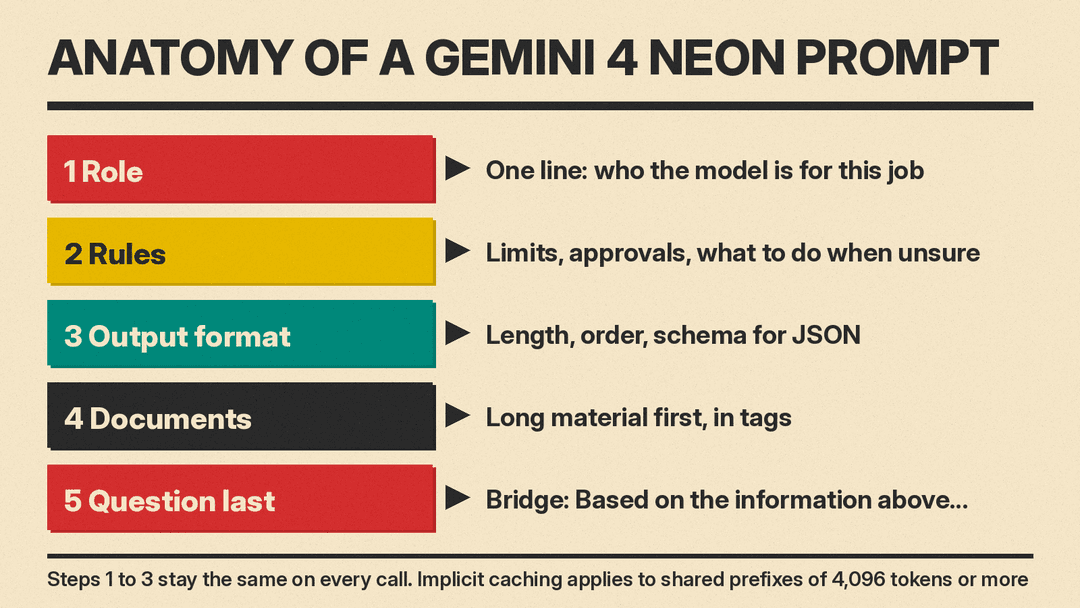
<context>\and \<task>\, or Markdown headings, both work. Do not mix them in one prompt. Our guide to XML tags in prompts covers the basics. - Put role, rules and output format in the system instruction, or at the very top.
- For long inputs, supply all the context first and put the question at the end, then bridge the two with a phrase such as "Based on the information above...".
- Keep the system instruction static. The agent guide says system instructions shouldn't contain dynamic runtime inputs, such as user questions, file contents, or tool execution logs. Send those in each turn instead.
- Ask for detail when you want it. Google says Gemini 3 models give direct, efficient answers by default.
The static-first order also saves money on Neon. Implicit caching applies automatically to shared prompt prefixes of 4,096 tokens or more, and Neon does not support explicit caching, so the only way to get cache hits is to keep the unchanging part of the prompt at the start.
Template 1: A reusable system instruction
Use this as the base for any Neon app or assistant. Google's agent guide notes that the API already treats the whole string as a system instruction, so do not wrap it in an outer \<system_instruction>\ tag.
\\\` <role> You are a [job title] for [team or company]. You help [audience] with [main task]. </role>
<rules>
- Answer only questions about [scope]. If a request is outside it, say so in one sentence.
- If a term in the request is ambiguous, ask one clarifying question before answering.
- Never invent figures, names or links. If the answer is not in the provided material, say it is not there.
</rules>
<output_format>
- Start with the answer in one or two sentences.
- Then give supporting points as a short bulleted list.
- Plain language. No more than [N] words unless the user asks for more.
</output_format> \\\`
Suggested thinking level: \MEDIUM\ for chat, \LOW\ if it only routes or tags requests.
Template 2: Questions about long documents
Neon has a single 1,048,576-token window shared by input and output, so large reports fit. Follow Google's order: documents first, question last.
\\\` <documents> <document name="[file name 1]"> [paste or attach document 1] </document> <document name="[file name 2]"> [paste or attach document 2] </document> </documents>
Based on the information above, answer this question: [your question]
For each claim in your answer, name the document it came from. If the documents disagree, show both versions. If the answer is not in the documents, say so. \\\`
Suggested thinking level: \MEDIUM\. Move to \HIGH\ if the answer needs reasoning across many documents.
Template 3: Answers that stay inside your material
For support bots and internal search, you often want the model to ignore what it already knows. Google's prompting page offers a grounding clause for this, listed under its Gemini 3 Flash strategies. This is a shortened version in the same spirit:
\\\` You are a strictly grounded assistant. Use only the facts in the <context> block. Do not use outside knowledge, and do not infer facts that are not stated. If the context does not answer the question, reply: "I can't find that in the provided material."
<context> [policy text, help articles or product data] </context>
Question: [user question] \\\`
Template 4: Coding and refactoring
Google recommends \HIGH\ for code generation and refactoring. Give the model acceptance criteria so it knows when it is done.
\\\` <context> Language and version: [e.g. Python 3.13] Relevant files: [paste files, or attach them] </context>
<task> [What to build or change, in two or three sentences.] </task>
<constraints>
- Keep public function names and signatures unchanged.
- No new dependencies unless you explain why.
- Match the existing code style.
</constraints>
<done_when>
- [Test or behavior 1]
- [Test or behavior 2]
</done_when>
Return the changed files in full, then a short list of what changed and why. List any assumption you made. \\\`
Use \XHIGH\ only for the hardest multi-file work, and give it enough \max_output_tokens\ for both the reasoning and the code.
Template 5: Classification and extraction with a schema
For high-volume tagging, set \thinking_level\ to \LOW\ and let a response schema enforce the format. Google's What's new page warns against asking for raw-text JSON tool calls in the system instruction with no tools declared, which can return a \MALFORMED_FUNCTION_CALL\ error. Use structured output (\response_mime_type\ set to \application/json\ plus \response_schema\) instead, and keep the prompt about the decision, not the format:
\\\` Classify this support ticket.
Categories:
- billing: charges, refunds, invoices
- bug: something in the product is broken
- account: login, password, access
- other: anything else
If the ticket fits two categories, pick the one the customer most needs solved first.
Ticket: [ticket text] \\\`
The schema then defines fields such as \category\ (an enum of the four values) and \reason\ (a short string). Google's agent guide says to use enums for fixed values and to fill the \required\ list so the model does not skip fields.
Template 6: An agent with tools and approval steps
This follows the role, rules and tool-use layout in Google's agent guide, with a human approval step for risky actions.
\\\` <role> You are an operations agent for [system]. You diagnose problems and propose fixes. </role>
<rules>
- Always run diagnostic tools before proposing a change.
- Never [delete data / change permissions / spend money] without explicit approval from a person.
- Before any change, state the target, the exact change and how to undo it, then wait for approval.
- If a tool call fails, read the error, fix the input once and retry. If it fails again, stop and report.
</rules>
<tool_usage>
- Call [diagnostic_tool] first to get current status.
- Call [log_tool] only for the components the status shows as unhealthy.
- Use [update_notes] to record your plan before each tool call.
</tool_usage> \\\`
The \update_notes\ line mirrors a Neon rule. The developer guide says to avoid unstructured text before tool calls and suggests a dedicated function, with fields for the previous step, the plan and the next step, when you want the agent to log its state. Declare every tool natively with function calling.
Template 7: Neon plans, Hydrogen does the steps
Google's guide describes using Neon as a planner or verifier and passing \previous_interaction_id\ to \gemini-4-hydrogen\ on the Interactions API, so smaller steps run at lower latency. The plan prompt should produce steps a faster model can finish alone:
\\\` Make a plan for this job: [goal]
Write 3 to 7 numbered steps. Each step must:
- be doable without seeing the other steps' output, unless it names the step it depends on,
- name its input and its expected output,
- include one check that shows the step worked.
Do not do the steps. Only write the plan. \\\`
Then send each step to Hydrogen with a short prompt such as "Do step 2 of the plan. Return only the output and the result of its check." Bring the results back to Neon with a final prompt that asks it to verify every check and list anything that failed.
Template 8: Reviewing Office files
Neon accepts Word, PowerPoint and Excel files (and their OpenDocument versions) directly, inline or from Cloud Storage, alongside PDF and plain text. That makes spreadsheet and deck reviews a single request:
\\\` Attached: [budget.xlsx] and [plan.docx].
- List every number in the document that should match a cell in the spreadsheet, with both values.
- Mark each pair as match or mismatch.
- For each mismatch, say which file is more likely right and why, in one sentence.
Use only the two attached files. \\\`
Suggested thinking level: \MEDIUM\, or \HIGH\ for large workbooks.
What to remove from prompts written for older Gemini models
Google's migration section and checklist list these changes for code and prompts moving from Gemini 3.1 Pro, Gemini 4 Argon or Gemini 3.8 Flash:
- \
temperature\, \top_p\and \top_k\: ignored. Control depth with \thinking_level\and format with \response_schema\. - \
thinking_budget\and \thinking_level="MINIMAL"\: return an HTTP 400 error. - \
frequency_penalty\, \presence_penalty\and \candidate_count\above 1: return an HTTP 400 error. - Prefilled model turns: not supported. A chat history also cannot end on a model turn, so "start your answer with..." tricks need to move into the instructions.
- Explicit context caching (\
cached_content\): not supported. Put static content first instead. - Prompt lines that ask for hand-written JSON tool calls: replace them with declared tools or structured output.
If you are moving prompts between vendors, our Claude Fable 5.2 prompts guide shows how Anthropic handles the same jobs, and Gemini 4 Neon: What People Are Saying collects early user reports.
Where to try these
Google says developers can use Neon on the Gemini API paid tier in Google AI Studio, and Pro and Ultra subscribers can pick it in the Gemini app, as our launch post details. On Google Cloud, the developer guide says Neon is available to verified enterprise customers in select regions, and you can test prompts and set the thinking level in Agent Studio. New to AI Studio? Start with What Is Google AI Studio?
A simple way to start: take one prompt you already use, move its fixed parts into a system instruction, put any long material above the question, set \MEDIUM\, and compare the result with \HIGH\ on the same input before you settle on a level.
