
AI video tools turn a few lines of text into a short clip. The catch is that the same idea, worded two ways, can give you two very different videos. The good news is that the companies behind Veo, Runway and Kling publish their own prompt guides, and much of their advice overlaps. This guide pulls together what Google, Runway and Kling say in their official documentation, so you can write a solid first prompt and fix a weak one.
If you are new to prompting in general, our beginner's guide to writing better AI prompts covers the basics for chatbots. Video prompts follow some of the same habits, but they add one big thing: motion.
The short version
- Say who or what is in the shot, what it does, and where it happens.
- Add camera, lighting and style only after the basics work.
- Describe physical actions, not feelings or ideas.
- Say what you want to see, not what you want to avoid.
- Keep each clip to one simple scene.
- Change one thing at a time when you revise.
The rest of this guide explains each point and shows where it comes from.
Start with three building blocks: subject, action, scene
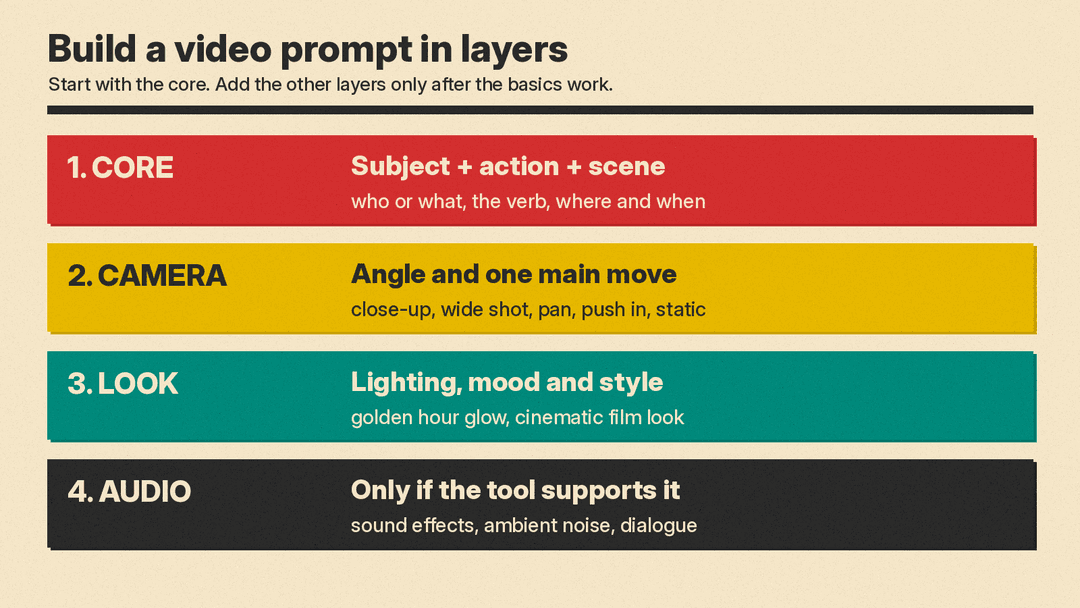
All three vendors start from the same core. Kling's text-to-video prompt guide gives a formula: subject (with a short description), subject movement, and scene, with camera language, lighting and atmosphere as optional extras. It calls subject, motion and setting "the most straightforward and essential units for depicting a video scene."
Google's video generation prompt guide for Veo and Gemini Omni Flash breaks a prompt into similar parts. It describes the subject as the "who" or "what" of the video, the action as the "verb," and the scene or context as the "where" and the "when." It also says you don't need to use every element in every prompt.
Here is how that looks in practice, using Kling's own example. Kling starts with a bare idea:
- "A giant panda is reading a book in a café."
Then it adds detail to the subject and the scene:
- "A giant panda, wearing black-rimmed glasses, is reading a book in a café, with the book resting on a table where a steaming cup of coffee sits beside it, next to the café's window."
Kling says this "creates a more specific and manageable image." Its third version adds a medium shot, a blurred background and ambient lighting on top.
Be specific about the subject
Google's guide says "specificity helps avoid generic outputs." Instead of "a man," it suggests descriptions such as "a seasoned detective" or "a joyful baker." Instead of "a dog," try "a playful Golden Retriever puppy." For objects, it gives examples like "a vintage typewriter" and "a steaming cup of coffee."
Kling suggests listing appearance details in several short sentences: clothing, hairstyle, facial features and body posture.
One exception matters a lot. If you start from a picture (image-to-video), the picture already shows the subject. Runway's Gen-4 Video Prompting Guide warns that repeating elements of the image in high detail "can lead to reduced motion or unexpected results." It suggests referring to subjects in general terms, such as "the subject." Runway's getting started article puts it simply: for image to video, describe the motion; you do not need to describe the contents of the image. For text to video, it says prompts should describe both the visual elements and the motion in most cases.
Describe motion as physical actions
Runway's guide says abstract ideas "force the model to interpret your intention, often resulting in random or unexpected movements." Its example:
- Weak: "The subject embodies the essence of joyful greeting, manifesting an acknowledgment of presence in a welcoming manner that conveys inner happiness."
- Better: "The woman smiles and waves."
Kling makes the same point in its image-to-video prompt advice. "Make it come alive" gives the model nothing concrete to animate, it says. Its stronger version names two specific motions: rose petals that "tremble slightly" and a curtain that "sways gently" in a breeze.
Google's guide lists action types you can draw on:
- Basic movements: walking, running, jumping, dancing, sitting.
- Interactions: talking, laughing, cooking, reading.
- Emotional expressions: smiling, frowning, concentrating deeply.
- Subtle actions: a gentle breeze ruffling hair, a subtle nod, eyes blinking slowly.
- Transformations: a flower blooming in fast motion, ice melting.
Google adds a caution about time. For events that take a long time, it says to "keep clip length in mind." Kling's tips say the same in a different way: keep the visual content simple enough to play out within 5 to 10 seconds.
Add camera direction, one move at a time
Once the subject and action work, camera words give the shot a point of view. Google's guide separates two ideas:
- Camera angles set the viewpoint: eye-level, low-angle, high-angle, bird's-eye view, close-up, medium shot, wide shot, over-the-shoulder and point-of-view.
- Camera movements add motion to the shot itself: static shot, pan, tilt, dolly, truck, zoom, crane, aerial or drone, handheld, whip pan and arc shot.
Google notes that some advanced camera angles are "not officially supported" and that results may vary.
Kling's camera control guide lists clear direction words such as push in, pull back, pan left, tilt up, track forward, orbit slowly and static camera. Its main advice is to keep "one main camera move per shot." It says a prompt that asks to "push in, pan left, tilt up, rotate, zoom, and follow the subject" can create unstable results. It also says "slow push-in toward a woman sitting at a modern desk" is stronger than "make it cinematic."
Kling's image-to-video page suggests stating camera behavior explicitly, for example "camera locked off," and adding camera movement only after a static-camera version already works.
Set the look: lighting, mood and style
Kling and Runway treat lighting and style as optional or later additions. Google groups them under "visual style and aesthetics" and calls this "one of the most impactful elements" for a unique look. It gives examples such as:
- Lighting: "soft morning sunlight streaming through a window," "warm glow of a fireplace," "golden hour glow."
- Artistic style: "cinematic film look," "shot on 35mm film," "claymation style," "watercolor painting coming to life."
Kling lists lighting terms such as morning light, sunset and artificial lighting, and treats atmosphere as an optional part of its formula.
Runway's guide adds style descriptors as the last of four elements to layer on, after subject motion, camera motion and scene motion. Its sample prompt shows the full stack in two sentences: "a handheld camera tracks the mechanical bull as it runs across the desert. the movement disturbs dust that trails behind the mechanical creature. cinematic live-action."
Use positive phrasing
Runway says plainly that Gen-4 is designed to interpret prompts "that describe what should happen in your video, not what should be avoided." It warns that negative phrasing "may produce unpredictable or even opposite results." Its example:
- Weak: "No camera movement. The camera doesn't move. NO MOVEMENT"
- Better: "Locked camera. The camera remains still."
Google takes a related approach. Its guide describes negative prompts, which list the things you do not want. It recommends against words like "no" or "don't" there. Instead of "no walls," it suggests just listing "wall, frame."
The practical rule for beginners: in the main prompt, describe the shot you want. If your tool has a negative prompt box, list unwanted things there as plain nouns.
Add sound, if your tool supports it
Google's guide for Veo and Gemini Omni Flash includes audio prompts. It says to "clearly specify if you want audio" and recommends describing audio in separate sentences. It names three types:
- Sound effects, such as "the sound of a phone ringing."
- Ambient noise, such as "waves crashing on the shore."
- Dialogue, written as a character saying a line, such as "the man in the red hat says: Where is the rabbit?"
If your video tool does not make sound, you can add music and effects afterward with a separate tool. Our explainer on ElevenLabs Instant Soundtracks covers one example of that approach.
Know the known weak spots
The vendors are open about some limits. Kling's tips say current video models are "not sensitive to numbers," so a prompt like "10 puppies on the beach" may not show ten puppies. It also says complex physical movements, such as the bounce of a ball or the path of a high throw, are still hard to generate. Kling's image-to-video page adds that a strong prompt "improves the odds, but it isn't a guarantee," because generation is not fully deterministic.
So plan to generate more than once, and keep the shot simple.
Revise one element at a time
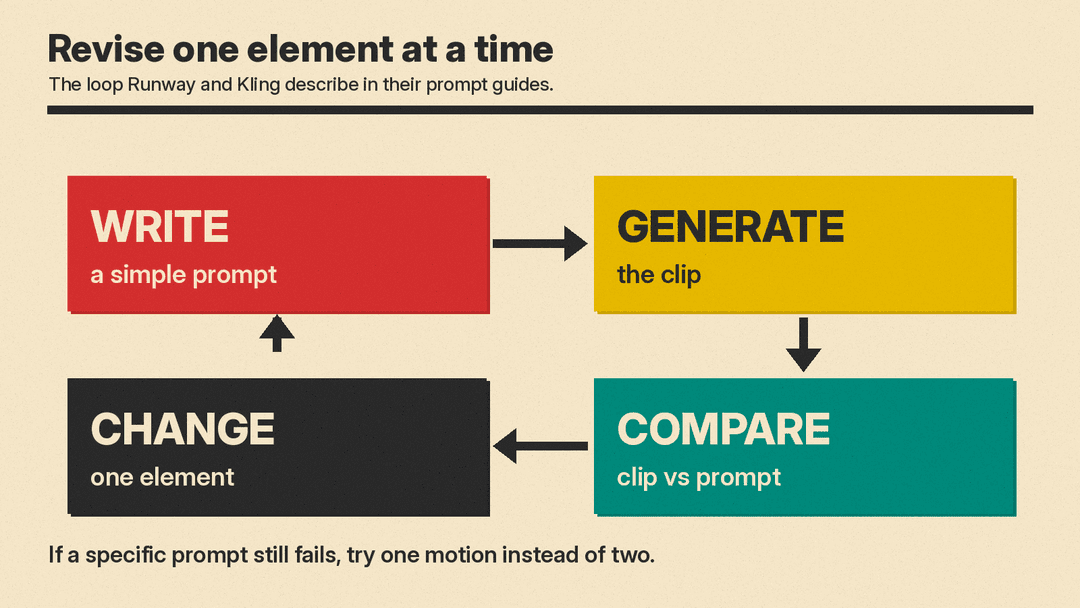
Runway's guide recommends starting with a simple prompt that captures only the most essential motion, then adding elements one at a time: subject motion, camera motion, scene motion, then style. It says this helps you see which additions improve the video and makes it easier to troubleshoot.
Kling's image-to-video page suggests comparing the result against the prompt, not only against the photo. If the model animated something you did not ask for, or ignored what you did ask for, that is the signal to make the prompt more specific. If a specific prompt still underperforms, it suggests simplifying to one motion instead of two.
A template you can copy
Put the pieces together in this order. Leave out any line you do not need.
- Shot and camera: "Medium shot, slow push-in."
- Subject: "A baker in a flour-dusted apron."
- Action: "She lifts a tray of bread from the oven and smiles."
- Scene: "A small bakery kitchen at dawn."
- Light and style: "Warm light from the oven, cinematic film look."
- Audio (if supported): "The quiet crackle of the oven and soft kitchen sounds."
For an image-to-video clip, drop the subject and scene lines, since your picture covers them, and focus on the action and camera: "The subject lifts the tray and smiles. Slow push-in."
How the three guides differ
The advice overlaps a lot, but each guide has its own emphasis:
- Google (Veo and Gemini Omni Flash): a long vocabulary list, from camera angles and lens effects to audio and editing terms such as "jump cut." It also covers negative prompts.
- Runway: a strong push for simplicity and iteration. For image-to-video, it says the text should focus on motion, and it says negative phrasing is not supported.
- Kling: a fixed formula (subject, movement, scene, then optional camera, lighting and atmosphere), plus clear warnings about counts and complex physics.
If you want to compare the tools themselves, see our guide to the best AI video generators.
