
ChatGPT can now build slide decks that you and your team edit together inside ChatGPT. OpenAI calls the feature Slides, and it is rolling out now to some paid business and Pro accounts. It is not the same thing as ChatGPT generating a PowerPoint file you download, and it is not the ChatGPT add-in for PowerPoint. This guide covers what Slides does, who can use it as of October 2026, how to make a deck with it, and where it fits next to the tools a team already uses.
Everything below comes from OpenAI's own documentation: the Slides help article, the ChatGPT release notes, and the Space help article. OpenAI has not published a separate pricing line or usage limit for Slides, so this guide doesn't give one.
What ChatGPT Slides is
The help article describes it this way: "ChatGPT Slides lets you create a presentation and keep working on it with ChatGPT and your teammates. Edit the slides directly, ask ChatGPT to make changes, and collaborate on the same deck in real time."
The decks live in Space, the shared workspace OpenAI added to ChatGPT in its September 29, 2026 release notes. In that entry, OpenAI says "Space brings your Pages, files, and related work together in ChatGPT" and that "Space replaces Library for accounts with access; your existing Projects remain separate." The Space help article still says "Slides and Sheets are coming soon." Slides is now rolling out.
The release note for Slides lists three main abilities:
- Create and refine. "Edit text, images, shapes, and charts directly, or ask ChatGPT to make changes. Generate custom images or add your own."
- Work together. "Invite teammates to edit the same deck in real time and leave shared comments."
- Present or export. "Present directly from ChatGPT. On the web, export to PowerPoint, PDF, or Google Slides. In the desktop app, open your deck in PowerPoint or Keynote when those apps are installed."
Who gets it
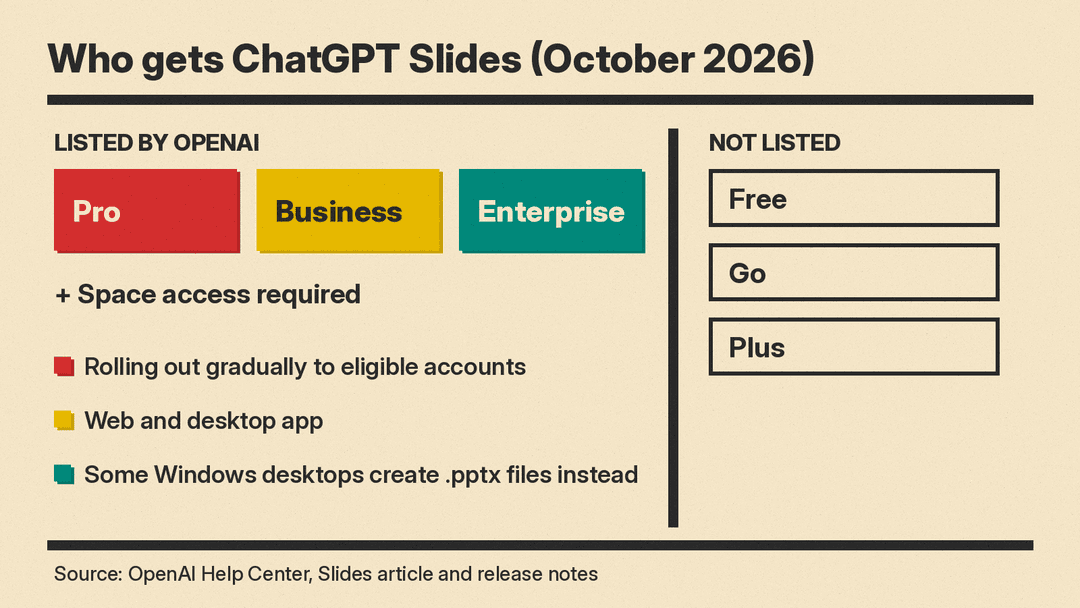
As of October 2026, the help article says: "Slides is available on ChatGPT Pro, Business, and Enterprise plans with Space access." The release note says it "is rolling out to eligible Pro, Business, and Enterprise users with Space access on the web and in the desktop app."
What that means in practice:
- You need one of three plans. Pro, Business, or Enterprise. Free, Go, and Plus are not on OpenAI's list.
- You also need Space. Space itself is available on Pro, Business, and Enterprise, according to the Space help article. In managed workspaces, "your organization's sharing settings determine which sharing options you can use," and Enterprise administrators may need to turn on sharing before members can collaborate.
- The rollout is gradual. A banner on the help article says: "If you don't see it yet, it may not be available for your account."
- Some data residency regions wait. The Space help article says Space "is coming soon for Enterprise and Business workspaces with data residency in Canada or the United Arab Emirates." Without Space, there is nowhere for Slides to live.
- Some Windows desktops fall back to PowerPoint files. The help article says that on Windows devices without a required component called MXC, local slide creation in the desktop app produces PowerPoint (.pptx) files instead of collaborative Slides. Windows 10 does not support the component, and Windows 11 users "may need an update or their organization to enable it." OpenAI's workaround is to use cloud mode or ChatGPT on the web.
How to make a deck
OpenAI documents two starting points.
Option 1: Ask ChatGPT in Work
Work is ChatGPT's agent mode for longer tasks, introduced in the July 13, 2026 release notes. To start a deck there:
- Open Work and ask for a slide, presentation, or deck.
- Describe the topic, the audience, and what it should cover.
- Use an existing conversation or attach source files.
- ChatGPT creates an editable presentation you can open in Space.
The help article also notes that "if prompted directly, ChatGPT will provide a Powerpoint or a Google Slides" file instead. If you want a collaborative deck, ask for a presentation in Space. If you just need a file to send, ask for PowerPoint.
Option 2: Start in Space
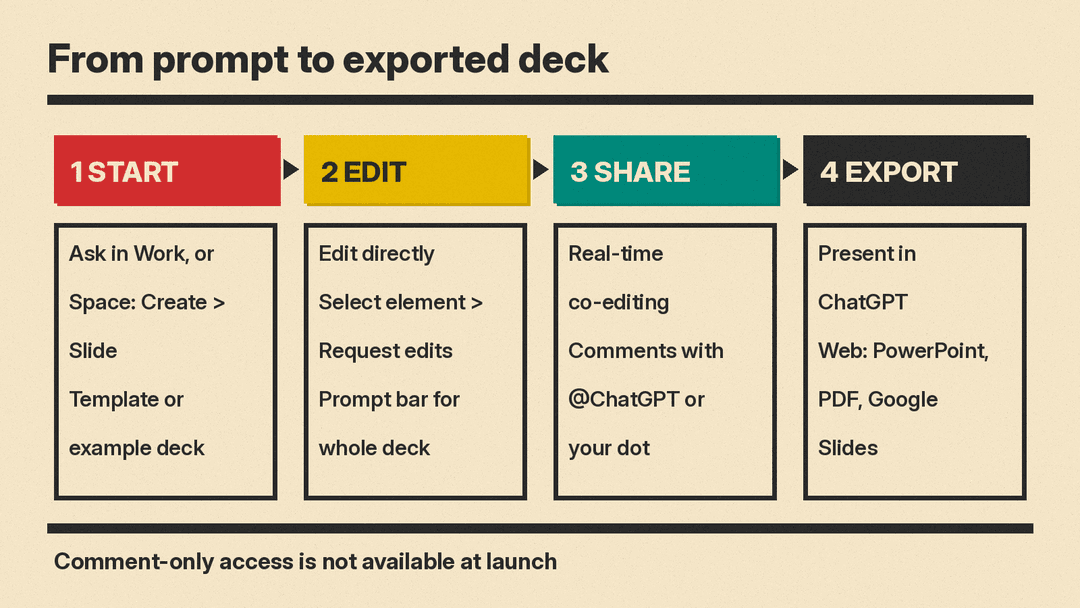
In Space, select Create, then Slide. Start from a blank slide or pick a template.
Using a template or example deck
You can start from a template in either Work or Space, or share an example deck so ChatGPT copies its style and layout. OpenAI's sample prompt is:
"Create a six-slide project update from these notes. Cover progress, risks, and next steps. Use the my project update template to guide the style and layout."
The help article adds that you can build your own templates with a tool called template-creator and share them with a team by including them in team Plugins. For a company with brand guidelines, this is the most useful setup step. Build one approved template, share it, and have people start from that template instead of a blank deck.
Editing a deck
You can edit text, images, shapes, tables, and charts directly. There are three ways to bring ChatGPT in:
- Element edits. Select an element, choose Request edits, and describe the change.
- Deck-wide edits. Use the prompt bar for changes across the presentation.
- Comment edits. In a shared deck, @mention ChatGPT in a comment so your agent makes the change. You can also @mention your dot, OpenAI's always-on agent, which launched in the same September 29 release notes.
OpenAI's examples for prompt-bar requests include shortening a slide, updating a chart from new data, and revising the layout.
Fonts depend on where you are working. On the web, the font picker shows fonts available in your browser. On desktop, ChatGPT can use fonts installed on your computer. If your brand font is installed on your machine but not available in the browser, build or finish the deck in the desktop app.
Sharing and collaboration
Share a deck with teammates and anyone with edit access can work on the same slides at once. Shared comments support @mentions of colleagues.
One limit to know before you roll this out to a team: the help article says "Comment-only access isn't available at launch." You can't yet give a reviewer, such as a manager or a legal reviewer, the ability to comment without also giving them edit rights. If that matters, export a PDF for review instead.
Presenting and exporting
You can present straight from ChatGPT. On the web, you can export to:
- PowerPoint, to keep editing a .pptx file
- PDF, to share a read-only copy
- Google Slides, to keep working in Google's editor
On a computer with PowerPoint or Keynote installed, you can also open the deck in those apps. On macOS, you can show the file in Finder.
OpenAI tells users to "open the exported presentation and check its content and formatting before using it." Treat the export as a draft, especially if your company's template uses custom master slides.
Slides vs. other ways to get a deck out of ChatGPT
OpenAI now offers several overlapping paths, and the names are easy to confuse.
- ChatGPT Slides (this feature): collaborative decks inside ChatGPT's Space. Pro, Business, and Enterprise with Space access, rolling out.
- A PowerPoint or Google Slides file from Work: ChatGPT generates a file when you ask for one directly. Work access depends on your plan. The July 13 release notes say Work rolled out to paid plans except Free and Go.
- ChatGPT for PowerPoint: an add-in that runs in a sidebar inside Microsoft PowerPoint. OpenAI's July 6, 2026 release notes say it is generally available and "available to Free, Go, Plus, Pro, Business, Enterprise, ChatGPT Edu, and K-12 users, subject to plan limits and workspace settings." You install it from Microsoft Marketplace.
For a Plus user who wants AI help with decks today, the PowerPoint add-in is the documented option. For a team that already uses ChatGPT Business or Enterprise and wants one shared draft that several people and an agent can edit, Slides is the new option.
Practical uses at work
These are examples of tasks the documented features support. They are not OpenAI claims about results.
- Weekly project updates. Attach meeting notes or a status doc and ask for a short deck covering progress, risks, and next steps, using a shared team template.
- Sales and customer decks. Start from your approved pitch deck as the example, attach the account notes, and ask for a version tailored to one customer. Have a teammate review it in the same deck before exporting to PowerPoint.
- Turning a page into slides. If your team already writes project briefs as Pages in Space, ask ChatGPT to turn the brief into a presentation for a different audience.
- Updating charts. Ask ChatGPT to update a chart from new data instead of rebuilding it by hand, then check every number against the source.
- Handing off to Google or Microsoft. Build the first draft in ChatGPT, then export to Google Slides or PowerPoint if the rest of the company edits there.
Tips before you rely on it
- Check every figure. OpenAI's own guidance is to "review the text, figures, and layout before sharing or presenting your deck." Charts made from your data still need a human check.
- Set up templates first. A shared template does more for brand consistency than editing slide by slide.
- Ask your admin about sharing. On Business and Enterprise, workspace settings control what you can share, and Enterprise sharing in Space started as an opt-in preview, per the September 29 release notes.
- Plan reviews around edit access. Until comment-only access arrives, decide who gets edit rights and send a PDF to everyone else.
- Test on Windows early. If your company runs Windows 10 desktops, expect the desktop app to produce .pptx files instead of collaborative decks, and point people to the web version.
Bottom line
ChatGPT Slides turns ChatGPT from a tool that hands you a presentation file into a place where a team and an agent can work on one deck together. As of October 2026 it is limited to Pro, Business, and Enterprise accounts with Space access, it is still rolling out, and it launched without comment-only sharing. For teams already paying for ChatGPT Business or Enterprise, it is worth a pilot on one recurring deck, such as a weekly update, with a shared template and a human review before anything goes out.
